- Get Started
- Image & Video APIs overview
- Developer kickstart
- SDK quick starts
- Try it!
- MCP servers and LLM tools (Beta)
- VS Code Extension (Beta)
- Video tutorial library
- Programmatic asset management
- Programmatic upload
- Upload programmatically
- Create upload presets
- Auto upload
- Moderate images with AI
- Use AI to generate image captions
- Upload images in Flutter
- Upload images in Node.js
- Auto-tag images in Node.js
- Upload multiple files in Node.js
- Upload videos in Node.js
- Upload images in Python
- Auto-tag images in Python
- Upload videos in Python
- Upload images in PHP
- Upload images in Go
- Upload assets in a React app
- Upload assets in a Vue.js app
- Drag-and-drop uploads in React
- Upload assets in a Next.js app
- Upload assets with Server Actions
- Upload assets in Svelte
- Upload assets in a SvelteKit app
- Upload assets in a Remix app
- Upload images in Hono
- Use webhooks to remove backgrounds
- Upload images in Laravel
- Interaction with Cloudinary APIs
- Cloudinary SDKs
- Find your credentials
- Configure the JavaScript SDK
- Configure the React SDK
- Configure the Angular SDK
- Configure the Flutter SDK
- Configure Svelte Cloudinary
- Configure the Javascript SDK in Svelte
- Getting started with Cloudinary in Node.js
- Configure the Node.js SDK
- Configure the Python SDK
- Configure the PHP SDK
- Configure the Go SDK
- Configure the Vue.js SDK
- Configure the Next.js SDK
- List images in Next.js
- Lazy load images with Next.js
- Image fallbacks in JavaScript
- Captioning on upload with Node.js
- Delete assets with Node.js
- Manage images in a Django app
- Cloudinary CLI
- Widgets and tools
- Programmatic upload
- Optimization and delivery
- Transformations
- Get started with transformations
- Advanced transformation features
- Text overlay transformations
- Complex transformations
- Named transformations
- Named transformations using TX Builder
- Advanced image components
- Trim videos in Node.js
- Splice videos in Node.js
- Zoompan effect
- Video transformations
- Crop and resize images in React
- Crop and resize videos in React
- Crop and resize images in Python
- Remove backgrounds and add drop shadows
- AI generative fill in Next.js
- Color accessibility in JavaScript
- Transformations for social media
- Dev Hints on YouTube
- Dev Hints en Español
- Cloudinary Café Training Sessions
- Programmatic asset management
- Additional onboarding resources
- Guides
- Cloudinary Image
- Product overview
- Image transformations
- Image transformations overview
- Resizing and cropping
- Placing layers on images
- Effects and enhancements
- Background removal
- Generative AI transformations
- Face-detection based transformations
- Custom focus areas
- Transformation refiners
- Animated images
- Transformations on 3D models
- Conditional transformations
- User-defined variables and arithmetic transformations
- Custom functions
- Image optimization and delivery
- Programmatic image creation
- Product Gallery widget
- Media Editor widget
- Image add-ons
- Cloudinary Video
- Upload
- Asset management
- Account management
- Retail and e-commerce
- User-generated content
- Accessible media
- AI in action
- Native mobile
- Add-ons
- Advanced Facial Attributes Detection
- Amazon Rekognition AI Moderation
- Amazon Rekognition Video Moderation
- Amazon Rekognition Auto Tagging
- Amazon Rekognition Celebrity Detection
- Aspose Document Conversion
- Cloudinary AI Background Removal
- Cloudinary AI Content Analysis
- Cloudinary AI Vision
- Cloudinary Duplicate Image Detection
- Google AI Video Moderation
- Google AI Video Transcription
- Google Auto Tagging
- Google Automatic Video Tagging
- Google Translation
- Imagga Auto Tagging
- Imagga Crop and Scale
- Perception Point Malware Detection
- Microsoft Azure Video Indexer
- OCR Text Detection and Extraction
- Pixelz - Remove the Background
- URL2PNG Website Screenshots
- VIESUSTM Automatic Image Enhancement
- WebPurify Image Moderation
- Cloudinary Image
- References
- SDKs
- Release Notes
Responsive images
Last updated: Apr-23-2025
Responsive web design is a method of designing websites to provide an optimal viewing experience to users, irrespective of the device, viewport size, orientation, or resolution used to view it. A site designed responsively adapts its layout to the viewing environment, resizing and moving elements dynamically based on the properties of the browser or device the site is displayed on.
A responsive web design is developed with fluid grids, flexible images and media queries to produce a layout that dynamically adapts to the user's viewing environment. For images to be flexible, they need to dynamically adjust their resolution (and sometimes format, quality, or even content) on the fly. To learn more about responsive design see the additional resources section.
An example of responsive web design
The following sets of images demonstrate how responsive web design can be applied. Resize this browser window to see how the layout and images (including the text overlays) dynamically respond to the changes.
4 columns
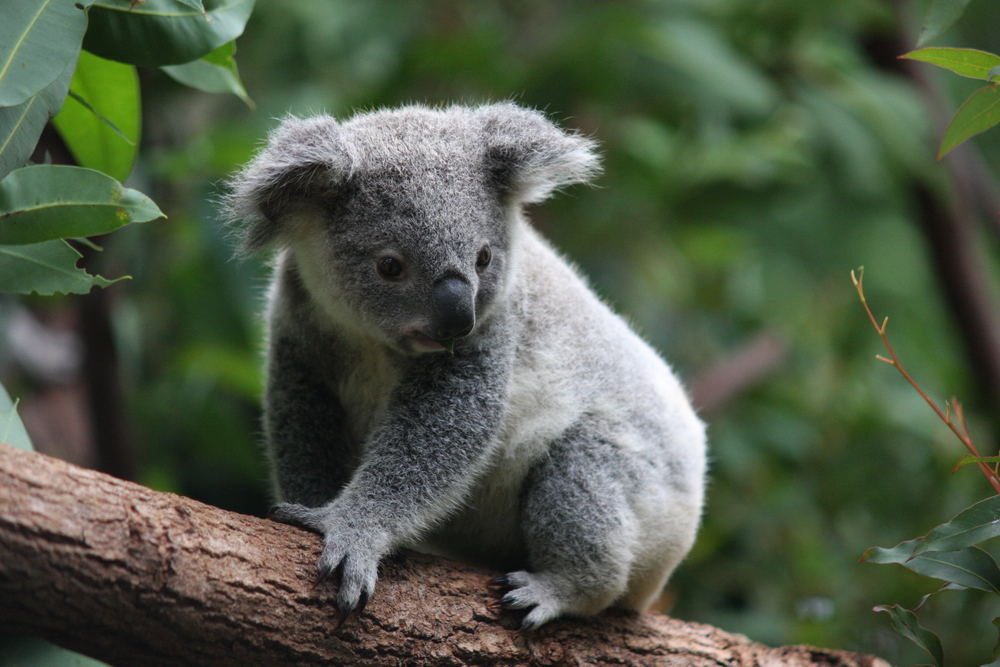
4 columns changing to 3 columns, then to 2 columns as the page width narrows

3 columns changing to 2 columns, then to 1 column as the page width narrows

- This example uses the cloudinary-core JS library solution.
- The text overlays change based on the DPR of the device and the width of the delivered image (
l_text:Arial_18_bold:dpr_auto%0Aw_auto).dpr_autoandw_autoare replaced with the actual values on the client side based on the screen properties and viewport width. - When the browser width is wide, the first images delivered are smaller in dimensions. As you make the browser narrower, the individual columns get more space on the next breakpoint, so larger images are requested to fill the larger available space.
- The change in overlay width indicates that a new image was requested and displayed.
- When increasing the width of the page, as the largest version with the best resolution was already requested and delivered, that version is used and scaled down on the client side, so the overlays don't change back.
- The
dpr_autoandw_autotransformations are not effective if used in named transformations.
Responsive solutions using Cloudinary
When it comes to images, a responsively designed website should not just send a high-resolution image and then use browser resizing to display the image on various devices: that would be a huge waste of bandwidth for users on small, low-resolution displays. The image should be prepared in various resolutions, so that the requesting device can load only the image data that it needs. However, generating multiple, alternate resolutions of each image manually results in complex, time-consuming workflows.
Cloudinary has various solutions to help reduce the complexity of delivering responsive images. Choose the one that best suits your environment and application:
| Solution | Description | Key Benefits | Possible Downsides |
|---|---|---|---|
| Responsive images using HTML and dynamic image transformations | Use Cloudinary dynamic URLs to generate transformed versions of images (e.g., resized or cropped) on the fly that can then be used in the HTML srcset attribute of <img> or <picture> elements.The browser decides which of the image versions to display. |
✅ Images delivered via well-authored markup are correctly sized and load as fast as possible. ✅ Best option for improving the Largest Contentful Paint time. |
💡 Multiple-URL, layout-dependent markup can be complex to write and difficult to maintain. |
| Responsive images using JavaScript frontend frameworks | If your app is written in a JavaScript framework, such as React, Angular or Vue, you can programmatically set the <img> src URL with a Cloudinary dynamic URL that delivers the optimal image for the available image width. This is a client-side solution. |
✅ Loads correctly sized images via a single URL. ✅ Markup does not depend on layout. |
💡 Delays image load start and may negatively impact paint times. |
| Responsive images using the cloudinary-core JS library | This is a pure JavaScript solution that not only delivers the optimal image for the available image width, but also takes into account the viewing device's DPR. This is a client-side solution. |
✅ Loads correctly sized images via a single URL. ✅ Markup does not depend on layout. |
💡 Delays image load start and may negatively impact paint times. |
| Responsive images using client hints | This solution delivers the optimal image based on the available width and device's DPR reported in the Client Hint request headers. This is a server-side solution that currently only works on Chromium-based browsers. |
✅ Loads correctly sized images via a single URL without delaying image load start, offering optimal performance. | 💡 Still requires a sizes attribute, which depends on layout and can be difficult to author and maintain. 💡 Incomplete browser support. |
| Simple global responsive resizing | For quick and easy responsiveness that affects any delivered image that is not otherwise being resized, apply the default width limit in the optimization settings of your product environment. The size of the delivered image is determined by the requesting device. | ✅ Easy to set up. ✅ No code necessary. |
💡 Only two sizes delivered, so images could be optimized more. 💡 Available to certain plans only. |
Combining responsive automation with other Cloudinary features
In addition to automating resizing, Cloudinary offers a number of other automation features that you can combine with your responsive image solution:
- Automatic format selection: automatically deliver the best format according to your user's browser.
- Automatic quality selection: automatically determine the best compression level and optimal encoding settings for delivering an image with good visual quality and minimal file size.
- Automatic gravity selection: automatically find the optimal region to focus on while cropping, especially useful for art-directed responsive images.
Responsive images - additional resources
Blog posts:
- Introducing intelligent responsive image breakpoints solutions introduces an open source tool for automatically generating the optimal responsive image dimensions.
-
How to automatically create images for Responsive design describes an automated solution for responsive images using the
w_autoparameter and the jQuery plugin. -
Responsive images with 'srcset', 'sizes' and Cloudinary gives information on correctly using the HTML
<img>tag and its parameters to deliver responsive images. -
Automatically art-directed responsive images shows how to use the HTML
<picture>tag to create art-directed responsive images. - Automatic image scale and resolution with Client Hints
- Responsive Images Guide, Part 1: What does it mean for an image to be responsive
Tools:
- Responsive Breakpoints Generator - an open source tool for automatically generating the optimal responsive image dimensions
External resources: