Showing posts with label iOS. Show all posts

Wednesday, October 8, 2014

iOS METAL Graphics iPhone 6 Plus versus HTC ONE (M8) SnapDragon 801


With the release of iOS 7 and iOS 8, Apple introduced a new bare metal graphics API. This new framework promises to give iOS an edge in mobile gaming. So how does it compare to a standard Android Flagship running something like the SnapDragon 801 SoC? The new A8 chip on the iPhone 6  Plus is indeed a powerhouse. Well, I took it for a spin and compared two cross platform games that has Metal support on iOS. These are merely screenshot comparisons as I played some games on both platforms.

I think comparing the HTC ONE M8 to the Apple iPhone 6 Plus is a fair comparison. Both are driving 1920x1080p resolution. Both were set at full detail max resolution gameplay.

Asphalt 8: Airborne and Beach Buggy Racing.

The differences on Gameloft's Asphalt 8 is very hard to tell. You really have to look for it and I don't think it really makes a compelling difference in gameplay. Yes, there are some differences but again, you really have to look for them.

Here are some screenshots.

On the first track, at launch, you can see the iPhone has some extra details. The other racer's launch usually has a flamed induced burn-out. Everything else is the same. The texture mapping and polygon count on both platform are the same. You are not going to see anything majorly different.

iPhone 6 Plus


HTC ONE M8


Saturday, September 27, 2014

Coolest SSH Terminal Client App for any Smartphone iOS - CATHODE


This has got to be the coolest iPhone SSH app. In fact, it is the coolest SSH client on any mobile smartphone. It is called Cathode.

Notice, how I did the BASH test for shellshock on my new iPhone 6 Plus in the screenshot above!

Last year, I reviewed the Desktop version and I said if they ever made an iOS version, I would buy it. And I did. Cathode is a retro, fun SSH client that mimics and old Cathode Tube monitor. The kind you had back in the late 70s and mid 80s. The little details are great. For example, the reflections in the screen moves along with your gestures. There is burn-in effects and flicker. I love this little app.

This app wouldn't be good unless it supported what you needed in an SSH client - keyboard function along with SSH Key authentication support. The effects are fully adjustable and customizable.

Here are some images for your enjoyment.


iPhone 6 Plus in landscape mode. Here, I am connected to my FreeNAS box.


This is one of those cool iOS only apps and it is made better on the larger 5.5" iPhone 6 Plus.

Link: https://itunes.apple.com/us/app/cathode/id656982811?mt=8


Wednesday, August 6, 2014

iPhone is still an awesome SysAdmin tool. Literally fighting and warding off hackers with an iPhone.


As many of my readers know, I carry two phones. An iOS and an Android phone. However, when it comes to any real work, I use my iPhone. It has been very reliable and I've been using different versions of the iPhone to avert disaster in the last 7 years. Sure, many of these things you can do with Android. However, I have had problems mostly with VPN connectivity. As many already know, Android did not support IPSEC group cisco-vpn for many, many years. Thus, I've been using iOS as my go-to device. The largest screen in the world can't help you if you don't have connectivity access.
I also prefer some of the iOS equivalent apps. For example, Connectbot and JuiceSSH are no equivalent to iSSH.

Well, here is an example I would share with some of my readers why the iPhone still rocks!
Typical crisis scenario: Waiting in line for the latest movie, Guardian of the Galaxy, and the phone is ringing off the hook with NAGIOS notifications. NAGIOS is telling you that some servers are degraded or offline. You can either rush to the car or back to the office or.... Server meltdown and crisis needs to be fixed ASAP. What do you do? Well, that has happen to me on many, many occasions. When it does happen, I rely on my iPhone. It also happend over the past weekend.

I use NAGIOS which is an enterprise grade network and intrusion monitoring. And boy, I constantly get text and email messages for down servers or degraded services. You know, the kind where Russian and Chinese hackers are chomping away. It is good to SSH in and apply a firewall rule just like that. I can restart services or launch redundant failovers.


Besides sysadmin duties, there are plenty of other scenarios where it comes in handy. Often times, I may be at lunch and a client wants me to export a MySQL report into an Excel spreadsheet. Easy. MysqlDump the query to a CSV delineated file then convert into Excel .XLS on the iPhone. And yes, I do this on a small 4" screen. iSSH has really good multi-touch gestures that makes up for a smaller screen. I actually prefer using iSSH over JuiceSSH on my HTC ONE M8. Thus, you can see why I a still a dedicated iOS user.

The other day, a client's email server was getting hammered with a brute dictionary attack. Within 15 minutes, I installed Fail2Ban and scp (Secure shell copied) a working configuration that monitors SASL intrusion with my iPhone. The attack was a coordinated brute force password "guessing" on the SMTP mail server. They hit the servers hundreds of times per second so that the server can't handle regular requests. With my iPhone, I logged in via SSH and scp a working /etc/ config (from another server) and bam, Fail2Ban was monitoring the mail logs and blocking African, Russian, and Chinese hackers in real-time. All of this was done in real time. And it was done using an iPhone.

Fail2Ban is actually very cool but that can be a different subject on a different blog post. Basically, it is a POSIX daemon that monitors log files and can be configured to block malicious intruders. You can configure it to monitor different services and if there are so many attempts (say 3-4), you can deny them via deny-host of through a firewall IPFW rule. If this sounds all alien to you, lets just say, all you need is console access to install, configure and set-up.


If I can get root and shell access, I can handle crisis like this with my 4" wonder gadget. Another crisis averted. So the point is, devices are tools and you make it is what you want it to be. Thus, I still get a laugh when people say you can't do real work on a mobile device.

Wednesday, April 10, 2013

App Store Generation


The app-store generation is here. The other day, I was at Frys looking at their selection of kids learning software. 20ドル-30ドル for cd-rom based software. Worst, many of these applications were designed 15 years ago for Windows 95 and MacOS 8.6.

How the hell do stores get away with selling this stuff? They are not alone, I found similar disparities at other "office" retail outlets.

These apps were designed in the Macromedia Director days where multimedia cd-rom was the big thing. I remember, I used to develop some of those "educational" titles.

Fast Forward to 2013 and you now have a different climate altogether. My kids prefer playing on the iPad versus running a virtualized Windows 98 session to see Mickey Mouse. Many of those apps don't work in 64 bit environment and my video cards have a hard trouble of going to 256 colors and 800x600. Apps on the Apple App stores range from free to 5ドル for a high quality title from publishers like Disney.

For example, the Lightning Mcqueen Cars' and Toy Story reading book app cost 1/5th of a similar CD-Rom title. Moreover, the mobile apps outclass their desktop counterparts in terms of features, useability and interactivity.

This brings me to meat of my post. The app-store model will be the prevailing model for this generation. There is no denying that there you get better selection, flexibility and ease-of-use.

I've been visiting and touring private elementary schools (25ドルK+ yearly tutitions) and I see a trend with them moving over to tablets as well. It is simply cheaper to run software applications on a tablet than a desktop computer.

There are some apps that have no desktop counterpart. Many of the Astronomy apps use gyroscope, GPS, the built-in cameras, and augmented reality to teach you celestial astronomy. Simply point your iPad to the night sky and spend a few hours with your children exploring different star systems. And the app itself cost less than 6ドル.

No wonder Tablet sales are exploding.

Wednesday, January 9, 2013

iCade Jr for iPhone Review. Awesome retro goodness in a small package


I've always raved about the iCade cabinet for the iPad. I simply love mine. See my earlier posts on it. Now, ION, has made the iCade Jr. specifically designed for smartphones. Advertised for the iPhone 4 and previous iPod touches, this retro game controller/dock/cabinet also works with some Android phones and the iPhone 5 (with caveats).

For comparison, here it is next to the full sized iCade (for iPad and tablet).


It works awesome just as a stylish desktop dock accessory. You can route a USB charging/data cable underneath and have it simply sit on your desk.


The operation is very simple. This is a bluetooth device and all you need to do is pair it with your phone. There are games that are compatible and designed to work with the iCade controller. ION has a list of games that are compatible with the controller.

As I said earlier, this device works with other phones beside the iPhone 3GS/4/4S. You can use it with the iPhone 5 and other smartphones (of similar dimensions) by simply flipping back the top cover. It is not as pretty as an enclosed case but it works. If you are on Android, this dock may only work with phones with similar width dimensions as an iPhone. Moreover, the only supported iCade game app I know for Android is MAME4ALL.

Here it is with the iPhone 5 running some MidWay arcade classic games, Defender.


It is also designed to work in landscape mode. Here I have Namco's arcade versions of Galaga and Pacman.


And if you have MAME4ALL installed, you can play hundreds of retro mame games as well.


I gotta say, after a few minutes of playing with it, it is one cool retro toy to have around. This is great for old phones you have lying around that you don't use anymore. I plan to either use my old iPhone 4 or HTC Droid Incredible (fits perfectly).


Link: ThinkGeek's iCade Jr Product Page.

Monday, December 31, 2012

repost: Awesome retro accessory for your tablet

When I first started this blog, I was raving about how great this accessory is. Well, I got another one and I can say this is still one of the best gadgets to get a tablet user. I figure I'll repost why I love this gadget.

The iCade retro arcade cabinet for your tablet (works with iOS, Android, and webOS). Works off bluetooth and is compatible with many games; specifically MAME.

Running old school Mame games like Zaxxon, Dig Dug, Donkey Kong and Street Fighter is totally cool. It also makes a great display fixture for your man cave.


Running MAME off a smartphone (Galaxy Nexus)


Friday, November 16, 2012

Target Display Mode on Macs


I've written about Apple hardware has the unique ability to boot off another mac as an external drive. This is called Target Disk Mode and it is a great feature dating back over 10 years. You can read it here on my blog.

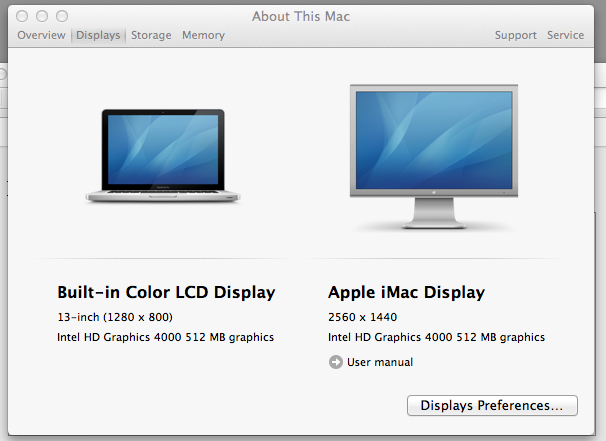
However, since late 2009, Apple now lets you use another Mac's monitor, specifically the 27" iMac varieties, as a secondary display. With a cable and a keyboard press, an iMac can be re-used as a second monitor.

This feature is aptly called, Target Display Mode. Apple posts info on it here: http://support.apple.com/kb/HT3924

Plug in a Thunderbolt/MiniDisplayPort cable on a macbook and connect to an iMac.
Then press Command-F2 on the iMac. Voila. a Spanning display for Macbook Pros and Macbook Airs.


Now, Apple needs to implement on this on iOS devices. In an earlier blog post, I wrote about using an iPad 3 as a portable Cinema Display Monitor-to-Go using software.

With the new digital Lightning connector on the iPhone and 4th gen iPads, they need to add Mobile Target Display Mode Pronto!

Imagine it below as it is pictured below (using Air Display). 2048x1536 via Thunderbolt-to-Lightning would kill off any DisplayLink adapters/hacks.


Tuesday, October 30, 2012

5 great iPad apps for Web Developers

I am often asked if the iPad can be used for real work. The iPad has been called a "recreational" tablet and it lacks a real productivity suite according to many detractors. Well, I don't use Microsoft Office in my day-to-day work activities so the appeal of a Surface RT like device does not appeal to me.
However, I do use an iPad because of its great connectivity features: LTE 4G, the ability to access Cisco IPSEC VPN, great remote access apps in the form of SSH, SFTP, X11, RDP, and VNC.
I use it in my data center to diagnose database servers, apache web servers, write code, fix problems in our network infrastructure. It has become part of my work tools.

Is an iPad a replacement for a laptop? It depends on what you use it for. I can attest to the great ability to quickly login remotely and fix something be it configuring a firewall, updating a MySQL database remotely, or executing a bash script. In short, it is definitely a tool in my arsenal I use for work. And quite frankly, I don't think there are much compromises.

Today, I am going to share some of those apps I use. I am going to concentrate on some great web development apps.


I am going to concentrate on these apps:
iSSH, Gusto, Textastic, MySQL Mobile Database Client, and iMockups


There are many other great apps but I only want to cover 5 for brevity. In fact, one can choose other mySQL clients, mockup and diagramming apps but I wanted to show apps that take advantage of the iPad's real estate. I've seen many other apps on other platforms that are simply "blown-up" phone apps and that is not the way to go on a tablet.

iSSH

If there is only one app I have to rely on, it would be iSSH. I have used it for many years and it has saved my butt on many occasions. It is an awesome SSH client (and can even be used as an X11 client). I've been called up in the middle of the night to reboot servers or restart dead daemon services. In short, it simply works. You can even use SSH keys. But the killer feature is the transparent keyboard and floating multi-gesture pop-up programmable cursors for use in the shell.

Like I said, if there was only one app to choose, this would be it. All I need is console access with VIM and nano and I'm set. I cannot stress how important the multi-gesture buttons are. When you are typing on a screen soft keyboard, you can quickly tab or arrow-up in an instant. It helps when you need to type really quickly in the console. For example, typing in service stop, I can quickly arrow up to repeat the command and service start. That is intuitive for someone who uses the shell and is acclimated to using arrow buttons on a keyboard.


Text Editors/IDE: Gusto & Textastic

Next, there are two text editors you should look at for the iPad. Gusto and Textastic. I originally used Textastic because it was the first text editor to support SFTP. This is important because all my servers are *NIX based (Linux/FreeBSD). Both have their strengths and weaknesses. Gusto now supports SFTP which gives it feature parity.

If you ever used Sublime 2 or themed your text editor in the Guber/Solarize themes, you will love both apps. Both can color code to make it extremely pleasant to read and edit code.

Both apps give you a full screen view and a file explorer panel view. Textastic is easier to swap views whereas the switch in Gusto is hidden in a modal dialog setting.

Here are screenshots of Gusto.


Now, the key feature Gusto has over Texstatic is the ability to organize by projects. You get visual thumbnail representations and each project are isolated from one another. In Texstatic, everything is seen in a directory view and you isolate your projects by subfolders.


Here are Texstatic screenshots:


Now, the one key killer feature that Texstatic has over Gusto is a built in Firebug option for the local preview. Firebug is pretty much essential for desktop developers. It is great to see it on a tablet.


With Firebug and a web inspector, you can analyze console javascript errors and evaluate DOM objects.

With Texstatic, you can pretty much use the iPad as a standalone device to develop HTML5/Javascript apps.
You only need access to a remote server in the case of developing Ruby/Python or PHP web apps. And the connectivity options will ensure you can connect easily to any Linux or VPS *NIX servers.
With an external keyboard, this makes the iPad an incredibly powerful and productive device.

Both apps with have their fans. Both are good at updating remote code when you need to.

For uber cross-platform geeks, both apps are easily accessible by Linux distros. This is pretty important when compared to other devices on the market that have problems in Linux due to MTP. The iPad was pretty much plug-n-play on Ubuntu and Linux Mint. Dropping, copying, and synching files between Ubuntu and iOS 6 is a sweet.


The only thing that would both these two competing apps complete would be to include a version control mechanism. It would be awesome to have GIT capabilities in either apps.

MySQL Clients

There are countless number of good MySQL clients on the iTunes app store. I can't list them all so you need to test and try the one you like best.

MySQL Mobile Database Client is a fairly decent one that works pretty well. I often use just iSSH and access MySQL in the terminal but I understand people like GUI clients.

Once again, this apps shows the strength of iOS in terms of tablets specific apps. This app intuitively takes advantage of the screen instead of just blowing up a single column smartphone view/layout I've seen on Android.

You can quickly select tables, view individual rows and edit them. You can also manually make queries to your heart content. I've used this apps several times when clients call me in the middle of lunch to manually over-ride or update a record.


Mockup Apps; iMockups

Lastly, there are many apps to help you visualize and markup ideas. There are dozen of great apps to allow you to flow-chart, diagram ideas. I often use TouchDraw (it was cheap) and then there some apps that go beyond flow-charting and making UML diagrams. One of those apps is iMockups.

iMockups won't make you a fancy flow-chart but it will let you quickly prototype your ideas in an interactive presentation for client approvals. This app can be used to visualize web and iOS mobile apps.

You simply drag elements of a web view and define their interaction. You can use this quickly visual a HTML form or database recordset results. Or you can design a navigation toolbar and it will actually be interactive and go to the page/slide you want to show next. I've seen many web producers use tools like Powerpoint and Keynote to do this but it ends up taking longer. With this apps, you simply drag the page elements and is actually very productive.


All these apps cost money. That is one of the major difference against other ecosystem. I am certain you can find some free equivalents. Great quality apps tend to cost money and I am more than willing to pay if it helps me. I can pretty much say many of these apps have already paid themselves off in emergencies. The ability to enjoy my lunch at a restaurant without rushing back to the office to make a SQL update is priceless. The ability to add a host deny rule using iSSH on my servers in the middle of a D-O-S (denial of service) attack is another priceless example.

There you have it. Some great apps for your recreational tablet to do some work. I will write some more articles like this for other use cases. So the next time someone says the iPad can't be use for work, these apps can prove them wrong. These apps also show the strengths of the iPad vis-a-vis their competitors. Tablet specific and tablet design apps make a big difference.

If you do a search on the Microsoft Metro store for the Surface RT as of this writing, good luck finding a SFTP/SSH client.

Once again, the links to these apps:
iSSH, Gusto, Textastic, MySQL Mobile Database Client, and iMockups


Thursday, October 4, 2012

iPad / iPhone connect with FreeNAS (or any *NIX)


I've been asked how I connect an iOS device (iPad/iPhone) to a FreeNAS box. Well I'll answer that question in this post.

There are many apps in the app store that will allow you to connect to FreeNAS (or any NAS/*Nix) box and I'll share some of the apps I use.

Mounting and Remote Server File Access.

The main app I use to connect to a FreeNAS is Files Connect. I pretty much use it to connect to all my servers because it supports pretty much everything I need - CIF/SAMBA, AFP (Appletalk/Netatalk), and SFTP (SSH). It is a great AFP client for iOS!


It also supports the usual Dropbox, Google Drive, Box, FTP, and WebDAV.
I am able to copy files from and to the iPad/iPhone. I can transfer videos/photos from my camera roll to a network share. I can pull PDF and Photoshop .PSD files and view them remotely. I can pull in spreadsheets and other files and work with them remotely.

The other apps in the app store only support SAMBA so AFP and SFTP is a pretty big deal for me. It also supports SSH keys. The only thing it doesn't support is NFS and Rsync. However, for most people, Files Connect covers most of the bases.

It comes in handy when you want to make a new share mount. Instead of using the Web app ajax's terminal to make a folder, I log in as root and can easily make my share folders like you see below.


A few things that are cool:

You can zip and compress files. So if you want to send an email with a zip attachment, this works great. Collect a bunch of files into a folder. Compress, Send to Email.


You can add movie/video files to your camera roll. I was able to add random h.264 videos from my video share and import them into the camera roll which then allowed me to edit videos directly in iMovie. In fact, the other day, I was able to edit old VHS digitized videos on my iPhone 5 from my FreeNAS in this blog post.


If you have video files on your NAS, you can stream whatever iOS supports. This includes streaming H.264 MP4 files and I've had some luck with some AVI files. If they don't stream, you can copy to the local iPad and open in another app. I will go into streaming some more later in this post. I was able to stream 1080p 6GB files with no problem whatsoever.


Terminal Access.

There are a lot of SSH clients but the only one I use is iSSH. In my opinion, it is the best app out there for any mobile device. It also supports VNC and X11.
For an SSH client, it trumps everything else out there because it knows most mobile keyboards are limited and uses the touch screen multi gestures to make up for it.


(iPad above & iPhone screenshot below)


You can set transparency on the keyboard and there is a touch gesture that pulls up special keyboard control keys. On the iPhone, it is absolutely fantastic. Despite the fact other phones have 4-5" larger screens, the original 3.5" iPhone's SSH experience was by far more pleasant because you had more visible area while typing. I use the tab and arrow up/down quite a bit and the fact it is easily accessible makes it highly intuitive compared to an on Android like Connectbot.


Other apps.

An alternative to Files Connect is File Browser. I used this app quite a bit before Files Connect came out. It is strictly a SAMBA/CIF file explorer. It works for the most part and the GUI is more Windows like whereas Files Connect is more mac-like. In previous versions, you could not stream .AVI files. This newer one supports more streaming video format and has a new trick up it sleeve called QuickStream which will allow 3rd party video players to intercept the stream. Some video players already support this. This app also supports Airplay.


The last app I will cover in this post is O Player HD.

Out of all the apps I've mentioned, this is the only one that requires a separate purchase/download for iPad and iPhone. The others, you buy once and can use on both phone and tablet.


O Player is a 3rd party video player that supports XVID/DIVX AVI, WMV, RMVB, ASF, H264, MKV, TS, M2TS. It is a so-so video player. It works but there are many others I would recommend over this one.
The only reason I got it was because of the SAMBA streaming functionality for non iOS default video codecs. If all of your video is H.264, you won't need this app.
This app also supports TV-out and Airplay. So in essence, you can stream from your NAS and stream back to your TV via airplay.


The only thing missing from this post is some sort of synchronization app. I haven't found one I liked and I pretty much use PogoPlug to automatically synch/backup my camera photos from my iOS and Android phones.

There you have it. Some good apps on connecting to your FreeNAS (or any *NIX computer) using your iOS device. When your Android friends brag about their external SD card, you can show them your 10TB FreeNAS box full of streamable videos and music on your iOS device.

Links:


iSSH
http://itunes.apple.com/us/app/issh-ssh-vnc-console/id287765826?mt=8

Files Connect
http://itunes.apple.com/us/app/files-connect/id404324302?mt=8

File Browser
http://itunes.apple.com/us/app/filebrowser-access-files-on/id364738545?mt=8

O Player
http://itunes.apple.com/us/app/oplayer-hd-best-video-music/id373236724?mt=8

and last but not least, FreeNAS
http://www.freenas.org/


Subscribe to: Comments (Atom)

AltStyle によって変換されたページ (->オリジナル) /