What is it?
Well, it is one of the few shipping Thunderbolt docks. There are a few on the market, the Matrox and the Belkin but what separates this is the feature-set and price of 199ドル.
It has three SuperSpeed USB 3.0 ports, audio I/O, Gigabit Ethernet, HDMI and dual Thunderbolt. The second Thunderbolt port can be used for daisy chaining. This could be the first device on your chain and you can chain drives and accessories afterwords.
The competition:
Now compared to the Matrox DS1, the Matrox has only one USB 3.0 port and two USB 2.0. It comes in either DVI-D or HDMI. It almost matches the Caldigit but comes short of only one Thunderbolt port. Meaning, it will be the last device on the chain. The Matrox retails for the same 199ドル.
The Belkin Express Dock is a much more expensive affair. About 100ドル more, it comes with Firewire but lacks a dedicated video out. You can use one of the Thunderbolt ports for video (using a miniDP adapter) but that means, it will be the last device on your Thunderbolt chain. The question now, is Firewire worth 100ドル to you while sacrificing a Thunderbolt port for video? I didn't think it was worth it so I ended up with the Caldigit. Moreover, the Belkin caps the USB 3.0 at 2.5 Gbps where as the Caldigit supports the full 5.0 Gbps speed along with UASP.
There is also the Apple Thunderbolt Cinema Display with it's wide array of ports. I already have a 27" monitor so 1000ドル for a docking station is a bit superfluous.
Usage
With a single Thunderbolt cable, you have a the ability to expand and dock a Macbook Pro/Air with ease and simplicity. The only other cable you need is a power cable and you pretty much have a complete Mac based docking solution. Everything else can be hidden from view. A very elegant solution if you are the type who does not like desk clutter.
Before, I would have something like this on my Retina 15" Macbook. Both sides cluttered with wires. Thunderbolt connected RAID drive, Thunderbolt gigabit, HDMI monitor, USB 3.0 Time machine drive, and a Kanex USB 3.0 hub for extra accessories.

Now, I have this.

Sure my desk is still cluttered but I only have two cables (power and Thunderbolt) coming out of my Macbook Pro. Now, it is just a matter of cable management.

The back USB ports are widely spread apart where you can easily add chunky USB pen drives and other girthy USB devices. This is a big plus in terms of design.

USB 3.0 Speeds
One of the issues with the Belkin Express dock was the fact it dropped USB 3.0 speed to 2.5 Gbps instead of the max theoretical 5 Gbps. Moreover, the Caldigit dock is advertised as being UASP (USB Attached SCSI Protocol) compliant.
How does it fare?
Surprisingly well! I tested this on my 2013 15" Macbook Pro Retina, 2012 Ivy Bridge 13" Macbook Pro, and late 2011 27 iMac (without USB 3).
An Oyen USB 3.0 enclosure housing a Samsung 830 SSD with ASMedia USB 3.0 chipset (one of the fastest on the market) produced 247 MB/sec writes and 153 MB/sec reads through the Thunderbolt dock connected to my 13" Macbook Pro.

For comparison, the same drive connected directly to the USB 3.0 host of the Macbook Pro 13.

OK, so both my Macbook Pros have USB 3.0. So what is the big deal this dock? The big deal was moving this over to my 2011 iMac which doesn't have USB 3.0. This is a Sandy Bridge iMac with just Thunderbolt.

Here is the iMac using the Caldigit Thunderbolt Station connecting to the same USB 3.0 Oyen drive.


Big Difference!
Synthetic benchmarks are fine but how does this perform in the real world is what matters most. I connected two USB SSD drives (Samsung 256GB 830 and a 240GB 840) both to the Thunderbolt Station connected to the iMac.

The results were surprisingly good. Obviously, there will be some CPU overhead with USB. 20GB of MP4 movies took less than 2 minutes to copy.


On average, I was getting sustained 200-250 MB/sec transfers copies between drives.
On the iMac, it shows up a 5Gbps USB 3.0 controller.

And the proper USB Attach SCSI (UASP) kext do indeed load up when it is connected to an UASP enabled USB drive.

Multiple Displays
This subject seems to bring up some controversies and more questions. First and foremost, this device will only support whatever your GPU supports in term of maximum displays. For example, my Macbook 13" can only support one more external display whether it is HDMI (1080p) or 2560x1440 via Thunderbolt/DisplayPort.
Now when it comes to the 15" Macbook Retina, there is definitely some confusion. Out of the box, it has been stated online, it supports either HDMI or Thunderbolt. I've read that it doesn't support dual HDMI. I'm pretty confused myself with conflicting statements I've been reading.
After various tests, I was able to get 3 to 4 displays running total on a 15" Macbook Pro Retina.
As for three to four displays, it is possible with a caveat. You either connect to the second Thunderbolt port on the Macbook or use another Thunderbolt device with daisy chain port at the end of your chain.
Sound confused? It is better to illustrate with pictures.
In this picture, I have a 27 inch 2560x1440 Dell with DisplayPort. Next, I have a 23" 1080p HDMI monitor in portrait mode. I am using a SINGLE thunderbolt cable to run both displays connected to the Caldigit Thunderbolt Station. It required another Thunderbolt device in the chain to pull this feat.

In order to get the 27" Display, I used a Seagate Thunderbolt Drive dock, It is connected to the Caldigit at the end of the chain and the Dell is connected via DisplayPort to the Seagate Dock (white cable). I could easily just plug the 27" Dell to my second Thunderbolt port on my Macbook to get the same effect.


Update: After a few reboots, I magically got this to run 4 displays.
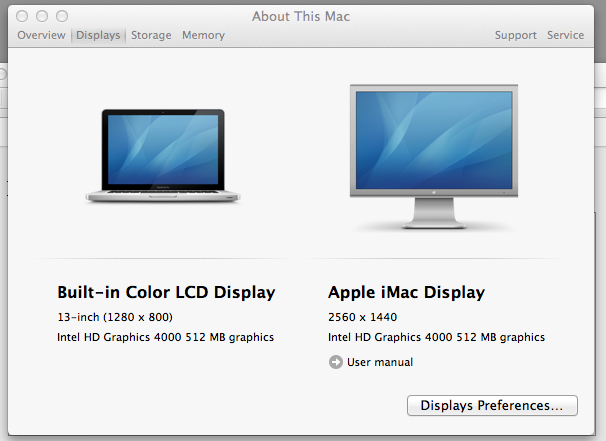
The 27" is connected to the second Thunderbolt port off my Macbook. The HDMI off the Caldigit Thunderbolt station is powering the 23" Portrait monitor. My onboard HDMI is powering the 4th display. The 4th monitor is my battery powered portable HDMI GeChic 2501M which only supports 1336x768.
This is strange considering all the documentation I've read stating the Nividia only supporting 3 maximum displays. It doesn't appear the built in INTEL GPU is powering the fourth display. I had to connect both HDMI onboard (and dock) as well as use my 2nd Thunderbolt port.
Judge for yourself.

Here, you can see the System Preference reporting all the displays.


Hence, I think there is some room for the FAQ/Specs to be more clarified. I think your mileage will vary.
Do not expect to connect a 11" Macbook Air and get the same performance as my 3500ドル loaded 15" Macbook Retina. The number of screens you can connect is dependent on your mac's GPU's capabilities.
Update concerning multiple displays: Please Read Apple's FAQ (http://support.apple.com/kb/HT5219#dispnum) on number of displays possible given your machine. Again, the CalDigit Station will not output more than what your machine is capable of.
SoundDo not expect to connect a 11" Macbook Air and get the same performance as my 3500ドル loaded 15" Macbook Retina. The number of screens you can connect is dependent on your mac's GPU's capabilities.
Update concerning multiple displays: Please Read Apple's FAQ (http://support.apple.com/kb/HT5219#dispnum) on number of displays possible given your machine. Again, the CalDigit Station will not output more than what your machine is capable of.
This dock uses a USB sound DAC. I have nothing to report on this. It works and it appears to be a TI based DAC that supports 2 channels.


Networking
I was a bit worried that the Gigabit may be USB 3.0 driven as well. However, it is good to know it is PCI based.

It does requires drivers for Mountain Lion which I assume is on the CD-ROM supplied. Since my Macbook Retina lacks an optical drive, I downloaded the drivers from the web. Note, the driver is not necessary when running 10.9 Mavericks. In fact, if you are running Mavericks, do not install any drivers.
The Caldigit's Ethernet port is a full 1Gbps true Gigabit network card.
Compared to the Apple Thunderbolt Gigabit adapter, it performs the same.
iPerf reports it hitting the Gigabit limits. Both devices hit 110-112 MB/sec which is the upper threshold of maximum Gigabit throughput after network overhead.

Conclusion
Overall, this is a handy device for owners of 2011/2012 Macbook Air owners. Those owners who have a single Thunderbolt port with no USB 3.0 ports. It allows those owners to have instant Gigabit and video with this handy device. Those owners would probably benefit the most from this device. It might be a tougher sell for others. For example, I have a 27" iMac with dual thunderbolt and no USB 3.0. I can't justify the purchase of this for just USB 3.0 on my iMac.
However for my Macbook Pros, I really like the convenience factor. The Caldigit Thunderbolt Station replaces all of these: USB 3.0 hub, HDMI, Ethernet, and sound DAC.

Importantly, I don't have tangling spiderweb of wires and to me, that is what makes this product worth it. Unlike dedicated docking solutions (like the ones found on my Thinkpads), this device won't easily be out-dated. It is not married to a specific computer or device. Future computers will be able to use it as long as Thunderbolt is a viable technology. As you can see below, it clearly help cleans up the clutter.

After cleaning up and better cable management, this is a much cleaner look.