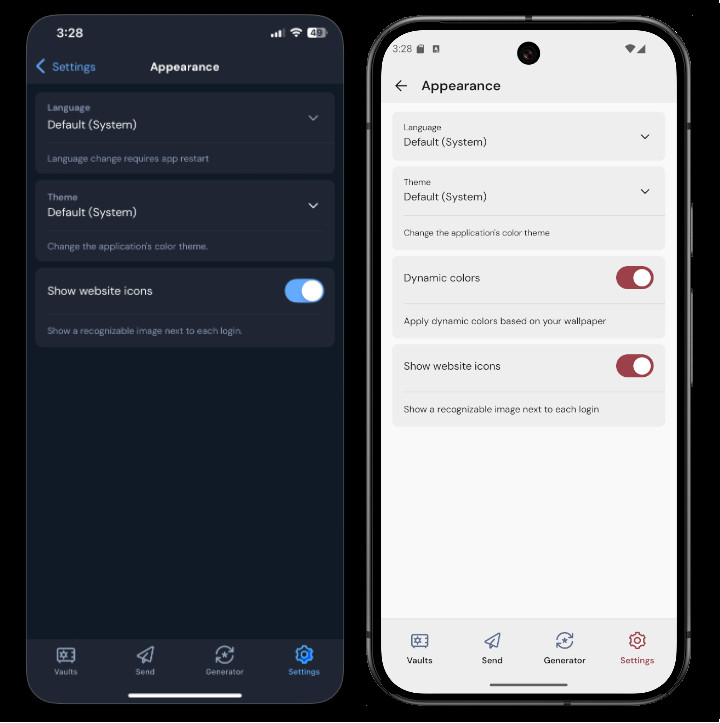
The Bitwarden web vault, browser extension, desktop app, and mobile app come packed with stylish themes. Browser extensions also include a few other appearance options:
To change the theme of your web app:
Navigate to Settings → Appearance:
Web app appearance
Web app appearance
From the Theme dropdown, choose your favorite theme and select Save!
To change the theme of your browser extension:
Open the browser extension's Settings tab.
Select Appearance.
Select theme browser ext
Select theme browser ext
Use the Theme dropdown menu to select your favorite theme.
Use the Extension width dropdown menuto change the browser's extension's dimensions.
Use Compact mode to increase the information density of what's shown in the browser extension.
To change the theme of your desktop app:
Open the desktop app's Preferences panel (on Windows, File → Settings) (on macOS, Bitwarden → Preferences).
Scroll to the App Settings section and use the Theme dropdown to select your favorite theme!
Change theme
Change theme
tip
Theme is set globally for all logged-in accounts in the desktop app. Learn more.
To change the theme of your mobile app:
Open the mobile app's Settings tab.
Tap Appearance.
Tap the Theme option to select your favorite theme: