This official feed from the Google Workspace team provides essential information about new features and improvements for Google Workspace customers.

rss_feed

What’s changing

For those who prefer to listen to document content, we’re excited to introduce the ability to create audio versions of your documents using Gemini in Google Docs.

Whether you want to hear your content out loud, absorb information better while reading, or help catch errors in your writing, audio versions of your documents provide you with clear, natural-sounding voices that read your documents aloud. You also have the option to customize your audio experience with a variety of voices and playback speeds to match your personal preferences.

This new feature includes capabilities for both authors and readers to listen to documents. More specifically:

Readers can access the Listen to this tab option, available in the Tools > Audio menu, to quickly listen to the contents of the current tab.


Authors can add Audio buttons, available in the Insert > Audio buttons menu, which inserts a play button directly into documents so readers can easily listen to the current tab with a single click. Once added to the document, authors can change the label, color, and size of the button.


Who’s impacted

End users

Why you’d use it


This new audio feature in Docs helps you engage with your content in fresh ways and can improve accessibility of your documents. Additional details This feature is only available in English and on desktop at this time.

Getting started


Rollout pace


Availability

Available to Google Workspace:
  • Business Standard and Plus
  • Enterprise Standard and Plus
  • Customers with the Gemini Education or Gemini Education Premium add-on
  • Customers with the Gemini Business or Gemini Enterprise add-on*
  • Google AI Pro and Ultra
*As of January 15, 2025, we’re no longer offering the Gemini Business and Gemini Enterprise add-ons for sale. Please refer to this announcement for more details.

Resources

Building upon the ability to generate images using Gemini in Google Docs on web, we’re excited to announce you can now generate images in Docs on your Android mobile device. Once you select the image, you can then save it, copy it, or insert it into a document. Visit the Help Center to learn more about using Gemini in Google Docs.


Rollout Pace

  • Rapid and Scheduled release domains: Gradual rollout (up to 14 days for feature visibility) starting on August 8, 2025

Availability

  • Available to Business Standard and Plus; Enterprise Standard and Plus; Google AI Pro and Ultra, customers with the Gemini Education or Gemini Education Premium add-on, and anyone who previously purchased a Gemini Business or Gemini Enterprise add-on


What’s changing

Beginning today, all users* can use Gemini in the side panel of Google Docs, Google Sheets, Google Drive, and Gmail, in seven additional languages:

  • French
  • German
  • Italian
  • Japanese
  • Korean
  • Portuguese
  • Spanish

Gemini in the side panel of Gmail in Spanish


With Gemini in the side panel of your Workspace apps, you can get help summarizing, analyzing, and generating content by utilizing insights gathered from your emails, documents, and more—all without switching applications or tabs. Check out our original announcements for Gemini in the side panel of Docs, Sheets, and Drive, and Gmail for even more information.

*Available for Workspace customers with a Gemini Business, Gemini Enterprise, Gemini Education, and Gemini Education Premium add-on.

Additional details

  • While Gemini in the side panel of Docs, Sheets, Drive, and Gmail, is generally available in these additional languages - as we keep rolling out more Gemini alpha features in the side panel, end users with Gemini alpha features turned on may continue to see the “Alpha” badge.
  • Image generation is not supported yet in these additional languages.
  • Gemini in the side panel of Slides is only available in English at this time.

Getting started

  • Admins: There is no admin control for this feature.
  • End users: You can access the side panel by clicking on “Ask Gemini” (spark button) in the top right corner of Docs, Sheets, Drive, and Gmail on the web. Visit the Help Center to learn more about collaborating with Gemini in the side panel of Docs, Sheets, Drive, and Gmail. Note that for accessing other Gemini for Google Workspace features that are supported in English only, you will need to set your Google Account language to English.

Rollout pace


Availability

Available for Google Workspace customers with a:
  • Gemini Business or Enterprise add-on
  • Gemini Education or Education Premium add-on
  • Google One AI Premium

Resources

What’s changing

In 2022, we introduced expanded support for composing with Markdown in Google Docs on web. Today, we’re introducing highly-requested features that enhance Docs' interoperability with other Markdown supporting tools. These include the ability to:
  • Convert Markdown to Docs content on paste
  • Copy Docs content as Markdown
  • Export a Doc as Markdown (from File > Download)
  • Import Markdown as a Doc (from File > Open or "Open with Google Docs" from Drive)

Who’s impacted

End users and developers


Why you’d use it

This update is particularly useful for technical content writers as they can now convert Docs content to/from Markdown. For example, developers can collaborate on software documentation in Docs and then export it as Markdown for use in other Markdown supporting tools.


Getting started

  • Admins: There is no admin control for this feature.
  • End users: The import and export options are ON by default. The “Copy as Markdown” and “Paste from “Markdown” options will be OFF by default and can be enabled in Docs by going to Tools > Preferences > Enable Markdown. Visit the Help Center to learn more about using Markdown in Google Docs, Slides, & Drawings.

Rollout pace

Availability

  • Available to all Google Workspace customers, Workspace Individual Subscribers, and users with personal Google accounts

Resources

2 New updates

Unless otherwise indicated, the features below are available to all Google Workspace customers, and are fully launched or in the process of rolling out. Rollouts should take no more than 15 business days to complete if launching to both Rapid and Scheduled Release at the same time. If not, each stage of rollout should take no more than 15 business days to complete.


New formatting sidebar in Google Docs, Slides and Sheets apps on Android Tablets
This week, we’re further improving the Google Workspace experience on large screen Android devices by adding a new formatting sidebar in Google Docs, Slides and Sheets. In addition to meeting the Google Material Design 3 guidelines, this new sidebar reduces the number of taps needed to navigate to formatting options, enabling you to more easily arrange text, tables, images and more. | Rolling out to Rapid Release domains now; launch to Scheduled Release domains planned for March 6, 2024. | Available to all Google Workspace customers, Google Workspace Individual subscribers, and users with personal Google accounts.
New sidebar experience in Google Docs on an Android tablet

Easily drag and drop an image to replace the background in Google Slides
Hovering over the border of an empty slide before dropping in an image (from your desktop, Content Library or another webpage) will now set the image as the background in Google Slides. Dropping the image anywhere else will simply insert the image onto the slide. | Rolling out to Rapid Release domains now; launch to Scheduled Release domains planned for February 26, 2024. | Available to all Google Workspace customers, Google Workspace Individual subscribers, and users with personal Google accounts. | Learn more about changing the theme, background, or layout in Google Slides.

Previous announcements

The announcements below were published on the Workspace Updates blog earlier this week. Please refer to the original blog posts for complete details.


Google Meet “companion mode” is now supported on your mobile device for great hybrid meetings
Beginning this week, you’ll be able to use companion mode with your Android and iOS devices. | Learn more about Google Meet companion mode.

Creating more immersive presentations in Google Slides
Starting this week, Speaker spotlight in Slides, an experience that lets presenters insert their video feed directly into their Slides content, is generally available for select Google Workspace editions. With Speaker spotlight, you can deliver your message with greater impact by embedding your camera feed directly into your Slides presentations. This feature helps keep your audience focused on you and can help make your content more compelling. | Available to Google Workspace Business Standard, Business Plus, Enterprise Essentials, Enterprise Essentials Plus, Enterprise Standard, Enterprise Plus, and Education Plus customers only. | Learn more about speaker spotlight.

Assign mobile device management admin privileges based on organizational unit
We’re giving admins more granular control over how mobile device management privileges are delegated. Specifically, admins can be assigned privileges for specific organizational units (OUs). | Learn more about mobile device management.

Sort, filter and manage comments faster in Google Docs, Sheets and Slides
We’re introducing an improved comments experience in Google Docs, Sheets, and Slides to help you find and take action on comments easier than ever before. While you will continue to see and interact with the comments experience you’re familiar with, you’ll also notice updates to our comment cards, icons, and more. | Learn more about comments across Workspace.


New updates


There are no new updates to share this week. Please see below for a recap of published announcements.


Previous announcements


The announcements below were published on the Workspace Updates blog earlier this week. Please refer to the original blog posts for complete details.


Improved quality and performance for Google Meet effects on the web
Background effects are now more accurate for Google Meet users on the web. This allows you to experience more accurate background blur, background replace, and immersive background and styles. | Available to Google Workspace Business Standard, Business Plus, Enterprise Standard, Enterprise Plus customers, and Workspace Individual users on eligible devices in eligible countries (Northern America, Europe, Northern Africa, Central Asia, Southeastern Asia). Visit the Help Center to learn more about availability. | Learn more.

More control over accessibility preferences in Docs, Sheets, Slides, and Drawings
You’re now able to set preferences for Docs, Sheets, Slides, and Drawings individually, rather than having the same accessibility settings apply across these products. | Learn more.

Updated user interface for managing email quarantines
In the coming weeks, you will see a new user interface when using the email quarantine tool. This brings the email quarantine experience inline with other tools in the Admin console, making it more intuitive to navigate and use. | Learn more.

See how much noise is being removed during Google Meet video calls
Google Meet can now remove background noises such as typing, construction sounds, or background chatter. | Available to Google Workspace Business Standard, Business Plus, Enterprise Essentials, Enterprise Standard, Enterprise Plus, Education Plus, and Workspace Individual customers only. | Learn more.

Conveniently connect site visitors with social channels in new Sites
Site editors can now insert stylized social media links into pages within their site, enabling you to more conveniently connect site visitors with additional information and content on your social channels. | Learn more.

Enhancements to the “Frame people” feature on Google Meet hardware devices
We’ve introduced two enhancements on Google Meet hardware devices for the “Frame people” feature:
  • The “Frame people” feature is now more easily discoverable and can be accessed in a meeting from the touch panel in fewer steps.
  • A solution to a recent bug impacting the auto framing capability for some Google Meet hardware devices. The auto framing functionality has been restored to impacted devices with improved reliability and performance.
Available to all supported Google Meet hardware devices that have not yet reached their auto-update expiration date. | Learn more.

New color categorization in Calendar to better understand how you’re spending your time
You can now categorize your time by naming and assigning a corresponding color label to an event within Time Insights in Calendar. | Available to Business Standard, Business Plus, Enterprise Standard, Enterprise Plus, Education Plus and Nonprofits customers only. | Learn more.

Easily assign Tasks from Google Docs
In Google Docs, you can now assign a checklist item to yourself or a colleague that will then show up in the assignee’s Tasks list. | Learn more.


For a recap of announcements in the past six months, check out What’s new in Google Workspace (recent releases).

Update

[August 24, 2022] We have paused rollout for this feature while we evaluate and optimize performance. We will provide an update once rollout resumes.


[September 15, 2022] Rollout has resumed. All Rapid Release and Scheduled Release domains will have access to this feature by September 28, 2022.


Quick summary

Many of our customers utilize Office editing mode to collaborate on Microsoft Office files in Google Docs, Sheets, and Slides.

Today, we’re announcing improvements to the notifications you see when editing a Microsoft Office-formatted file.

Specific updates include:

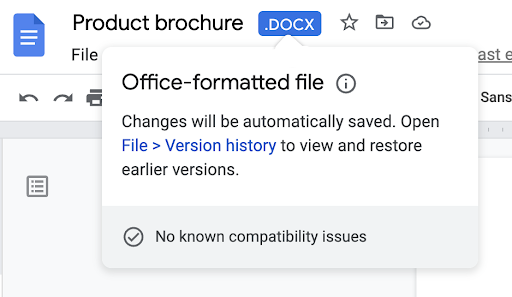
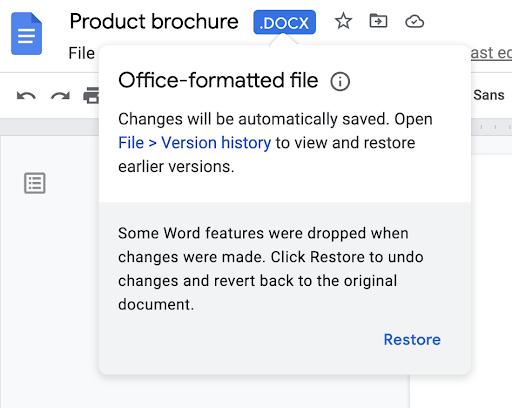
  • An Office-formatted warning symbol for compatibility details that will appear throughout your entire time within a document, spreadsheet, or slide deck. This indicates potential compatibility issues or if any Office features are unavailable.

Example of a document with compatibility issues


Example of a document without known compatibility issues


  • An option to easily view and restore earlier versions of the document, spreadsheet, or slide deck. New options to view version history and restore a document
New options to view version history and restore a document


Getting started


Rollout pace


Availability

  • Available to all Google Workspace customers, as well as legacy G Suite Basic and Business customers
  • Available to users with personal Google Accounts

Resources


Roadmap

New updates

Unless otherwise indicated, the features below are fully launched or in the process of rolling out (rollouts should take no more than 15 business days to complete), launching to both Rapid and Scheduled Release at the same time (if not, each stage of rollout should take no more than 15 business days to complete), and available to all Google Workspace and G Suite customers.


Extending grammar features to German
We’ve expanded our grammar features in Gmail and Docs to include German. This highlights possible grammar errors in your text to help you correct them if German is set as your default language. | Rolling out to Rapid Release and Scheduled Release domains now at a Gradual pace (up to 15 days for feature visibility) | Learn more here and here.


Previous announcements

The announcements below were published on the Workspace Updates blog earlier this week. Please refer to the original blog posts for complete details.


Seamlessly access popular Education Technology tools directly in Google Classroom
We’ve made it easier for educators to access popular EdTech tools that work best for their class directly in Google Classroom with a new seamless integration of single sign-on, assigning, and grading. | Available to the Teaching and Learning Upgrade, and Google Workspace for Education Plus customers only. | Learn more.

Choose to grade with Canvas SpeedGrader or Google Assignments
There is now an option to grade with either Google Assignments or Canvas SpeedGrader within Google Assignments for Canvas. | Available to Google Workspace Education Fundamentals, Education Plus, Education Standard, and the Teaching and Learning Upgrade customers only. | Learn more.

For a recap of announcements in the past six months, check out What’s new in Google Workspace (recent releases).

Quick summary

As part of our mission to provide a top-class user experience on large screen devices, we’re adding several new features and functionality to products like Google Drive, Docs, Sheets, Slides, and Keep on Android devices.

We hope these updates enhance flexibility by giving you more ways to work with, display and organize your content across Google Workspace. Specifically, the new abilities include:
  • Drag & Drop in Docs, Sheets & Drive: Easily drag text or images from other apps, such as Chrome, and drop content into an existing document or spreadsheet cell. For Drive, quickly upload files by dragging and dropping them into the app. You can also add links to Drive files by dragging the file into an open app like Keep.
Dragging & Dropping from Sheets into Docs and vice versa

Dragging & Dropping from Keep into Drive

Dragging & Dropping from Drive into Keep

  • Keyboard support for Drive, Docs & Slides: When using an attached keyboard, use simple and familiar shortcuts to quickly navigate around Drive, Docs, and Slides, without needing to slow down and take your hands off of your keyboard.
  • Multi-instance support on Drive, Docs, Sheets & Slides: Get better insight into your files by having two windows open side-by-side.

Getting started

  • Admins: There is no admin control for these features.
  • End users:
    • Visit the Help Center to learn more about Dragging & Dropping in Drive and Keyboard shortcuts.
    • To access Multi-instance support on Drive, select the 3-dot menu on any Drive file > choose the "Open in new window" option > navigate through each Drive window independently. Visit the Help Center to learn more about using Google Drive.

Rollout pace

Keyboard support for Drive, Drag & Drop in Drive, and Multi-instance support on Drive:
  • These features are available now
Keyboard support for Docs & Slides and Drag & Drop in Docs & Sheets:
  • These features are available now
Multi-instance support on Docs, Sheets & Slides:

    Availability

    • Available to all Google Workspace customers, as well as legacy G Suite Basic and Business customers
    • Available users with personal Google Accounts

    Resources

    New updates

    Unless otherwise indicated, the features below are fully launched or in the process of rolling out (rollouts should take no more than 15 business days to complete), launching to both Rapid and Scheduled Release at the same time (if not, each stage of rollout should take no more than 15 business days to complete), and available to all Google Workspace and G Suite customers.


    Rollout improvements for future Google Chat launches
    Going forward, all major user-facing feature changes and improvements to Google Chat will follow a rollout schedule in which accounts under Rapid Release will see new features first, followed by accounts under the default setting of Scheduled Release, at least 1 week later. We hope this change makes it easier for you to plan for new Google Chat updates. As a reminder, Admins can choose which release track they want their accounts to follow. | Learn more.

    Series One Desk 27 now in production
    In September 2021, we announced Series One Desk 27, a premium all-in-one touchscreen Google Meet collaboration device. These devices are now in production and will be available for shipping soon. Contact Avocor for more information on ordering the Series One devices. | Learn more.


    Previous announcements

    The announcements below were published on the Workspace Updates blog earlier this week. Please refer to the original blog posts for complete details.


    Making Google Chat active user metrics more detailed in the Admin console
    We’ve rolled out a new method for calculating active users in Google Chat across your organization that ensures greater accuracy for detecting a user's reading and sending actions in Chat. This will provide admins more accurate reporting. | Learn more.

    Control access to experimental Google Workspace apps with a new admin setting
    Admins can use the new Experimental Apps Control setting to grant or deny their users access to emerging or experimental Google applications and whether those applications can access core service data. | Learn more.

    Building larger spaces in Google Chat
    We've increased the amount of members you can add to a space in Google Chat from 400 to 8,000. | Learn more.

    Stay on top of changes to document content with edit notifications
    In Google Docs, you can now choose to receive email notifications for document changes on a per file basis. Edit notification emails detail what changes were made, when the changes were made, and who made them. | Learn more.

    Allow Google Meet participants to ask questions or respond to polls anonymously
    In Google Meet, meeting participants will now have the option to ask questions or participate in polls anonymously. | Q&A is available to Google Workspace Essentials, Business Standard, Business Plus, Enterprise Starter, Enterprise Essentials, Enterprise Standard, Enterprise Plus, Teaching and Learning Upgrade, Education Plus and Nonprofits, as well as legacy G Suite Business customers only. | Polls are available to Google Workspace Essentials, Business Standard, Business Plus, Enterprise Starter, Enterprise Essentials, Enterprise Standard, Enterprise Plus, Teaching and Learning Upgrade, Education Plus and Nonprofits, as well as legacy G Suite Business customers and Google Workspace Individual users only. | Learn more.

    Delete Chat spaces and their content, now generally available
    You can now delete a named space in Google Chat. With this capability, a space manager can delete a space, which completely removes all owned contents of the space, space tasks, and files and attachments not saved elsewhere. | Learn more.

    Prevent spam by adding invitations from known senders only to your calendar
    You can now select an option to display events on your calendar only if they come from a sender you know to help keep your Calendar free from spam. | Learn more.

    Live stream Google Meet events via YouTube
    Google Workspace users can live stream meetings publicly via YouTube. |Available to Google Workspace Enterprise Starter, Enterprise Standard, Enterprise Plus, Education Plus, Teaching and Learning Upgrade customers only and Google One Premium plan members in select countries. | Learn more.

    Easily access your most used emojis in Google Chat
    In the Google Chat emoji picker, your most frequently used emojis can be found under the new “Frequently Used” section | Learn more.

    Programmatically manage and apply Drive Labels using new API functionality
    Developers can now programmatically manage labels at scale via Drive APIs. In addition to supporting the ability to read Drive Label taxonomies, new functionality in the Drive API can be used to apply labels, set fields on files, and find files by label metadata. | Available to Google Workspace Essentials, Business Standard, Business Plus, Enterprise Essentials, Enterprise Standard, Enterprise Plus, Education Plus, Education Standard, and Nonprofits customers only. | Learn more.

    For a recap of announcements in the past six months, check out What’s new in Google Workspace (recent releases).

    New updates

    Unless otherwise indicated, the features below are fully launched or in the process of rolling out (rollouts should take no more than 15 business days to complete), launching to both Rapid and Scheduled Release at the same time (if not, each stage of rollout should take no more than 15 business days to complete), and available to all legacy Google Workspace and G Suite customers.


    Frictionless sharing across Google Drive, Docs, Sheets, and Slides
    In the effort to make collaboration simpler for users, we've introduced a new sharing experience in Workspace. Now, when you click the "Share" button in the top-right corner of your file, you'll see a streamlined design that makes it easier to share files with others and/or specific groups of people in your organizations, control whether your file is searchable to groups with access, and to copy the file link. | Learn more.


    Previous announcements

    The announcements below were published on the Workspace Updates blog earlier this week. Please refer to the original blog posts for complete details.


    Data Loss Prevention for Drive helps protect sensitive data when users upload files to external Google Forms, now generally available
    Users can now respond to external forms that contain file upload questions, while also helping to prevent the leak of sensitive and confidential information. | Available to Google Workspace Enterprise Standard, Enterprise Plus, Education Fundamentals, Education Standard, and Education Plus customers. | Learn more.


    New options for styling fonts in Google Forms
    We’ve added additional font style and sizing options, and the ability to customize header, subheader, and body text separately in Google Forms. | Learn more.


    Adjust spacing between content in Sites using new density theme setting
    Site editors can now adjust the spacing between the content on their site with a custom theme setting that offers Compact, Cozy, or Comfortable spacing options. | Learn more.


    Easily print your Tasks List
    You can now print personal and Chat spaces Task lists on web, making it easier for you to track assigned items offline or plan with pen and paper if that’s your preference. | Learn more.


    For a recap of announcements in the past six months, check out What’s new in Google Workspace (recent releases).

    What’s changing

    We’re adding several new ways to customize tables in Google Docs. You can now:

    • Pin a table header row to repeat on each page
    • Designate that a row should not be split across pages
    • Quickly add, and arrange columns and rows
    • Sorting tables to better organize data.
    • Use a new table sidebar to manage table properties

    See below for more details.

    Who’s impacted

    End users

    Why it matters

    Tables are an important way to display information in a document. These new features give you more ways to present information using tables, making it easier for viewers of the document to quickly see and understand the information.

    Additional details

    Pin a table header row to repeat on each page

    You can pin one or more rows in a table so they repeat on each page that the table appears on. This will make it easier to see column headers for long tables as you navigate a document.

    [画像:Pinning a table header row to repeat on each page]


    Designate that a row should not be split across pages


    You can designate that a table row should not be split across a page break. This ensures important content in tables sticks together and isn't missed on the next page, and provides more control over formatting and layouts.

    [画像:Designate that a row should not be split across pages]


    Quickly add and arrange columns and rows

    You can now easily drag a row or column to a different location. You’ll also notice a new, intuitive button for creating new rows or columns.


    [画像:Adding and arranging columns and rows]


    Sorting tables to better organize data.

    It is now possible to sort the rows of your tables. Any pinned table headers will remain at the top of your table. Additionally, sorting table rows will group by type of content. This will help you to quickly visualize, understand, and organize your data better.

    Use a new table sidebar to manage table properties


    Table properties will now open in the sidebar, allowing you to see edits reflected in your document in real time. This is similar to functionality already available in docs for things such as image editing.

    [画像:Using a new table sidebar to manage table properties]


    Getting started

    • Admins: There is no admin control for this feature.
    • End users: Visit the Help Center to learn more about how to Add and Edit Tables

    Rollout pace

    • Rapid Release domains: Extended rollout (potentially longer than 15 days for feature visibility) starting on December 7, 2021
    • Scheduled Release domains: Extended rollout (potentially longer than 15 days for feature visibility) starting on December 22, 2021

    Availability

    • Available to all Google Workspace customers, as well as G Suite Basic and Business customers Available to users with personal Google Accounts

    Resources

    Roadmap

    What’s changing

    You can now quickly start and share a meeting notes document for your Calendar events.

    Meeting notes in the Calendar details view


    Creating a notes document from Calendar will automatically populate the document with the event information and attach the document to the event.

    You can also add this same meeting notes template into any doc by typing “@” in the doc and using the drop-down menu.

    Add a meeting notes template into a Doc


    These features are currently only available in Calendar and Docs on the web.

    Who’s impacted

    End users

    Why you’d use it

    Meeting notes are one of the most common use cases in Docs, and an effective way to make meetings a good use of time. However, creating, sharing and finding them later involves several basic repetitive steps, and involves switching between Docs and Calendar. The meeting notes feature is a shortcut to create such documents with some quick clicks.

    This feature streamlines the creation, sharing and attachment of meeting notes into Calendar events.

    Additional details

    In Calendar, this feature is only available to meeting organizers or guests with permissions to modify the event.

    You can use this feature several ways:
    • While creating or editing an event, you’ll see a “Create meeting notes” button next to the attachment section. You can click this button to create a new document, which attaches it to the event upon saving the changes.
    • Clicking the “Take meeting notes” button in a scheduled event will create this document, and immediately open it in a new tab so users can get started capturing notes right away. In the background, this document will also be attached to the calendar event for future reference.

    Once you make these meeting notes, we’ll automatically link back to the Calendar event from the doc, making it easy to navigate between places.

    You’ll still be able to attach additional documents to the Calendar event.

    Sharing the meeting notes
    • If you click to “Create meeting notes” when creating a new event or editing an existing event, the notes doc will be shared with the attendees, including those outside your organization, once you hit “Save.”
    • If you click “Take meeting notes” on a scheduled Calendar event, attendees will not automatically have access and we’ll show you a prompt to share in Docs.
    • When capturing meeting notes for scheduled events from Google Docs:
      • If you’re the meeting organizer: A pop-up prompts you to share and attach the document to your event. To give access, click Share & attach.
      • If you’re not the meeting organizer: A pop-up prompts you to share the document. To give access, click Share. The document doesn't attach to the event.

    Getting started

    • Admins: There is no admin control for this feature.
    • End users: There is no end user setting for this feature. Visit the Help Center to learn more about meeting notes in Calendar.

    Rollout pace

    Availability

    • Available to all Google Workspace customers, as well as G Suite Basic and Business customers

    Resources

    New updates


    New look and feel for Workspace Updates email subscriptions
    Starting September 29, we're going to be improving the look and feel of the emails you receive when you subscribe to Workspace Updates.
    • The emails themselves will be sent from noreply@workspaceupdates.withgoogle.com, so be sure to update any inbox filters or labels you may have and check your spam folders if you don't immediately see them.
    • Emails for the Workspace Updates Blog in non-English markets will update to this new format in the coming weeks.
    • If you have any feedback about these emails after September 29th, please feel back to let us know in the linked form.
    Full rollout (1-3 days for availability). | Available to all Google Workspace customers and users with personal Google Accounts. | Workspace Updates Blog Email Subscription Feedback


    Previous announcements

    The announcements below were published on the Workspace Updates blog earlier this week. Please refer to the original blog posts for complete details.

    Upgrade to the newest version of the Google Chat app
    We’ve recently released a new version of this app. Users who are still on the older Chat PWA version and will see an in-app banner nudging them to upgrade by visiting chat.google.com. | Learn more.


    Improved visibility in Google Meet on web
    Google Meet on the web now automatically detects when a user appears underexposed and enhances the brightness to improve their visibility. | Learn more.


    Control the ability to present to Google Meet from Google Docs, Sheets, and Slides with a new Admin setting
    Admins can turn the ability to present from Google Docs, Sheets, and Slides directly to Google Meet on or off for their organization with a new setting. | Learn more.


    One-click recommended actions in the Alert Center
    In the Alert Center, Admins will see new one-click recommended actions for various alerts, which they can implement without leaving the Alert Center. | Available to Google Workspace Enterprise Plus, Education Standard, and Education Plus customers. | Learn more.


    Improved Search In Gmail on Android
    You can now quickly and easily filter email and search results on Android mobile devices to find the one specific email or information you’re looking for with new search filters. | Learn more.


    New graphs for metrics over time in Meet Quality Tool
    We’ve added detailed metrics over time for endpoints in Meet Quality Tool, which will help admins perform more advanced troubleshooting. | Learn more.


    Perform refined email searches with new rich filters in Gmail on web
    When searching in Gmail on web, enhanced search chips will provide richer drop-down lists with more options that help you apply additional filters. | Learn more.


    Easily chat with meeting participants from a Google Calendar event
    Within the Calendar event on web or mobile, you’ll see a Chat icon next to the guest list — simply select this icon to create a group chat containing all event participants. | Learn more.


    Ability to mute all Google Meet participants at once rolling out to mobile platforms
    Earlier this year, we announced the ability for meeting hosts to mute everyone all at once in Google Meet on desktops/laptop devices. This feature has begun rolling out to iOS devices, with Android availability coming later this year. | Learn more.


    For a recap of announcements in the past six months, check out What’s new in Google Workspace (recent releases).

    Quick launch summary
    Now you can easily customize your form or quiz settings with a more visible settings tab and an improved settings layout.


    You’ll see an improved settings menu in the settings tab.


    Getting started
    • Admins: There is no admin control for this feature.
    • End users: There is no end user control for this feature.

    Rollout pace
    Availability
    • Available to all Google Workspace customers, as well as G Suite Basic and Business customers. Available to users with personal Google Accounts
    Roadmap

    What’s changing
    Google Drive stores your most important files, whether they are Google Docs, Sheets, Slides, PDFs, images or the hundreds of other file types we support today. Today, we are announcing more ways to make sure you can make them all accessible to you even when your internet connection is unavailable.

    In 2019, we launched a beta which enabled you to mark non-Google file types, like PDFs, images and Microsoft Office files, available offline when using Google Drive on the web. Now, we’re making this functionality generally available. When you mark these files available offline, you can easily open these files from your browser even when you aren’t connected to the internet.


    ChromeOS users can now also use the easily accessible Files app on their Chromebook to select Google Docs, Sheets, and Slides files to be available when offline. This streamlined access eliminates the need to open Google Drive or Google Docs to select files to make them available offline.


    Who’s impacted
    Admins and end users
    Why you’d use it
    Users can access all of their important Drive files while offline such as when they’re traveling or when there’s poor internet connectivity.

    Additional details
    Non-Google files such as PDFs, images and Microsoft Office files will need to be opened using apps installed on your computer through Google Drive Web when offline. This feature is already available for Google Drive for desktop users.

    Getting started

    Rollout pace
    Availability
    • Available to all Google Workspace customers, as well as Cloud Identity Free, Cloud Identity Premium, G Suite Basic and Business customers. Available on personal accounts as well.

    Resources

    Roadmap

    Quick launch summary


    In 2017, we introduced Smart Reply in Gmail to save you time by suggesting quick responses to your messages. Now, Smart Reply in Google Docs saves you time replying to comments in Docs by suggesting relevant replies.

    Smart Reply suggestions appear below the reply box on comment threads in English. You can choose a suggested reply or write your own. Smart Reply joins Smart compose and spelling autocorrect announced in January 2021 to help you compose comments in Docs quickly and with confidence.

    Smart Reply can help saves you time replying to comments in Docs by suggesting relevant replies


    Getting started

    • Admins: There is no admin control for this feature.
    • End users: This feature will be ON by default To turn it off, go to Tools > Preferences > Show Smart Reply suggestions. If turned on, click on a comment thread in Google Docs, and Smart Reply will suggest responses if available. It may not present suggestions in all cases, and the comment thread must be in English. Simply click on a suggestion to use it, once you click, you can send it as-is or edit it before sending. Visit the Help Center to learn more about using Smart Reply in Google Docs, and replying to comments in Google Docs.

    Rollout pace

    Availability

    • Available to all Google Workspace customers, as well as G Suite Basic and Business customers. Also available to users with personal Google Accounts

    Resources


    New updates

    Unless otherwise indicated, the features below are fully launched or in the process of rolling out (rollouts should take no more than 15 business days to complete), launching to both Rapid and Scheduled Release at the same time (if not, each stage of rollout should take no more than 15 business days to complete), and available to all Google Workspace and G Suite customers.

    Gmail now displays the latest emojis
    Now you can see all the latest emojis in Gmail, with emojis now rendered in the latest Unicode standard 13.1.

    Improved Tabular Data Handling for Gmail DLP
    We are improving the way we handle Tabular data files like .csv or .xlsx to best account for the structure of these files. This will result in more accurate content scans. | Available to Google Workspace Enterprise, Education Fundamentals, Standard, Teaching and Learning Upgrade, and Plus customers. | Learn more.


    Previous announcements

    The announcements below were published on the Workspace Updates blog earlier this week. Please refer to the original blog posts for complete details.

    Updates to Google Workspace Public Status Dashboard and service status alerts
    We're introducing a new Public Status Dashboard experience for Google Workspace. As part of this update, we’re enhancing the functionality of the existing Apps outage alert system-defined rule, which provides email notifications regarding service disruptions or outages via the Public Status Dashboard. | Learn more.


    Hangouts to Google Chat upgrade beginning August 16th, with option to opt-out
    Beginning August 16, 2021, we will start upgrading users who have the “Chat and classic Hangouts” setting selected to “Chat preferred,” unless you explicitly opt out. Additionally, the “Chat and classic Hangouts'' setting will also be removed for all users in your domain unless you opt out of the upgrade. | Learn more.


    Fundamental data regions now available to more Google Workspace customers
    Data regions give you the ability to choose where covered data for select Google Workspace apps is stored at rest. We’re introducing a more limited version of data regions, known as Fundamental data regions, which will be available to Google Workspace Enterprise Standard, Business Plus, Business Standard and Frontline customers. | Learn more.


    Bulk convert Classic Sites to new Sites using the Classic Sites Manager
    Beginning today, you can now bulk convert Classic Sites to new Sites using the Classic Sites Manager. | Learn more.


    Block shares from another user in Google Drive
    We’re adding the ability to block another user in Google Drive. If blocked, the user will not be able to share any Drive items with you, and items owned by the user will not be able to be shared with you or be shown when you’re browsing Google Drive. In addition, your files will not be available to the user you’ve blocked, even if you’ve previously shared items with them. | Learn more.


    Select multiple tabs in Google Sheets and perform basic actions on the selection
    Now you can select multiple tabs in Google Sheets and perform basic actions on the selection (such as moving the tabs together, deleting, duplicating, copying, coloring, or hiding). | Learn more.


    Image placeholders make it easy to work as a team with images in Slides themes and layouts
    Now when you create a theme in Slides, you can add image placeholders to your layouts. | Learn more.


    Easily collaborate and share Slide presentations with side-by-side viewing in Google Chat
    In Google Chat, you can now open and edit a Slide presentation in a side-by-side view. | Learn more.


    For a recap of announcements in the past six months, check out What’s new in Google Workspace (recent releases).

    Useful Links

    Join the official community for Google Workspace administrators

    In the Google Cloud Community, discuss the latest features with Googlers and other Google Workspace admins like you. Learn tips and tricks that will make your work and life easier. Be the first to know what's happening with Google Workspace.

    Learn about more Google Workspace launches

    On the “What’s new in Google Workspace?” Help Center page, learn about new products and features launching in Google Workspace, including smaller changes that haven’t been announced on the Google Workspace Updates blog.

    Learn about our customers

    Discover how a diverse range of organizations, from small businesses and nimble startups to globally recognized Fortune 500 corporations, leverage the collaborative power of Google Workspace. Explore examples of how teams of are streamlining workflows and driving productivity by utilizing Google-Workspace.

    Subscribe to Our Blog Updates

    [フレーム]

    AltStyle によって変換されたページ (->オリジナル) /