Split Screen
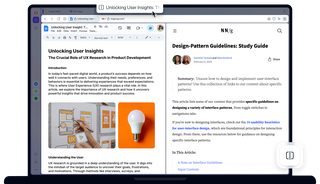
Benefits of Split Screen
Save time and stay focused by viewing up to four pages at once in one tab. No extension needed.
Focused
Eliminate distractions. Stop the constant tab switching and resizing.
Convenient
Manage all split-screen tabs in one address bar for easy control.
Flexible
Choose vertical, horizontal, or grid layouts to suit your workflow.
Easy
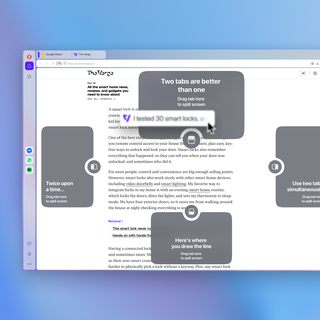
Drag a tab down, or right-click a tab and select Create Split Screen.
Split screen in seconds
View two to four sites side-by-side with a simple drag-and-drop.
One address bar gives you clutter-free access to bookmarks and all split pages.
Choose vertical, horizontal, or grid views, and resize each panel to fit your workflow perfectly.
Separate or close in a click
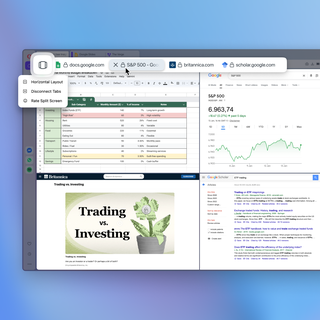
Hover over any tab and click the X to close either the entire Split Screen or just that tab.
You can also click Exit Split Screen on hover, or in the context menu.
To remove one page from multi-page splits, right-click a tab and choose Disconnect from Split Screen.
Write, uninterrupted
Tired of constantly switching tabs? Split your screen between research, reference, and writing tabs in vertical or horizontal mode to stay focused and keep your workflow seamless.

Capture and control
Need to compare data or capture multiple charts? Manage every split tab from a shared address bar. Pin your workspace, run extensions, and snap full multi-site screenshots simultaneously. And simply resize the panes to customize your view.
Shop smarter
Lost in a sea of shopping tabs? Compare products and prices side-by-side or in a grid. View your options together to browse specs, evaluate choices, and spot the best deals instantly.
Stream and multitask
Don’t pause to work. Watch Netflix or Twitch on one side while you chat or study on the other. Whether you prefer a classic dual window view or a multi-tab grid, keep your entertainment visible and your workflow uninterrupted.