Sentiment analysis is a technique to determine the emotional tone of a piece of text. It uses natural language processing, text analysis, and computational linguistics. Using this you can classify the tone into positive, neutral, or negative. This helps businesses analyze customer feedback on social media, reviews, and surveys.
Based on this data, they can strategize their products and campaigns more effectively. Learn how you can build an application that detects sentiments using Python.
The Tkinter and vaderSentiment Module
Tkinter allows you to create desktop applications. It offers a variety of widgets like buttons, labels, and text boxes that make it easy to develop apps. You can use Tkinter to build a dictionary app in Python or to create your own news application that updates stories via an API.
To install Tkinter, open a terminal and run:
pip install tkinterVADER (Valence Aware Dictionary and sEntiment Reasoner) is a lexicon and rule-based sentiment analysis tool. It is pre-built and widely used in Natural Language Processing. The algorithm has a set of predefined words which represent different sentiments. Based on the words found in the sentence, this algorithm gives a polarity score. Using this score, you can identify whether the sentence is positive, negative, or neutral.
To install the vaderSentiment package in Python, run this terminal command:
pip install vaderSentimentHow to Detect Sentiments Using Python
You can find the source code of this sample program in its GitHub repository.
Start by importing the required VADER and tkinter modules:
from vaderSentiment.vaderSentiment import SentimentIntensityAnalyzer
from tkinter import *
Then define a function, clearAll(). Its purpose is to clear the input fields, which you can do using the delete() method from a starting index of 0 to the final index, END.
def clearAll():
 negativeField.delete(0, END)
 neutralField.delete(0, END)
 positiveField.delete(0, END)
 overallField.delete(0, END)
 textArea.delete(1.0, END)
Define a function, detect_sentiment(). Use the get method to fetch the word entered in the textArea widget and create an object of SentimentIntensityAnalyzer class. Use the polarity_scores method on the text you fetched and apply the VADER sentiment analysis algorithm.
def detect_sentiment():
 sentence = textArea.get("1.0", "end")
 sentiment_obj = SentimentIntensityAnalyzer()
 sentiment_dict = sentiment_obj.polarity_scores(sentence)
Extract the negative sentiment score('neg') and convert it into a percentage. Insert the value obtained in the negativeField starting from position 10. Repeat the same process for the neutral sentiment score('neu') and the positive sentiment score('pos').
 string = str(sentiment_dict['neg'] * 100)
 negativeField.insert(10, string)
 string = str(sentiment_dict['neu'] * 100)
 neutralField.insert(10, string)
 string = str(sentiment_dict['pos'] * 100)
 positiveField.insert(10, string)
Extract the value of the compound key that contains the overall sentiment of the sentence. If the value is greater than or equal to 0.05, the sentence is positive. If the value is less than or equal to -0.05, the sentence is negative. For values between -0.05 and 0.05, it is a neutral statement.
 if sentiment_dict['compound'] >= 0.05:
 string = "Positive"
 elif sentiment_dict['compound'] <= - 0.05:
 string = "Negative"
 else:
 string = "Neutral"
Insert the result in the overallField from the 10th position:
overallField.insert(10, string)Initialize a graphical user interface window using Tkinter. Set the background color, the title, and the dimensions of the window. Create five labels. One that asks the user to enter a sentence and the other four for the different sentiments. Set the parent element you want to place it in, the text it should display, and the font styles it should have along with the background color.
Define a Text widget to receive the sentence from the user. Set the parent element you want to place it in, its height, width, font styles, and the background color it should possess. Define three buttons. One to perform the sentiment analysis, one to clear the contents after use, and one to exit the application. Set its parent window, the text it should display, its background color, font styles, and the command you want to execute when clicked.
if __name__ == "__main__":
 gui = Tk()
 gui.config(background="#A020f0")
 gui.title("VADER Sentiment Analyzer")
 gui.geometry("400x700")
 enterText = Label(gui, text="Enter Your Sentence: ",font="arial 15 bold",bg="#A020f0")
 negative = Label(gui, text="Negative Percentage: ", font="arial 15",bg="#A020f0")
 neutral = Label(gui, text="Nuetral Percentage: ", font="arial 15",bg="#A020f0")
 positive = Label(gui, text="Positive Percentage: ", font="arial 15",bg="#A020f0")
 overall = Label(gui, text="Overall Sentence is: ", font="arial 15",bg="#A020f0")
 textArea = Text(gui, height=5, width=25, font="arial 15", bg="#cf9fff")
 check = Button(gui, text="Check Sentiment", bg="#e7305b", font=("arial", 12, "bold"), command=detect_sentiment)
 clear = Button(gui, text="Clear", bg="#e7305b", font=("arial", 12, "bold"), command=clearAll)
 Exit = Button(gui, text="Exit", bg="#e7305b", font=("arial", 12, "bold"), command=exit)
Define four Entry fields for the different sentiments and set their parent window and font styles.
 negativeField = Entry(gui, font="arial 15")
 neutralField = Entry(gui, font="arial 15")
 positiveField = Entry(gui, font="arial 15")
 overallField = Entry(gui, font="arial 15")
Use a grid consisting of 13 rows and three columns for the overall layout. Place the various elements such as labels, text entry fields, and buttons in various rows and columns as depicted. Add necessary padding wherever required. Set the sticky option to "W" to left align the texts within its cell.
 enterText.grid(row=0, column=2, pady=15)
 textArea.grid(row=1, column=2, padx=60, pady=10, sticky=W)
 check.grid(row=2, column=2, pady=10)
 negative.grid(row=3, column=2, pady=10)
 neutral.grid(row=5, column=2, pady=10)
 positive.grid(row=7, column=2, pady=10)
 overall.grid(row=9, column=2, pady=5)
 negativeField.grid(row=4, column=2)
 neutralField.grid(row=6, column=2)
 positiveField.grid(row=8, column=2)
 overallField.grid(row=10, column=2, pady=10)
 clear.grid(row=11, column=2, pady=10)
 Exit.grid(row=12, column=2, pady=10)
The mainloop() function tells Python to run the Tkinter event loop and listen for events until you close the window.
gui.mainloop()Put all the code together and you can use the resulting short program to detect sentiments.
The Output of Detecting Sentiments Using Python
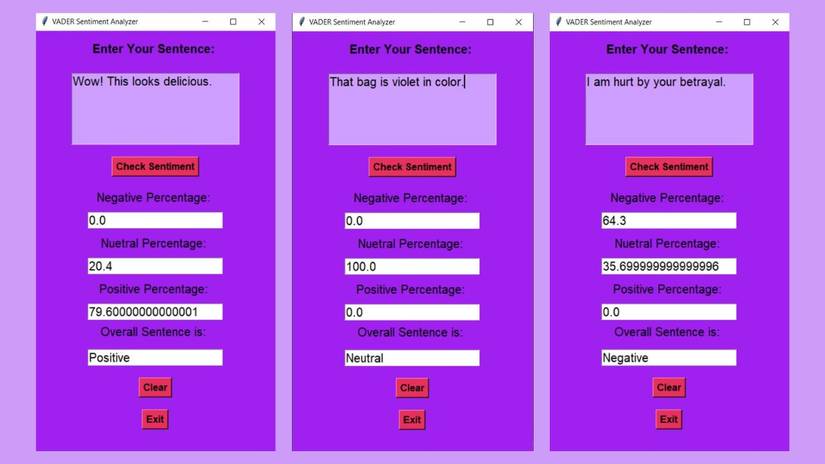
On running this program, the VADER Sentiment Analyzer window appears. When we tested the program on a positive sentence, it detected it with an accuracy of 79%. On trying a neutral statement and a negative one, the program was able to detect with 100% and 64.3% accuracy respectively.
Alternatives for Sentiment Analysis Using Python
You can use Textblob for sentiment analysis, speech tagging, and text classification. It has a consistent API and a built-in sentiment polarity classifier. NLTK is a comprehensive NLP library that contains a wide range of tools for text analysis but has a steep learning curve for beginners.
One of the most popular tools is the IBM Watson NLU. It is cloud-based, supports several languages, and has features like entity recognition and key extraction. With the introduction of GPT, you can use the OpenAI API and integrate it into your applications to get accurate and reliable customer sentiments in real time.