I cloned a Git repository from my GitHub account to my PC.
I want to work with both my PC and laptop, but with one GitHub account.
When I try to push to or pull from GitHub using my PC, it requires a username and password, but not when I'm using the laptop!
I don't want to type my username and password every time I interact with origin. What am I missing here?
-
3You need to register the pubkey with your Github account (github.com/account/ssh) and configure your SSH client to use the right username.jwodder– jwodder2011年07月03日 20:33:12 +00:00Commented Jul 3, 2011 at 20:33
-
2I have done all of that but still it requires username and password! is it possible to use one account with two PCs?TooCooL– TooCooL2011年07月03日 20:46:17 +00:00Commented Jul 3, 2011 at 20:46
-
1This question covers all your options for this quite well: stackoverflow.com/questions/5343068/…ford– ford2013年04月05日 06:18:51 +00:00Commented Apr 5, 2013 at 6:18
-
4No need to switch over to ssh anymore. It's possible with HTTPS too. Check my answer.Varun Achar– Varun Achar2013年04月05日 06:19:03 +00:00Commented Apr 5, 2013 at 6:19
-
1I prefer using an encrypted netrc.gpg in which I can store all my credentials for https remote repo. And that works well with the new GitHub two-factor authentication!VonC– VonC2013年09月11日 21:23:24 +00:00Commented Sep 11, 2013 at 21:23
31 Answers 31
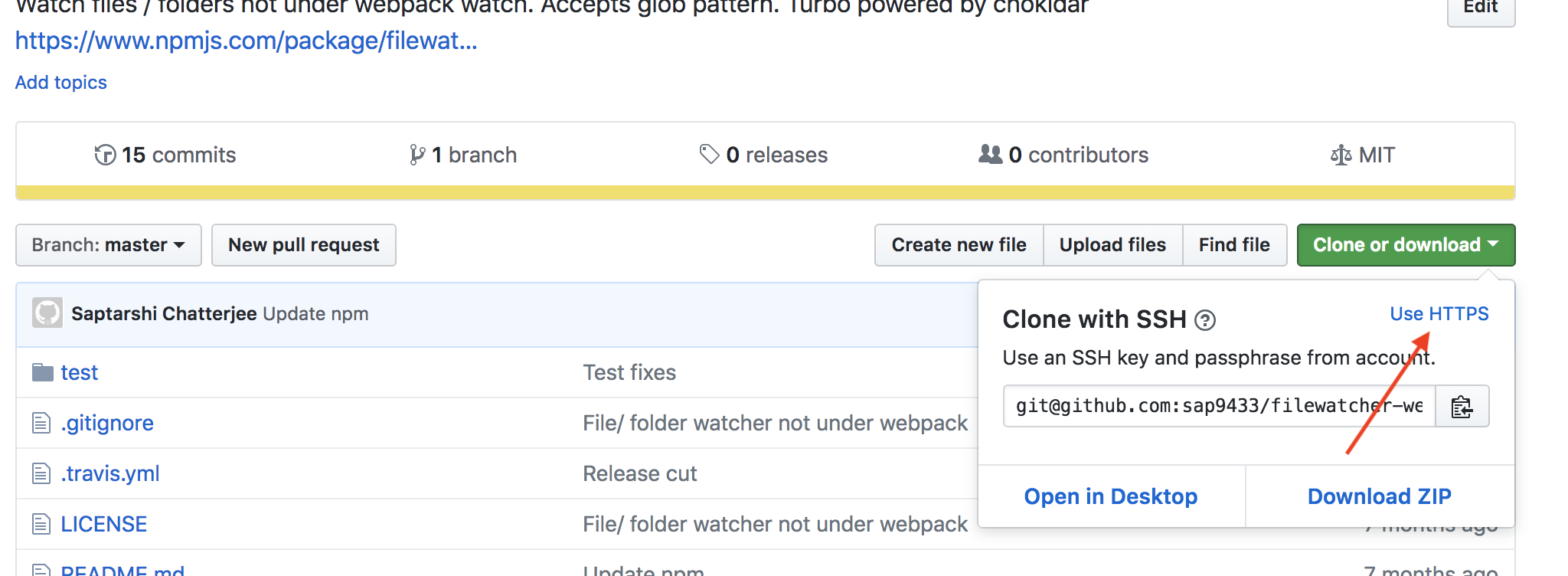
A common cause is cloning using the default (HTTPS) instead of SSH. You can correct this by going to your repository, clicking "Clone or download", then clicking the "Use SSH" button above the URL field and updating the URL of your origin remote like this:
git remote set-url origin [email protected]:username/repo.git
You can check if you have added the remote as HTTPS or SSH using:
git remote -v
This is documented at GitHub: Switching remote URLs from HTTPS to SSH.
26 Comments
git remote set-url origin git://new.url.here)git remote set-url origin https://name:[email protected]/repo.git (extracted from a comment here) Permission denied (publickey) using this guide: help.github.com/articles/generating-ssh-keys .Permanently authenticating with Git repositories
Run the following command to enable credential caching:
$ git config credential.helper store
$ git push https://github.com/owner/repo.git
Username for 'https://github.com': <USERNAME>
Password for 'https://[email protected]': <PASSWORD>
You should also specify caching expire,
git config credential.helper 'cache --timeout 7200'
After enabling credential caching, it will be cached for 7200 seconds (2 hour). 43,200 s = 12 h (login once per day) might also be a reasonable choice for some.
As SebastianH commented, can also use similar commands to configure this not per repository but globally:
git config --global credential.helper store
git config --global credential.helper 'cache --timeout 7200'
8 Comments
git remote set-url origin https://[email protected]/<owner>/<repo>.git This also works with 2FAfatal: protocol 'https' is not supportedI just came across the same problem, and the simplest solution I found was to use SSH URL instead of HTTPS one:
ssh://[email protected]/username/repo.git
And not this:
https://github.com/username/repo.git
You can now validate with just the SSH key instead of the username and password.
4 Comments
git remote -v and set them with git remote set-url --push originApart from changing to SSH you can also keep using HTTPS, if you don't mind to put your password in clear text. Put this in your ~/.netrc and it won't ask for your username/password (at least on Linux and Mac):
machine github.com
 login <user>
 password <password>
Addition (see VonC's second comment): on Windows the file name is %HOME%\_netrc.
Also read VonC's first comment in case you want to encrypt.
Another addition (see user137717's comment) which you can use if you have Git 1.7.10 or newer.
Cache your GitHub password in Git using a credential helper:
If you're cloning GitHub repositories using HTTPS, you can use a credential helper to tell Git to remember your GitHub username and password every time it talks to GitHub.
This also works on Linux, Mac, and Windows.
10 Comments
%HOME%\_netrc (instead of ~/.netrc). See also stackoverflow.com/a/18362082/6309 to encrypt that file.For the uninitiated who are confused by the previous answers, you can do:
git remote -v
Which will respond with something like
origin https://[email protected]/yourname/yourrepo.git (fetch)
origin https://[email protected]/yourname/yourrepo.git (push)
Then you can run the command many other have suggested, but now you know yourname and yourrepo from above, so you can just cut and paste yourname/yourrepo.git from the above into:
git remote set-url origin [email protected]:yourname/yourrepo.git
5 Comments
paraphrase everytime. I didn't set up oneyourrepo?git remote -v and see what comes outhttps://github.com/orgname/yourrepo.gitIf you're using SSH and your private key is encrypted with a passphrase, then you'll still be prompted to enter the passphrase/password for the private key when you do network operations with Git like push, pull, and fetch.
Use ssh-agent to save the private key passphrase/password credentials
If you want to avoid having to enter your passphrase every time, you can use ssh-agent to store your private key passphrase credentials once per terminal session, as I explain in my answer to Could not open a connection to your authentication agent:
$ eval `ssh-agent -s`
$ ssh-add
In a Windows msysgit Bash, you need to evaluate the output of ssh-agent, but I'm not sure if you need to do the same in other development environments and operating systems.
ssh-add looks for a private key in your home .ssh folder called id_rsa, which is the default name, but you can pass a filepath to a key with a different name.
Killing the agent
When you're done with your terminal session, you can shutdown ssh-agent with the kill flag -k:
$ ssh-agent -k
As explained in the ssh-agent manual:
-kKill the current agent (given by the SSH_AGENT_PID environment variable).
Optional timeout
Also, it can take an optional timeout parameter like so:
$ ssh-add -t <timeout>
where <timeout> is of the format <n>h for <n> hours, <n>m for <n> minutes, and so on.
According to the ssh-agent manual:
-t lifeSet a default value for the maximum lifetime of identities added to the agent. The lifetime may be specified in seconds or in a time format specified in sshd_config(5). A lifetime specified for an identity with ssh-add(1) overrides this value. Without this option the default maximum lifetime is forever.
See this page for more time formats.
Security warning for Cygwin users
Cygwin users should be aware of a potential security risk with using ssh-agent in Cygwin:
people should be cognizant of the potential dangers of ssh-agent under Cygwin 1, though under a local netstat and remote portscan it does not appear that the port specified in /tmp/ssh-foo is accessible to anyone ...?
[1]: http://www.cygwin.com/ml/cygwin/2001-01/msg00063.html
And at the cited link:
however, note that Cygwin's Unix domain sockets are FUNDAMENTALLY INSECURE and so I strongly DISCOURAGE usage of ssh-agent under Cygwin.
when you run ssh-agent under Cygwin it creates AF_UNIX socket in
/tmp/ssh-$USERNAME/directory. Under Cygwin AF_UNIX sockets are emulated via AF_INET sockets. You can easily see that if you'll look into/tmp/ssh-$USERNAME/agent-socket-*file via Notepad. You'll see something like!<socket >2080then run
netstat -aand surprise! You have some program listening to port 2080. It's ssh-agent. When ssh receives an RSA challenge from the server, it refers to corresponding/tmp/ssh-$USERNAME/agent-socket-*(under Cygwin, in our case, that means it'll open connection tolocalhost:2080) and asks ssh-agent to process the RSA challenge with the private key it has, and then it simply passes the response received from the ssh-agent to the server.Under Unix, such a scenario works without problems, because the Unix kernel checks permissions when the program tries to access an AF_UNIX socket. For AF_INET sockets, however, connections are anonymous (read "insecure"). Imagine, that you have the Cygwin ssh-agent running. A malicious hacker may portscan your box, locate open port used by ssh-agent, open a connection to your SSH server, receive the RSA challenge from it, send it to your ssh-agent via an open port he/she found, receive the RSA response, send it to the SSH server and voila, he/she successfully logged in to your server as you.
2 Comments
git push , git pull etc, and I was not liking the suggestions of storing the creds though it is my personal machine (as a best practice). This suggestion of ssh-add really helped. Thank you :)Source: Set Up Git
The following command will save your password in memory for some time (for Git 1.7.10 or newer).
$ git config --global credential.helper cache
# Set git to use the credential memory cache
$ git config --global credential.helper 'cache --timeout=3600'
# Set the cache to timeout after one hour (setting is in seconds)
2 Comments
When you use https for Git pull & push, just configure remote.origin.url for your project, to avoid input username (or/and password) every time you push.
How to configure remote.origin.url:
URL format:
 https://{username:password@}github.com/{owner}/{repo}
Parameters in URL:
* username

 Optional, the username to use when needed.
 authentication,
 if specified, no need to enter username again when need authentication.
 Don't use email; use your username that has no "@", otherwise the URL can't be parsed correctly,
* password
 optional, the password to use when need authentication.
 If specified, there isn't any need to enter the password again when needing authentication.
 Tip:
 this value is stored as plain text, so for security concerns, don't specify this parameter,
*
e.g
 git config remote.origin.url https://[email protected]/eric/myproject
@Update - using ssh
I think using ssh protocol is a better solution than https, even though the setup step is a little more complex.
Rough steps:
- Create ssh keys using command, e.g
ssh-keygenon Linux, on windowsmsysgitprovide similar commands. - Keep the private key on the local machine at a proper location, e.g.,
~/.ssh. And add it to the ssh agent viassh-addcommand. - Upload the public key to the Git server.
- Change
remote.origin.urlof the Git repository tosshstyle, e.g.,[email protected]:myaccount/myrepo.git - Then when pull or push, there isn't any need to enter the username or password ever.
Tips:
- If your ssh key has a passphrase, then you need to input it on first use of the key after each restart of your machine, by default.
@Update - Switch between https and ssh protocol.
Simply changing remote.origin.url will be enough, or you can edit repo_home/.git/config directly to change the value (e.g using vi on Linux).
Usually I add a line for each protocol, and comment out one of them using #.
E.g.
[remote "origin"]
 url = [email protected]:myaccount/myrepo.git
 # url = https://[email protected]/myaccount/myrepo.git
 fetch = +refs/heads/*:refs/remotes/origin/*
9 Comments
git-fetch(1) mentions that only for git/ssh-based URLs.https://username:[email protected]/ is safe. See stackoverflow.com/questions/4980912/… If you've got 2FA enabled on your Github account, your regular password won't work for this purpose, but you can generate a Personal Access Token and use that in its place instead.
Visit the Settings -> Developer Settings -> Personal Access Tokens page in GitHub (https://github.com/settings/tokens/new), and generate a new Token with all Repo permissions:
generate GitHub personal access token
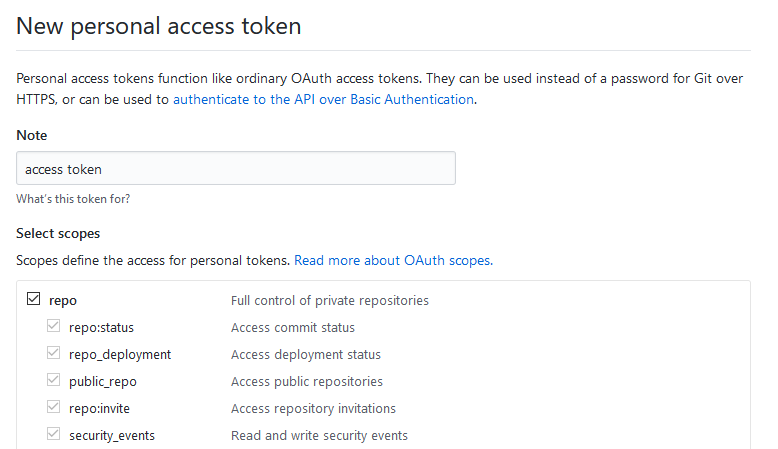
The page will then display the new token value. Save this value and use it in place of your password when pushing to your repository on GitHub:
> git push origin develop
Username for 'https://github.com': <your username>
Password for 'https://<your username>@github.com': <your personal access token>
4 Comments
git config credential.helper store prior to pushing or otherwise interacting with the remote, otherwise this token would be no longer be present next time you went to interact with the remote. Right?store is the most insecure one, as it just plainly saves (stores) the content. There are more secure ones available.Here's my working solution which passes 2FA as well.
- Login to github on your browser.
- Go to this page and create a token https://github.com/settings/tokens
- Copy the generated token string.
- Enter this command in terminal with your own values
git remote set-url origin https://{yourAccountName}:{theCopiedToken}@github.com/{yourAccountName}/{repositoryName}.git
Now you are logged in and can push/pull, etc.
Comments
You can cache your GitHub password in Git:
Just follow the instructions from GitHub's official documentation.
After following the instructions from the above link, you should be able to push/pull to/from your repository without typing your username/password every time.
What worked for me was to edit .git/config and use
[remote "origin"]
 url = https://<login>:<password>@gitlab.com(...).git
It goes without saying that this is an insecure way of storing your password but there are environments/cases where this may not be a problem.
Comments
Here's another option:
Instead of writing
git push origin HEAD
You could write:
git push https://user:[email protected]/path HEAD
Obviously, with most shells this will result in the password getting cached in history, so keep that in mind.
1 Comment
For Mac OS
- Go to your Github
Settings->Developer Settings->Personal Access Tokenspage in GitHub (https://github.com/settings/tokens/new), and generate a new Token with all Repo permissions - Search Keychain Access in your mac -> search for
github.com-> clickShow passwordthen paste thetokenyou just copied. - Go to the CLI, it will again ask for your username and password, enter your Github username and paste the token as password, and you should be good to go for the rest of the times you are using the CLI.
1 Comment
github.com is not found in Keychain Access, that's ok, just do step 3 and then it will show in the keychain access.If the SSH key or .netrc file did not work for you, then another simple, but less secure solution, that could work for you is git-credential-store - Helper to store credentials on disk:
git config --global credential.helper store
By default, credentials will be saved in file ~/.git-credentials. It will be created and written to.
Please note using this helper will store your passwords unencrypted on disk, protected only by filesystem permissions. If this may not be an acceptable security tradeoff.
Comments
I had the same issue.
So I changed the .git/config file from my project,
url = https://github.com/<your-user-here>/<your-repo-here>
to
url = [email protected]:<your-user-here>/<your-repo-here>
and added the SSH public key to the Git profile which is in setting.
For the SSH public key:
cat ~/.ssh/id_rsa.pub
1 Comment
cat ~/.ssh/id_rsa.pub get the rsa key and paste in git web portal setting.If you have cloned HTTPS instead of SSH and facing issue with username and password prompt on pull, push and fetch. You can solve this problem simply for UBUNTU
Step 1: move to root directory
cd ~/
create a file .git-credentials
Add this content to that file with you usename password and githosting URL
https://user:[email protected]
Then execute the command
git config --global credential.helper store
Now you will be able to pull push and fetch all details from your repo without any hassle.
1 Comment
githosting URL? For example, what would that be for GitlabUpdating your Git configuration file directly (if you do not want to memorize fancy commands):
Open your .git/config file in your favorite text editor. It will be in the folder that you cloned or in the repository that you performed git init in. Go into that repository. .git is a hidden folder, and pressing Ctrl + H should show the hidden folder, (ls -a in terminal).
Below is a sample of the .git/config file. Copy and paste these lines and be sure to update those lines with your Git information.
[user]
 name = Tux
 email = [email protected]
 username = happy_feet
[remote "origin"]
 url = https://github.com/happy_feet/my_code.git
 fetch = +refs/heads/*:refs/remotes/origin/*
Change the URL part with the following format for SSH:
url = [email protected]:happy_feet/my_code.git
(The above formats do not change with various Git remote servers like GitHub or Bitbucket. It's the same if you are using Git for version control):
Note: The SSH way of connecting to a remote Git repository will require you to add your public SSH key to your Git remote server (like GitHub or Bitbucket. Search the settings page for SSH keys).
To know how to generate your SSH keys, refer to: Creating SSH keys
1 Comment
This is what worked for me:
git remote set-url origin https://[email protected]/username/reponame.git
Example:
git remote set-url origin https://[email protected]/jsmith/master.git
Comments
You basically have two options.
If you use the same user on both machines you need to copy the .pub key to your PC, so GitHub knows that you are the same user.
If you have created a new .pub file for your PC and want to treat the machines as different users, you need to register the new .pub file on the GitHub website.
If this still doesn't work it might be because ssh is not configured correctly and that ssh fail to find the location of your keys. Try
ssh -vv [email protected]
To get more information why SSH fails.
Comments
For Windows Git users, after running git config --global credential.helper store, if it still prompts for a password, you'd better check where the configuration file is written to, using this command
git config --list --show-origin
In my case, after manually editing configuration file 'C:\Program Files\Git\mingw64\etc\gitconfig', and adding the following text, it worked.
[credential]
 helper = store
Comments
List your current SSH keys:
ls -l ~/.ssh
Generate a new SSH key:
ssh-keygen -t ed25519 -C "[email protected]"
where you should replace [email protected] with your GitHub email
address.
When prompted to Enter a file in which to save the key, press
Enter.
Upon Enter passphrase (empty for no passphrase) - just press
Enter (for an empty passphrase).
List the your SSH keys again:
ls -l ~/.ssh
The files id_ed25519 and id_ed25519.pub should now have been added.
Start the ssh-agent in the background:
eval $(ssh-agent -s)
Add your SSH private key to the ssh-agent:
ssh-add ~/.ssh/id_ed25519
Next output the public key to the terminal screen:
cat ~/.ssh/id_ed25519.pub
Copy the output to the clipboard
(Ctrl + Insert).
Go to https://github.com/<your-github-username> and sign in with your
username and password.
Click your GitHub avatar in the upper-right corner, and then Settings.
In the left pane click SSH and GPG keys.
Click the green-colored button New SSH key
and paste the public SSH key into the textarea labeled Key.
Use a descriptive Title that tells from what computer you will
use this SSH key. Click Add SSH key.
If your current local repository was created with http and username,
it needs to be recreated it so as to become SSH compatible.
First check to make sure that you have a clean working tree
so that you don't lose any work:
git status
Then cd .. to the parent directory and rm -fr <name-of-your-repo>.
Finally clone a fresh copy that uses SSH instead of username/password:
git clone [email protected]:[your-github-username]/[repository-name].git
References:
https://docs.github.com/en/free-pro-team@latest/github/authenticating-to-github/generating-a-new-ssh-key-and-adding-it-to-the-ssh-agent
https://docs.github.com/en/free-pro-team@latest/github/authenticating-to-github/adding-a-new-ssh-key-to-your-github-account
Comments
Update for HTTPS:
GitHub has launched a new program for Windows that stores your credentials when you're using HTTPS:
To use:
Download the program from here
Once you run the program, it will edit your
.gitconfigfile. Recheck if it edited the correct.gitconfigin case you have several of them. If it didn't edit the correct one, add the following to your.gitconfig[credential] helper = !'C:\\Path\\To\\Your\\Downloaded\\File\\git-credential-winstore.exe'NOTE the line break after
[credential]. It is required.Open up your command line client and try
git push origin masteronce. If it asks you for a password, enter it and you're through. Password saved!
Comments
You need to perform two steps -
git remote remove origingit remote add origin [email protected]:NuggetAI/nugget.git
Notice the Git URL is a SSH URL and not an HTTPS URL... Which you can select from here:
Comments
As of 2021, there is a secure user-friendly cross-platform solution for HTTPS remotes. No more typing passwords! No more SSH keys! No more personal access tokens!
Install Git Credential Manager developed by GitHub (downloads). It supports passwordless in-browser OAuth authentication to GitHub, BitBucket, Azure and GitLab. This means you can enable two-factor authentication on GitHub and the other platforms, greatly improving the security of your accounts.
When you push, you are offered a choice of authentication methods:
> git push
Select an authentication method for 'https://github.com/':
 1. Web browser (default)
 2. Device code
 3. Personal access token
option (enter for default): 1
info: please complete authentication in your browser...
On Linux, a tiny bit of setup is required. The following caches credentials in memory for 20 hours, so you have to authenticate at most once per day.
git-credential-manager-core configure
git config --global credential.credentialStore cache
git config --global credential.cacheoptions "--timeout 72000"
Power users familiar with gnome-keyring or KWallet may prefer to change the credential store to libsecret.
Cosmetic configuration (docs):
- Prefer choosing authentication method at terminal rather than in GUI (fewer clicks)
- Always use browser method rather than be asked every time (even fewer keypresses)
git config --global credential.guiPrompt false
git config --global credential.gitHubAuthModes browser
Comments
If you are using Git (for example, Git Bash) under Windows (and if you don't want to switch from HTTPS to SSH), you could also use Git Credential Manager for Windows
This application will keep the username and password for you...
Comments
Blockquote
if you experience $ git push code issues requesting for username && password follow the procedure below:
Login to your profile.
Go to settings
click developer settings
->Personal access tokens
--> note: access token
--->Select scopes: checkbox on repo
----> Generate token
-----> Make sure to copy and store it safely if you intend to reuse it.
*** use the generated token as password during pushing code for next 30days ***
***HAPPY CODING***
Comments
As many users has said, you just have to change your Git repository URL from HTTPS to SSH.
If you haven't generated a SSH key in your machine, then your are going to have to do it.
Just as an additional information, after doing this change I still was getting the same error:
Permission Denied.
In my case, the problem was that I was using the Windows Shell to execute the ngh command; since this command should open a prompt to request the SSH phrase and the Windows Shell doesn't open these kinds of prompts, the authentication just failed.
So, I just had to open the Git shell and execute the ngh command there, put the SSH phrase in the prompt every time it asked for it and "voilà"... It just worked fine!
Comments
 # gen the pub and priv keys
 # use "strange" naming convention, because those WILL BE more than 10 ...
 ssh-keygen -t rsa -b 4096 -C "[email protected]" -f ~/.ssh/[email protected]@`hostname -s`
 # set the git alias ONLY this shell session
 alias git='GIT_SSH_COMMAND="ssh -i ~/.ssh/[email protected].`hostname -s`" git'
 # who did what when and why
 git log --pretty --format='%h %ai %<(15)%ae ::: %s'
 # set the git msg
 export git_msg='issue-123 my important commit msg'
 # add all files ( danger !!! ) and commit them with the msg
 git add --all ; git commit -m "$git_msg" --author "Me <[email protected]"
 # finally
 git push
Comments
Your git and/or SSH version is too old
I was affected by both ssh and git always prompting for passwords on my 2010 Macbook Pro running Snow Leopard.
Originally, I was unable to ssh into my server.
I had enabled HostKeyAlgorithms +ssh-rsa,ssh-dss on my server (/etc/ssh/sshd_config) which I host my git repos and ssh into my accounts. With that change, I was able to use a username and password to connect to git and through ssh.
For reference the latest versions of ssh and git on OS X 10.6.8 are:
git: 1.7.5.4
ssh: OpenSSH_5.2p1
I tried adding a DSA key, but that didn't work. I also looked into updating the RSA1 key, but it looked like my SSH version was simply too old. I looked into Homebrew for snow leopard, but got certificate issues.
My solution is to install MacPorts for Snow Leopard https://github.com/macports/macports-base/releases/download/v2.8.1/MacPorts-2.8.1-10.6-SnowLeopard.pkg
I had the xcode 4.2 update installed which may be hard to find; not sure if that is necessary. Once MacPorts is installed, run
sudo port install git
sudo port install ssh
You may have to enable rsync, but the output will tell you how.
My versions are now 2.41.0 for git and OpenSSH_9.3p1 for ssh. I recreated a 4096 bit rsa key and copied it to my server (and to github) and can now both ssh and git push without any password prompting at all!
Hope this helps out others in my position.
Edit: Gentoo mentioned that since OpenSSH 8.8, support for RSA 1 is disabled (my server being OpenSSH_9.3p1). It can be re-enabled by adding this:
HostkeyAlgorithms +ssh-rsa
PubkeyAcceptedAlgorithms +ssh-rsa
If you are using PuTTY < 0.75, you will be affected by this.