#Pre Theme
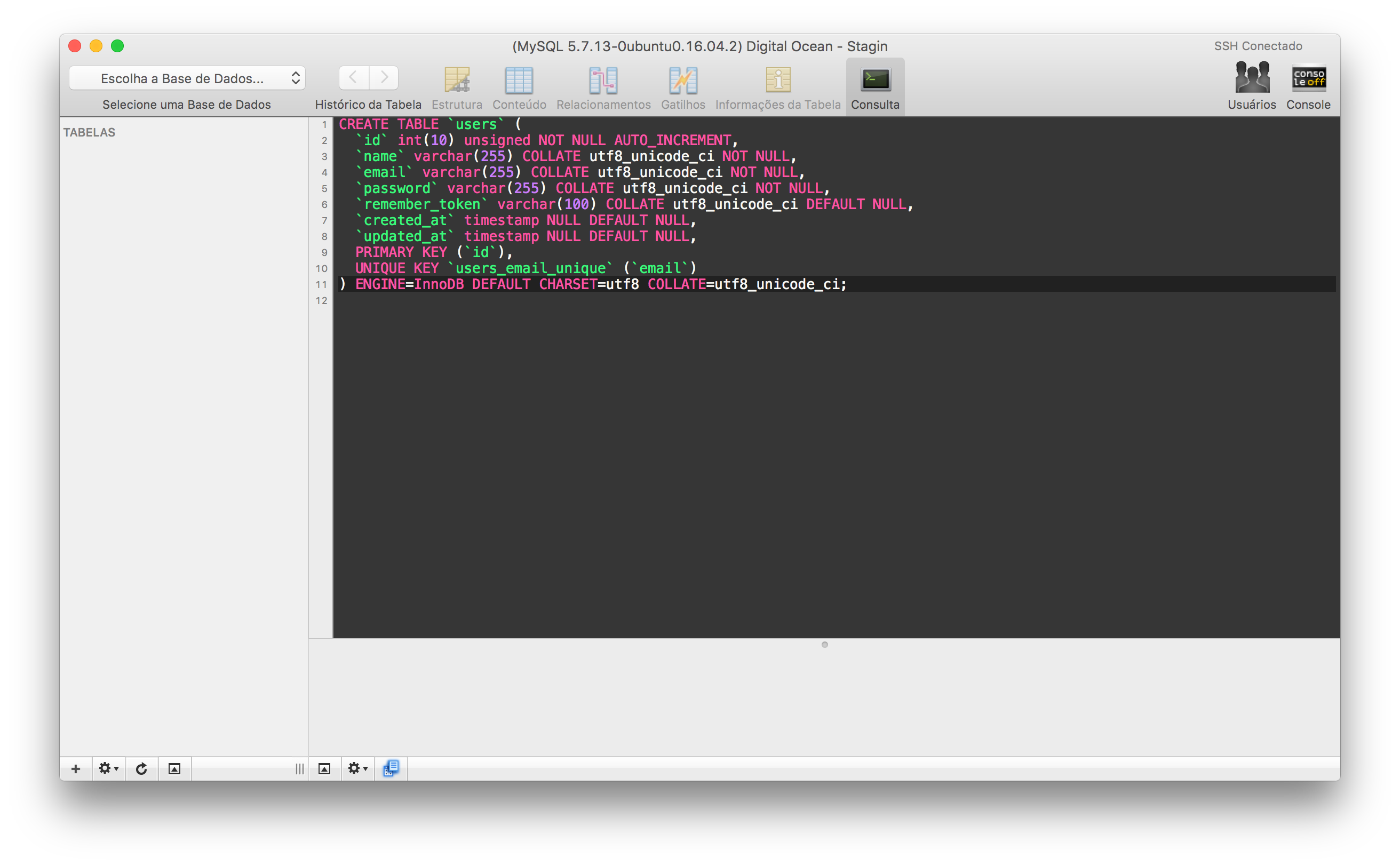
A simple and dark theme enough for Alfred, iTerm, Sublime, Terminal (Mac), ZSH and Sequel Pro.
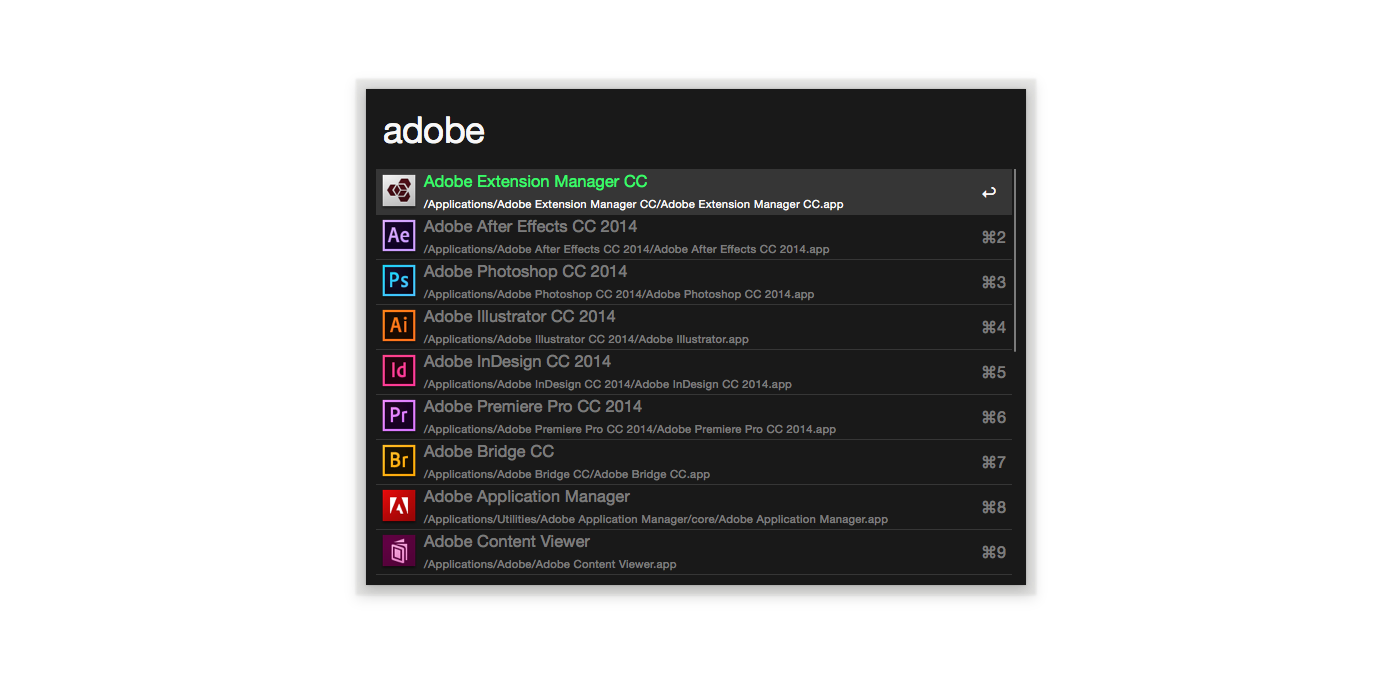
If you are a git user, you can install the theme and keep up to date by cloning the repo:
$ git clone https://github.com/leandromatos/pre-theme/
Download using the GitHub .zip download option and unzip them.
Double-clicking on alfred/Pre.alfredappearance file
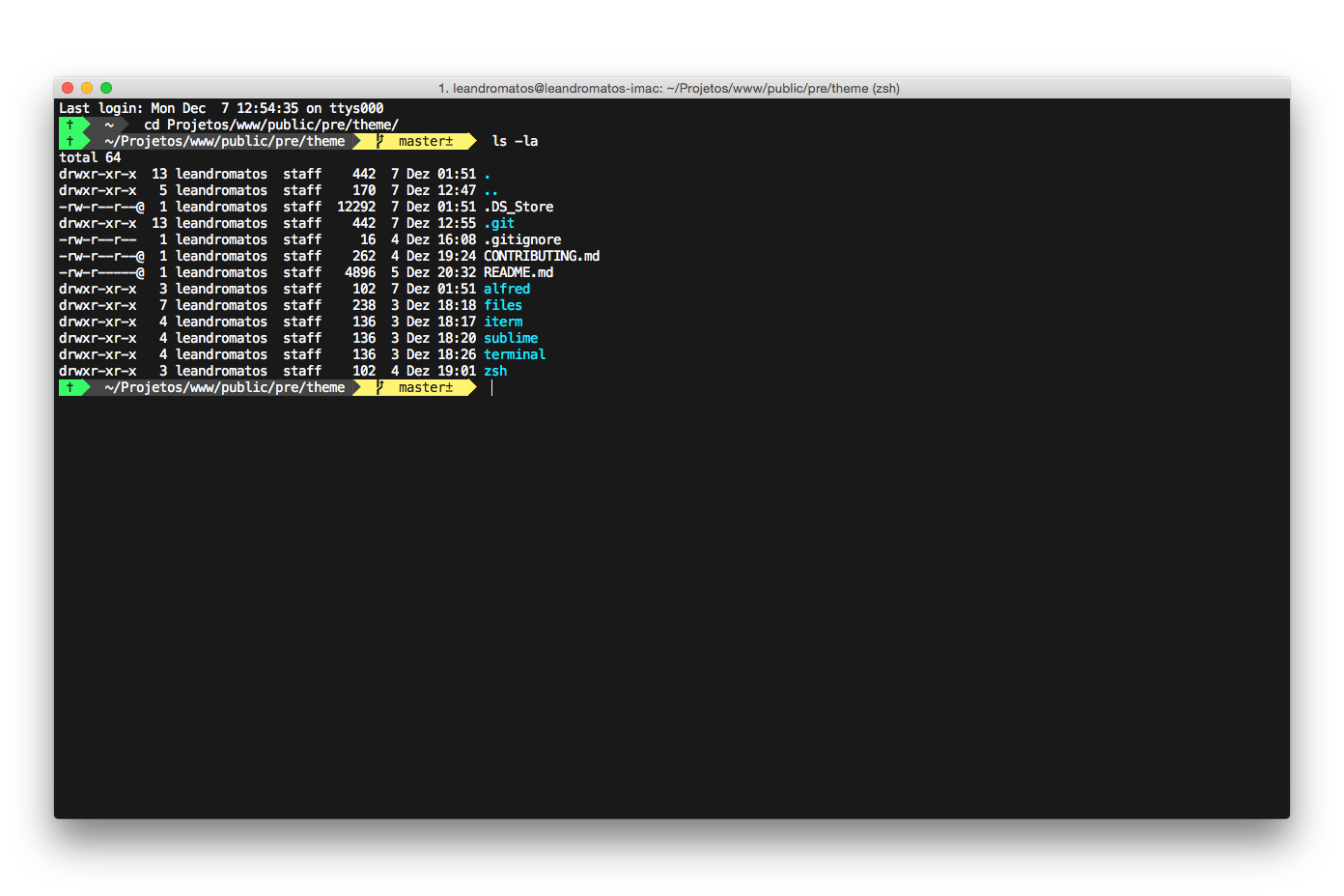
Note: iTerm2 with ZSH Theme.
If you are a git user, you can install the theme and keep up to date by cloning the repo:
$ git clone https://github.com/leandromatos/pre-theme/
Download using the GitHub .zip download option and unzip them.
- Go to iTerm2 > Preferences > Profiles > Colors Tab
- Click Load Presets ...
- Click Import
- Select the iterm/Pre.itermcolors file
- Select Pre from Load Presets ...
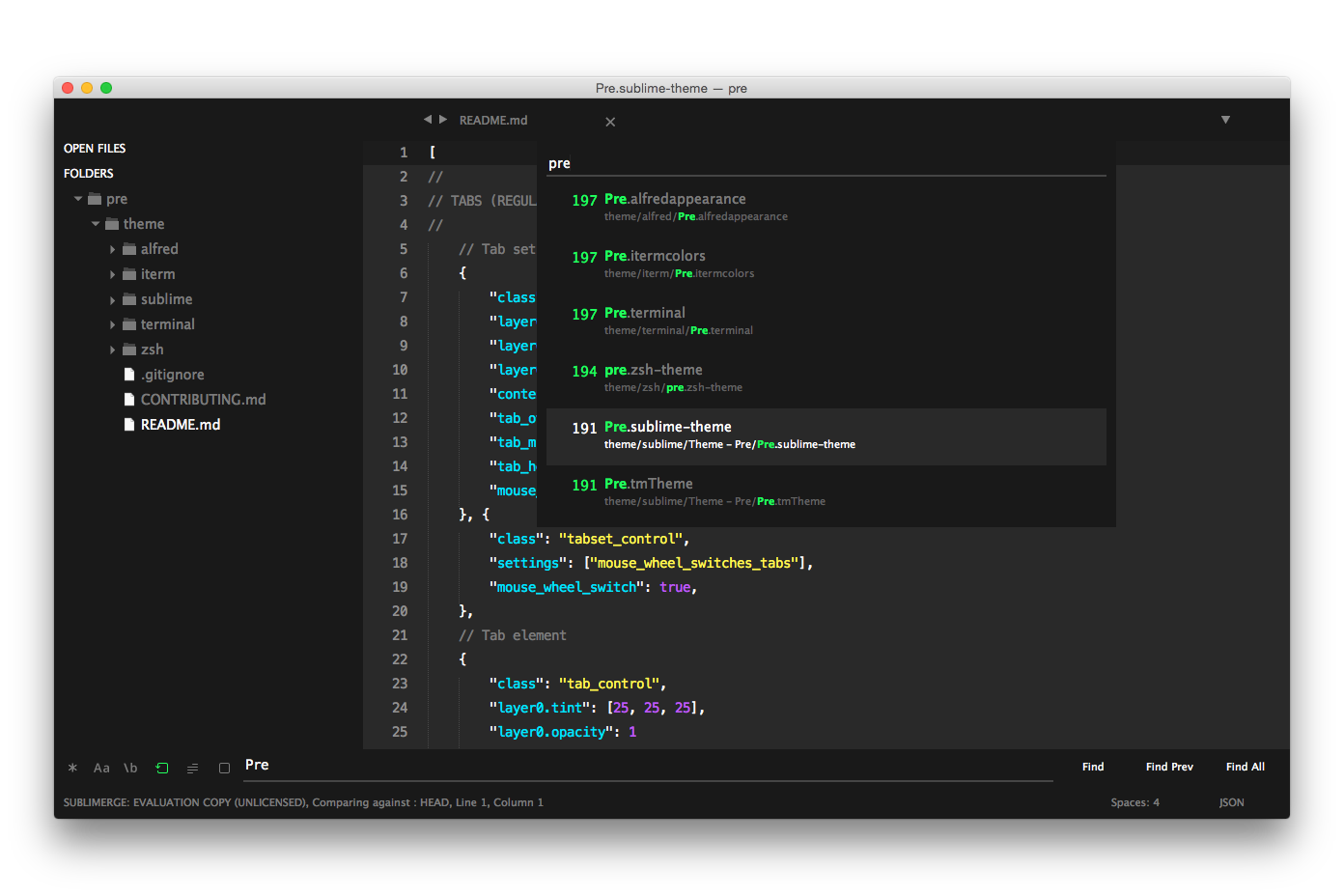
If you are a git user, you can install the theme and keep up to date by cloning the repo:
$ git clone https://github.com/leandromatos/pre-theme/
Download using the GitHub .zip download option and unzip them.
- Go to Sublime Text > Preferences > Browse Packages ...
- Copy the sublime/Theme - Pre folder and paste into your Sublime Text Package directory
- Go to Sublime Text > Preferences > Settings – User and add preferences
"theme": "Pre.sublime-theme",
"color_scheme": "Packages/Theme - Pre/Pre.tmTheme",
This theme provides an alternative style:
Screencasts
Set big text including tabs and sidebar
"pre_theme_screencasts": true,
"font_size": 18.0,
"overlay_scroll_bars": "enabled",
"font_size": 14.0,
"line_padding_top": 4,
"line_padding_bottom": 4,
"indent_guide_options": [ "draw_normal", "draw_active" ], // highlight active indent
"font_options": [ "gray_antialias" ], // on retina Mac
Note: Remember to restart Sublime Text after modify any preferences in Settings – User.
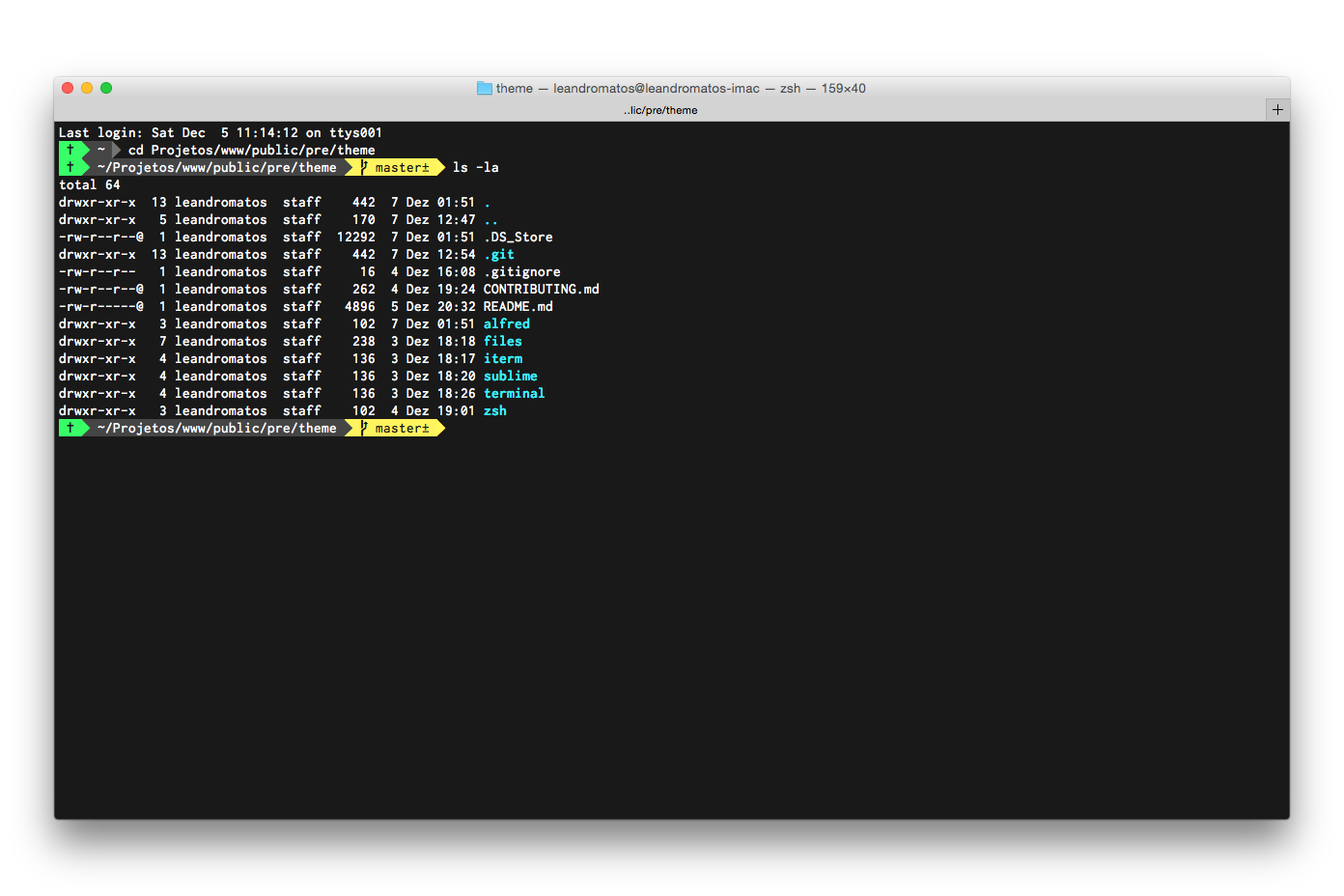
Note: Terminal (Mac) with ZSH Theme.
If you are a git user, you can install the theme and keep up to date by cloning the repo:
$ git clone https://github.com/leandromatos/pre-theme/
- Download using the GitHub .zip download option and unzip them.
- Go to Terminal > Preferences
- Click "Gear" icon
- Click Import ...
- Select the terminal/Pre.terminal file
- Click Default
If you are a git user, you can install the theme and keep up to date by cloning the repo:
$ git clone https://github.com/leandromatos/pre-theme/
And creating a symbolic link to oh-my-zsh's theme folder:
$ ln -s $PRE_THEME/zsh/pre.zsh-theme $OH_MY_ZSH/themes/pre.zsh-theme
Note: Remember that you should replace $PRE_THEME and $OH_MY_ZSH to the actual directories for this command to work.
- Download using the GitHub .zip download option and unzip them.
- Move zsh/pre.zsh-theme file to oh-my-zsh's theme folder: ~/.oh-my-zsh/themes/pre.zsh-theme.
- Go to your ~/.zshrc file and set ZSH_THEME="pre".
Note: The theme requires specific fonts to display the status icons correctly in the terminal. Please download and install all variations named "Inconsolata".
If you use iTerm2
- Go to iTerm2 > Preferences > Profiles > Text Tab
- In Regular-Font click in Change font and select family Menlo, typeface Regular and size 14
- In Non-ASCII Font click in Change font and select family Incosolata-g for Powerline, typeface g and size 14
If you use terminal (mac)
- Go to Terminal > Preferences
- In Font click in Change ... and select family Incosolata for Powerline, typeface Medium and size 14
If you are a git user, you can install the theme and keep up to date by cloning the repo:
$ git clone https://github.com/leandromatos/pre-theme/
- Download using the GitHub .zip download option and unzip them.
- Go to Sequel Pro > Preferences > Query Editor
- Click "Gear" icon
- Click Click Import Color Scheme...
- Select the Select the Pre.spTheme file file
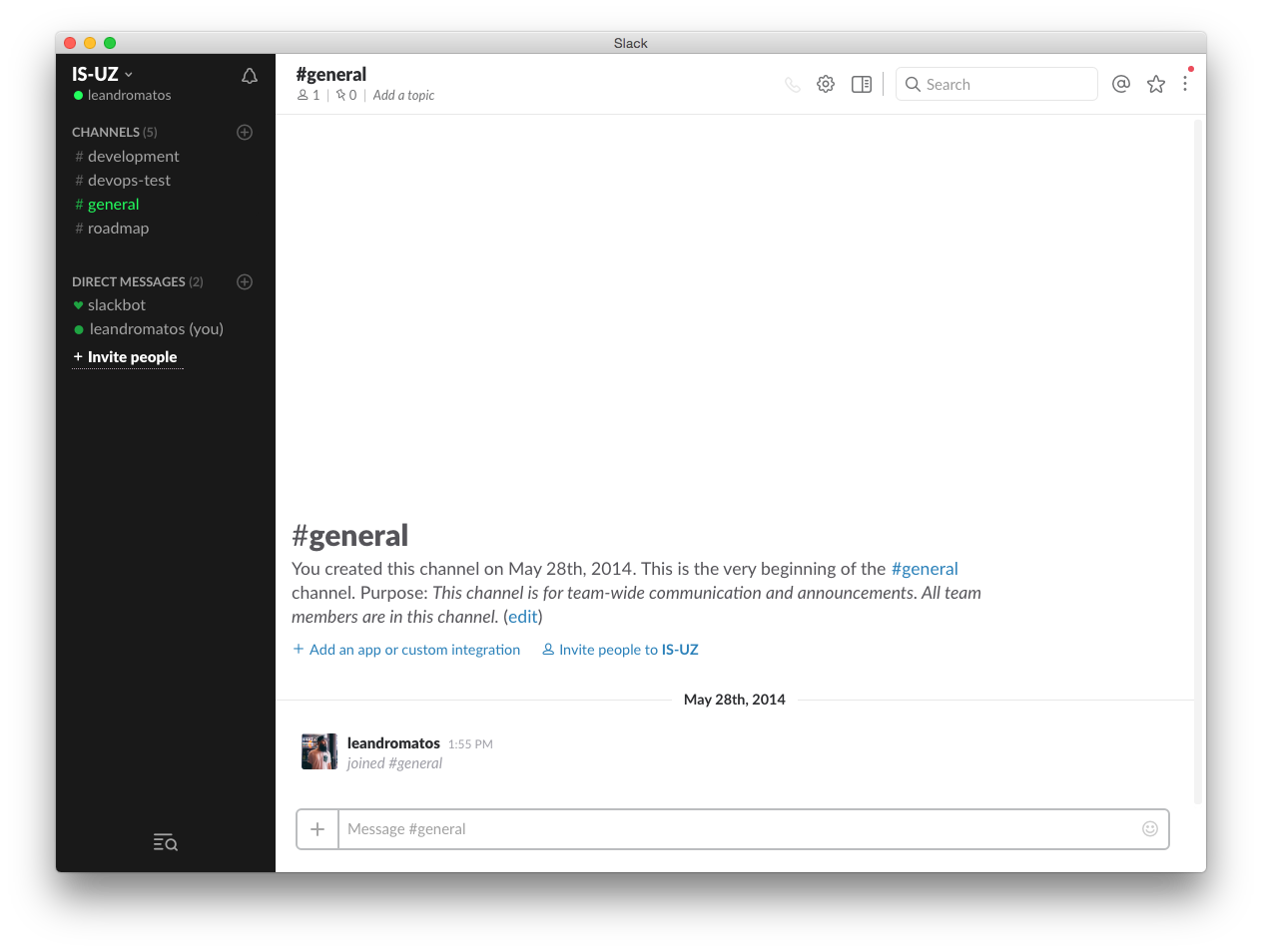
- Go to User Menu > Preferences > Sidebar Theme
- In the bottom of the window, look for a "customize your theme and share it with others" link
- Copy and paste the values below
#191919,#292929,#191919,#23FF5E,#292929,#FFFFFF,#23ff5e,#23FF5E
If you want to help, please read the Contributing guide.
MIT License © Leandro Matos