Sampler is a tool for shell commands execution, visualization and alerting. Configured with a simple YAML file.
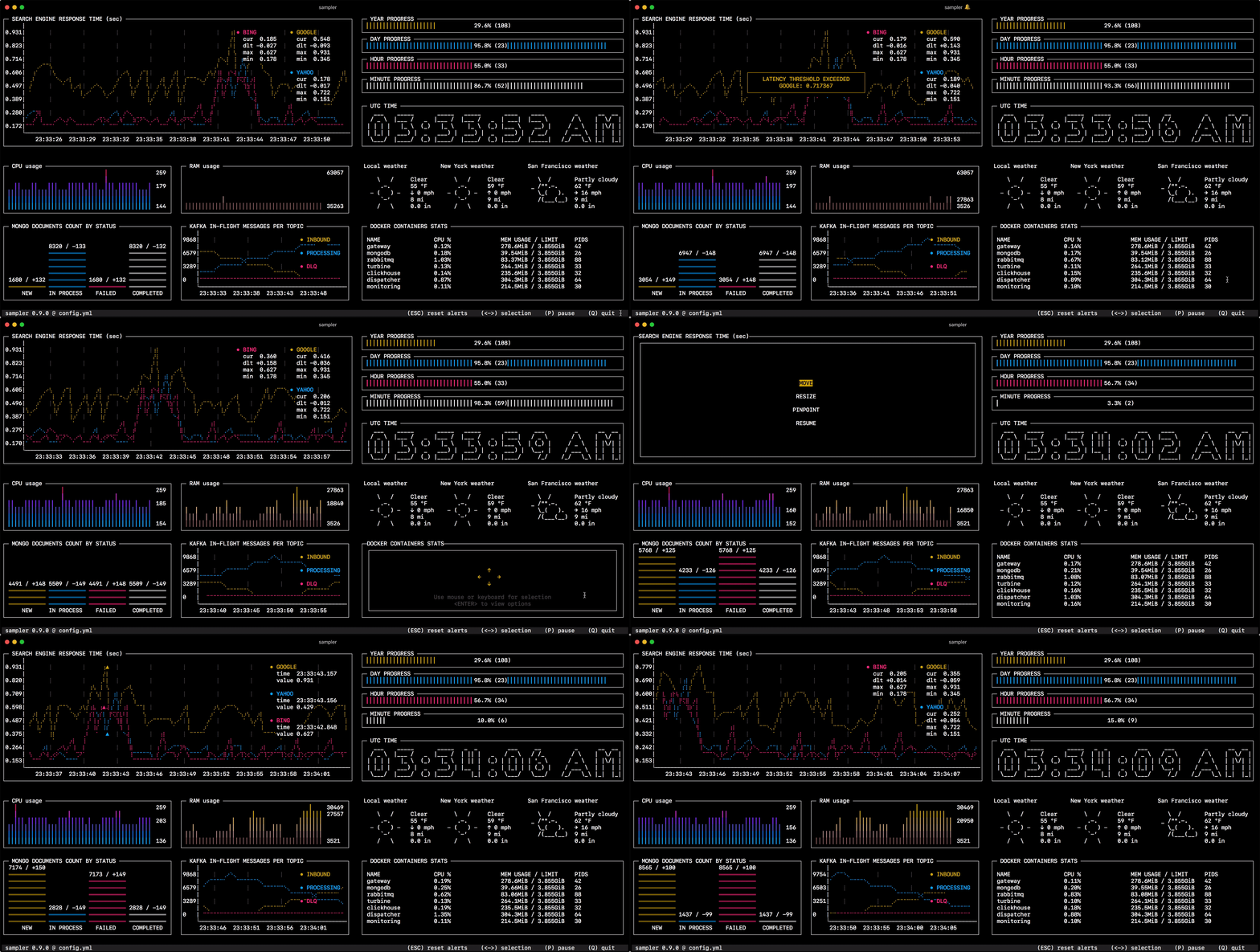
One can sample any dynamic process right from the terminal — observe changes in the database, monitor MQ in-flight messages, trigger a deployment script and get notification when it's done.
If there is a way to get a metric using a shell command, then it can be visualized with Sampler momentarily.
brew install sampler
sudo port install sampler
or
sudo curl -Lo /usr/local/bin/sampler https://github.com/sqshq/sampler/releases/download/v1.1.0/sampler-1.1.0-darwin-amd64
sudo chmod +x /usr/local/bin/sampler
sudo wget https://github.com/sqshq/sampler/releases/download/v1.1.0/sampler-1.1.0-linux-amd64 -O /usr/local/bin/sampler
sudo chmod +x /usr/local/bin/sampler
Note: libasound2-dev system library is required to be installed for Sampler to play a trigger sound tone. Usually the library is in place, but if not - you can install it with your favorite package manager, e.g apt install libasound2-dev
Recommended to use with advanced console emulators, e.g. Cmder
Via Chocolatey
choco install sampler
or
# Create a configuration file
vim config.yml
# Build the container image
docker build --tag sampler .
# Run a container
docker run --interactive --tty --volume $(pwd)/config.yml:/root/config.yml sampler --config /root/config.yml
You specify shell commands, Sampler executes them with a required rate. The output is used for visualization.
Using Sampler is basically a 3-step process:
- Define your shell commands in a YAML configuration file
- Run
sampler -c config.yml - Adjust components size and location on UI
Sampler is by no means an alternative to full-scale monitoring systems, but rather an easy to setup development tool.
If spinning up and configuring Prometheus with Grafana is complete overkill for you task, Sampler might be the right solution. No servers, no databases, no deploy - you specify shell commands, and it just works.
No, you can run Sampler on local, but still gather telemetry from multiple remote machines. Any visualization might have init command, where you can ssh to a remote server. See the SSH example
The following is a list of configuration examples for each component type, with macOS compatible sampling scripts.
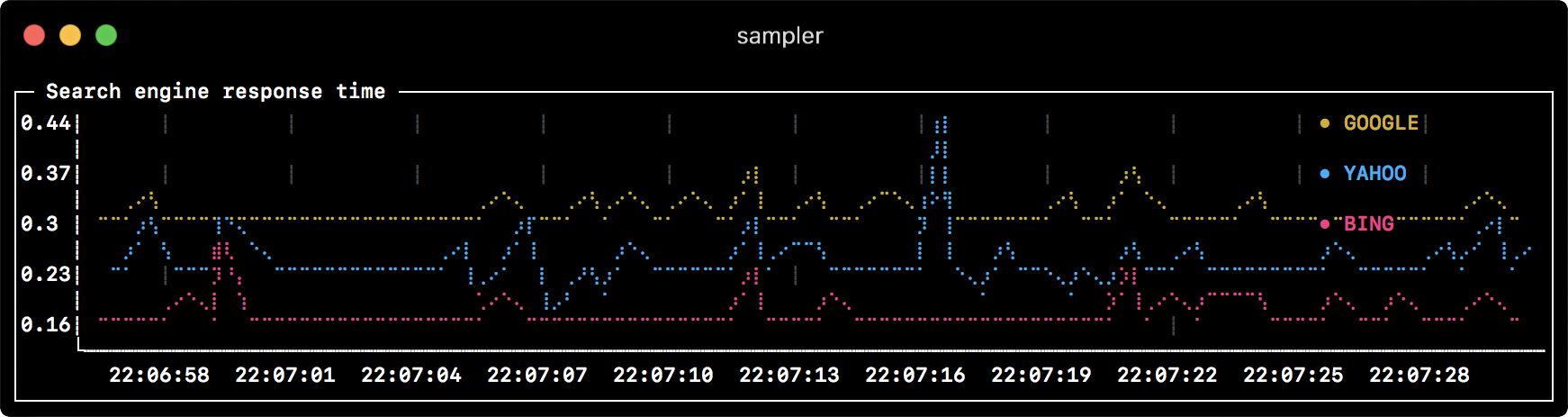
runcharts:
 - title: Search engine response time
 rate-ms: 500 # sampling rate, default = 1000
 scale: 2 # number of digits after sample decimal point, default = 1
 legend:
 enabled: true # enables item labels, default = true
 details: false # enables item statistics: cur/min/max/dlt values, default = true
 items:
 - label: GOOGLE
 sample: curl -o /dev/null -s -w '%{time_total}' https://www.google.com
 color: 178 # 8-bit color number, default one is chosen from a pre-defined palette
 - label: YAHOO
 sample: curl -o /dev/null -s -w '%{time_total}' https://search.yahoo.com
 - label: BING
 sample: curl -o /dev/null -s -w '%{time_total}' https://www.bing.com
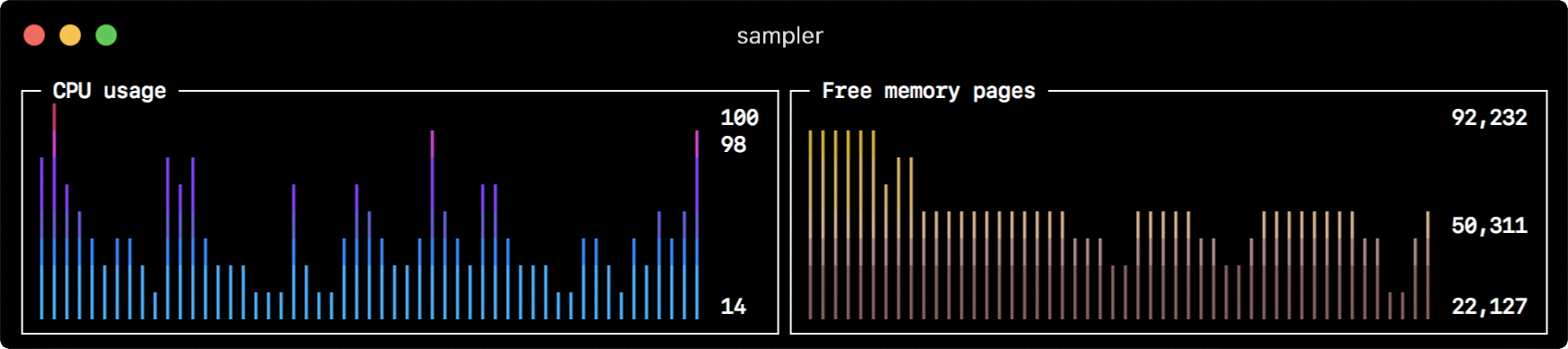
sparklines:
 - title: CPU usage
 rate-ms: 200
 scale: 0
 sample: ps -A -o %cpu | awk '{s+=1ドル} END {print s}'
 - title: Free memory pages
 rate-ms: 200
 scale: 0
 sample: memory_pressure | grep 'Pages free' | awk '{print 3ドル}'
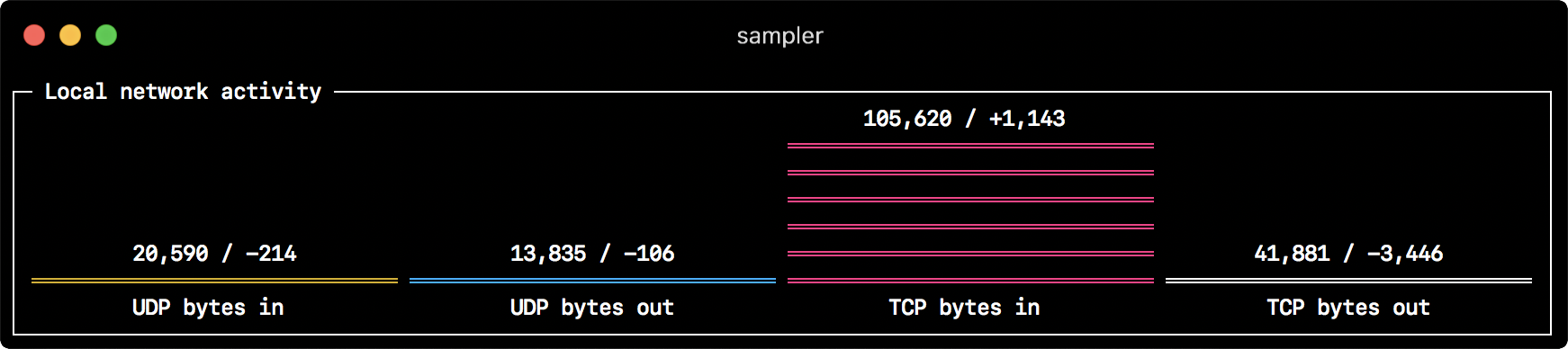
barcharts:
 - title: Local network activity
 rate-ms: 500 # sampling rate, default = 1000
 scale: 0 # number of digits after sample decimal point, default = 1
 items:
 - label: UDP bytes in
 sample: nettop -J bytes_in -l 1 -m udp | awk '{sum += 4ドル} END {print sum}'
 - label: UDP bytes out
 sample: nettop -J bytes_out -l 1 -m udp | awk '{sum += 4ドル} END {print sum}'
 - label: TCP bytes in
 sample: nettop -J bytes_in -l 1 -m tcp | awk '{sum += 4ドル} END {print sum}'
 - label: TCP bytes out
 sample: nettop -J bytes_out -l 1 -m tcp | awk '{sum += 4ドル} END {print sum}'

gauges:
 - title: Minute progress
 rate-ms: 500 # sampling rate, default = 1000
 scale: 2 # number of digits after sample decimal point, default = 1
 percent-only: false # toggle display of the current value, default = false
 color: 178 # 8-bit color number, default one is chosen from a pre-defined palette
 cur:
 sample: date +%S # sample script for current value
 max:
 sample: echo 60 # sample script for max value
 min:
 sample: echo 0 # sample script for min value
 - title: Year progress
 cur:
 sample: date +%j
 max:
 sample: echo 365
 min:
 sample: echo 0
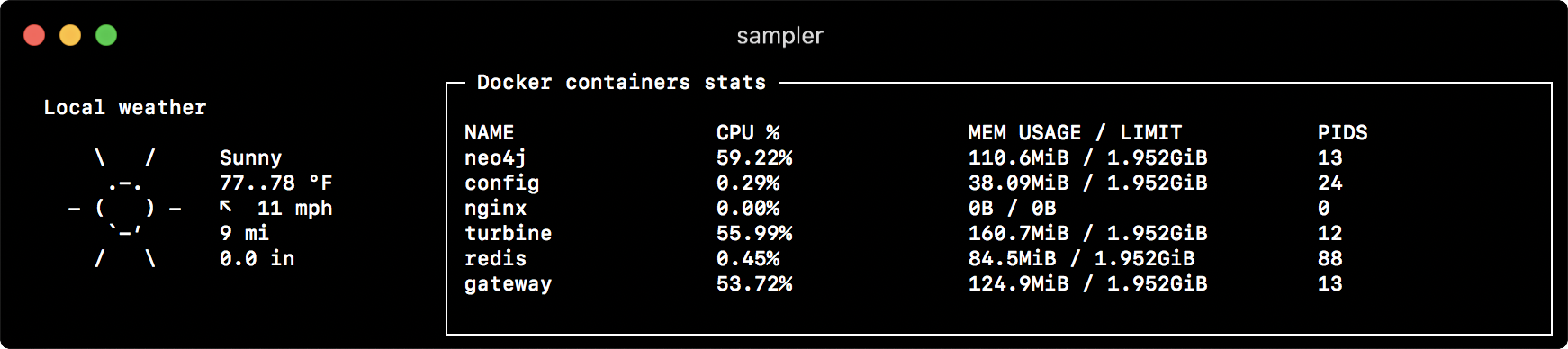
textboxes:
 - title: Local weather
 rate-ms: 10000 # sampling rate, default = 1000
 sample: curl wttr.in?0ATQF
 border: false # border around the item, default = true
 color: 178 # 8-bit color number, default is white
 - title: Docker containers stats
 rate-ms: 500
 sample: docker stats --no-stream --format "table {{.Name}}\t{{.CPUPerc}}\t{{.MemUsage}}\t{{.PIDs}}"

asciiboxes:
 - title: UTC time
 rate-ms: 500 # sampling rate, default = 1000
 font: 3d # font type, default = 2d
 border: false # border around the item, default = true
 color: 43 # 8-bit color number, default is white
 sample: env TZ=UTC date +%r
Triggers allow to perform conditional actions, like visual/sound alerts or an arbitrary shell command. The following examples illustrate the concept.
gauges:
 - title: MINUTE PROGRESS
 position: [[0, 18], [80, 0]]
 cur:
 sample: date +%S
 max:
 sample: echo 60
 min:
 sample: echo 0
 triggers:
 - title: CLOCK BELL EVERY MINUTE
 condition: '[ $label == "cur" ] && [ $cur -eq 0 ] && echo 1 || echo 0' # expects "1" as TRUE indicator
 actions:
 terminal-bell: true # standard terminal bell, default = false
 sound: true # NASA quindar tone, default = false
 visual: false # notification with current value on top of the component area, default = false
 script: say -v samantha `date +%I:%M%p` # an arbitrary script, which can use $cur, $prev and $label variables
runcharts:
 - title: SEARCH ENGINE RESPONSE TIME (sec)
 rate-ms: 200
 items:
 - label: GOOGLE
 sample: curl -o /dev/null -s -w '%{time_total}' https://www.google.com
 - label: YAHOO
 sample: curl -o /dev/null -s -w '%{time_total}' https://search.yahoo.com
 triggers:
 - title: Latency threshold exceeded
 condition: echo "$prev < 0.3 && $cur > 0.3" |bc -l # expects "1" as TRUE indicator
 actions:
 terminal-bell: true # standard terminal bell, default = false
 sound: true # NASA quindar tone, default = false
 visual: true # visual notification on top of the component area, default = false
 script: 'say alert: ${label} latency exceeded ${cur} second' # an arbitrary script, which can use $cur, $prev and $label variables
In addition to the sample command, one can specify init command (executed only once before sampling) and transform command (to post-process sample command output). That covers interactive shell use case, e.g. to establish connection to a database only once, and then perform polling within interactive shell session.
textboxes:
 - title: MongoDB polling
 rate-ms: 500
 init: mongo --quiet --host=localhost test # executes only once to start the interactive session
 sample: Date.now(); # executes with a required rate, in scope of the interactive session
 transform: echo result = $sample # executes in scope of local session, $sample variable is available for transformation
In some cases interactive shell won't work, because its stdin is not a terminal. We can fool it, using PTY mode:
textboxes:
 - title: Neo4j polling
 pty: true # enables pseudo-terminal mode, default = false
 init: cypher-shell -u neo4j -p pwd --format plain
 sample: RETURN rand();
 transform: echo "$sample" | tail -n 1
 - title: Top on a remote server
 pty: true # enables pseudo-terminal mode, default = false
 init: ssh -i ~/user.pem ec2-user@1.2.3.4
 sample: top
It is also possible to execute multiple init commands one after another, before you start sampling.
textboxes:
 - title: Java application uptime
 multistep-init:
 - java -jar jmxterm-1.0.0-uber.jar
 - open host:port # or local PID
 - bean java.lang:type=Runtime
 sample: get Uptime
If the configuration file contains repeated patterns, they can be extracted into the variables section.
Also variables can be specified using -v/--variable flag on startup, and any system environment variables will also be available in the scripts.
variables:
 mongoconnection: mongo --quiet --host=localhost test
barcharts:
 - title: MongoDB documents by status
 items:
 - label: IN_PROGRESS
 init: $mongoconnection
 sample: db.getCollection('events').find({status:'IN_PROGRESS'}).count()
 - label: SUCCESS
 init: $mongoconnection
 sample: db.getCollection('events').find({status:'SUCCESS'}).count()
 - label: FAIL
 init: $mongoconnection
 sample: db.getCollection('events').find({status:'FAIL'}).count()
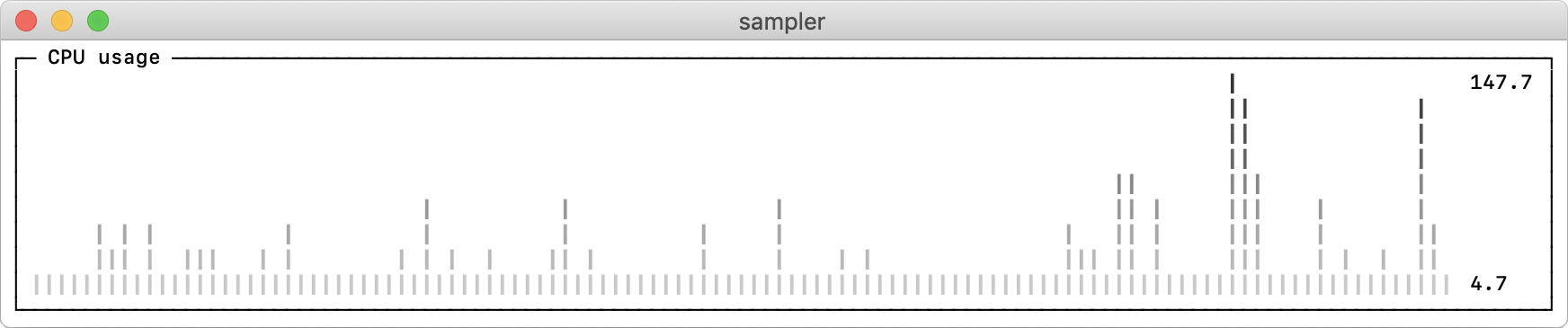
theme: light # default = dark
sparklines:
 - title: CPU usage
 sample: ps -A -o %cpu | awk '{s+=1ドル} END {print s}'
The following are different database connection examples. Interactive shell (init script) usage is recommended to establish connection only once and then reuse it during sampling.
MySQL
# prerequisite: installed mysql shell
variables:
 mysql_connection: mysql -u root -s --database mysql --skip-column-names
sparklines:
 - title: MySQL (random number example)
 pty: true
 init: $mysql_connection
 sample: select rand();
PostgreSQL
# prerequisite: installed psql shell
variables:
 PGPASSWORD: pwd
 postgres_connection: psql -h localhost -U postgres --no-align --tuples-only
sparklines:
 - title: PostgreSQL (random number example)
 init: $postgres_connection
 sample: select random();
MongoDB
# prerequisite: installed mongo shell
variables:
 mongo_connection: mongo --quiet --host=localhost test
sparklines:
 - title: MongoDB (random number example)
 init: $mongo_connection
 sample: Math.random();
Neo4j
# prerequisite: installed cypher shell
variables:
 neo4j_connection: cypher-shell -u neo4j -p pwd --format plain
sparklines:
 - title: Neo4j (random number example)
 pty: true
 init: $neo4j_connection
 sample: RETURN rand();
 transform: echo "$sample" | tail -n 1
Kafka lag per consumer group
variables:
 kafka_connection: $KAFKA_HOME/bin/kafka-consumer-groups --bootstrap-server localhost:9092
runcharts:
 - title: Kafka lag per consumer group
 rate-ms: 5000
 scale: 0
 items:
 - label: A->B
 sample: $kafka_connection --group group_a --describe | awk 'NR>1 {sum += 5ドル} END {print sum}'
 - label: B->C
 sample: $kafka_connection --group group_b --describe | awk 'NR>1 {sum += 5ドル} END {print sum}'
 - label: C->D
 sample: $kafka_connection --group group_c --describe | awk 'NR>1 {sum += 5ドル} END {print sum}'
Docker containers stats (CPU, MEM, O/I)
textboxes:
 - title: Docker containers stats
 sample: docker stats --no-stream --format "table {{.Name}}\t{{.CPUPerc}}\t{{.MemPerc}}\t{{.MemUsage}}\t{{.NetIO}}\t{{.BlockIO}}\t{{.PIDs}}"
TOP command on a remote server
variables:
 sshconnection: ssh -i ~/my-key-pair.pem ec2-user@1.2.3.4
textboxes:
 - title: SSH
 pty: true
 init: $sshconnection
 sample: top
Java application uptime example
# prerequisite: download [jmxterm jar file](https://docs.cyclopsgroup.org/jmxterm)
textboxes:
 - title: Java application uptime
 multistep-init:
 - java -jar jmxterm-1.0.0-uber.jar
 - open host:port # or local PID
 - bean java.lang:type=Runtime
 sample: get Uptime
 transform: echo $sample | tr -dc '0-9' | awk '{printf "%.1f min", 1ドル/1000/60}'