Thanks for non-commercial open source development authorization by JetBrains.
`pangle_flutter`是一款集成了字节跳动穿山甲 Android 和 iOS SDK的 Flutter 插件。
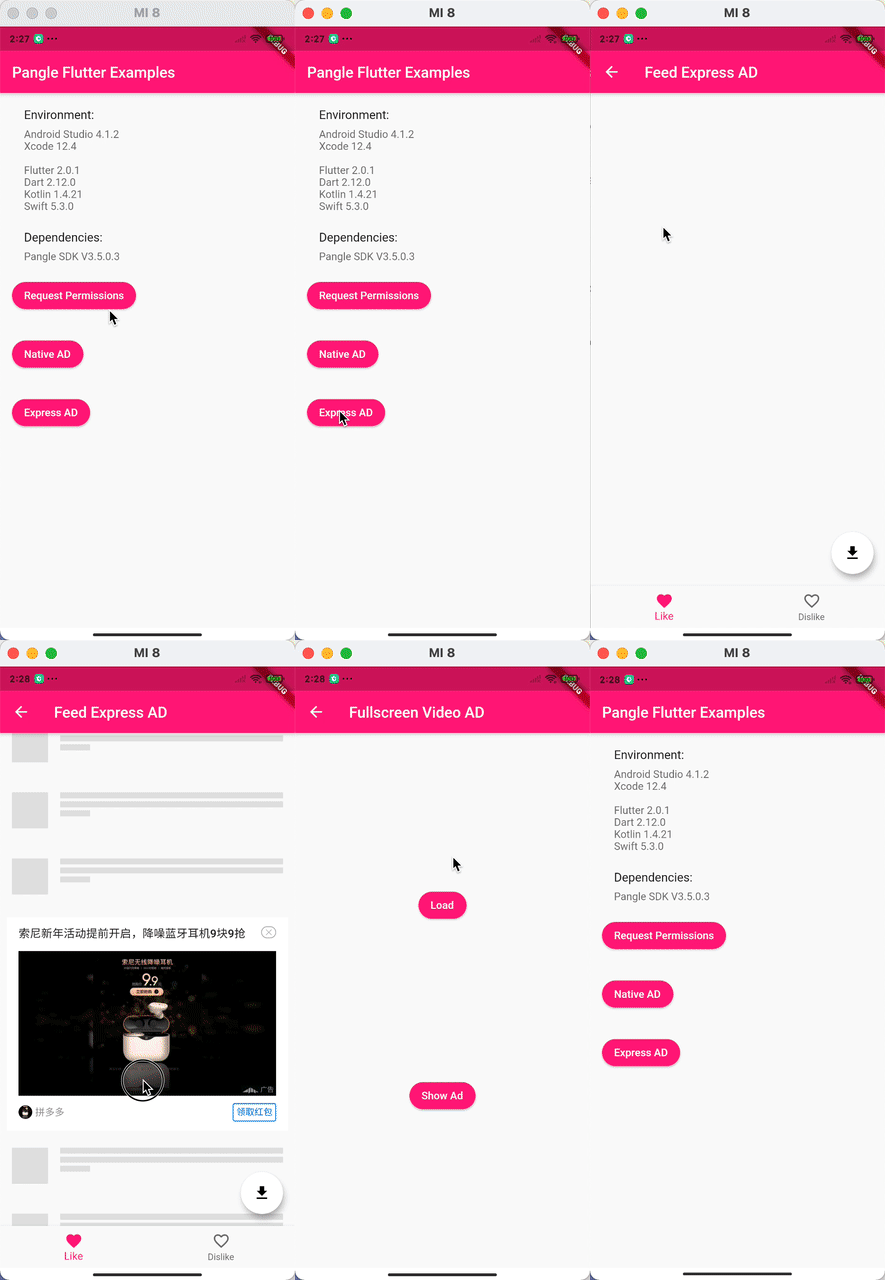
原生平台相关范例:
- 不再需要传入isExpress参数
- BannerView, FeedView, SplashView均需要包一层限制大小的Widget, 可选Container, SizeBox, AspectRatio, Expanded等
- BannerView, FeedView, SplashView的控制点击实现变动,可参考example进行更改。
- 已经内部依赖相关sdk,无需额外导入。如需替换新的sdk,请自行fork本项目更改依赖。
注:如果出现高版本不兼容问题,可联系我升级适配,或者使用上面指定版本。
dependencies:
 # 添加依赖
 pangle_flutter: latest
-
iOS版本依赖配置
本项目默认集成
Ads-CN, 如果你是国内APP,无需额外配置;(削除) 如果你是海外APP,请参照如下配置:(已移除) (削除ここまで) -
使用说明
支持开屏广告、激励视频、全屏视频(新模板渲染插屏广告)、模板渲染信息流、模板渲染插屏、模板渲染Banner。(如有自渲染广告位请联系我,或提交Feature request)


- 创建一个Swift文件,名称随意
- 根据提示选择
Create Bridging Header。如果没有提示,请自行搜索如何创建。

import 'package:pangle_flutter/pangle_flutter.dart';
/// 如果在runApp方法调用之前初始化,加入下面这句代码
WidgetsFlutterBinding.ensureInitialized();
/// 初始化,未列出所有参数
/// [kAppId] 申请穿山甲广告位后得到的appID
await pangle.init(
 iOS: IOSConfig(appId: kAppId),
 android: AndroidConfig(appId: kAppId),
);
/// 全屏类型
/// [kSplashId] 开屏广告ID, 对应Android的CodeId,对应iOS的slotID
await pangle.loadSplashAd(
 iOS: IOSSplashConfig(slotId: kSplashId, isExpress: false),
 android: AndroidSplashConfig(slotId: kSplashId, isExpress: false),
);
/// 自定义类型
/// AndroidViewSurface支持
@override
void initState() {
 super.initState();
 SplashView.platform = SurfaceAndroidSplashView(hybridComposition: false);
}
/// 同Widget类用法
SplashView(
 iOS: IOSSplashConfig(slotId: kSplashId, isExpress: false),
 android: AndroidSplashConfig(slotId: kSplashId, isExpress: false),
 backgroundColor: Colors.white,
 /// 广告展示
 onShow: (){},
 /// 广告获取失败
 onError: (int code, String message){},
 /// 广告被点击
 onClick: (){},
 /// 广告已结束
 onClose: (){},
);
/// [kRewardedVideoId] 激励视频广告ID, 对应Android的CodeId,对应iOS的slotID
pangle.loadRewardVideoAd(
 iOS: IOSRewardedVideoConfig(slotId: kRewardedVideoId),
 android: AndroidRewardedVideoConfig(slotId: kRewardedVideoId),
 );
基本覆盖了原生回调事件,现在点击右上角关闭[ x ]按钮,需要开发者手动移除,不再自动移除Item。
/// AndroidViewSurface支持
@override
void initState() {
 super.initState();
 BannerView.platform = AndroidBannerView(hybridComposition: false);
}
/// Banner通过PlatformView实现,使用方法同Widget
/// [kBannerId] Banner广告ID, 对应Android的CodeId,对应iOS的slotID
BannerView(
 iOS: IOSBannerAdConfig(slotId: kBannerId),
 android: AndroidBannerAdConfig(slotId: kBannerId),
 // 还有其他回调,具体可导入查看
),
// 必须限定范围大小,可用Expaned,Container,SizeBox,AspectRatio等
Container(
 height: 260,
 child: BannerView(
 iOS: IOSBannerConfig(
 slotId: kBannerExpressId600x260,
 expressSize: PangleExpressSize(width: 600, height: 260),
 ),
 android: AndroidBannerConfig(
 slotId: kBannerExpressId600x260,
 expressSize: PangleExpressSize(width: 600, height: 260),
 ),
 onBannerViewCreated: (BannerViewController controller){
 // 传入[Rect.zero]与[]均为无额外点击区域
 controller.addTouchableBounds([Rect.zero]);
 // 清空额外点击区域
 controller.clearTouchableBounds();
 },
 onClick: () {},
 ),
),
基本覆盖了原生回调事件,现在点击右上角关闭[ x ]按钮,需要开发者手动移除,不再自动移除Item。
- 获取信息流数据
/// 信息流实现逻辑
/// 首先进行网络请求,得到信息流数据
///
/// PangleFeedAd相应字段:
/// [code] 响应码,0成功,-1失败
/// [message] 错误时,调试信息
/// [count] 获得信息流数量,一般同上面传入的count,最终结果以此count为主
/// [data] (string list) 用于展示信息流广告的键id
 PangleFeedAd feedAd = await pangle.loadFeedAd(
 iOS: IOSFeedAdConfig(slotId: kFeedId, count: 2),
 android: AndroidFeedAdConfig(slotId: kFeedId, count: 2),
 );
- 加载数据
/// AndroidViewSurface支持
@override
void initState() {
 super.initState();
 FeedView.platform = AndroidFeedView(hybridComposition: false);
}
/// 使用方法
/// 你的数据模型
class Item {
 /// 添加字段
 final String feedId;
}
final items = <Item>[];
final feedAdDatas = feedAd.data;
final items = Item(feedId: feedAdDatas[0]);
items.insert(Random().nextInt(items.length), item);
/// Widget使用
FeedView(
 id: item.feedId,
 onRemove: () {
 setState(() {
 items.removeAt(index);
 });
 },
)
- 清除缓存
 AspectRatio(
 aspectRatio: 375 / 284.0,
 child: FeedView(
 id: item.feedId,
 onDislike: (option) {
 // 1.移除FeedView两步

 // 可在dispose方法处移除所有(此处可选)
 pangle.removeFeedAd([item.feedId]);
 // 移除界面上的显示
 setState(() {
 items.removeAt(index);
 });
 },
 ),
 )
// 可选,点击不喜欢即右上角叉时清除
pangle.removeFeedAd([item.feedId]);
// 必须
@override
void dispose() {
 /// 不关心返回值
 pangle.removeFeedAd(feedIds);
 /// 关心返回值
 /// _removeFeedAd();
 super.dispose();
}
/// 移除广告
_removeFeedAd() async {
 /// 返回移除个数
 int count = await pangle.removeFeedAd(feedIds);
 print('Feed Ad Removed: $count');
}
 final result = await pangle.loadInterstitialAd(
 iOS: IOSInterstitialAdConfig(
 slotId: kInterstitialId
 /// 该宽高为你申请的广告位宽高,请根据实际情况赋值
 expressSize: PangleExpressSize(width: width, height: height),
 ),
 android: AndroidInterstitialAdConfig(
 slotId: kInterstitialId,
 ),
 );
print(jsonEncode(result));
本方案适用于SplashView、FeedView、BannerView。
当我们点击覆盖在广告View上方的Widget时,最优先响应该事件的View是用来渲染被原生广告遮挡的Widget layer 的FlutterOverlayView,而FlutterOverlayView在初始化时被禁用了用户交互响应userInteractionEnabled=NO,所以点击事件就会在广告View上被响应。因采用方案Flutter原生广告优化处理了点击穿透问题,广告可点击区域存在屏蔽过度的情况,故增加方法添加额外点击区域。
- 添加可点击区域(此处使用FeedView作为范例)
// 1.广告不可点击区域key
final _otherKey = GlobalKey();
// 2.可能覆盖在FeedView上的button
FloatingActionButton(
 key: _otherKey,
),
// 3. 获取FeedViewController并添加点击范围
 AspectRatio(
 aspectRatio: 375 / 284.0,
 child: FeedView(
 id: item.feedId,
 onFeedViewCreated: (controller) {
 // 限制FeedView点击范围
 _initConstraintBounds(controller);
 },
 ),
 )
_initConstraintBounds(FeedViewController controller) {
 if (!Platform.isIOS) {
 return;
 }
 RenderBox otherBox = _otherKey.currentContext.findRenderObject();
 final otherBound = PangleHelper.fromRenderBox(otherBox);
 final targetBound = Rect.fromLTWH(
 0,
 otherBound.top,
 kPangleScreenWidth - otherBound.width,
 otherBound.height,
 );
 controller.addTouchableBound(targetBound);
}
另外已实现全屏视频广告、新模板渲染插屏,使用方式大同小异。
提交issue即可。