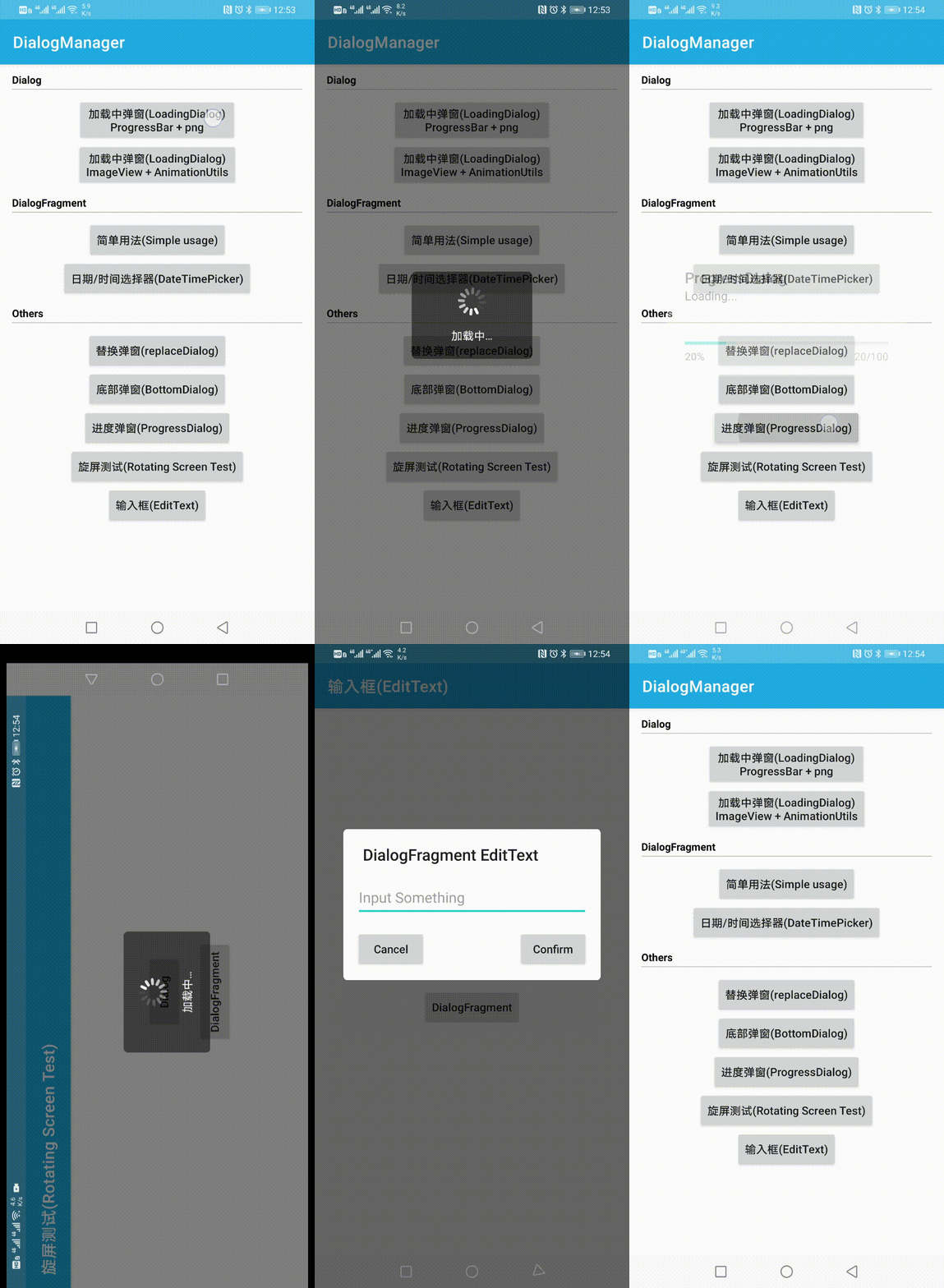
🍎🍎🍎 很轻量的框架, 可根据不同的需求, 选取不同的导入方式:
- 基于
Dialog/DialogFragment实现, 主要包括Dialog开发过程中的基本用法并处理了一些常见的问题。
implementation 'com.github.javakam:dialog.core:7.6.0@aar' //核心库, 2个类
implementation 'com.github.javakam:dialog.usage:7.6.0@aar' //常用样式(如: 加载中弹窗)
- 基于
BottomSheetDialogFragment, 包括网格弹窗, 可用于第三方分享, 支持标题、顶部圆角和滑动设置; 列表样式弹窗, 支持单选和多选。
支持单选/多选的RecyclerView框架'com.github.javakam:widget.optionview:xxx@aar'可以独立使用, 可依附于任何
ViewGroup。
implementation 'com.github.javakam:dialog.bottomsheet:7.6.0@aar' //底部弹窗(必需下面的 widget.optionview 框架)
implementation 'com.github.javakam:widget.optionview:7.6.0@aar' //单选/多选的RecyclerView,基于EasyAdapter实现
//1. 创建并显示弹窗
fun showLoadingDialog() {//以加载中弹窗为例
 DialogManager.with(this, R.style.AndoLoadingDialog)//建议设置主题样式(It is recommended to set the theme style)
 .useDialogFragment()//默认为`DialogFragment`实现, useDialog()表示由`Dialog`实现
 .setContentView(R.layout.layout_ando_dialog_loading) { v -> //设置显示布局 (Set display layout)
 v.findViewById<ProgressBar>(R.id.progressbar_ando_dialog_loading).visibility = View.VISIBLE
 }
 .setTitle("Title")//Need Config `<item name="android:windowNoTitle">false</item>`
 .setWidth(200)//设置宽
 .setHeight(200)//设置高
 .setSize(200, 200)//设置宽高(Set width and height)
 .setAnimationId(R.style.AndoBottomDialogAnimation)//设置动画(Set up animation)
 .setCancelable(true)
 .setCanceledOnTouchOutside(true)
 .setDimAmount(0.7F) //设置背景透明度, 0 ~ 1 之间,0为透明,1为不透明. 只要该值不是 -1, 就会应用该值
 .setDimmedBehind(false) //设置背景透明, false透明, true不透明
 .addOnGlobalLayoutListener { width, height -> }//获取显示后的真实宽高
 .setOnCancelListener {} //取消监听
 .setOnDismissListener {}//关闭监听
 .setOnKeyListener { dialog, keyCode, event -> true }//按键监听
 .setOnShowListener {}//显示监听
 .apply {
 //显示之前配置,如:
 //Display the previous configuration, such as:
 //dialog?.window?.requestFeature(Window.FEATURE_NO_TITLE)
 }
 .show()
 .apply {
 //显示之后配置, 效果和`setOnShowListener`相同
 //Configure after display, the effect is the same as `setOnShowListener`
 }
 //Dialog是否正在显示
 //Whether Dialog is showing
 DialogManager.isShowing()
 //Dialog显示后动态改变展示效果
 //The Dialog display dynamically changes the display effect
 findViewById<View>(R.id.bt_loading_progressbar_imageview).postDelayed({
 //实用性用法, 动态改变窗口文本: "加载中" -> "已完成"
 DialogManager.contentView?.findViewById<TextView>(R.id.xxx)?.text = "已完成"
 //实用性用法, 动态改变转圈儿图片
 DialogManager.contentView?.findViewById<ProgressBar>(R.id.xxx)?.visibility = View.GONE
 val image: ImageView? = DialogManager.contentView?.findViewById(R.id.xxx)
 image?.visibility = View.VISIBLE
 val anim = AnimationUtils.loadAnimation(this, ando.dialog.usage.R.anim.anim_ando_dialog_loading)
 image?.startAnimation(anim)
 //改变弹窗宽高(Change the width and height of the dialog)
 DialogManager.setWidth(280)
 DialogManager.setHeight(280)
 DialogManager.applySize()
 //控制背景亮度(Control background brightness)
 DialogManager.setDimAmount(0.3F)
 DialogManager.applyDimAmount()
 //or 直接移除背景变暗(Directly remove the background darkening)
 //DialogManager.dialog?.window?.clearFlags(WindowManager.LayoutParams.FLAG_DIM_BEHIND)
 }, 6000)
}
2. 关闭弹窗
override fun onDestroy() {
 super.onDestroy()
 DialogManager.dismiss()
}
- 同时支持
Dialog和DialogFragment(Support bothDialogandDialog Fragment):
Dialog: useDialog(); DialogFragment: useDialogFragment()
- 控制背景变暗(Control the darkening of the background)
Window.addFlags / clearFlags(WindowManager.LayoutParams.FLAG_DIM_BEHIND)
Dialog / Window.requestWindowFeature(Window.FEATURE_LEFT_ICON)
-
Window相关属性(WindowManager.LayoutParams), 如动态改变Dialog的位置、宽高、动画、背景等 -
setFeatureXXX相关方法, 如:setFeatureDrawable/setFeatureDrawableResource/setFeatureDrawableUri/setFeatureDrawableAlpha -
setFeatureXXX方法必须在Dialog.show之前设置requestWindowFeature才能生效, 否则出现BUG:java.lang.RuntimeException: The feature has not been requested -
🍎 通常在
show执行后或者setOnShowListener中设置window属性
setOnShowListener {
 //对`Window`的设置需要在`Dialog`显示后才有效果
 //The setting of `Window` needs to be effective after `Dialog` is displayed
 val attributes = DialogManager.getDialog().window?.attributes
 attributes?.apply {
 width = 800
 height = 500
 gravity = Gravity.CENTER //居中显示 (Center display)
 dimAmount = 0.5f //背景透明度 (Background transparency) 0 ~ 1
 }
 DialogManager.getDialog().window?.attributes = attributes
}anim_ando_dialog_bottom_in.xml
<?xml version="1.0" encoding="utf-8"?>
<translate xmlns:android="http://schemas.android.com/apk/res/android"
 android:duration="@integer/integer_ando_dialog_bottom_translate_duration" android:fromXDelta="0"
 android:fromYDelta="100%" android:toXDelta="0" android:toYDelta="0" />
anim_ando_dialog_bottom_out.xml
<?xml version="1.0" encoding="utf-8"?>
<translate xmlns:android="http://schemas.android.com/apk/res/android"
 android:duration="@integer/integer_ando_dialog_bottom_translate_duration" android:fromXDelta="0"
 android:fromYDelta="0" android:toXDelta="0" android:toYDelta="100%" />
styles.xml
<style name="AndoBottomDialogAnimation">
 <item name="android:windowEnterAnimation">@anim/anim_ando_dialog_bottom_in</item>
 <item name="android:windowExitAnimation">@anim/anim_ando_dialog_bottom_out</item>
</style>
Dialog.window.setWindowAnimations(R.style.AndoBottomDialogAnimation)
注意:
Dialog设置动画在new BottomDialog(context, R.style.AndoBottomDialogAnimation)时设置是无效的, 必须在show之后再对Window设置动画(setWindowAnimations)才能生效。经实际测试发现 API 5.0~11都是如此。
在
Dialog的setContentView之后(即show之后) 设置window.setBackgroundDrawableResource(R.drawable.rectangle_ando_dialog_bottom)
rectangle_ando_dialog_bottom.xml
<?xml version="1.0" encoding="utf-8"?>
<shape xmlns:android="http://schemas.android.com/apk/res/android" android:shape="rectangle">
 <corners android:topLeftRadius="10dp" android:topRightRadius="10dp" />
 <solid android:color="@android:color/white" />
</shape>
就是给Window加上个background, 详见👉Dialog 圆角问题
要在
setContentView外包一层FrameLayout防止宽高设置无效问题
🍎 LoadingDialog样式的弹窗提供了两种实现方案,一种是animated-rotate/rotate
直接配置动画方式,另一种是android.view.animation.AnimationUtils;
其中的布局文件需要包一层FragmeLayout
<FrameLayout xmlns:android="http://schemas.android.com/apk/res/android"
 android:layout_width="match_parent" android:layout_height="match_parent"
 android:gravity="center">
 <LinearLayout android:layout_width="200dp" android:layout_height="150dp"
 android:layout_gravity="center" android:orientation="vertical">
 ...
 </LinearLayout>
</FrameLayout>
Dialog的setContentView(layoutId)和setContentView(view)是不一样的, 如果使用的是layoutId:Int则不需要外面套一层FrameLayout, 但如果是用的view:View, 则必须在自定义布局的最外层在套一层其它布局,如FrameLayout。前者用的是LayoutInflater.inflate(layoutId,mContentParent,true)而后者用的是mContentParent.addView(view)即LayoutInflater.inflate(view,null,false). 我们看下inflate方法的特性:
只创建view,view没有LayoutParams值,然后直接返回view
布局中最外层的layout_width、layout_height将失效
创建view, 然后执行mContentParent.addView(view, params), 最后返回mContentParent
综上所述,
Dialog宽高无效问题, 本质上就是LayoutInflater.inflate不同方法之间差异的问题. 其中的mContentParent:ViewGroup由PhoneWindow.installDecor()创建. 详见:PhoneWindow.setContentView
fun setContentView(
 layoutId: Int,
 block: ((Dialog?, View) -> Unit)? = null
): DialogManager {
 FrameLayout(mContext ?: return this).apply {
 layoutParams = ViewGroup.LayoutParams(
 ViewGroup.LayoutParams.MATCH_PARENT,
 ViewGroup.LayoutParams.MATCH_PARENT
 )
 contentView = LayoutInflater.from(mContext).inflate(layoutId, this, true)
 ...
 }
 return this
}
-
DialogFragment源码中加载视图用的是 Dialog.setContentView(View)
-
如果要改变
Window属性, 可以在onStart中处理。因为DialogFragment.onStart中执行了Dialog.show()
Android源码在线阅读 https://www.androidos.net.cn
Android Dialog - Rounded Corners and Transparency https://stackoverflow.com/questions/16861310/android-dialog-rounded-corners-and-transparency
LayoutInflater的正确使用姿势 https://www.jianshu.com/p/74bb29077690
LayoutInflater中inflate方法的区别 https://blog.csdn.net/u012702547/article/details/52628453
- java.lang.RuntimeException: The feature has not been requested
Fixed: see above
- android.util.AndroidRuntimeException: requestFeature() must be called before adding content
Fixed: setContentView(...)之前设置即可
-
java.lang.IllegalStateException: Fragment xxx not associated with a fragment manager. -
java.lang.IllegalArgumentException: View not attached to window manager
Fixed: https://stackoverflow.com/questions/2224676/android-view-not-attached-to-window-manager
- WindowManager: android.view.WindowLeaked: Activity ando.dialog.sample.MainActivity has leaked window DecorView@54f9439[MainActivity] that was originally added here
如果只是处理Dialog在Acticity.onConfigurationChanged出现的问题
EN: If you just deal with the problem of Dialog in Activity.onConfigurationChanged
//若`AndroidManifest.xml`中已经配置了`android:configChanges="orientation|screenSize|screenLayout|smallestScreenSize"`则不需要设置该项
Acticity / Context.registerComponentCallbacks(object : ComponentCallbacks {
 override fun onConfigurationChanged(newConfig: Configuration) {
 dialog?.dismiss()
 }
 override fun onLowMemory() {
 }
})
在onDestroy中也加上销毁
override fun onDestroy() {
 super.onDestroy()
 DialogManager.dismiss()
}
- java.lang.IllegalStateException: This ViewTreeObserver is not alive, call getViewTreeObserver() again
Fixed:
fun addOnGlobalLayoutListener(onGlobalLayout: (width: Int, height: Int) -> Unit): DialogManager {
 contentView?.viewTreeObserver?.addOnGlobalLayoutListener(object :
 ViewTreeObserver.OnGlobalLayoutListener {
 override fun onGlobalLayout() {
 contentView?.viewTreeObserver?.removeOnGlobalLayoutListener(this)
 onGlobalLayout.invoke(contentView?.width ?: 0, contentView?.height ?: 0)
 }
 })
 return this
}