
ImageGlass.Tools is a set of APIs to integrate third-party software with ImageGlass. With ImageGlass.Tools, developers can extend the functionality of ImageGlass by integrating their own software solutions, making it a highly customizable and versatile tool for all image viewing needs.
You can download tools for ImageGlass 9 at: https://imageglass.org/tools
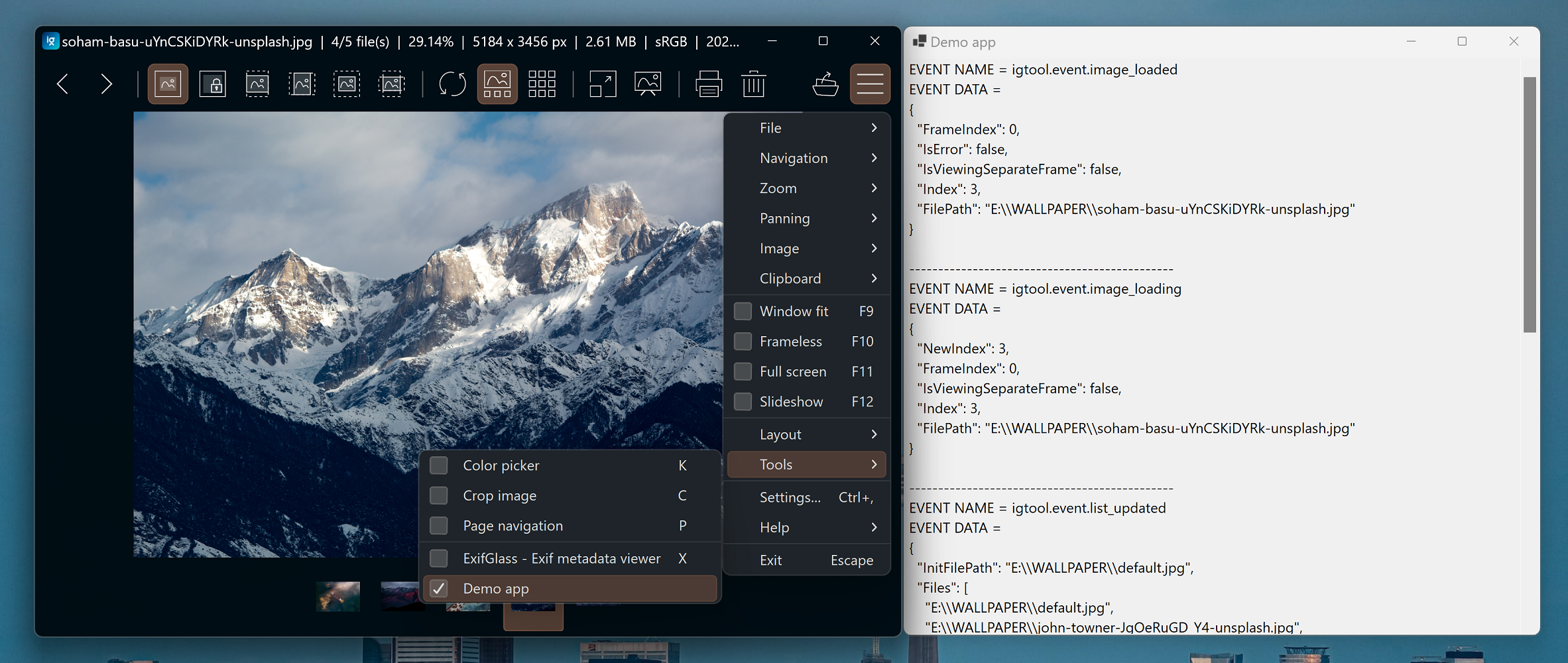
Here are the simple steps to use APIS from ImageGlass.Tools. You can check out the DemoApp project for complete sample.
- To get started, you need to download or clone this repo.
- Create a new project in Visual Studio.
- Add
ImageGlass.Tools.csprojas a reference project into your software. - Create a new instance of
ImageGlassTool:
private readonly ImageGlassTool _igTool = new ImageGlassTool();
- Add event listeners to ImageGlass:
_igTool.ToolMessageReceived += IgTool_ToolMessageReceived;
_igTool.ToolClosingRequest += IgTool_ToolClosingRequest;
- Handle event from ImageGlass:
private void IgTool_ToolMessageReceived(object? sender, MessageReceivedEventArgs e)
{
 if (string.IsNullOrEmpty(e.MessageData)) return;
 if (e.MessageName == ImageGlassEvents.IMAGE_LOADED)
 {
 Trace.WriteLine("Image is loaded");
 Trace.WriteLine(e.MessageData);
 }
}
- Start connecting to ImageGlass:
await _igTool.ConnectAsync();
- Open ImageGlass Settings, click on tab "Tools"
- Click "Add..." button to add a new tool
- Fill in all the fields accordingly
- In
Argumenttext box, fill<file>so that ImageGlass will send the full path of the current viewing image file to the tool - Check the option
Integrated with ImageGlass.Toolsif the tool has implementation of ImageGlass.Tools - Check command preview to make sure your inputs are correct
- In
- Click "OK" button to close the dialog, click "OK" or "Apply" button to apply the changes

- Open
igconfig.jsonfile with a text editor such as NotePad or VS Code. - Ensure that ImageGlass app is not running.
- In the Tools section of the
igconfig.jsonfile, add the following code:
// in igconfig.json
"Tools": [
 {
 "ToolId": "Tool_MyDemoApp", // a unique ID
 "ToolName": "My Demo app", // name of the tool
 "Executable": "path\\to\\the\\DemoApp.exe",
 "Argument": "<file>", // file path to pass to the tool
 "Hotkeys": ["X", "Ctrl+E"], // press X or Ctrl+E to open/close the tool
 "IsIntegrated": true|false // true: if the tool supports 'ImageGlass.Tools'
 }
]
- Save the file, and you're done!