npm version hacs Patreon Buy Me A Coffee Twitter
Vacuum cleaner card for Home Assistant Lovelace UI
By default, Home Assistant does not provide any card for controlling vacuum cleaners. This card displays the state and allows to control your robot.

💡 Tip: If you like this project (削除) and want to get some stickers and postcards (削除ここまで), consider becoming a patron:
or just buy me a cup of ☕️ or 🥤:
Buy Me A CoffeeThis card is available in HACS (Home Assistant Community Store).
Just search for Vacuum Card in plugins tab.
- Download
vacuum-card.jsfile from the latest-release. - Put
vacuum-card.jsfile into yourconfig/wwwfolder. - Add reference to
vacuum-card.jsin Lovelace. There's two way to do that:- Using UI: Configuration → Lovelace Dashboards → Resources → Click Plus button → Set Url as
/local/vacuum-card.js→ Set Resource type asJavaScript Module. - Using YAML: Add following code to
lovelacesection.resources: - url: /local/vacuum-card.js type: module
- Using UI: Configuration → Lovelace Dashboards → Resources → Click Plus button → Set Url as
- Add
custom:vacuum-cardto Lovelace UI as any other card (using either editor or YAML configuration).
This card can be configured using Lovelace UI editor.
- In Lovelace UI, click 3 dots in top left corner.
- Click Configure UI.
- Click Plus button to add a new card.
- Find Custom: Vacuum Card in the list.
- Choose
entity. - Now you should see the preview of the card!
Sorry, no support for actions and stats in visual config yet.
Typical example of using this card in YAML config would look like this:
type: 'custom:vacuum-card'
entity: vacuum.vacuum_cleaner
stats:
 default:
 - attribute: filter_left
 unit: hours
 subtitle: Filter
 - attribute: side_brush_left
 unit: hours
 subtitle: Side brush
 - attribute: main_brush_left
 unit: hours
 subtitle: Main brush
 - attribute: sensor_dirty_left
 unit: hours
 subtitle: Sensors
 cleaning:
 - attribute: cleaned_area
 unit: m2
 subtitle: Cleaning area
 - attribute: cleaning_time
 unit: minutes
 subtitle: Cleaning time
actions:
 - name: Clean living room
 service: script.clean_living_room
 icon: 'mdi:sofa'
 - name: Clean bedroom
 service: script.clean_bedroom
 icon: 'mdi:bed-empty'
 - name: Clean kitchen
 service: script.clean_kitchen
 icon: 'mdi:silverware-fork-knife'
Here is what every option means:
| Name | Type | Default | Description |
|---|---|---|---|
type |
string |
Required | custom:vacuum-card |
entity |
string |
Required | An entity_id within the vacuum domain. |
map |
string |
Optional | An entity_id within the camera domain, for streaming live vacuum map. |
map_refresh |
integer |
5 |
Update interval for map camera in seconds |
image |
string |
default |
Path to image of your vacuum cleaner. Better to have png or svg. |
show_name |
boolean |
true |
Show friendly name of the vacuum. |
show_status |
boolean |
true |
Show status of the vacuum. |
show_toolbar |
boolean |
true |
Show toolbar with actions. |
compact_view |
boolean |
false |
Compact view without image. |
stats |
object |
Optional | Custom per state stats for your vacuum cleaner |
actions |
object |
Optional | Custom actions for your vacuum cleaner. |
You can use any attribute of vacuum or even any entity by entity_id to display by stats section:
| Name | Type | Default | Description |
|---|---|---|---|
entity_id |
string |
Optional | An entity_id with state, i.e. sensor.vacuum. |
attribute |
string |
Optional | Attribute name of the stat, i.e. filter_left. |
unit |
string |
Optional | Unit of measure, i.e. hours. |
subtitle |
string |
Optional | Friendly name of the stat, i.e. Filter. |
You can defined custom scripts for custom actions i.e cleaning specific room and add them to this card with actions option.
| Name | Type | Default | Description |
|---|---|---|---|
name |
string |
Optional | Friendly name of the action, i.e. Clean bedroom. |
service |
string |
Optional | A service to call, i.e. script.clean_bedroom. |
icon |
string |
Optional | Any icon for action button. |
service_data |
object |
service_data for service call |
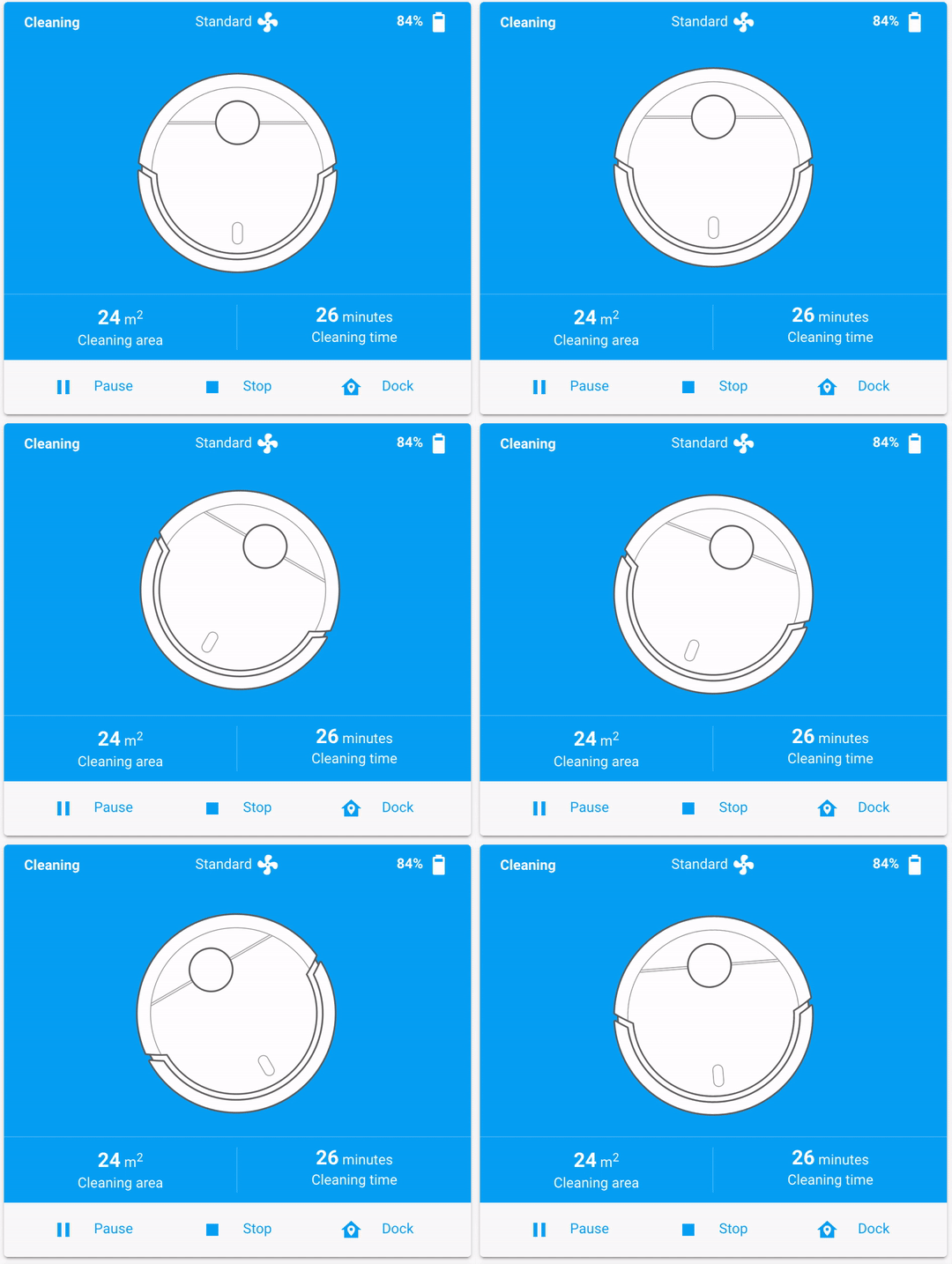
I've added some animations for this card to make it alive. Animations are applied only for image property. Here's how they look like:
| Cleaning | Docking |
|---|---|
| Cleaning anumation | Returning anumation |

This card supports translations. Please, help to add more translations and improve existing ones. Here's a list of supported languages:
- English
- Українська (Ukrainian)
- Deutsche (German)
- Français (French)
- Italiano (Italian)
- Nederlands (Dutch)
- Polski (Polish)
- Русский (Russian)
- Español (Spanish)
- Čeština (Czech)
- Magyar (Hungarian)
- עִבְרִית (Hebrew)
- Português (Portuguese)
- Svenska (Swedish)
- Norsk bokmål (Norwegian)
- Dansk (Danish)
- 한국어 (Korean)
- Your language?
This card relies on basic vacuum services, like pause, start, stop, return_to_base, etc. It should work with any robot vacuum, however I can physically test it only with my own robot vacuum.
If this card works with your vacuum cleaner, please open a PR and your model to the list.
- Roborock S6 MaxV
- Roborock S6
- Roborock S5
- Roborock S5 Max
- Roborock S50
- Roborock S4
- Roborock E25
- Roborock E4
- Xiaomi Mi Robot (STYJ02YM)
- Xiaomi Mi Robot 1S
- Xiaomi Mi Roborock V1 (SDJQR02RR)
- Roomba 675
- Roomba 960
- Roomba 981
- Roomba i7+
- Dyson 360 Eye
- Neato D7
- Neato D6
- Shark IQ
- Your vacuum?
Want to contribute to the project?
First of all, thanks! Check contributing guideline for more information.
This project is heavily inspired by:
- MacBury Smart House — basically, this project is a refinement of MacBury's custom card.
- Benji vacuum card — this is where I noticed this vacuum card design for the first time.
Huge thanks for their ideas and efforts 👍
MIT © Denys Dovhan