
A playful modular behavior system for Unity
Noddle Flow is a lightweight node-based sequencer for creating character and AI behaviors.
It turns "spaghetti code" into an elegant bowl of logic noodles: every action, every condition, every loop is a node in a flow.
An example of node AI behaviours with differents nodes
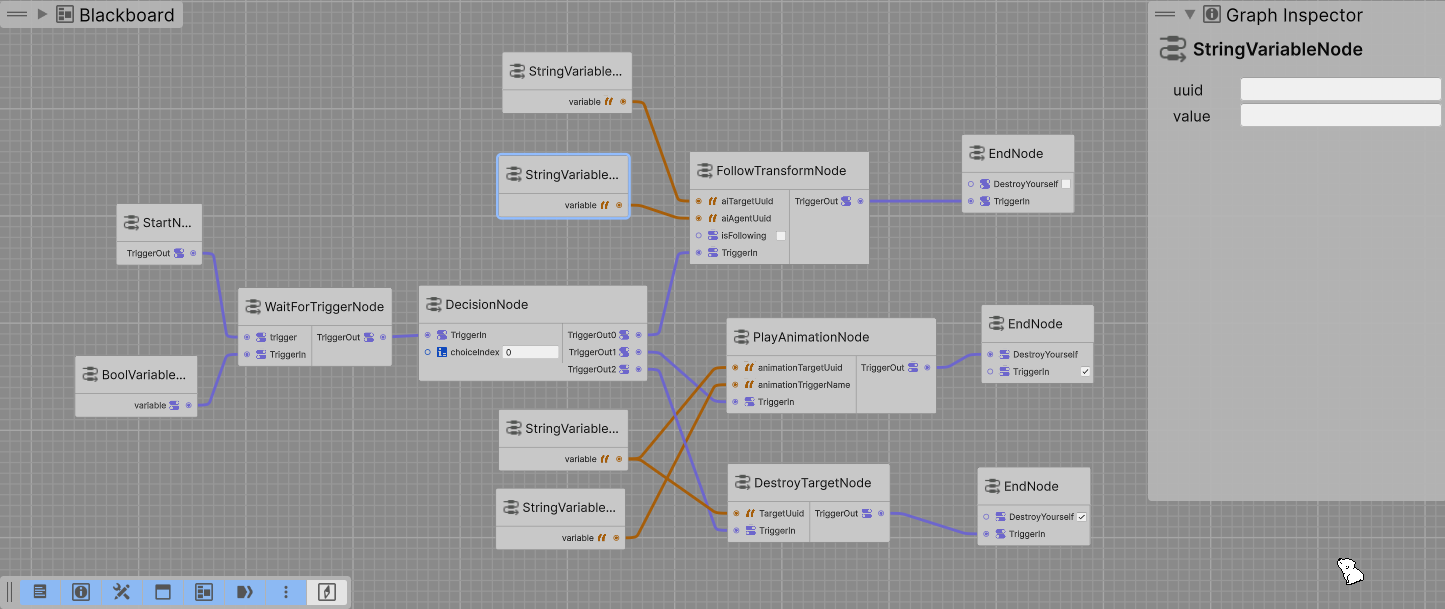
Instead of juggling Update() calls and nested if/else, you build a graph of actions.
Each node represents a step — moving, waiting, playing an animation, or sending an event — and the executor handles transitions automatically.
- Visual Graph Editor (GraphView-based)
Create, connect, and test your logic visually in the Unity Editor. - Runtime Executor
Executes the graph at runtime, node by node, with full coroutine support. - Event System
Trigger or stop flows usingTriggerEvent(string name). - Reusable Blocks
Each node is a modularScriptableObject— extend, duplicate, remix.
| Node | Description |
|---|---|
| GoToTransform | Move towards a target until reached. |
| FollowTransform | Continuously follow a target until an event stops it. |
| PlayAnimation | Trigger an Animator state and wait for it to end. |
| WaitForEvent | Pause execution until a custom event is fired. |
| WaitSeconds | Simple timer node for delays or pacing. |
| Decision | Branch the flow toward different outputs based on a numeric condition |
| DestroyTarget | Destroy a gameobject |
| Debug | Show a preset message in the Unity console |
Extend the system with your own nodes →
- Add the GraphToolKit package to your project (com.unity.graphtoolkit)
- Install Noddle Flow as a Unity package
- Add a FlowExecutor component to your scene
- Create a new FlowGraph asset and start adding nodes (at least a StartNode and an EndNode ;))
- Link your nodes and press Play
FollowTransform(Player) → WaitEvent(go_fight_monster) → FollowTransform(monster) → PlayAnimation(EatBanana)
The agent follows the player, waits for an event, runs to the monster, then eat a banana.
Use a small StateMachineBehaviour to signal animation completion:
public class NotifyOnExit : StateMachineBehaviour {
 public override void OnStateExit(Animator animator, AnimatorStateInfo stateInfo, int layerIndex) {
 animator.GetComponent<GraphExecutor>()?.NotifyAnimationEnded();
 }
}
Attach this script to the animation state that ends your action.
To add your own block:
[CreateAssetMenu(menuName="NoddleFlow/Nodes/MyCustomNode")]
public class MyCustomNode : BaseNode {
 protected override void OnDefinePorts(IPortDefinitionContext context) {
 // Add your own ports here
 context.AddInputPort<bool>("TriggerIn").Build();
 context.AddOutputPort<bool>("TriggerOut").Build();
 }
 public override AiBlockExecutor ConvertToExecutor(AiRuntimeGraph aiRuntimeGraph) {

 // Create the executable version of your node here
 // Add the ports to the appropriate GenericDictionnary
 // in AiRuntimeGraph
 }
}
Then drop it in your graph and connect it like any other node.
Create his runtime behavior in Assets/Scripts/NoddleFlow/Behaviours
 public class MyCustomNodeExecutor : AiBlockExecutor {
 public string myVariableUuid;

 public override async Task Execute(GraphExecutor graphExecutor) {
 // the runtime behaviour of your node (use the variables stored on the
 // data on the AiRuntimeGraph genericDictionnaries
 await graphExecutor.runtimeGraph.executors[outputUuidTrigger].Execute(graphExecutor);
 }
 }
Created with love (and too many noodles) by Ours Agile Studio.
If you enjoy it, consider offering a coffee: https://ko-fi.com/aqueuse ☕
Pull requests, new node ideas, and bug hunts are always welcome!