🌒 Choose which themes should be activated at any time! 🌞
- TypeScript 84%
- JavaScript 16%
| .vscode | commit message | |
| assets | commit message | |
| src | increase waiting time after reload to avoid reload loop | |
| .eslintrc.json | commit message | |
| .gitignore | commit message | |
| .vscodeignore | commit message | |
| CHANGELOG.md | commit message | |
| package-lock.json | increase waiting time after reload to avoid reload loop | |
| package.json | commit message | |
| README.md | commit message | |
| theme-switcher-3.1.3.vsix | increase waiting time after reload to avoid reload loop | |
| tsconfig.json | commit message | |
| webpack.config.js | commit message | |
icon Theme Switcher

This extension enables you to define which time which theme should be activated!
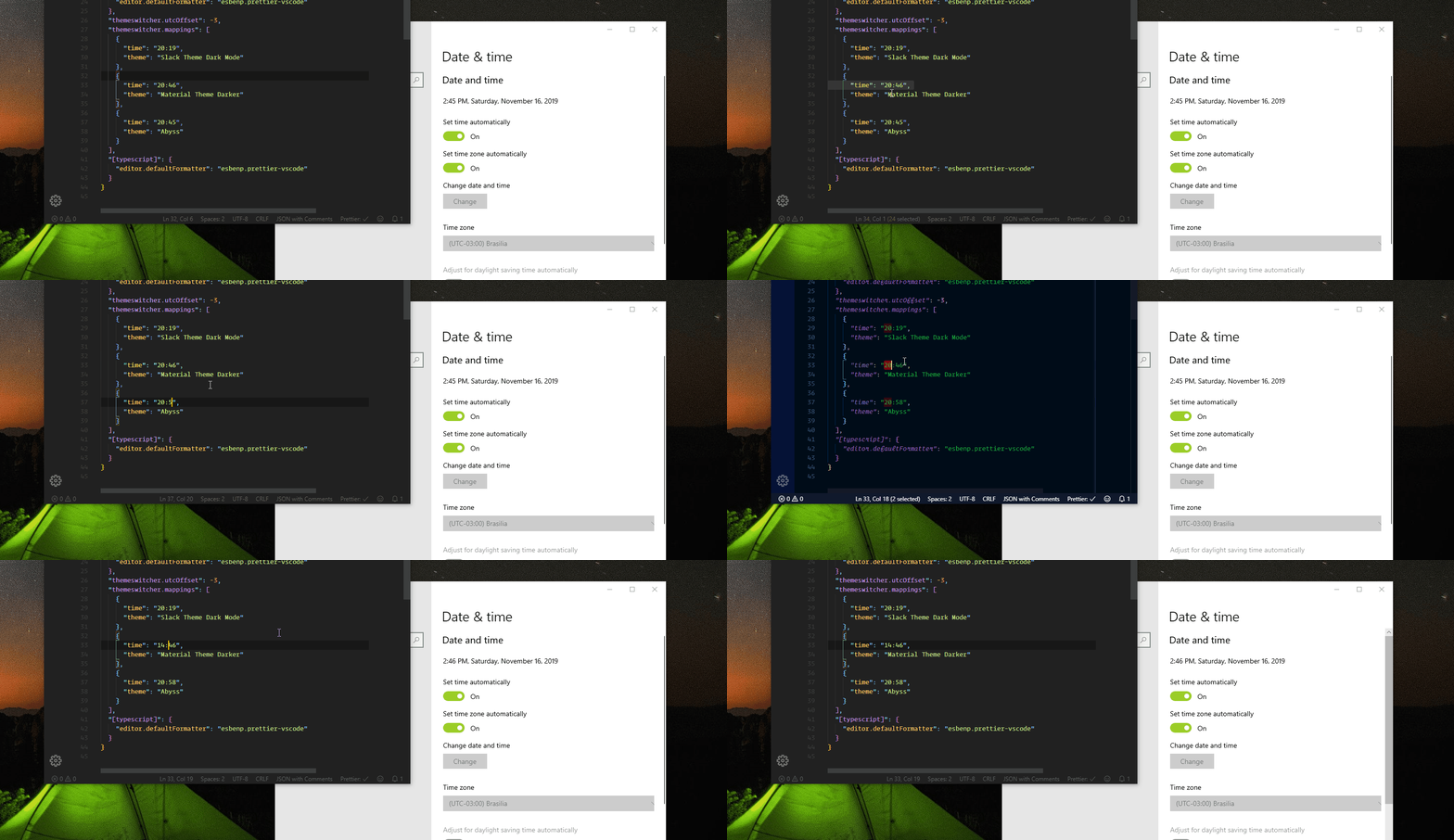
How To Setup Themes
For the extension to work, the only thing you need to do is to set in your VSCode settings the mappings you want, like this:
"themeswitcher.utcOffset": -3, // Example
"themeswitcher.mappings": [
 {
 "time": "13:03",
 "theme": ["Material Theme"],
 },
 {
 "time": "12:04",
 "theme": ["Monokai", "Dracula"],
 },
 {
 "time": "00:53",
 "theme": ["Default Dark+", "Noctis", "Nord"],
 },
 {
 "time": "01:00",
 "theme": [
 "JellyFish",
 {"name":"Red", "commands":[["vscode-pets.spawn-pet","fox","red"]]},
 ],
 },

],
Note: You can set multiple themes and it will select a random one. For each theme, you can specify a list of commands to be run with that theme.
Extension Settings
This extension contributes the following settings:
themeswitcher.mappings: Array of mappingsthemeswitcher.utcOffset: The utc offset used to scheduling tasks.
Credits
- Icon made by Pixel Perfect from www.flaticon.com
Enjoy!