- Shell 100%
| Readme.md | added Readme.md symlink | |
| smd.md | clarify the version lines | |
| smd.sh | two column mode requires term stdout | |
| title | description | category | tags |
|---|---|---|---|
| smd | markdown viewer and linter |
reference guide
feature sample
readme
changelog
|
GPL
|
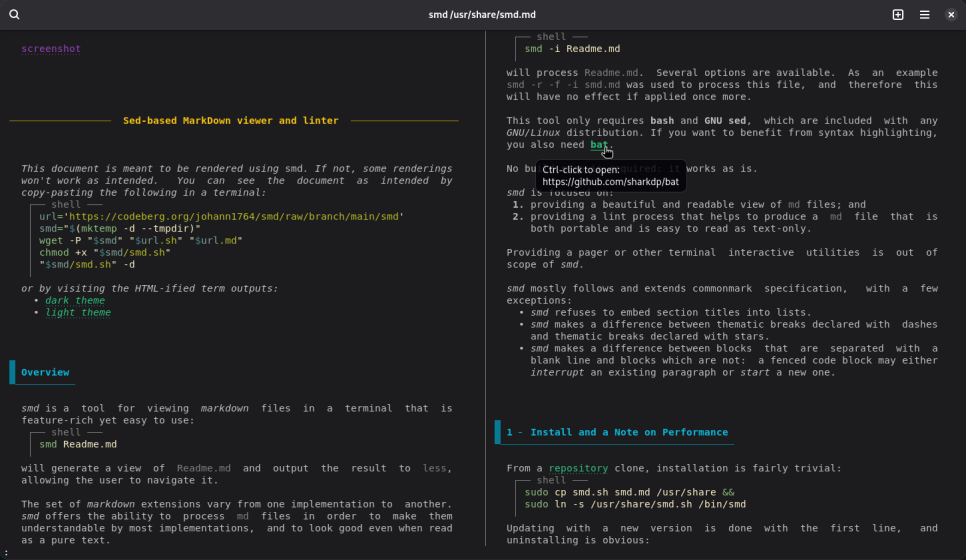
Sed-based MarkDown viewer and linter
This document is meant to be rendered using smd. If not, some renderings won't work as intended. You can see the document as intended by copy-pasting the following in a terminal:
url='https://codeberg.org/johann1764/smd/raw/branch/main/smd'
smd="$(mktemp -d --tmpdir)"
wget -P "$smd" "$url.sh" "$url.md"
chmod +x "$smd/smd.sh"
"$smd/smd.sh" -d
or by visiting the HTML-ified term outputs:
Overview
smd is a tool for viewing markdown files in a terminal that is feature-rich yet easy to use:
smd Readme.md
will generate a view of Readme.md and output the result to less,
allowing the user to navigate it.
The set of markdown extensions vary from one implementation to another.
smd offers the ability to process md files in order to make them
understandable by most implementations, and to look good even when read
as a pure text.
smd -i Readme.md
will process Readme.md. Several options are available. As an example
smd -r -f -i smd.md was used to process this file, and therefore this
will have no effect if applied once more.
This tool only requires bash and GNU sed, which are included with any GNU/Linux distribution. If you want to benefit from syntax highlighting, you also need bat.
No build step is required: it works as is.
smd is focused on:
- providing a beautiful and readable view of
mdfiles; and - providing a lint process that helps to produce a
mdfile that is both portable and is easy to read as text-only.
Providing a pager or other terminal interactive utilities is out of scope of smd.
smd mostly follows and extends commonmark specification, with a few exceptions:
- smd refuses to embed section titles into lists.
- smd makes a difference between thematic breaks declared with dashes and thematic breaks declared with stars.
- smd makes a difference between blocks that are separated with a blank line and blocks which are not: a fenced code block may either interrupt an existing paragraph or start a new one.
1 - Install and a Note on Performance
From a repository clone, installation is fairly trivial:
sudo cp smd.sh smd.md /usr/share &&
sudo ln -s /usr/share/smd.sh /bin/smd
Updating with a new version is done with the first line, and uninstalling is obvious:
sudo rm -fv /usr/share/smd.sh /usr/share/smd.md /bin/smd
You can also install/update smd from scratch by copy-pasting the following in a terminal emulator:
url='https://codeberg.org/johann1764/smd/raw/branch/main/smd'
sudo wget -N -P /usr/share/ "$url.sh" "$url.md" &&
sudo chmod +x /usr/share/smd.sh &&
sudo ln -s /usr/share/smd.sh /bin/smd
and then running:
smd -d
will get you back to that documentation. You can try with an additional
-2 to display it with two columns. See
screenshots with two columns (light theme)
and section Command Line Usage.
If need be, you can activate --redraw-on-quit in less to keep the
last output page of smd on the terminal.
On performance:
- on a Raspberry pi 4, smd has a small latency at startup. It will be mitigated, as there is room for speed improvement.
- smd streams its output: as a consequence, opening a 1000-pages
document will take exactly as much time as opening a 2-pages
document. However, pressing
ENDwill force the processing of the whole file, which might take some time when reading a huge document on a slow machine. This processing occurs even if you don't scroll, so it will usually long be over by the time you finish reading the first page.
2 - Features
Not all features will be detailed here, only the ones that:
- need documentation, such as syntax highlighting.
- make this program unique, most noticeably: text justification, vertical space management, OSC8 links, and overall attention to details. (Also, there is a two columns mode, see Command Line Usage.)
In the rest of this document, unique features are marked with a star *.
2.1 Text Justification* and Paragraph Breaks
smd justifies its paragraph in view mode, just like man does for the man pages. For portability reasons, in linter mode, it just breaks lines without space-padding them. This feature looks obvious, but surprisingly enough, no markdown reader I know of does that.
The line length is fixed to slightly more than the optimal readability
length. When the output is a terminal, the line length is decreased if
needed to fit the terminal width. The default maximum screen width can be
modified with the environment variable SMD_W.
Par breaks allows to break line inside a paragraph. This can be done
with two trailing spaces, a <br>, <br/>, //, or \. All these
sequences except the backslash \ may be followed by spaces. For
example:
This is a line that needs a break at some point because it is a bit
long. This is a line
that does not need it.
This is the first line\
This is the second one<br>
This is the third one with 2 trailing blanks██
and just adding a newline is not
enough.
This is a line with a `<br>` <br> in the middle.
results in:
This is a line that needs a break at some point because it is a bit long. This is a line that does not need it.
This is the first line
This is the second one
This is the third one with 2 trailing blanks
and just adding a newline is not enough.This is a line with a
<br>
in the middle.
I follow commonmark suggestions on this topic,
therefore linter mode expresses all par breaks using <br>:
This is a line that needs a break at some point because it is a bit long.
This is a line that does not need it.
This is the first line<br>
This is the second one<br>
This is the third one with 2 trailing blanks<br>
and just adding a newline is not enough.
This is a line with a `<br>`<br>
in the middle.
Note: when no space is available for cutting the line the line is just not cut. This allow to detect problems more easily (like too long in-text quotes), and also preserves the links destination in lint mode, therefore keeping them clickable on your terminal emulator.
2.2 Sections
2.2.1 Sections and Vertical Space*
(Sub)sections are surrounded by vertical space, whose amount depends on their hierarchical level, just like in LaΤeχ. They consume any additional blank line. When two (sub)sections follow each other, the space in between depends on the second one, therefore the first one after space is ignored in this case.
In the case the first one is a subsection and the second is a subsubsection, the contrary happens. Why? Because it looks better this way. OK, but why? Visually, the dash-underlining of the subsection name works as a blank line, so it has to be compensated for. That is why.
Besides this, the blank lines may or may not occur anywhere. However, multiple blank lines have the same effect as a single one.
If the file begins (resp. ends) with blank lines, one of them is kept. (Sub)sections preceded by the beginning of the file have no preceding space.
2.2.2 Section Layout (with italics)
smd provides different spacing and rendering for all five hierarchical levels. I recommend reserving level 1 for titles, or parts in a document that require a deep structure. As a rule of thumb, here are the levels of hierarchy you want to use in priority: 3, 2 and/or 4, 1, 5.
If you have a document with low-level sections and want to improve the
layout without changing their level, the -s option allows to have the
layout and spacing of section n+1 at level n.
Section titles may contain bold and italics. If this is redundant with the section layout, the meaning of these are reversed*: if a section is naturally bold, its bold content will be the only content that won't be bold in the output, and similarly for italics. In a faint context, faint characters will stay as is.
For the sake of the demonstration, this document uses an exaggerated sectioning depth, and the level 5 is shown below, which allows to see how it looks. In a general setting, it is advisable to use less than that (2 or 3 in most cases).
A fake depth-5 section title with a link inside
This is test text: The quick brown fox jumps over the lazy dog. The quick brown fox jumps over the lazy dog.
Another fake section title with bold and italics words
This is test text again. The quick brown fox jumps over the lazy dog. The quick brown fox jumps over the lazy dog. Again.
2.2.3 Automatic Section Numbering*
smd can perform automatic section numbering, which is an extension of
the markdown syntax. When a section name begins with <n> ?- or with
<n>(.<n>)+, it is considered a section number. For example:
## 1 - section
### 1.1 subsection
are valid numbered sections. By contrast:
# 1789is not;# 39 -- 45is not (see Em dash, En dash and Dots)## 1. sectionis not, because we would also have to accept:
which is ambiguous, and therefore non-portable.1. section ----------
The last number refers to the current sectioning depth, and the number of dots is used as a formatting hint.
For example, current section is defined as:
#### 1.1.1 Automatic Section Numbering\*
Therefore, the level 4 counter is increased, and the expression
<lev2>.<lev3>.<lev4> is used to generate the section name.
Unnumbered sections do not affect the counters, but appear in the table of contents.
Notice that, in view mode, there is an invisible # before both the
section number and the section name. This allows to look for a section
using either its number or its name.
A quick way to add numbers to an existing document, say Readme.md:
smd -a -i Readme.md
sed 's/^#\(#\+\) /#1円 1円 /;ta;b;:a;s/^\(#\+ \(1\.\)*\)#/11円./;ta' -i Readme.md
sed 's/^\(#* \(1\.\)*1\)\./1円/;s/^## 1/&-/' -i Readme.md
smd -i Readme.md
The -a option of the first line allows to turn section alternate form
into the primary #-form. Notice you may use all your favourite options
(-f, -s, etc.) on the last line. If you want some sections to be
unnumbered, just remove their numbers and re-apply smd.
2.2.4 Alternate Section Form Parsing
A line followed by three or more = (resp. -) is a section 1 (resp. 2)
title. Markdown is ambiguous about what happens when you have:
line1
line2
---
With smd, this is considered equivalent as:
line1
## line2
while commonmark considers it equivalent as:
## line1 line2
which makes it easier to do multi-line titles. From my perspective, making easier to do inadvisable things is a bad design choice.
The reader currently used does:
line1 line2
In its output, the linter uses the alternate form, which allows a clearer
sectioning structure. Sometimes it is easier to work with the base form.
This can be achieved with option -a or --no-alt.
2.3 Syntax Highlighting and Code Details
Reminder: the code may either be:
- a 4-indented block, called indent code or
- a code delimited by at least three
`or at least three~, called fenced code block.
2.3.1 Syntax Highlighting
smd relies on bat for syntax highlighting. If it is not installed, the code will stay gray, like indent code or anonymous fenced code. This can be installed with:
sudo apt-get install bat
For syntax highlighting to work, the markdown file must use the same names for languages as bat does. In order to get the long list of bat recognized languages:
batcat -L
As a convenience, we provide aliases through the SMD_LANG_ALIASES
environment variable. By default, it only contains "shell:bash",
meaning code in shell code environment (like in the previous one) will
be formatted by bat as if it were bash. Several aliases can be
separated by , or spaces.
2.3.2 Code Details*
The fenced code indentation is relative to the least indented line, including the opening fence:
 1. case 1:
 ```
 line
 ```
 1. case 2:
 ```
 line
 ```
 1. case 3:
 ```
 line1
 line2
 ```
Let's try:
- case 1:
line- case 2:
line ```
- case 3:
line1line2 ```
Fenced code environment preserve up to one leading and trailing blank lines.
As an extension, smd accepts closing sequence at the end of the last line of code. Furthermore, the closing sequence allows the paragraph to continue without a newline:
Some paragraph
```
do it``` continues here
gets linted into:
Some paragraph
```
do it
```
continues here.
Test:
Some paragraph
do it``` continues here
Finally, code lines are not wrapped. This is a design choice; the motivation behind is that code should be taken literally, and not interpreted in any way.
For the same reason, inline code `inline code` is not wrapped
either. But since inline code is not supposed to contain newlines, when
it does, it gets linted into inline code where the newline and its
surrounding spaces are replaced by a single space:
A ``recursive `inline
 code` `` example.
results in:
A
recursive `inline code`example.
Notice however that:
`inline <br>
code`
gives:
inline <br> code
This is because the sub-paragraph splitting has a higher priority than the quote protection. Here, there is no inline code, just separate unprotected backquotes on separate lines.
2.4 Indentation and Lists
2.4.1 Indentation and List Nesting
We follow commonmark (weird but understandable) specifications:
First situation:
- first
 - second
 - third
Second situation:
- first
 - third
 - second
should be correctly understood as:
First situation:
 * first
 * second
 * third
Second situation:
 * first
 - third
 * second
Test:
First situation:
- first
- second
- third
Second situation:
- first
- third
- second
Unlike some other md readers, here all environments (including other
lists) can be nested into list items or sub-items, inheriting their
indentation:
```
root-level code
```
 * item
 ```
 item level code
 ```
results in:
root-level code
- item
item level code
Note that, contrary to the commonmark specification, (sub)sections are not embeddable in lists: it would not make sense.
2.4.2 List Numbering and Layout
Currently, list item layout only depend on nesting depth, and therefore
*, -, and + will have the same effect. Therefore:
 1. a numbered item .... .... .... .... .... .... .... ....
 .... .... .... .... .... ....
 1. a numbered sub-item
 1. a numbered sub-item
 1) a numbered sub-item (alternative form)
 * an unnumbered item .... .... .... .... .... .... .... ....
 .... .... .... .... .... ....
 + another unnumbered item
 - [x] a checkbox .... .... .... .... .... .... .... .... ....
 .... .... .... .... .... .... .... .... ....
 1. another numbered item
 - [x] at level 2 .... .... .... .... .... .... .... ....
 .... .... .... .... .... ....
 - at level 3 .... .... .... .... .... .... .... ....
 .... .... .... .... .... ....
 1. at level 3 .... .... .... .... .... .... .... ....
 .... .... .... .... .... ....
 - [x] at level 3 .... .... .... .... .... .... ....
 .... .... .... .... .... ....
 - at level 4 .... .... .... .... .... .... ....
 .... .... .... .... .... .... ....
gives:
- a numbered item .... .... .... .... .... .... .... .... .... ....
.... .... .... ....
- a numbered sub-item
- a numbered sub-item
- a numbered sub-item (alternative form)
- an unnumbered item .... .... .... .... .... .... .... .... .... .... .... .... .... ....
- another unnumbered item
- a checkbox .... .... .... .... .... .... .... .... .... .... .... .... .... .... .... .... .... ....
- another numbered item
- at level 2 .... .... .... .... .... .... .... .... .... ....
.... .... .... ....
- at level 3 .... .... .... .... .... .... .... .... .... .... .... .... .... ....
- at level 3 .... .... .... .... .... .... .... .... .... .... .... .... .... ....
- at level 3 .... .... .... .... .... .... .... .... ....
.... .... .... ....
- at level 4 .... .... .... .... .... .... .... .... .... .... .... .... .... ....
- at level 2 .... .... .... .... .... .... .... .... .... ....
.... .... .... ....
2.4.3 Definition Lists
The following:
_One_ line
_Another_ line with **bold** inside
: Definition 1 which is a very very very long definition
that spreads across multiple lines.
: Definition 2
Another _standalone_ line
: Definition 1
: A new paragraph begining with `:`.
results in:
- One line
- Another line
- Definition 1 which is a very very very long definition that spreads across multiple lines.
- Definition 2 that is shorter.
- Another standalone line with bold inside
- Definition 1
A new paragraph beginning with
:.
For consistency, parser simplicity and parsing locality reasons, this has a higher priority than paragraph merging. That means that if the first line is preceded by another one, it won't be considered as part of the paragraph but rather as the term part of a definition term.
For that reason, it is strongly advised to have a blank line before the defined term (which linter mode does force). Blank lines between the definitions are mandatory, else they will be merged into a single definition.
Unlike some other viewers, smd does not accept empty definition lists,
for the reasons mentioned above. Also, a definition cannot be preceded by
a blank line, else it will be considered as a new paragraph that begins
with :.
The definition lists can be embedded in regular lists, as follows:
 * item1
 * item2
 : definition
 - subitem
 * item3-part1
 item3-part2
 : definition
which results in:
- item1
- item2
- definition
- subitem
- item3-part1
- item3-part2
- definition
2.4.4 Description Lists*
We also introduce a new, natural extension of checkboxes: description
lists, which are equivalent to the description environment in LaΤeχ.
 - [x] a checkbox.
 - [ x ] a x.
 - [ ] a space (empty checkbox).
 - [] an empty box.
 - [undescribed item]
 - [item with `quote`, _it_, **bold**, and [link](Readme.md) inside]
 This is a long description line that uses multiple lines.
 - [subitem 1] This is the description of _subitem 1_ with also a long line.
results in:
- a checkbox.
- [ x ] a
x.- a space (empty checkbox).
- [] an empty box.
- [undescribed item]
- [item with
quote, it, bold, and link inside] This is a long description line that uses multiple lines.
- [subitem 1] This is the description of subitem 1 with also a long line.
We suggest the reader to use that instead of definition lists.
2.5 Hyperlinks, References and Inclusion
2.5.1 OSC8 Links*
Using OSC8, we can have:
- [http link](https://codeberg.org/johann1764/smd/)
- [local file](Readme.md)
- [in-document link](#2-5-2-references)
rendered into:
On a terminal emulator, this results in a clickable link while only the link text is displayed. The first two appear to work on different terminal emulators. However, a terminal emulator does not know what to do with the last one.
First of all, we can use the pattern matching of less (use /). In
viewer mode, all (sub)sections numbers and names are preceded by an
invisible #, therefore looking for #2.5 and #Hyperlinks will both
match the title above. As a nice side-effect, just typing /#<RET> a
first time in less and then re-typing /<RET> repeatedly allows to
scroll through sections.
In addition of that, we can look for the local link label. The section labeling convention seems to consists in applying the following to the section title (including its numbering)
- lower the case of every letter,
- replace any non-alphanumeric sequence of characters is by
-, - remove any potential leading or trailing
-, and - add a leading
#.
Therefore, a link to this section will have label:
#2-5-hyperlinks-references-and-inclusion, e.g.
link to this section. Your
terminal gives you the label when you let your cursor on it. This label
can also be looked for, as, in viewer mode, each section is preceded by a
seemingly blank line that in fact contains this label, but concealed. It
can be copy-pasted.
Some additional ideas to manage references to sections are proposed in the Future Improvements section.
Notice that hyperlinks can be split by newlines in viewer mode without any problem: the two resulting chunks will be valid hyperlinks.
Someone nicely maintains a list of terminals that accept OSC8 here. If your terminal does not display the OSC8 links (that materializes with a dotted underlining of the link and a context box suggesting to follow the link) then please send me the result of
echo "\"$TERM\""
called from your terminal. I will add this terminal name to the list of terminals needing explicit links, like it is already done for the tty.
2.5.2 References
This is a [reference][ref].
This is a footnote[^1].
gives:
This is a reference. This is a footnote1 .
Such a reference can be defined before or after with:
[ref]: https://en.wikipedia.org/wiki/Hyperlink
[^1]: Yes, absolutely.
Look at the result!
The choice were made not to use OSC8 for the reference: this allows to have explicit links in the document in a way that does not hinder reading, and the final link stays clickable.
As before, going to reference definition is easy by searching its expression with the square brackets.
By default, the references are deferred to right before the beginning of
next section of level 3. Using the environment variable
SMD_FLUSH_FOOT, it is possible to configure this behavior*. Setting it
to n means: "defer it to before the beginning of the next section of
level n or less". In particular, 5 means any section (as this is the
max level of a section), and 0 means the end of the document. If it is
set to anything other than a number, references and footnotes are left
where they are.
2.5.3 Coming Soon: Inclusion*
This has not been implemented yet.
For including files, we extend the link syntax by introducing an
additional () part. This allows the other markdown readers, that
don't understand that extension, to render it as a simple link, followed
by a few weird things in parentheses.
This additional () allows to specify the kind of inclusion: direct
(with optional -o parameters, see --hierarchy-offset), code (with
optional language specification), or quote.
[direct inclusion](file.md)()
[direct inclusion with -o '2!'](file.md)(2!)
[code inclusion](file.md)(.)
[code inclusion (lang=md)](file.md)(.md)
[quote inclusion](file.md)(>)
This has not been implemented yet.
They all accept an optional [<n1>-<n2>], with both <n1> and <n2>
optional, at the end of the () part, that allows to get only a subset
of the lines, like that:
[code inclusion](file.md)(.md[15-20])
resulting in:
code inclusion(.md[15-20])
Notice that if you create loops of direct or quote inclusions, i.e.
[](file2.md)() in file1.md and [](file1.md)() in file2.md, then
it will cause an infinite loop. Avoiding circular inclusions is your
responsibility. The simplest way to do that is to organize your files in
directories, with the rule that a file should only include files that are
in sub-directories relative to it.
Notice that the included files lose their streaming ability: the whole included file has to be processed before it is added to the output stream.
2.6 Arrays
The arrays are fully conforming to commonmark specifications like, for example, glow does. This example is adapted from one of theirs:
| Name | Power | Comment |
| ---: | :---: | :--- |
| Carrots | 9001 | It’s over 9000?! |
| Ramen | 9002 | Also over 9000?! |
| Currywurst | **100000** | What?! |
gets linted into:
 | Name | Power | Comment |
 | ---------: | :--------: | ---------------- |
 | Carrots | 9001 | It’s over 9000?! |
 | Ramen | 9002 | Also over 9000?! |
 | Currywurst | **100000** | What?! |
and rendered into:
Name Power Comment Carrots 9001 It’s over 9000?! Ramen 9002 Also over 9000?! Currywurst 100000 What?!
Arrays can contain bold, italics, bold italics, and
(削除) stricken out (削除ここまで) parts, and they can also contain
links (see above).
2.7 Quotes & Admonitions
2.7.1 Quotes
They work! They are colored, though, in order to avoid visual
chaos. However, links, bold, it, (削除) so (削除ここまで), and quotes
are preserved.
They work! They get uncolored, though, in order to avoid visual chaos. However, links, bold, it,
(削除) so (削除ここまで)andquotesare preserved.They work! They get uncolored, though, in order to avoid visual chaos. However, links, bold, it,
(削除) so (削除ここまで)andquotesare preserved.
Quotes preserve up to one leading and trailing blank lines.
2.7.2 Admonitions
> [!NOTE]
> General information or additional context.
> [!TIP]
> A helpful suggestion or best practice.
> [!IMPORTANT]
> Key information that shouldn't be missed.
> [!WARNING]
> Critical information that highlights a potential risk.
> [!CAUTION]
> Information about potential issues that require caution.
generates:
Note
General information or additional context.
Tip
A helpful suggestion or best practice.
Important
Key information that shouldn't be missed.
Warning
Critical information that highlights a potential risk.
Caution
Information about potential issues that require caution.
2.8 Miscellaneous
2.8.1 Emphasis
This section only renders properly in smd.
* and _ work the usual way, except that nesting them is possible and
results in cancelling out the effects of the inner block*:
*This is an emphasized sentence _with_ an emphasized word within*.
results in:
This is an emphasized sentence with an emphasized word within.
2.8.2 Em dash, En dash and Dots
Like in LaΤeχ, --- refers to the em dash while -- refers to the
en dash.
--- quoted book, pages 128--34, ...
gives:
--- quoted book, pages 128--34, ...
2.8.3 Thematic Breaks
The rendering of this section won't work if you are not using smd.
In markdown, hrules are expressed with either * or -. I chose to
allow these to express different things:
* * *
results in a three-star paragraph separator, like in novels:
Notice it enforces a blank line before and after it.
Meanwhile:
---
1: an example
results in a third-width horizontal rule similar to what LaΤeχ uses in order to separate footnotes from the main page:
1: an example
In order to avoid ambiguities, it is advised to have --- preceded by a
blank line. A preceding blank line will be enforced in the output anyway.
2.8.4 Table of Contents*
In viewer mode, a table of contents is generated at the end of stream. It gives the line numbers corresponding to each section.
In less, type <number>g to go to line . If needed, -N
allows to toggle on/off the line numbers. This option can also be passed
to smd to start less with -N enabled; in this case, the width of the
numbers are taken into account when computing the screen width.
It is possible to generate only the table of contents with -t. This
allows, for example, to have the table of contents on one term emulator,
and to browse the document easily in another.
2.8.5 tty Compatibility Mode*
Some symbols are not displayed on a tty, and some colors effects (such as
faint) are not properly rendered. Furthermore, OSC8 sequences do not work
on such a terminal. All that is taken into account when the TERM
environment variable is linux or ansi.
Let me know if some terminal emulators require a similar specific treatment.
2.8.6 Embedded html Tags
html comments in the form <!-- comment --> are ignored (treated as
empty text) in view mode.
Besides that, with the notable exception of <br>, html tags are not
managed, and therefore displayed as regular text. smd is not a browser.
2.8.7 Front Matter
They are the optional markdown headers. They are defined by having the
first line containing only ---, +++, or ;;;, and they are
closed in the same way.
They are left as is. They are rendered in grey with bold field names and leading dashes.
In viewer mode, the search history of less is automatically appended
with the zero-space character that marks the end of the front matter.
Therefore, repeating previous search at startup ( just / ) will scroll
down the screen to hide the front matter.
3 - Command Line Usage
3.1 Usage (as viewer)
smd [OPTIONS] [-2] [-t] [-R] [-k] <file.md>
By default, renders the markdown file provided and shows it using less. If no argument is provided, reads stdin.
If -2 is set, use 2 columns. As it was implemented with ^[[nG,
horizontal scrolling with less in this mode is broken (but useless
anyway), don't use it (or scroll back left if you scroll right by
mistake). Just use vertical scrolling; using PGUP / PGDOWN will turn
a page. Also, this implementation forces less -r, therefore
/#<section_name> won't work.
If -t or --toc is set, only generates the table of contents. This
forces -m.
If -R or --relative is set, do not make the links absolute (keep them
as is).
If -k or --konsole is set, use alternate conceal method.
3.2 Usage (as linter)
smd [OPTIONS] [-l] [-i] [-a|-f] <file.md>
If -l or --linter is set, outputs re-formatted markdown. If any of
-i, -a, or -f is set, -l is implied. If no argument is provided,
reads stdin. If output is redirected, colors are automatically
disabled.
If -i or --in-place is set, the file argument is re-formatted in
place.
If -a or --no-alt is set, no alternate section form.
If -f or --final is set, use a 1-space margin, which is easier to
read, but more painful to edit.
3.3 Usage (misc)
smd -d | --doc | -h | --help | -v | --version
If -d or --doc is set, displays the documentation (this document!)
and quits. You may use any option with -d, except -i. Any other input
file is silently ignored.
If -h or --help is set, displays this help and quits.
If -v or --version is set, displays the version number and exits.
3.4 Common Options
smd [-s] [-L|-D] [-w <wm>] [-j] [-p|-P] [-o <n>[!]] [-m|-N] [-n] [-r] ...
If -s or --small is set, give each section of level n the layout
and spacing of level n+1. The difference with -o 1 is that such a
section remains declared as of level n.
If -L (resp. -D), forces light (resp. dark) theme mode. The dark mode is
used by default, but auto-detection works for terminal emulators that
understand OSC11 (xterm, GNOME console), that set the COLORFGBG
environment variable (konsole, and rxvt), or use their own protocol
(kitty). If you want to always skip the xterm auto-detection (that
takes 0.1s no matter what), you can simply add export COLORFGBG="0;7"
for dark theme or export COLORFGBG="7;0" for light theme in your
.bashrc.
If -w <width_mod> or --width <width_mod> is set, modifies the default
width by <width_mod> (can be positive or negative). Several
-w <width_mod> will stack.
If -j or --no-just is set, do not justify text.
If -p or --no-par-merge is set, do not merge paragraphs.
If -P or --no-punct-merge is set, do not merge paragraphs ending with
punctuation symbols.
If -o <n> or --hierarchy-offset <n> is set, each section of level k
in the input is understood as a section of level k+ and declared as
such. is a positive integer, and is optionally followed by !. In
that case, section titles of level 1 are ignored.
If -m or --more is set, use more instead of less. This allows to
output the stream line by line, and to keep it the output on your term.
Notice that, if you are more interested in the second point, you can
activate --redraw-on-quit in less.
If -N or --numbers is set, display line numbers in less.
If -n or --name is set, write the name(s) of the opened file(s) to
stderr. This is default when multiple files are given as arguments.
If -r or --no-rec is set, disable quote processing.
If --debug is set, produces debugging output.
3.5 Environment Variables
These variables can be set to configure default behaviour, for example adding the line:
export SMD_SEC_MAJ="32;1"
to your .bashrc will make "bright green" the new default for section 1
headings. (see below)
3.5.1 Color Setting Environment Variables
SMD_SEC_MAJ / SMD_SEC_MIN sets the default section level 1 major /
minor color, by default 33;1 / 33;2.
Similarly, we use SMD_SSEC_MAJ / SMD_SSEC_MIN for subsections
(sections of level 2), and so on until SMD_SSSSSEC_MIN.
Valid values are semicolon-separated lists of:
- exactly one color value,
- and any number of values amongst
1(bold),2(faint),3(italics).1and2are compatible, asbolddoes not only affect color but also the font.
The color value belongs to:
30(black),31(red),32(green),33(yellow/orange),34(blue),35(magenta),36(cyan),37(grey),39(default),- or
38:5:<n>where<n>a number in 0--255, - or
38;2;<r>;<g>;<b>where<r>,<g>, and<b>are numbers in 0--255.
For example, SMD_SSSSEC_MAJ defaults to 34;3;2.
3.5.2 Other Environment Variables
LANG_ALIASES allows to define aliases for languages names e.g.:
shell:bash.
- Multiple aliases are separated by spaces or commas. See section Syntax Highlighting.
SMD_FLUSH_FOOT: section level at which flush footnote/references, in
[0-5].
0means at the end of the document.- Any other value disables footnotes/references deferring. More details are given in section References.
SMD_W: The default maximum width. See section
Text Justification* and Paragraph Breaks.
COLORFGBG is an environment variable that is set by some term
emulators, such as konsole. It can be used on other terminals, to force
dark or light theme without resorting to OSC11-based auto-detection (and
its 0.1s unavoidable delay). Set it to 0;7 for a light theme and 7;0
for a dark theme.
4 - Bugs, Requests for Features and Future Work
4.1 Bugs and Requests for Features
Fixing quickly any newly discovered bug is the top priority.
Please report bugs and requests for features on the smd project codeberg page.
Any unexpected behavior is a bug: it should be either fixed or better
documented, so please report it. Bugs reports may benefit from including
the output obtained by calling smd with --debug.
General layout style choices can (and should) be discussed and amended.
As it is hard to work independently on this project without merge conflicts, please discuss your proposition in a new issue before opening a pull request.
4.2 Version History and Future Improvements
The first stable version was 0.7-beta-8. It was perfectly usable on most terminal emulators and true tty, and already covered most usual markdown extensions.
It is strongly advised to get the main line, which is currently aligned with the 0.7.2-beta line.
Beware: alpha lines are experimental, so only get an alpha version if you want to try a brand new feature.
v0.7.1-beta-8
-P --no-punct-merge: do not merge par ending with punctuation.- Support kitty:
- theme auto-detect,
- emulate conceal/hide.
- Manage OSC 2 (window title).
- Manage enumerate alternate form.
- Ignore html comments.
v0.7.2-beta-5
- new description extension.
- debug mode.
- manage front matter.
- definition lists.
Future v0.7.3
- manage wide chars.
Future v0.7.4
- lines with comments only should not be merged in paragraphs.
- Implement inclusions (see the section
Coming Soon: Inclusion), and
unmdbook.sed.
Future v0.8
- make sure files formatted with Hongdown are stable by smd.
- Improve performance on slow machines:
- Merge some steps of the process.
- Maybe implement comments in the form:
[comment]: <> (This is a comment, it will not be included) - Out of scope:
- other companion programs.
Later
- Improve performance on slow machines:
- Prematurely exit recursion to avoid spawning too much processes.
- Some markdown readers needs a blank line after quotations. Should we force it?
- Local links:
- have a
--tocvariant to generate all section labels. - have a tool to check and re-number section labels.
- have a
- Have smd rely on itself for highlighting markdown. This document would look so much better!
4.3 Future Companion Programs
- Make a
gutenberg2md.sedscript for turning the pure text books of the Gutenberg Project into markdown. - Make a
unmdbook.sedturning the link-basedSUMMARY.mdof mdbook into a inclusion-based markdown file. - ansifilter would be a good candidate for turning the term output into all sorts of other possible outputs. Some work is needed to make them work together, though.
5 - Licence
This program is free software; you can redistribute it and/or modify it under the terms of the GNU General Public Licence version 3 or later.
-
Yes, absolutely. ↩︎