- Shell 100%
|
|
||
|---|---|---|
| LICENSE | merge pacli-simple in pacli-old-version | |
| pacui | capitalize names in description texts | |
| README.md | README: fix link and small update | |
PacUI
PacUI provides useful and advanced Pacman and Yay/Pikaur/Aurman/Pakku/Trizen/Paru/Pacaur/Pamac-cli commands in a convenient and easy-to-use text interface.
PacUI is aimed at experienced users of Arch Linux (and Arch-based distributions, including Manjaro), who have above-average knowledge of their Linux system, Pacman and Yay/Pikaur/Aurman/Pakku/Trizen/Paru/Pacaur/Pamac-cli. Beginners are probably overwhelmed by the options PacUI offers.
PacUI is contained within one script file, which consists of easy-to-read bash code with many helpful comments.
PacUI's development happened on GitHub from 2016 to 2025 and continues now on Codeberg.
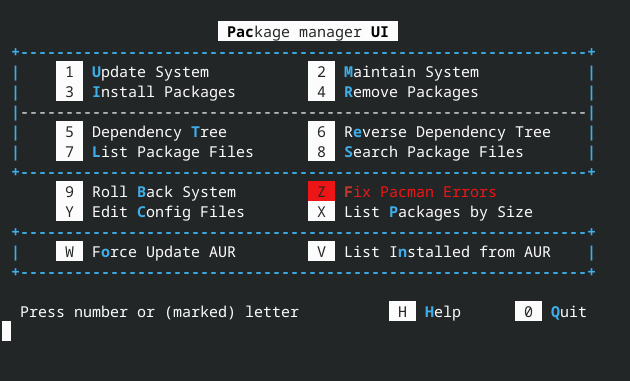
Table of Contents
Installation
Dependencies
PacUI has the following hard dependency:
- sudo
If you want most of PacUI to fully work, these dependencies are needed as well:
By default, Pacman is used for package management. If you want to enable the use of the AUR, PacUI needs at least one of these AUR helpers:
PacUI supports even more features, if these packages are installed:
- reflector (on Arch Linux): PacUI uses
reflectorto update your list of repository mirrors and automatically choose the fastest one for you. If this is not installed,rankmirrorsgets used instead. - pacman-mirrors (on Manjaro): PacUI uses
pacman-mirrorsto update your list of repository mirrors and automatically choose the fastest one for you. If this is not installed,rankmirrorsgets used instead. - flatpak: PacUI uses
flatpakto update and clean your installed Flatpak packages. - snapd: PacUI uses
snapdto update and clean your installed Snap packages. - fwupd: PacUI uses
fwupdto install firmware updates for your system. - downgrade: PacUI activates a hidden "Downgrade Packages" option, which lets you use
downgradefrom within PacUI.
Execute without prior Installation
If possible, read chapter Dependencies first and install any dependencies you need.
The pacui file can be downloaded and run without prior installation:
wcurl https://codeberg.org/excalibur1234/pacui/raw/branch/master/pacui &&
bash pacui
I find this feature of PacUI invaluable for fixing systems. Here are two examples:
-
A large number of update packages got installed all at once and broke (parts of) the GUI. In this case, switching to a different TTY (e.g. with CTRL + ALT + F2), running PacUI (without installing anything new) and using "Roll Back System" (which requires only
sudoandfzf) to roll back all the latest updates can fix the system (temporarily). -
A broken keyring makes it impossible to apply updates or install any packages. Executing PacUI without prior installation and using "Fix Pacman Errors" (which requires only
sudoand nothing else) to fix the keyring and all related problems is the easiest and fastest solution I know of.
Manual Installation and Update
Install dependencies, download pacui file, make it executable, and install it manually:
sudo pacman -S --needed sudo expac fzf less pacman-contrib &&
wcurl https://codeberg.org/excalibur1234/pacui/raw/branch/master/pacui &&
chmod +x pacui &&
sudo mv pacui /usr/bin/
Next, install any additional Dependencies.
Repositories
I do not know in which repositories PacUI packages are available. However, there have been packages in the repositories of Manjaro, AUR, Artix, React-OS, and Chaotic-AUR. I do not maintain these packages (anymore). Use them at your own risk.
Feel free to create your own package of PacUI. I recommend creating a PKGBUILD, which pulls directly from the latest commit on Codeberg and follows Manual Installation and Update. All other Dependencies can be marked as "optional".
Usage
Start PacUI with UI
After successful installation, type the following command into your terminal in order to start PacUI with a simple UI:
pacui
Start PacUI without UI: Using Options
For example, you want to display the Reversy Dependency Tree of a package. PacUI does not care whether you use upper or lower case letters as options or whether you use no, one or two dashes in front. Therefore, the following six commands are equivalent:
pacui RTpacui -RTpacui --RTpacui rtpacui -rtpacui --rt
Start PacUI without UI: Using Options and Arguments
You can also use arguments in addition to options. For example, you want to install the package cantata. Then, you can use a command like
pacui i cantata
Instead of a list of all available packages, a much shorter already filtered list is displayed. Simply select the cantata package you want to install and press ENTER in order to install it.
If an argument contains special characters, it has to be passed as a string. This can be achieved differently depending on the shell used. For example, when using regular expressions in zsh in order to search package file names starting with string "archlinux-" both locally and in the system repositories:
pacui s '^archlinux-'
Start PacUI without UI: Passing Arguments to AUR helper or Pacman
For advanced use (e.g. in scripting or an alias), PacUI can have a "flag" argument, which gets passed directly to an AUR helper and/or Pacman. Examples:
pacui -r 0ad --flag="--noconfirm"pacui u flag --noconfirmpacui --FLAG --asdeps --i --bashpacui b --flag=--noconfirm
Useful Tips and Recommended Settings
When using PacUI, the following settings are recommended by the author:
Update notifier
It is highly recommended to use an utility which notifies the user about available updates alongside PacUI. The Arch Wiki recommends for this:
checkupdates
Diff program
PacUI uses pacdiff for comparing .pac* files and a diff program specified by the DIFFPROG environment variable.
If the DIFFPROG environment variable is not set, PacUI uses its own diff program to (only!) show any differences in old and new .pac* files. If you want to edit / merge different .pac* files and e.g. keep your custom changes, it is recommended to set the DIFFPROG environment variable (e.g. in '/etc/environment' file using PacUI's "Edit Config Files") to any other tool listed in the Arch Wiki.
Additional Pacman Settings
- An easy way to edit the
/etc/pacman.conffile by using PacUI is:
pacui c
- A fancy list view for all Pacman updates can be enabled by uncommenting the following lines:
#Color
#VerbosePkgLists
Additional Reflector Settings
PacUI uses Reflector if it is found on the system.
PacUI uses the same configuration file for Reflector as the optional systemd service and timer in Arch Linux. An easy way to edit this file /etc/xdg/reflector/reflector.conf by using PacUI is:
pacui c
In this file, it is recommended to edit at least the --country flag to include your nearest country.
This can speed up "Maintain System" option dramatically and yield better results.
Alias
If you use PacUI without the UI, it is recommended to use an alias for PacUI to reduce the amount of necessary typing. Do this by adding the following line to your ~/.bashrc file (if you use Bash):
alias p='pacui'
This will set "p" as an alias to pacui within your terminal (after a restart of your shell or computer). For example, you can now update your system using
p u
Search syntax
PacUI uses fuzzy finder (fzf) with its fuzzy search functionality to display lists of items (such as packages, package groups, logs, patches, etc.) and by starting to type, you can easily search/filter those lists. Regular expressions can be used to improve the search results, e.g.:
| Search Term | Description |
|---|---|
'sbtrkt' |
Items that match sbtrkt |
^music |
Items that start with music |
git$ |
Items that end with git |
'wild |
Items that include wild (fuzzy search) |
!fire |
Items that do not include fire |
!-git |
Items that do not end with -git |
A single bar character term acts as an OR operator. For example, the following query matches entries that start with core or end with go, rb, or py.
^core|go$|rb$|py$
Multiple installed AUR helpers
If more than one AUR helper is installed, they are automatically used in the same order as listed above (i.e. Yay is used with priority while Pamac-cli is only used as a last resort). A specific AUR helper can be set with the PACUI_AUR_HELPER environment variable.
Environment variables can typically be set by adding them to your /etc/environment file. If this file exists on your system, it can be selected using PacUI's "Edit Config Files" option:
pacui c
Help
Short PacUI Help
For short help, e.g. when using PacUI without UI, use the command:
pacui -h
Detailed PacUI Help
Choose the "Help" option within PacUI's UI by pressing "H" or "h". pacui --help from the terminal will call PacUI's detailed help page, too.
This help page explains some general stuff such as how to navigate PacUI. It also explains every PacUI option in detail. If you want to look up which commands PacUI uses in general under the hood and understand them in order to use PacUI correctly, this is the right place for you!
Internally, PacUI uses even more commands than mentioned in the detailed help page.
If you are brave enough, feel free to take a look in your /usr/bin/pacui file. It is a single Bash script of about 3k lines. However, there are many functions, which are each much shorter. In general, the easiest-to-read code is used (even if it is longer) including many helpful comments!
If you still have trouble understanding the code of PacUI, try asking an AI for explanations (of a limited subset) of PacUI's code.
Because PacUI is free software, feel free to "steal" and adjust any of PacUI's code to your liking and e.g. add it to your own ~/.bashrc (if you use Bash).