squRemote
squRemote is a small utility that lets you control the media playing on your computer from you phone. It currently supports Android phone, and Linux and Windows PCs.
Scroll down if you are only here for the download, but I recommend reading the Setting Up section to avoid confusions later.

Scroll down if you are only here for the download, but I recommend reading the Setting Up section to avoid confusions later.
Requirements
squRemote does not need much. You only need to have the Phone and the PC in the same wireless network: your home wifi, or a hotspot from your PC or Phone.
Setting Up
You will download an Android apk and a zip file according to your Operation System.
Get the apk to your phone and install it (you will need to have allowed installing from unknown sources in your phone).
Extract the zip file on you computer. You will find a bunch of files there.
On Windows, run the squRemote.exe file.
On Linux, run the squRemote.sh file, it needs root access.
A little bit for Linux users
As you may already know, you cannot just double-click to run this file. If you have set the option to ask before opening an executable file in the Nautilus preferences (Assuming you are using a Distro that uses Nautilus, like Ubuntu and Mint), then you can directly choose run.
If not, which is more likely, you will need to run it from the Terminal. If you are going to run it from the Terminal than you can directly sudo the squRemote file, like this:
$sudo ./squRemote
You see, the shell file is just to run that file with gksu.
Contact me if you need further help.
On the Phone
After you have run squRemote on the Computer, you need to set your phone to connect to the PC.
Making a Connection
When you start squRemote on your Computer it gives you an IP address and a Port no. You need to feed these to the squRemote on your Phone.
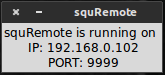
Go to Setting on you Phone, enter this IP address in the option that you'll see. The Port no is constant for now.
Other Settings
When you press any button on squRemote, it simulates a corresponding keyboard button or sequence on the computer. The default media keys are usually accepted by all the media players; but there are some exceptions: most notably VLC Media Player.
You can set VLC to accept Global Media Keys, or you can set squRemote to simulate customized keyboard buttons or sequences.
These keys can be set in the Settings. For example, for VLC you can set the following keys:
Play/Pause: space
Stop: s
Previous: p
Next: n
Seek Right: Shift+Right
Seek Left: Shift+Left
What's New
- On Windows: The eject DVD works now.
Download
Android apk file:
For Windows:
For Linux:
squRemote-1.00-linux.zip
I am also working on the C++ version of the program on computers. Only finished the linux version. You can get it from GitHub, but you'll have to compile it yourself. It is much much smaller in size than the ones above.
squRemote-linux
I am also working on the C++ version of the program on computers. Only finished the linux version. You can get it from GitHub, but you'll have to compile it yourself. It is much much smaller in size than the ones above.
squRemote-linux
Updates
New updates will appear on this page. If you have subscribed for the release notifications, you will get an email.
Known Bugs
- On Windows, the seek buttons don't work out of the box. It is because Windows does not support a keyboard button to do so. The seek buttons will have to be set according to the Media Player you use.
- On Linux, if you start the program from squRemote.sh, the mouse cursor will turn to busy for some time. Ignore it and keep working, it'll go away.
- On Phone, the theme is not consistent. I'm working on it.
Comments
hats off shreya :) gud job !!!!
Reply DeleteThanks!
DeleteAafai check gareko comment garera?? :D :D
Reply Deleteseriously Thankx man though i dont have android mobile right now.
its good. i tried and it worked fine to many extent. :) still on check
Great man! You are started to make cool things!
Reply Deleteyes he does man.. and what you doing now days??
DeletePost a Comment
[フレーム]