Sunday, July 8, 2012

Thinkpad Slice 27 ++ battery review

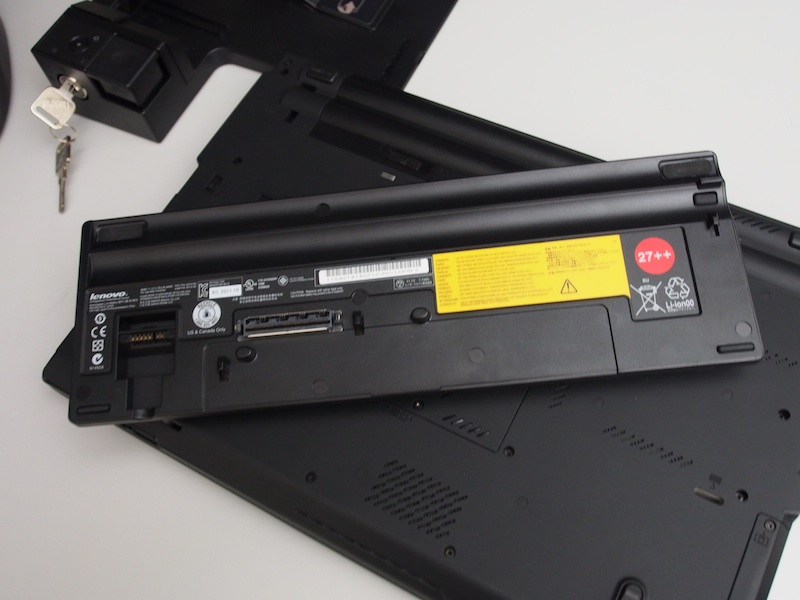
Lenovo sells a 9-cell slice battery for their T and W series laptops. I haven't seen many pictures of it online so I figure I share it here. The battery is called the Slice 27 ++. There are other versions for the X220/X230 and older model Thinkpads. It uses the docking port connectors and is a great investment for those who want extended portable power.


On a Thinkpad T420 with the standard 6 cell, the slice gives me a total run time of about 14-15 hours under Ubuntu 12.04. This is with moderate power management.

Since it uses the same dock connectors, you can't use simultaneously with a docking station. You will have to unplug it in order to re-dock with a docking station.

The battery is very hefty and lifts the laptop up quite into a more ergonomic position. I can't really complain about the weight because it gives me an all day power.

Here are some pictures to help those considering this battery.


Saturday, July 7, 2012

Apple's unique hardware feature: Target Disk Mode


One of the best feature of Apple hardware is Target Disk Mode. The icons you see below indicates that this particular mac is now an external hard disk.


Apple has had some pretty cool hardware innovations throughout the years/decades.For example, in 1987, the Macintosh II was the first personal computer to support dual/multi-monitor displays. Since the early nineties, Apple computers had auto-sensing, auto switching ethernet ports that allowed you to connect computers together without a hub or cross-over cable. These technologies are now taken for granted and are available for Windows and Linux users. However, Apple is the only computer brand of hardware that has the nifty feature called Target Disk Mode.

With a keyboard combo press at boot, you can turn your macbook, mac mini, imac, or mac pro into a bootable, external hard drive. The "target" computer will be seen as a portable hard drive by another computer. This is a very unique feature of Apple hardware. In fact, many of my friends and colleagues do not know this even exist.

You can use this to clone and deploy software builds. You can use to trouble shoot hardware defects of the target computer. I remember when the very first iPod came out, we deployed software builds with a 12" powerbook and an iPod 5GB using Target Disk Mode. All the Mac Workstations were built, clone and restored in less than 10 minutes. Firewire back in those days was light years ahead of USB 1.0.

Target Disk Mode now supports thunderbolt so you can shuttle large files quickly from mac to mac. For example, I know people who take their SSD powered Macbook Air on photo and video shoots. They create gigabytes of footage and proof their work remotely. When they get to the office, they target mode their Air's to their main Mac Pro workstations. They get 300 Mb/s transfer speed over Thunderbolt and it is 10-20 times faster than conventional firewire/usb. As you can see, there are many numerous usage for Target Disk Mode.


Today, I used Target Disk Mode to clone the factory fresh drive of a 2012 Macbook Pro 13" 5400 rpm drive to a 512GB Sata 6 SSD drive. There is no need to remove the internal drive. There is no need for a bootable USB stick to run a cloning software like Clonezilla.

Maybe someday, other platforms will have this unique and neat feature.


WIKI: http://en.wikipedia.org/wiki/Target_Disk_Mode

Friday, June 29, 2012

Crucial M4 512GB SSD Review


Prices of SSDs are in a free-for-all. The Crucial M4 line of SSDs are my favorite due to their reliability and SATA6 speed. I recently got myself a 512GB unit and it is fast. Have in mind, I am not a professional reviewer. I am just a pro user with specific needs. So this review is in the perspective of a normal end-user.


The first thing I did was pop it into my SATA6Gb/s capable ultrabay of my Thinkpad. It has the same speed and throughput as the primary SATA on-board. The operating system drive is on another Crucial M4 256GB drive. The OS is Ubuntu 12.04


So how fast is this drive? Insanely fast. Most benchmarks will give you 500Mb/s reads and 350Mb/s writes. That is what I experienced in my synthetic benchmarks.


Have in mind, most benchmarks are purely synthetic. They are either writing from memory or reading into memory.

Most day-to-day operations are copy and backups. Most setups I've seen are SSD as the boot/OS and a HDD as a secondary drive for media and other files. For example, in laptops, it is usually the SSD in the main bay and a swapped HDD in the CD bay.

If you have a SSD/HDD platter setup, your speeds will be determined by the lowest common denominator. That common denominator is most likely the traditional platter HDD. So if your platter HDD is only reading 60Mb/s, your copies will only be 60Mb/s even to a SSD.


Well, I happen to have a SSD to SSD setup. My Thinkpad is equipped with 3 SSDs. Copying Virtual Machine images from drive to drive is insanely fast. See below. I am getting 300 plus copy speeds. That is the full maximum speed of both drives (500Mb read and 350 Mb writes) with some minor overhead.


That is smoking fast! Gigabytes of files copy almost instantly. 10Gb of files takes less than a minute.


Just for fun, I tried to see what the USB3/USB2 speeds are like. I attached a USB3 Seagate Go Flex SATA to USB3 adapter.


Here are the results.

In USB 3, I can sustain 225Mb/s average speeds. USB 2 is pretty pathetic at 29 Mb/s. Also, pay close attention to the seek times. In native SATA mode, the seek times are very fast and USB3 is quite usable. USB3 is slightly slower than what I am getting with eSATA to SATA. See my eSATA-to-SATA cable post.


This just goes to show that buying a SSD and putting it inside an external enclosure is not worth it. If you do use an external enclosure, an older SATA3 SSD will more than suffice as you will never saturate the bandwidth. I have not seen a good USB 3.0 controller that is fast enough to keep up with the fastest SATA speeds.


There you have it and that is the reason why I stick with SSDs despite their high costs.
I hope you enjoyed the reading.

Wednesday, June 27, 2012

Nexus 7

Google today announce the Kindle fire beating 199ドル Nexus 7.


It sure has some impressive specs but the onboard 8GB/16GB kills it for me.

I have a 8GB 7" Galaxy Tab 2 and it only has 400MB of free use able space. I had to delete apps like Google Earth and Firefox because they were taking up too much space. The Galaxy Tab 2 at least has a micro-sd and USB OTG (on-the-go) which allows me to offload my media files.

This has no option for external storage.

I think I'm gonna pass on this device.

Thursday, June 21, 2012

Retina MacBook QUAD-head 14 million pixel display

I nearly had a nerdgasm when I saw this picture. Impressive. The Macbook Pro Retina is pushing about 14 million pixels right there. All of those monitors are greater than 1080p resolution.


Wednesday, June 20, 2012

True Retina on the New MacBook Pro


I am waiting for accounting to clear my order of the new MacBook Pro with Retina screen to be approved. In the meantime, I've been doing some research and notice a lot of confusion in the internet and blogosphere. The confusion mostly arises from the misunderstanding of HiDPI scaling. As resolutions get insanely higher, the typical native resolution = display resolution no longer applies.

Apple released the first 2880x1800 display laptop that runs in Retina mode. The native display resolution is 2880x1800 but the system runs in various scaled display resolutions. There is a difference between native resolution and display resolution. Apple employs a HiDPI mode for the normal usage. This is called Retina mode. Retina mode gives you the real estate of the previous MacBook Pro at 1440x900.

In retina mode, the OS runs in HiDPi mode where certain elements like text are running natively and everything looks extra sharp. This is how the iPad3 works. Everything is extra sharp but you don't get the extra display real estate. Your icons, browser window all looks the same as before. Hence, this is where the upset and confusion arises. Many are accusing Apple of misleading because they can't see the extra icons on the desktop.

Well, you can run at a higher "display resolution." In fact, you can even unlock the full native resolution to be your display resolution.

Anandtech does a great analysis on the screen and scaling. You can run retina mode (1440x900), display resolution of 1680x1050, or 1920x1200. Even in scaled mode, the screen looks incredibly sharp due to high dot pitch. At scaled mode display resolution 1680x1080 and 1920x1200, it still looks sharper than screens with those native resolution.

Still confused? Well running full native mode would be painful for many people with mid to poor eye sight because everything would be extra small. I think the hiDPI methodology was the best way to go. It gives you many great options for the majority of users. Yet, this still fuels the flames for anti-apple folks to swipe Apple at any given chance.

It was only a matter of time but many people have already unlocked the full resolution for OSX. You can read it on various blogs and forums like this one: HOWTO: 2880x1800 Without Scaling in OS X . Here is an example below of running 2880x1800 natively.


source: http://cloudmancer.com/images/trueretina.jpg

Now, I am more excited than ever. I've played with it in 1920x1200 and I think that is the resolution I will most likely be using it at.


Monday, June 18, 2012

USB shared ESATA to SATA cable.


I recently went on a SSD buying spree and ended up with a bunch of 2.5" drives. I even got some 7200 rpm 750GB hybrid SSD drives pretty cheap too.

There is only so much I can put in my Thinkpad. I already have 3 SSDs in it (msata,main drive, and ultrabay).

So what do I do with all my extra drives? USB2 and USB3 is way too slow. I didn't want to put a SSD in a USB drive enclosure. They top at 70MB-150MB a second transfer. I already have a hard drive dock that takes 2.5 & 3.5 drives but it is not a portable solution.

Well, Amazon came to the rescue. For 20,ドル you can get a usb/esata to sata cable.
This is not just any esata cable. It uses the combo USB/esata port on your machine to power the 2.5" drives. It only works with laptops that have combo ports. It channels both USB's power and routes the data via esata to sata.


How does it work? Surprisingly well. I plugged it into my Thinkpad T420 and did some before and after benchmarks in Linux. This is with a 120GB OWC Mercury Electra 6G (SATA6) SSD drive.

Here it is externally connected to the esata cable. Average read rate of 261.8 Mb/s. This is 2-3 times faster than using USB2/USB3.


For comparison sakes, if you were to plug the drive in internally, it averages 394.9 Mb/s with a maximum read of 560.6 Mb/s. Note, this is with the native internal SATA6.


Here are some real-life pictures of how it is setup. In Linux, you need to rescan-scsi-bus for the esata to pick up the drive. Once scanned and mounted, it works as good as an internal drive by most standards. With some protective HDD caddies, I can now use SSDs as portable drives.


Subscribe to: Comments (Atom)

AltStyle によって変換されたページ (->オリジナル) /