Here is something you don't see too often.
Here, I have Pear OS 7 which is a Ubuntu based Linux distribution running on my Thinkpad. Pear OS is known for being Cupertino inspired. It is pretty much an OSX themed Linux disto. Inside Pear OS, I have Mountain Lion 10.8.2 running inside a VMware Virtual Guest.
I cloned a few of my old Macs on my Macbook using Fusion 5. The clone VM guest was on a USB drive I had and I was wondering if my VM guests would start up in Linux on a different machine. To my surprise, double clicking the .VMX file, the VM guest launch and ran inside Pear OS running VMware player for Linux. It ran with no problem. I thought there would be some sort of check to prevent this but apparently not.
Showing posts with label thinkpad. Show all posts
Showing posts with label thinkpad. Show all posts
Saturday, April 20, 2013

Sunday, March 24, 2013
ESXi 5 Server on a Thinkpad T420
Well, it looks like I may be getting a new laptop so I'll need to retire my trusty less than one year old Sandy Bridge Thinkpad T420. And that retirement plan is re-purposing it to run as a mobile VMware ESXi 5 Virtualization server. Yep, running ESXi on a Thinkpad. How insane is that!
In fact, it may be one of the best laptops for running ESXi. Why? This particular T420 has
eSATAp, removable drive bay, and cheap 16GB RAM upgrade. RAM is the most important thing with a VM server and this has plenty to run half or so dozen LAMP stacks.
eSATAp uses USB and eSATA in a single connection. This means you can power external 2.5" SATA drives. Or, you can also use an eSATA dock but that defeats the portability factor.
Want more permanent storage? Well, you have three internal drives if you choose to replace the DVD drive with a HDD DriveBay module. You get the internal 2.5 HDD, the mSATA slot, and drivebay.
See, this is exactly what I mean:
What can I say. This Thinkpad will live on and continue to make an important contribution in this one geek's life. I already have a Fuji MX130 running as my home lab ESXi server but I can use the Thinkpad to shuttle VMFS data stores, and do live presentations.

In fact, it may be one of the best laptops for running ESXi. Why? This particular T420 has
eSATAp, removable drive bay, and cheap 16GB RAM upgrade. RAM is the most important thing with a VM server and this has plenty to run half or so dozen LAMP stacks.
eSATAp uses USB and eSATA in a single connection. This means you can power external 2.5" SATA drives. Or, you can also use an eSATA dock but that defeats the portability factor.

Want more permanent storage? Well, you have three internal drives if you choose to replace the DVD drive with a HDD DriveBay module. You get the internal 2.5 HDD, the mSATA slot, and drivebay.

See, this is exactly what I mean:

What can I say. This Thinkpad will live on and continue to make an important contribution in this one geek's life. I already have a Fuji MX130 running as my home lab ESXi server but I can use the Thinkpad to shuttle VMFS data stores, and do live presentations.


Saturday, March 16, 2013
Lenovo K5923 Multi-gesture Wireless Touchpad review
Lenovo K5923 Multi-gesture Wireless Touchpad.

I'll preface and tell you right now, I like my Apple Magic Touchpad. In fact, I love the glass trackpads on the Macbooks. They're the only input devices that I choose over the original IBM track point or even the Microsoft ergonomic trackball. I could use nothing but those glass trackpad.
So when I saw a Lenovo multi-gestured touchpad, I decided I had to have one for my Thinkpad. Boy was I completely wrong. So here is my scathing review to save you the time and money from buying this thing.
They normally retail for 69ドル but can be had for 49ドル or even as low as 29ドル. Trust me, I would never buy this POS for 70ドル.

Looks.
First of all, it is matte satin black which is cool with me. It matches the Darth Vader, murdered out black Thinkpad. However, the build quality is crap. It feels flimsy. Even though my Thinkpad is made by the same company, this trackpad is nowhere up to "Thinkpad" build quality you expect from Lenovo.

It is definitely no where as nice as the Apple Magic aluminum finished glass trackpad. It is like comparing a Jaguar to a Kia. Side by side, you can tell which is a premium device and what is cheap.
Now, I know where and how auto journalists complain about fit-n-finish regarding plastic materials when they review cars. This has the same cheap kind of plastic you find in a Hertz rental car's dashboard.
Fit and finish is pretty important considering you will be actually touching this thing on a day-to-day basis.
Dongle. I hate dongles. Why can't manufactures stick with bluetooth. Logitech uses dongles too but at least you can tuck and hide the dongle inside their mouses/trackpads/keyboards when not in use. I'm pretty certain I will lose that dongle someday.
Operations.
Boy was I confused. Nothing was working for me. I kept on muting my volume by accident.
I googled and googled for drivers or some sort of way to set gestures. Nothing was working for me.
So I decided to read the manual. This is the first device in years that I ever had to open up the user's manual. New DSLR camera? RAID? Switch. Nope. I never read the manual for any of those devices. This one, I had to pull out the manual to figure out it had no drivers or control settings under Window's control panel. The front box advertised it was Windows 8 out of the box and you would figure there would be some sort of control-panel setting to illustrate the type of gestures it supports.
In this regards, windows is pretty lame not to have it in the control panel. Hit the search bar and type in "gestures, mult-gesture,trackpad" and none of the help files come up. I can easily see how normal consumers would get flustered with this.
One other problem. My OS of choice is Ubuntu/Mint on my Thinkpad and OSX on my Macs. This touchpad works as a dumb mouse in Mac OSX. So forget about using it with a Macintosh running 10.8 Mountain Lion.
Only Ubuntu supports 2 finger zoom gestures and scrolling. I downloaded some 3rd party, open source stuff like Ginn,utouch, synclient, and Touch-Egg. Still no real progress. In fact, I was getting carpal tunnel. There was so much lag and un-responsiveness, my hands started to hurt. I stopped wasting my time to get this thing to work with Linux and decided to ONLY use this under Windows 8.
I understood I bought a Windows 8 device. OK, that is fine with me. I'll give up using this device under Linux for the time being.

Once in Windows 8, it was no different. The gestures still lagged. Movement and actions stuttered. The zooms was no where as smooth as I am used to on my Macs. There were lots of accidental presses and I either logged myself or changed my volumes/mute. It was very frustrating to use as I would always reach out to use another mouse or my laptop's internal trackpad.
The only real things I could do in Windows 8 did not impress me. I could swipe tiles, get into desktop, etc. But where is the real stuff like rotating images? Using Bing's maps, the zoom was horrific. I had to fix the accidental scrolls with another mouse.
Most of the gestures are either swipes (multi-fingers). There are no 3,4 finger pinch. There are no differentiation from using an index finger or thumb. How dumb is that!
Page forward? App reveal? Volume? Lock Screen? Page Up and Down? I could already do this with my keyboard! What about switching workspace? Or better yet, switching between open programs?
Edge swipes to pull up the charms bar? For real? Is this what multi-gesture means in Windows? And the gestures were inconsistent. Some apps complied with the page forward/reverse and some didn't. I speaking mostly of browsers here. Even the built in apps had poor gestures. Image Viewer in Windows doesn't navigate across thumbnails an no ability to rotate an image.
Now back to the manual. Compare this.

To this on OSX. This is how you learn to use gestures. The system preference has video examples of all the cool tricks you can do.

Compared to the Magic Trackpad.
Simply, there is no comparison. Everything works pretty fantastical out of the box with the Magic Trackpad under OSX. The gestures are so smooth and damn intuitive. They change your way of using a computer. The Lenovo trackpad just gives me carpal tunnel.
Here is my conclusion: Do not even waste 20ドル on this. I'm going to try and tweak Ubuntu a bit more to get gestures. At least Chrome, Gimp, and LibreOffice allows me to zoom.
Two week Update:
So this is what I've ended up using with this trackpad. My trusty Microsoft trackball for everything and trackpad for zooming. I didn't feel like throwing it away, so I'll try to keep it around and see if I end up liking it later on.

Friday, March 8, 2013
Thinkpad T420 triple drives with MSATA and Ultrabay
This is one of the reason why The T-Series Thinkpads rock! You have the ability to host Triple drives!

In addition to the standard internal, you can use an ultra-bay to host a second drive. Then you can add an mSATA SSD for a third drive.
I just upgraded my mSATA on my Thinkpad T420 from a Crucial M4 128GB to a Crucial M4 256GB. I have dual SSDs and a 750GB 7200 rpm data drive! One SSD for my OS and a second SSD for my Virtual Machines. With 16GB of RAM, this baby flies. Take that Mr. Ultrabook!
Wednesday, August 15, 2012
Thinkpad X1 Carbon internal
Looks like the Thinkpad X1 Carbon is going the Apple route.
Proprietary SSD and soldered RAM. Battery looks like it is a glued piece as well.
This will surely infuriate many Thinkpad loyalists.

Internal Picture of the X1 Carbon shows similarities to the Macbook Pro Retina.
Friday, July 20, 2012
Adding USB 3.0 to a Thinkpad T420 with Ubuntu
This is a simple guide for those Thinkpad T/W owners with expresscard slots hoping to use USB 3.0 in Ubuntu 12.04.
I wanted to add USB 3.0 to my Thinkpad T420 so I decided to pick up a cheap 34mm NEC controller based expresscard USB3.0 adapter on Amazon.
The NEC based USB controllers have been supported by the Linux kernel since version 2.6.31. However, in Ubuntu 12.04, it isn't quite a plug and play affair. I had to run the following command to get my laptop to recognize the PCI expresscard.
Once you do that, you can check to see if the system sees the device by typing in:
Once you see the NEC USB 3.0 controller, you are pretty much good to go. You will need to do this after every reboot unless you modify your GRUB boot loader. Also, I had to disconnect and re-connect a few times before my laptop could see the card.
Next, there is the issue of power. Some portable USB 3.0 devices need power and the particular adapter I have uses a USB pass through cable to connect to a free USB port. Unfortunately, this was a trial-an-error. Certain ports of my laptop did not generate enough power for a 2.5" HDD drive. The only one that worked for me was the lower esata/usb combo port. Furthermore, there is one thing that these expresscard manufacture fails to mention is that you only have enough juice to power one USB 3.0 device. USB 2.0 will only have about 5 volts worth of power so it make sense that only one port will be powered.
Now for some speed benchmarks. The expresscard USB adapter did make a difference.
As you can see below, with a Seagate Go Flex, I got almost twice the read speed using USB 3.0
USB 3.0 w/ 1TB Seagate Go Flex HDD 5400 rpm portable drive. The results are acceptable considering the source is a platter hard drive.
I also wanted to test it with an SSD and I got some decent results.
USB 3.0 w/ 128GB Crucial M4 SSD. These results are almost as a good as plugging a drive to the eSATA port.
I did not test the card in Windows so I can't comment on the Windows performance. However, if you are an Thinkpad Linux user, I strongly suggest getting an expresscard USB 3.0 adapter for your older rig. It is well worth the investment.
I wanted to add USB 3.0 to my Thinkpad T420 so I decided to pick up a cheap 34mm NEC controller based expresscard USB3.0 adapter on Amazon.

The NEC based USB controllers have been supported by the Linux kernel since version 2.6.31. However, in Ubuntu 12.04, it isn't quite a plug and play affair. I had to run the following command to get my laptop to recognize the PCI expresscard.
sudo modprobe acpiphp
Once you do that, you can check to see if the system sees the device by typing in:
lspci | grep USB

Once you see the NEC USB 3.0 controller, you are pretty much good to go. You will need to do this after every reboot unless you modify your GRUB boot loader. Also, I had to disconnect and re-connect a few times before my laptop could see the card.
Next, there is the issue of power. Some portable USB 3.0 devices need power and the particular adapter I have uses a USB pass through cable to connect to a free USB port. Unfortunately, this was a trial-an-error. Certain ports of my laptop did not generate enough power for a 2.5" HDD drive. The only one that worked for me was the lower esata/usb combo port. Furthermore, there is one thing that these expresscard manufacture fails to mention is that you only have enough juice to power one USB 3.0 device. USB 2.0 will only have about 5 volts worth of power so it make sense that only one port will be powered.
Now for some speed benchmarks. The expresscard USB adapter did make a difference.
As you can see below, with a Seagate Go Flex, I got almost twice the read speed using USB 3.0
USB 3.0 w/ 1TB Seagate Go Flex HDD 5400 rpm portable drive. The results are acceptable considering the source is a platter hard drive.

USB 2.0 w/ 1TB Seagate Go Flex HDD 5400 rpm portable drive. As you can see, USB 2.0 is very slow.

I also wanted to test it with an SSD and I got some decent results.
USB 3.0 w/ 128GB Crucial M4 SSD. These results are almost as a good as plugging a drive to the eSATA port.

I did not test the card in Windows so I can't comment on the Windows performance. However, if you are an Thinkpad Linux user, I strongly suggest getting an expresscard USB 3.0 adapter for your older rig. It is well worth the investment.
Labels:
expresscard,
T420,
thinkpad,
Ubuntu 12.04,
USB 3.0
Sunday, July 8, 2012
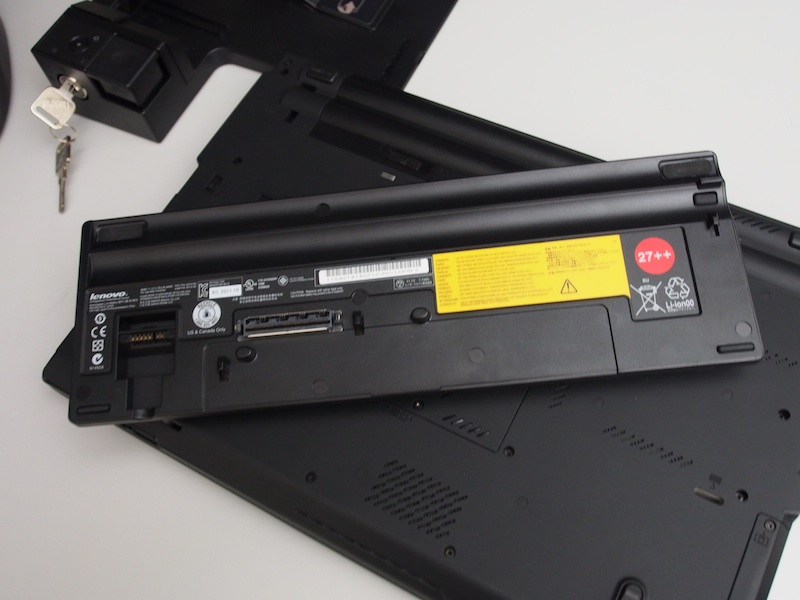
Thinkpad Slice 27 ++ battery review
Lenovo sells a 9-cell slice battery for their T and W series laptops. I haven't seen many pictures of it online so I figure I share it here. The battery is called the Slice 27 ++. There are other versions for the X220/X230 and older model Thinkpads. It uses the docking port connectors and is a great investment for those who want extended portable power.
On a Thinkpad T420 with the standard 6 cell, the slice gives me a total run time of about 14-15 hours under Ubuntu 12.04. This is with moderate power management.
Since it uses the same dock connectors, you can't use simultaneously with a docking station. You will have to unplug it in order to re-dock with a docking station.
The battery is very hefty and lifts the laptop up quite into a more ergonomic position. I can't really complain about the weight because it gives me an all day power.
Here are some pictures to help those considering this battery.
Since it uses the same dock connectors, you can't use simultaneously with a docking station. You will have to unplug it in order to re-dock with a docking station.
The battery is very hefty and lifts the laptop up quite into a more ergonomic position. I can't really complain about the weight because it gives me an all day power.
Here are some pictures to help those considering this battery.


Monday, June 18, 2012
USB shared ESATA to SATA cable.

I recently went on a SSD buying spree and ended up with a bunch of 2.5" drives. I even got some 7200 rpm 750GB hybrid SSD drives pretty cheap too.
There is only so much I can put in my Thinkpad. I already have 3 SSDs in it (msata,main drive, and ultrabay).
So what do I do with all my extra drives? USB2 and USB3 is way too slow. I didn't want to put a SSD in a USB drive enclosure. They top at 70MB-150MB a second transfer. I already have a hard drive dock that takes 2.5 & 3.5 drives but it is not a portable solution.
Well, Amazon came to the rescue. For 20,ドル you can get a usb/esata to sata cable.
This is not just any esata cable. It uses the combo USB/esata port on your machine to power the 2.5" drives. It only works with laptops that have combo ports. It channels both USB's power and routes the data via esata to sata.

How does it work? Surprisingly well. I plugged it into my Thinkpad T420 and did some before and after benchmarks in Linux. This is with a 120GB OWC Mercury Electra 6G (SATA6) SSD drive.
Here it is externally connected to the esata cable. Average read rate of 261.8 Mb/s. This is 2-3 times faster than using USB2/USB3.

For comparison sakes, if you were to plug the drive in internally, it averages 394.9 Mb/s with a maximum read of 560.6 Mb/s. Note, this is with the native internal SATA6.

Here are some real-life pictures of how it is setup. In Linux, you need to rescan-scsi-bus for the esata to pick up the drive. Once scanned and mounted, it works as good as an internal drive by most standards. With some protective HDD caddies, I can now use SSDs as portable drives.

Labels:
accessories,
drives,
esata,
SSD,
thinkpad
Wednesday, June 6, 2012
Thinkpad T420 Impressions
Right about now, manufactures are releasing a bunch of new Ivy Bridge laptop models. With that said, it is a great time to get major discounts on last generation Sandy Bridge models. Ivy Bridge promises to be 10-20% faster but is it worth the 40% premium when there are significant savings on the last gen core Sandy Bridge?
I recently took advantage of those major discounts during the Memorial Day close-outs and picked out a Thinkpad T420 with a corporate discount. I'm glad I got the T420 over waiting for the newer T430.
Most notable change in the newer models that will infuriate traditional Thinkpad loyalists, Lenovo is abandoning the traditional keyboard for the island chicklet style. With that change and the major discounts (800ドル or so w/ tax and shipping), I could not resist.
I intend to run a Linux workstation with multiple virtual machines so I had the following requirements:
- Higher than 1366x768 resolution screen. Check! The T420 comes with a 1600x900 display.
- More than 8GB of RAM. Check! My T420 runs 16GB.
- Processor support for advance virtualization. Check! i5-2540M has VT-D/VT-X support for hypervisors.
- The ability to run WQHD (2560x1440) monitors or higher. Or the ability to run two FHD(1980x1080). Check! T420 has displayport and I wanted to avoid HDMI and its limitations.
- Expansion, docking, and modular drive expansion bays. Check! The Thinkpad can use a docking station that has multiple video outs. The Ultrabay allows me to swap out drive caddies.I intend to run three SSD drives on the machine. 256GB SSD in the main drive bay for the OS, 32GB mSATA in the PCIe slot for swap/VM, 750GB Seagate Momentus Hybrid in the ultraboy.The 34mm express port will allow me to attached a eGPU (external GPU card via express-to-PCIe) to power even bigger and more monitors.
When you look at all my requirements, the Lenovo Thinkpads hit all the right notes. Ultrabooks were out of the question.
The beefier workstation class laptops like the W520 are nice all and with their FHD screens but I explicity wanted the easiest Linux laptop to run multiple 27" and higher displays.
The W520 can run 32GB of RAM in a quad-core configuration but the discreete optimus switching graphics is problematic with Linux and multi-monitor setups involving displayport/dual dvi.
Furthermore, the weight,enormous girth,and bricky 170 watt power supply, and short battery life of the W520 turned me back to the T420. And on a surprising note and unexpected advantage, the T420 is easily hackintoshable if that matters.
So, the T420 or the T520 seems to be the most ideal laptop for my usage. If you are a power user with similar requirements, look no further than the Thinkpads.

Pictured: Ubuntu 12.04 running a Apple 30" Cinema Displat at 2560x1600
What can I say? In a nutshell, it is a "real" Thinkpad. You either like the looks or you don't. If you think the machine looks dated or old school, then this is not the laptop for you.
To me, it has an intangible elegance to it. The spartan, all black, matte professional appearance screams enterprise ready.
This is a professional workhorse and it makes no excuses for it. The only visual cues that separates this from a 10 year old Thinkpad are the video display port, e-sata jack, and the various inside Intel stickers.
So far, Lenovo has done a good job of not messing up IBM's iconic design.
I'm currently working on various deadlines so I haven't had time to set it up and play with it. In the coming days/weeks, I will follow up on my experiences with it running Linux.
I have the mini dock 3 (433710U ThinkPad Mini Dock Series 3), various ultrabay caddies, monitors, and various drives ready to go. I'm most interested in seeing hack together an eGPU (external graphics card) to it.
It will be interesting to see how well it compares with the upcoming, revised quad core Ivy Bridge Retina Macbook Pro 15" that I will be getting from work.
Between 4/5 high res monitors and 2 powerful laptops on my desk, it will be computing nirvana this year.
Post blog notes:
I got it running the 30" Cinema Display using display-port from the laptop and the dock with the basic install of Ubuntu 12.04. No hassles, No xorg config files. It was able to play a 720p MKV on the 2560x1600 display while running a Virtual Machine, compiling, and cloning DD the Windows partition. Impressive and hassle free Linux experience.


(pictured above is the dock with the various ports)
Wednesday, May 30, 2012
Whatever happened to true Docking Stations
Today, I won an ebay bid for a brand new Lenovo Thinkpad mini dock 3 and it brought back some memories. I am thinking about the convenience of docking at work and having my stuff all ready to go. No hassles of cables and clutter.
Unfortunately, modern day docking stations are simply port-replicators for convenience. In the past, they are way much more.
Unfortunately, modern day docking stations are simply port-replicators for convenience. In the past, they are way much more.
Long before the turn of the millennium, you could buy a true desktop replacement docking station filled with full slots and expansion capabilities. I clearly remembered spending over 4,000ドル for an IBM Thinkpad 600e setup up with a Selectadock III. Dell and HP had a competing line of products for their workstation laptops. Apple had, well, they had the mini duo or duo dock.
The docking station of yore had full PCI slots and on-board SCSI. That was truly a beast and exemplified IBM's build quality. I remember adding all sorts of PCI cards like a dedicated MPEG2 decoder that can't even compete with modern smartphones. And remember the Adaptec 2940 Ultra-wide SCSI card? Yep, I had one of those running off a Thinkpad. I had "Scuuuuuzeeeee " server class drives. I forgot, I also had a floppy bay Iomega Zip Drive. I could literally host a ISP back then.


I can't really complain about my new setup. A Lenovo port-replicator it is! I wonder how the Thinkpad brand would have flourished if IBM kept it.

However,today's laptops will do so much more. The T and W series Thinkpads have Expresscard slots and they can power dual/triple monitors up to 2560x1600 through displayport. Expansion is handle by USB and firewire.
The new Macbook Pros have Thunderbolt and you can get expensive Thunderbolt-to-PCIE bridge box enclosures. I've seen them set up with RED rocket video cards for working with 4K video.
Still, I can't fathom the possibilities if manufactures made full docking stations instead of port replicators. I also wonder what it would be like to have a modern day 600E/600X Thinkpad. Those things were built like tanks.
I will post a review of the Lenovo "port replicator" and how it works with Linux in the coming weeks.
Labels:
computers,
docking station,
laptop,
thinkpad
Monday, May 28, 2012
Goodbye Thinkpad X120e. A Long term review.

This post is going to be a long-term review of the Thinkpad X120e.
Released in March 2011, the X120e, along with the HP DM1, were the first wave of AMD based Fusion ATOM killers. Unlike a typical netbook, these had better performing GPU (AMD calls them APU) and larger screen size. Before the "ultrabook" craze, there were cheap netbooks and the Macbook Air. Since I already have a Macbook Pro, it made no sense for me to get another one. With a project that required Windows 7 and Kinect, this machine landed on my lap. Since, I've been using this as a secondary/third computer.
I've been through various netbooks starting from the original Asus EEEPC 701, Acer Aspire One to a Dell Mini 9. The typical netbook resolution at 1024x600 was a god awful. So this was an improvement at 11.6" and 1366x768 resolution. Furthermore, it didn't feel as crippled and dog slow as the Atom based CPUs.
A bit bulkier than normal, it still was very light weight at 3.4 lbs. Some notable feature include an SD slot, 3 USB ports, and HDMI. Very much like any typical netbook except this was a Thinkpad. Some people wouldn't call it a real Thinkpad but to me, it was close enough The red nubby trackpoint and black plastic is what makes it a Thinkpad for me. I am a big fan of the Thinkpad no-nonsense spartan black business look. Plus, there was the legendary Thinkpad reputation of their keyboards. The chicklet keyboard is one of the best I've used with decent amount of travel.
Battery life under Linux is about 5 hours. I hardly ever use Windows 7 but when I checked, the indicator always indicated 6.5 hours with aggressive power management.
As for upgrades, I added 8GB RAM and a 120GB solid state drive SSD. Despite the low-end CPU, the machine was rather snappy for my occasional use (database queries, shell scripting, and connecting to overseas VPN for downloading large files). I didn't play any games or watch any movies on it so I can't comment on multimedia capabilities. With the SSD, Ubuntu boots into login in about 15-20 seconds.
I had no problems with Ubuntu 10.10 and 12.04. Everything pretty much installed without a hitch. The microphone works, SD mounts, it goes to sleep, WIFI connects, HDMI works. In other words, none of the typical Linux laptop nightmares. The only major complaint is the inability to power 1080p resolution in a dual display setup. It does not have enough processing power to run 1366x768 built in display and an external 1920x1080p at the same time. I could run 1024x768 along with a HD monitor. The other solution is just to run an external monitor and power down the built in LCD.
If you are looking for something medium budget, this or the newer 130e may be worth some consideration.
Subscribe to:
Comments (Atom)