File Explorer tries its best—bless its heart. It has tabs, handy search features, time-saving keyboard shortcuts, and even support for cloud storage services. All of that is great, but File Explorer also has some obvious limitations that are hard to ignore. But the good news is that you can fix most of these annoyances without ditching File Explorer altogether.
PowerToys is a free tool from Microsoft that packs in a bunch of genuinely useful features, including a few that improve File Explorer. With it, you get better thumbnail support, convenient file previews, smarter batch renaming options, and a lot more.

PowerToys
- OS
- Windows
- Developer
- Microsoft Corporation
- Pricing model
- Free, Open-source
Microsoft PowerToys is a set of free Microsoft Windows utilities for power users to tune and streamline their Windows experience for greater productivity.
Better thumbnail support and easy file previews
See more of your files at a glance
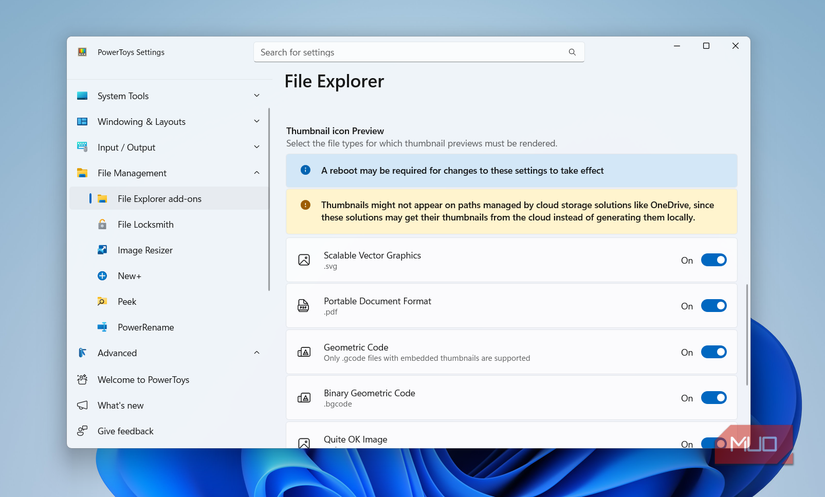
File Explorer does a decent job with thumbnails out of the box. You get nice previews for images, videos, and even folders. But the moment you stumble on a PDF, everything falls apart, and you’re left staring at a boring icon. Yes, there’s the Preview Pane, but it takes too much space and makes everything feel cramped.
PowerToys lets you enable thumbnail icon previews for several file types, including PDFs, SVGs, QOIs, and more. And if you are someone who likes using Preview Pane, PowerToys makes that better too. It adds preview support for markdown files, source code files, SVGs, and several other formats.
PowerToys' Peek feature can help you take a look at a file without fully launching an app. Select any file, press Ctrl + Space, and Peek gives you a large preview right in place. It works with images, videos, PDFs, Office files, and a bunch of other formats.
When you’re done, the preview automatically closes the moment it loses focus, so you can keep moving fast. It’s similar to how file previews work on macOS, and it’s so useful when you’re trying to track down a specific file.
Easy batch renaming and image resizing
Bulk renaming and resizing made simple
If you have ever tried renaming a bunch of files in File Explorer, you know it just slaps a number at the end of each file like it’s tagging livestock. PowerToys’ PowerRename tool gives you full control over how your files are renamed.
Once you right-click on the selection of the files you want to rename and choose Rename with PowerRename, you get a window where you can specify how you want the files to be named. You can add sequential numbers, standardize filenames, or even alter the text case. It also gives you live previews so you know the results before confirming.
If you work with images a lot, Image Resizer is another useful tool. Right-click any image or a bunch of them, choose Resize with Image Resizer, and you can scale them down for email or match a specific pixel size. This way, you don’t need to open any photo editor or use one of those web-based tools.
To enable these tools, head to PowerToys > File Management > Image Resizer or PowerRename. Inside, you’ll find several options to customize the feature.
Track down locked file with File Locksmith
Find what’s holding your files hostage

We’ve all run into that frustrating moment when Windows refuses to delete or move a file because it is "in use by another program." You close everything you can think of and try again, only for Windows to throw the same error.
File Locksmith puts an end to that guessing. Right-click on the stubborn file and choose File Locksmith. It will then show a simple window that tells you which app or program is holding the file hostage. Even better, File Locksmith gives you the option to end the locking process right there if it’s safe to do so.
To enable this feature, head to PowerToys > File Management > File Locksmith and turn on the toggle.

5 File Explorer Search Hacks I Can't Live Without
Search smarter, not harder!
Create new files with New+
Your templates, one right click away
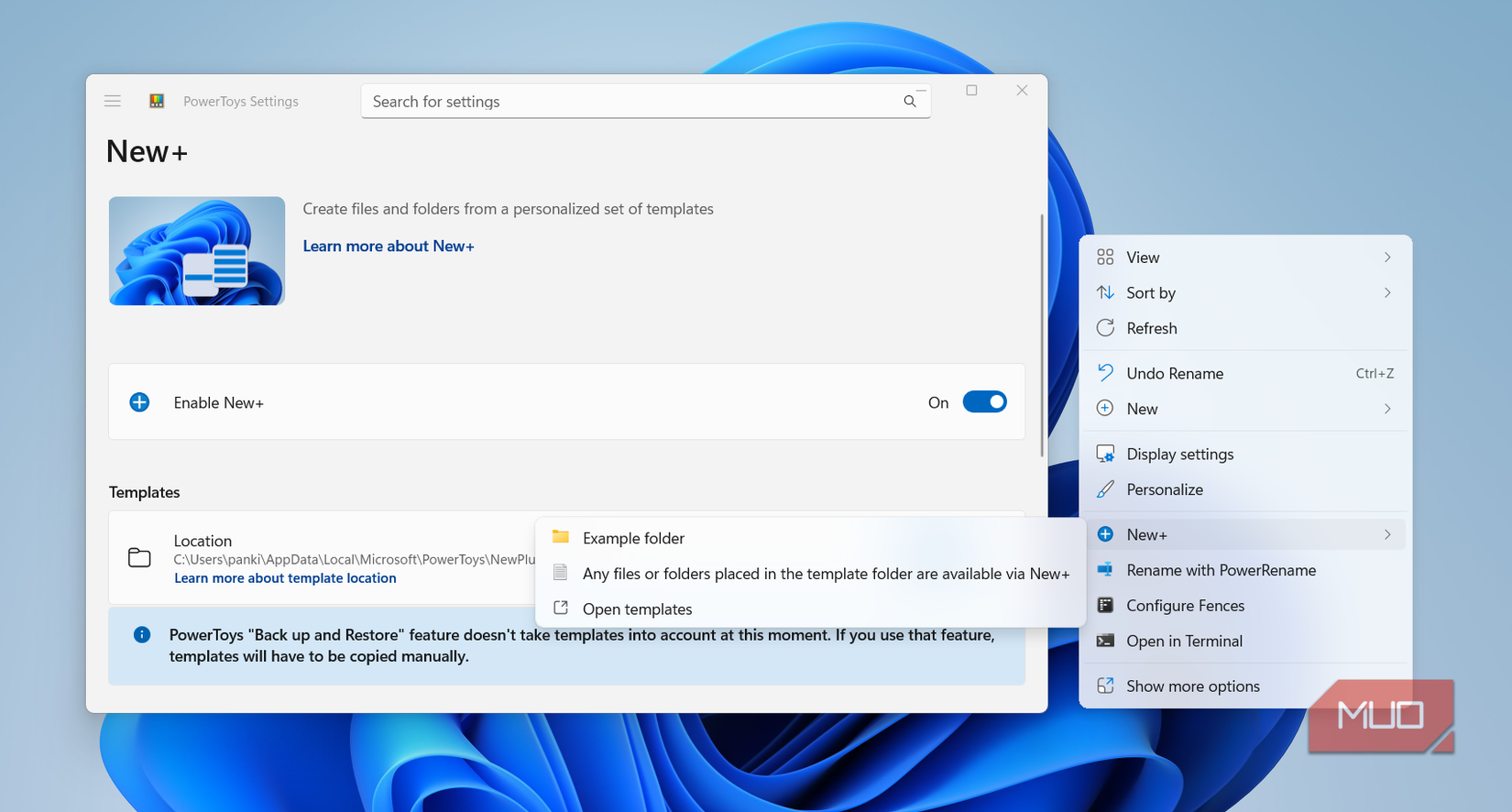
Windows already offers a "New" menu, but you can only use it for creating blank documents and folders. PowerToys’ New+ feature lets you add your own custom file templates so the exact file you need is always a right-click away.
These templates don’t necessarily have to be blank files. Maybe you have a specific Excel spreadsheet you use every week, a Word document with your preferred formatting, or even a pre-organized folder structure for new projects. You can turn any of these into a reusable template and add them to your right-click menu.
Head to PowerToys > File Management > New+ and select the files for your template. Once done, you can copy those same files anytime you need. All you have to do is right-click an empty area in File Explorer, choose New+ and select the template.
PowerToys can do so much more
Everything mentioned so far is only a fraction of what PowerToys brings to Windows. It has tools to remap keys, keep your PC awake during long tasks, pick colors from anywhere on the screen, and even launch apps faster.
Each feature solves a small everyday annoyance, and together they make Windows so much easier to use.