Denis works as a software developer who enjoys writing guides to help other developers. He has a bachelor's in computer science. He loves hiking and exploring the world.
GitHub Copilot is an AI-powered code completion tool. It uses OpenAI's GPT (Generative Pre-trained Transformer) technology to power its suggestions. It can suggest code snippets and even entire functions based on the context of the code you are writing.
To use GitHub Copilot, you need to install an extension in your editor, then authenticate it with your GitHub account.
Installing GitHub Copilot in VS Code
Open VS Code and make sure you are signed in with GitHub. If not, click on the Accounts tab at the bottom left of the window and choose Turn on Settings Sync. In the pop-up that appears, select Sign in with GitHub.
Selecting this option will open up GitHub's sign-in page in your default browser. Enter your credentials to sign you into VS Code using your GitHub Account.
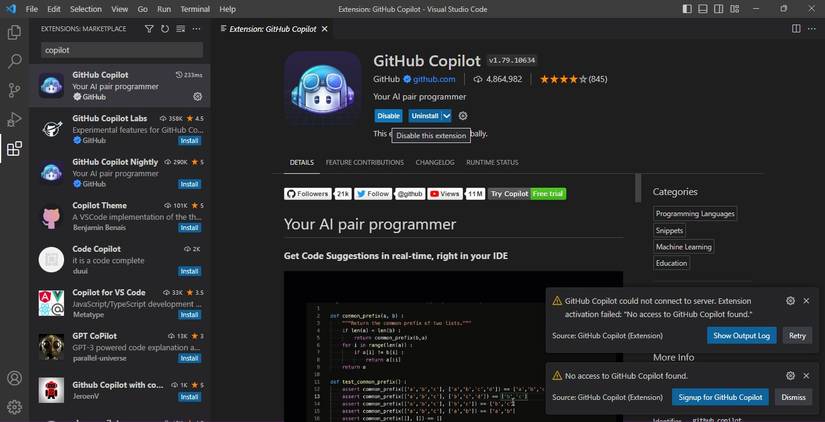
Go to the Extensions tab on the left-hand side of the VS Code window. Search for GitHub Copilot and click the Install button; it should be the first of the search results.
The signup page contains two payment plans: a Monthly plan and a Yearly plan. The monthly one gives you a one-month free trial, while the yearly plan includes a two-month free trial. Their costs also differ, so select the one that suits you. Then click the Get access to GitHub Copilot button.
A page to confirm your payment details will appear, asking you to enter your billing information. When done, click on the Save button.
When you submit your payment information, a page showing a summary of your billing and payment information will appear. Confirm that the information is correct and click on the submit button.
A page requiring you to select your preferences will appear. It will require you to choose whether GitHub Copilot can suggest code that matches public code on GitHub. Choose to either allow or block this feature. Then click on the Save and get started button.
Restart VS Code. This will activate the GitHub Copilot extension. The GitHub Copilot extension widget is as the bottom right corner of the VS Code window.
You are now ready to start using GitHub Copilot in VS Code.
Using GitHub Copilot to Generate Code
You can use GitHub Copilot to generate code in different ways, including code completion and code synthesis. With code completion, you start typing and GitHub Copilot will suggest completions as you write.
The grayed line of code is a GitHub Copilot extension suggestion. To accept a code suggestion, press the tab key. To ignore a suggestion, continue writing your code or press the Esc key.
Code synthesis generates entire code snippets based on the code you are writing. To generate entire code snippets, you should write a comment describing what the snippet will do, then press Enter.
GitHub Copilot will generate the first line of code. Press the Tab key to accept it, then press the Enter key to generate the next line of the snippet. Repeat until the whole snippet is complete.
GitHub Copilot generates clean code. It also uses OpenAI's GPT neural network to understand the context of your code.
Using GitHub Copilot to Explain Prewritten Code
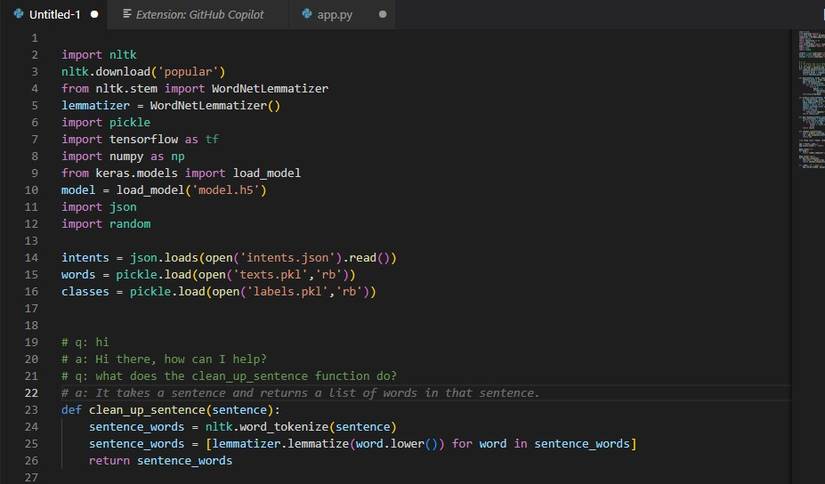
To explain prewritten code, use a comment to ask GitHub copilot what a snippet or the entire code does. Add q: before the question to notify GitHub Copilot the comment is a question. It will then act as a chatbot and generate an answer in form of a comment.
The comment GitHub Copilot generates starts with a: to indicate it is an answer.
Using GitHub Copilot to Document Prewritten Code
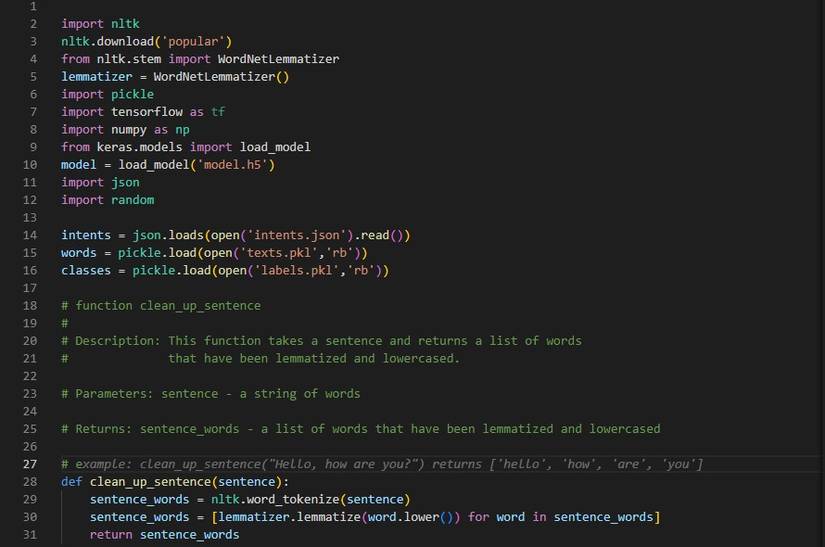
To document prewritten code, start writing the headings as comments, for example function clean_up_sentence then Description. GitHub Copilot will generate the description of the function.
You can do the same for parameters and any other documentation you find necessary.
How Does GitHub Copilot Suggest Code?
GitHub Copilot uses generative AI to suggest code snippets and complete code blocks. It takes into account the programming language, the libraries you are using, and the structure of the code you are writing. This helps it to generate relevant suggestions.