Pankil is a Civil Engineer turned freelance writer from Ahmedabad, India. As a long-time Windows and Android user, he has extensive knowledge of both operating systems and specializes in creating how-tos and troubleshooting guides.
Pankil has been writing about Windows, Android, and iOS since 2021. He has written over 1200 articles across reputable publications like MakeUseOf, GuidingTech, and TechWiser.
Outside of his writing endeavors, Pankil is an avid football fan and loves to plan his international travels with his wife in his free time.
I live on my keyboard. Shortcuts, hotkeys, anything that keeps my hands off the mouse — I’m into it. But browsing always felt like one thing I couldn’t fully pull off without reaching over. Clicking links just isn’t something you can keyboard-shortcut your way out of. Or so I thought. Vimium is a free, open-source extension that changed that for me, and now I barely need my mouse while browsing.
Every browser already comes with its own keyboard shortcuts, and you might already be using a few to open/close tabs, refresh pages, find something on a page, and even access the address bar. But those only take you so far. You still need to reach for your mouse for most other things, especially when clicking links.
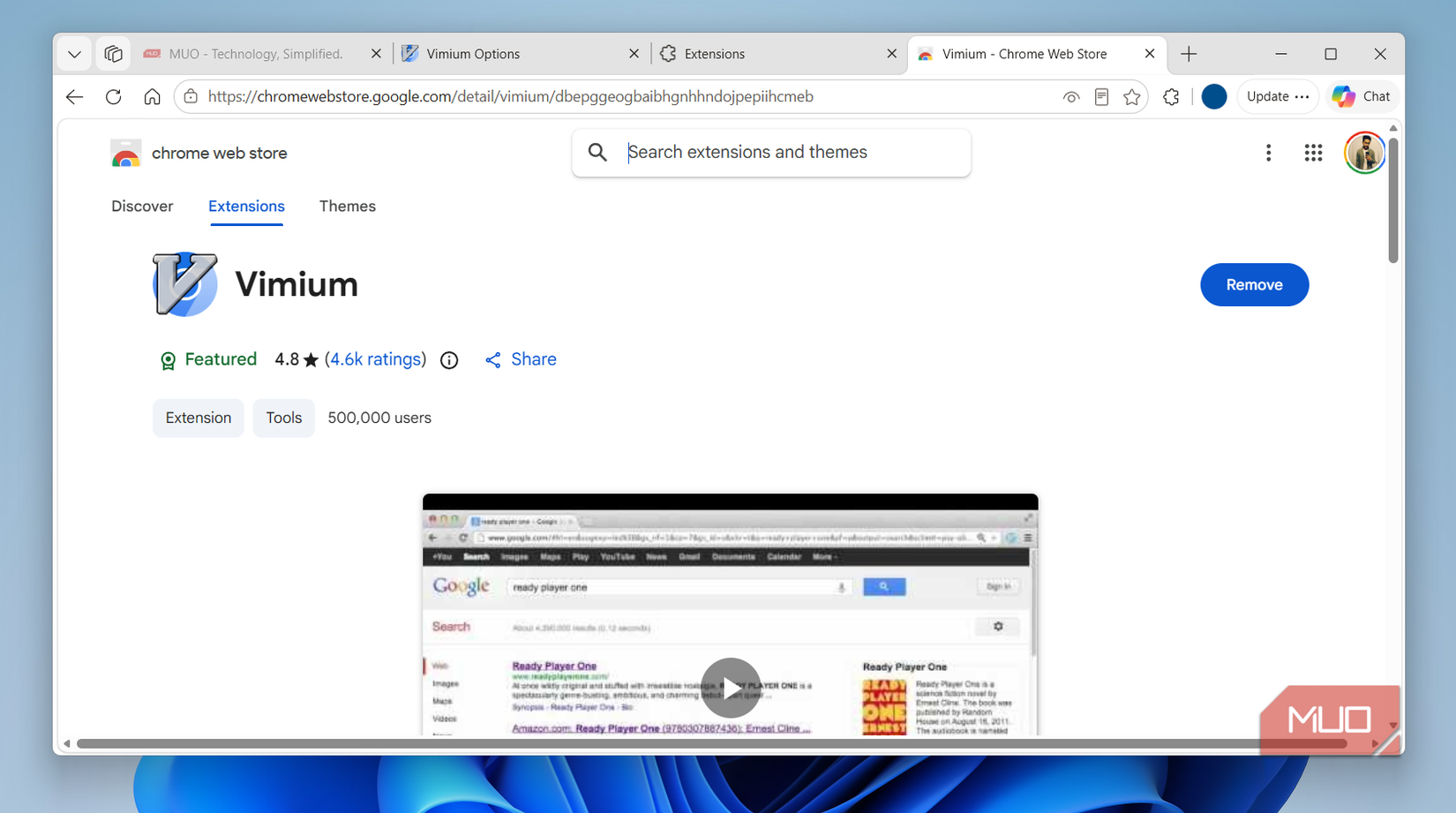
Vimium is a free extension that promises to change that. It basically enables a bunch of keyboard shortcuts that let you navigate the web with just your keyboard. You also don’t need to do anything special. Install the extension, refresh the page, and extensions start working. Chrome might warn you about Vimium using your browsing data, but it promises not to do anything shady. It’s also open-source, so you can always verify how it works if you’re curious.
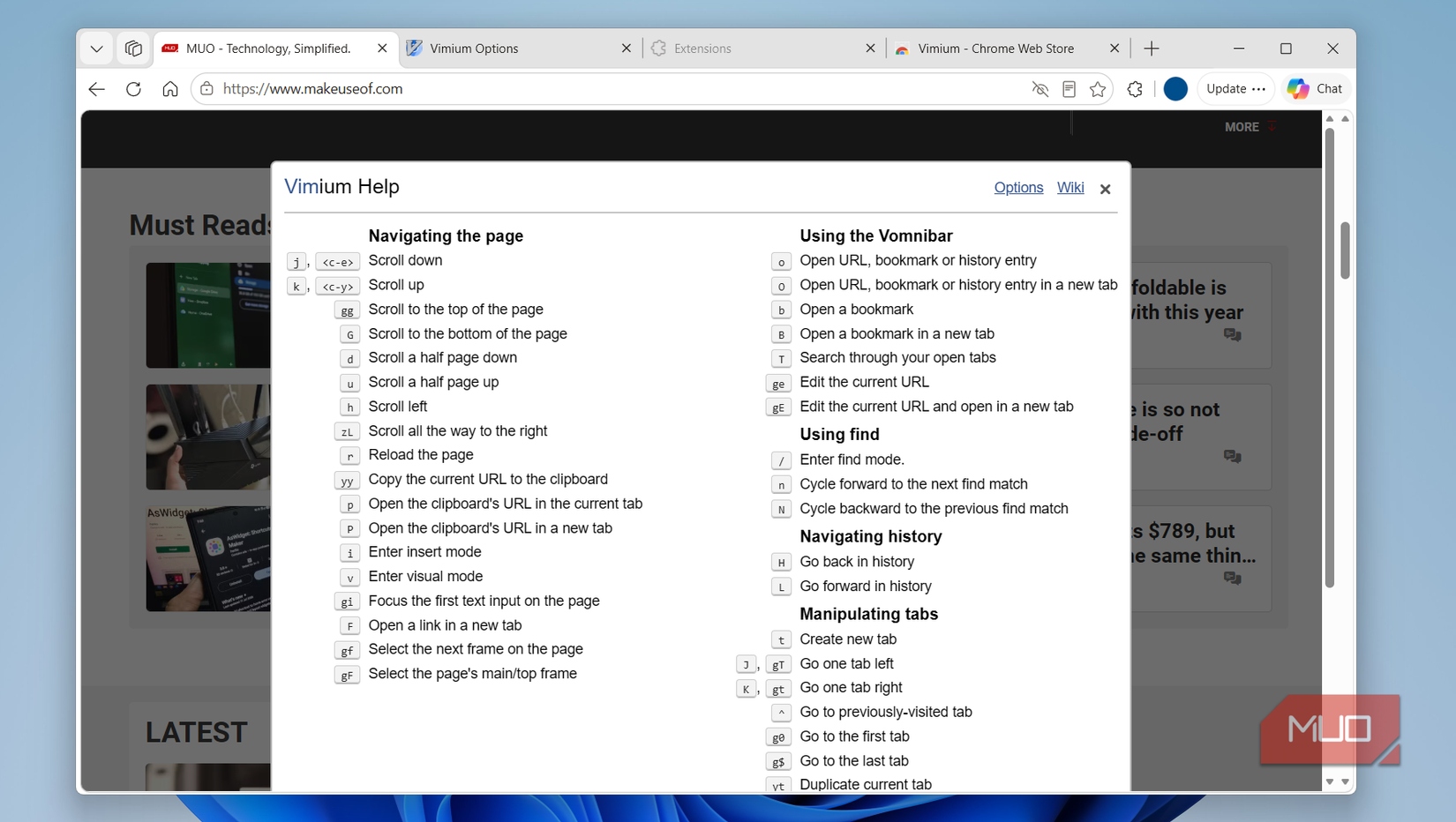
Pressing j and k lets you scroll down and up the page, while h and l let you scroll left and right. H and L jump back and forward in history, t opens a new tab, and x closes it. Hitting o pulls up an address bar you can search from without touching the mouse. Yes, these are all case-sensitive, so be mindful of your caps lock key. And if you’re worried, Vimium doesn’t affect the existing keyboard shortcuts, so you can still use those that are already muscle memory.
Browse almost entirely with your keyboard
Clicking links without the mouse is just the start
The most impressive thing Vimium does is let you open specific links on a page. You just need to press f on a page, and it shows small key combinations above every clickable item. You simply have to press the matching keys and it highlights the link. You can then hit F to open it in the same tab or f to open it in a new one. Honestly, this is the single most important thing it does, and it works for almost everything on a page, including buttons and drop-down menus.
Vimium also helps you with tabs. T opens a searchable list of all the tabs, so you can switch to a specific one by simply typing its name. You can also cycle through tabs by pressing J and K, which is obviously quicker than Ctrl + Tab or Ctrl + Shift + Tab.
It even replaces the keyboard shortcuts you normally need Ctrl or Alt. For example, / fires up an on-page find bar, r refreshes the page, yy copies the current link to the clipboard, and X reopens closed tabs. And if all of this sounds difficult to remember, press ? and Vimium will show all the supported keyboard shortcuts. You won’t need to do this forever, of course, but it’s handy while you’re still building the habit.
The obvious catch with Vimium’s keyboard shortcuts is that they can sometimes clash with what you’re actually doing on a page. If that happens, you can exclude the site from Vimium so that it stops interfering.
I love Vimium, but I have to be honest about its limitations. The biggest one is that it doesn’t work well on all pages. The new tab, extension store, browser settings, and a select few pages aren’t supported at all. So yes, you’ll probably still need to keep a mouse handy for those.
It also struggles on pages like Google search, Docs, ChatGPT, and basically any other page where the text box is the main focus. Since the cursor is already active on these pages, typing f actually types the letter F. This is fixable, though. Open Vimium’s settings page and enable the Don’t let pages steam focus on load. This basically stops those pages from grabbing keyboard focus automatically on loading.
Incognito mode is another caveat. Vimium doesn’t work there by default, like most extensions. This is something you can easily change from the extensions menu in your browser. None of this is a dealbreaker, of course. I still happily use Vimium and most of the shortcuts have become muscle memory at this point. It even lets you remap key bindings, so if you don't like the default ones, you can always change them as you see fit.