Android's built-in file managers have come a long way since the early days, but they still feel frustratingly limited if you do anything beyond basic file browsing. Whether you're dealing with Samsung's My Files, Google's Files app, or the basic file browsers that ship with most Android devices, these stock options barely scratch the surface of what's possible with the best free file explorers.
After years of tolerating those limitations, I finally switched to Material Files, and the difference is remarkable.

Material Files
- OS
- Android (open-source)
- Price model
- Free
Powerful and lightweight, Material Files gives you full control over your Android storage. Manage, sort, and access local or network files with a clean, modern interface.
Material Files gives you real control over your device storage
With a clean interface

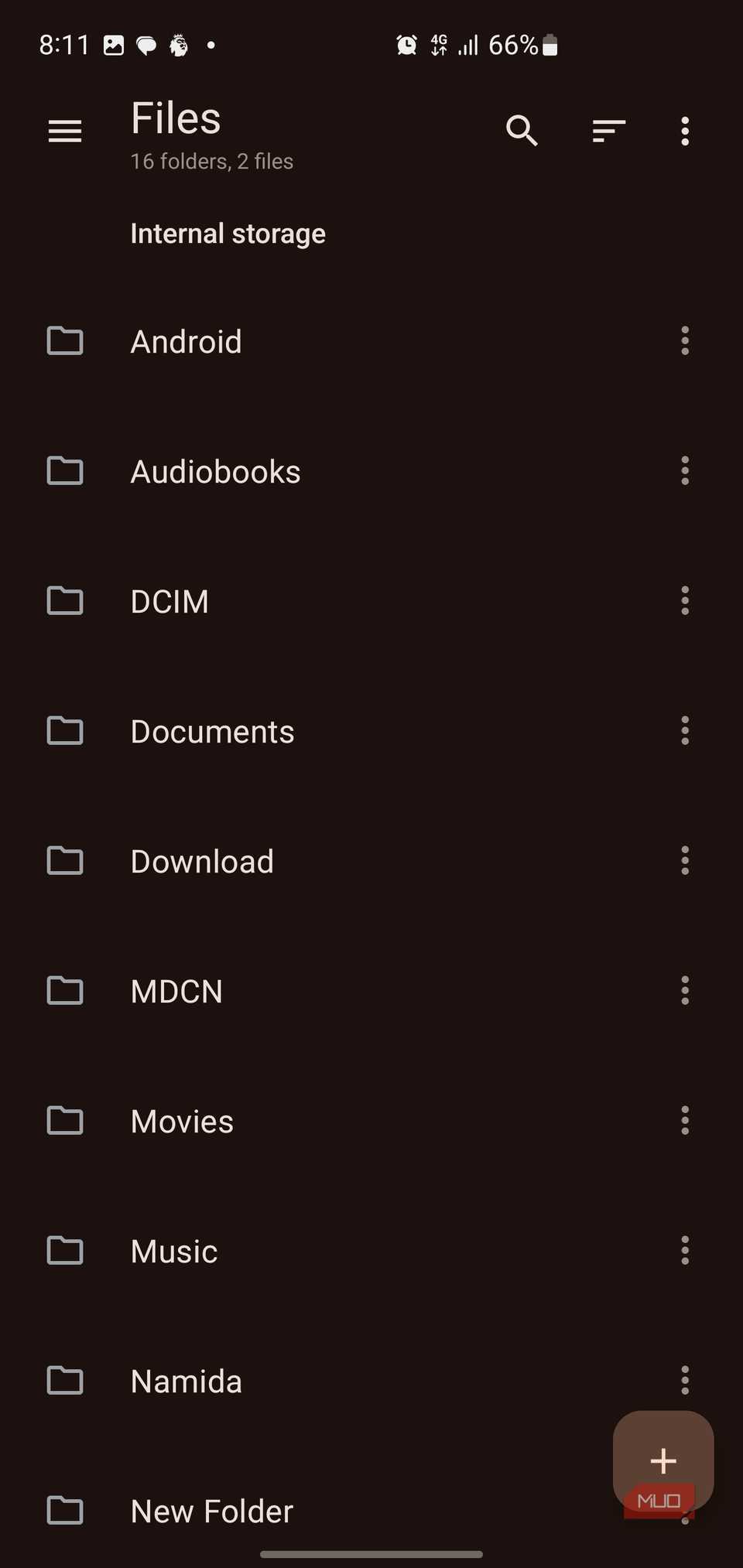

One of the most immediately useful features in Material Files is the breadcrumb navigation system. Instead of repeatedly tapping the back button to climb out of nested folders, you can see your current path displayed at the top of the screen. Tap any folder name in that path, and you jump directly there. It's such a simple feature that you wonder why every file manager doesn't have it.
The navigation drawer reveals another thoughtful design choice. Material Files shows all your storage locations at once, with available space clearly displayed. You see your internal storage, your SD card (if you have one), and network locations you have added through the Add Storage option, which I will detail later. Tapping the hamburger menu also gives you quick access to common folders like DCIM, Downloads, Movies, and Music, each with its appropriate icon.

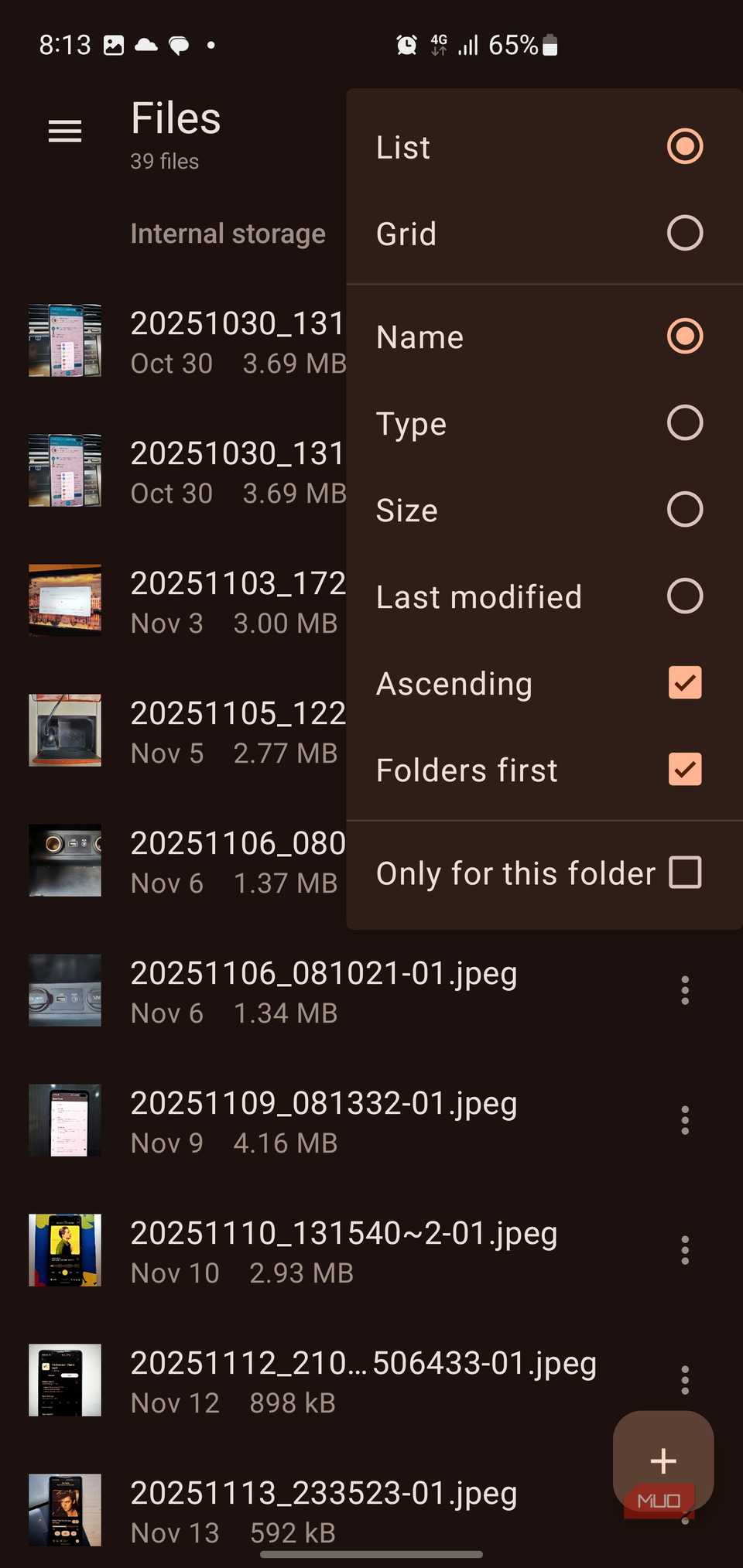
Sorting and viewing options are exactly where you'd expect them. Tap the sort icon to open a clean menu that lets you switch between list and grid views, sort by name, type, size, or last modified date, and choose ascending or descending order. You can show folders first and even toggle whether these preferences apply only to the current folder. This per-folder memory means your photo directories can display as a grid while your documents stay in a detailed list view, which is essential for managing files on Android without getting overwhelmed.
The floating action button in the bottom-right corner provides quick access to creating new files and folders. Long-press any item, and you get context menus with all the operations you'd expect: copy, move, delete, rename, share, and more. But Material Files goes further with options like Copy path, Open in terminal, Add bookmark, and even Create shortcut to place folder shortcuts on your home screen. The three-dot menu on each item also reveals these options, giving you multiple ways to access the same functions.
Multi-window support is built right in. Through the menu, you can open a new window to view two locations simultaneously, making file transfers between folders dramatically easier. I use this constantly when organizing photos or moving files between my internal storage and SD card. The app handles multiple windows smoothly, with no lag or confusion about which window is active.
Its advanced features put desktop capabilities in your pocket
You might forget you're on a phone


The "Add Storage" option I mentioned earlier focuses on integrating network storage. Tapping it brings up choices for FTP, SFTP, SMB, and WebDAV servers. I was able to connect to my home NAS via SFTP in under a minute. You need to enter the server address, credentials, and port, and it shows up in your storage list like any other drive. The connection is reliable enough that I've transferred multi-gigabyte video files over SFTP without interruption, eliminating the need to rely on cloud uploads to move files between devices.
Material Files also includes a built-in FTP server, letting you turn your phone into a file server that other devices on your network can access. Toggle it on from the sidebar menu, and the app displays the URL that other devices can use to connect. You can configure anonymous login, set a username and password, choose the port, select which folder to share, and control whether clients can write to the folder or only read from it. It's incredibly useful for quickly grabbing files from your phone when you're sitting at your computer.

What Is a NAS Drive, and How Do You Choose One for Your NAS?
Running out of storage? It might be time for you to buy a NAS.
If you're on a rooted device, Material Files includes full root support, giving you access to system directories, proper handling of Linux file permissions (read, write, execute for owner, group, and others), accurate handling of symbolic links, and even visibility into SELinux contexts. In the settings, the "Root access mode" option is set to "Automatic" by default, so the app only requests root privileges when needed.
Archive management is another strong point. Tapping any ZIP, RAR, 7Z, or TAR file opens it as a normal folder, letting you browse its contents or extract specific items (or everything) with a single tap. Creating archives is just as straightforward: select your files, choose Compress, and the app handles the rest. There's no need for a separate file-extraction app like RAR.
The Settings menu reveals even more customization options. You can change the theme color, toggle file list animations, adjust how long filenames are displayed, set a default folder when you open the app, choose which storage locations appear (root, internal storage, SD card, or all), manage bookmarked folders, and control root access behavior. There's even an option for archive filename encoding to properly handle international characters.
Your files deserve a better manager
Material Files has completely changed my relationship with my phone's file system. Tasks that used to require a computer or multiple apps now happen instantly on my device. The combination of thoughtful design, powerful features, and rock-solid stability makes it the file manager Android should have shipped with from day one. If you're still using your phone's default file manager, you owe it to yourself to try Material Files. It's free, open source, and available now.