Pankil is a Civil Engineer turned freelance writer from Ahmedabad, India. As a long-time Windows and Android user, he has extensive knowledge of both operating systems and specializes in creating how-tos and troubleshooting guides.
Pankil has been writing about Windows, Android, and iOS since 2021. He has written over 1200 articles across reputable publications like MakeUseOf, GuidingTech, and TechWiser.
Outside of his writing endeavors, Pankil is an avid football fan and loves to plan his international travels with his wife in his free time.
My favorite thing about using a Windows PC is that you get alternatives for almost every app. And File Explorer is usually the first thing I swap out because it’s way too barebones for something I need daily. Files app is what I’ve been using instead, and having tried pretty much everything out there, nothing comes close.
Every File Explorer alternative has this one thing in common
I’ve tried almost every popular File Explorer alternative, and if there’s one thing that has always bugged me about them, it’s how ugly they all are. And I mean aggressively, distractingly ugly. Directory Opus, OneCommandar, FreeCommandar, Q-Dir — they’re all the same.None of them feel like they were made specifically for Windows 11. Don’t get me wrong, they’re all productivity beasts, and it’s hard to argue about what they bring to the table. But when it comes to looks, they all feel like they belong to an older version of Windows.
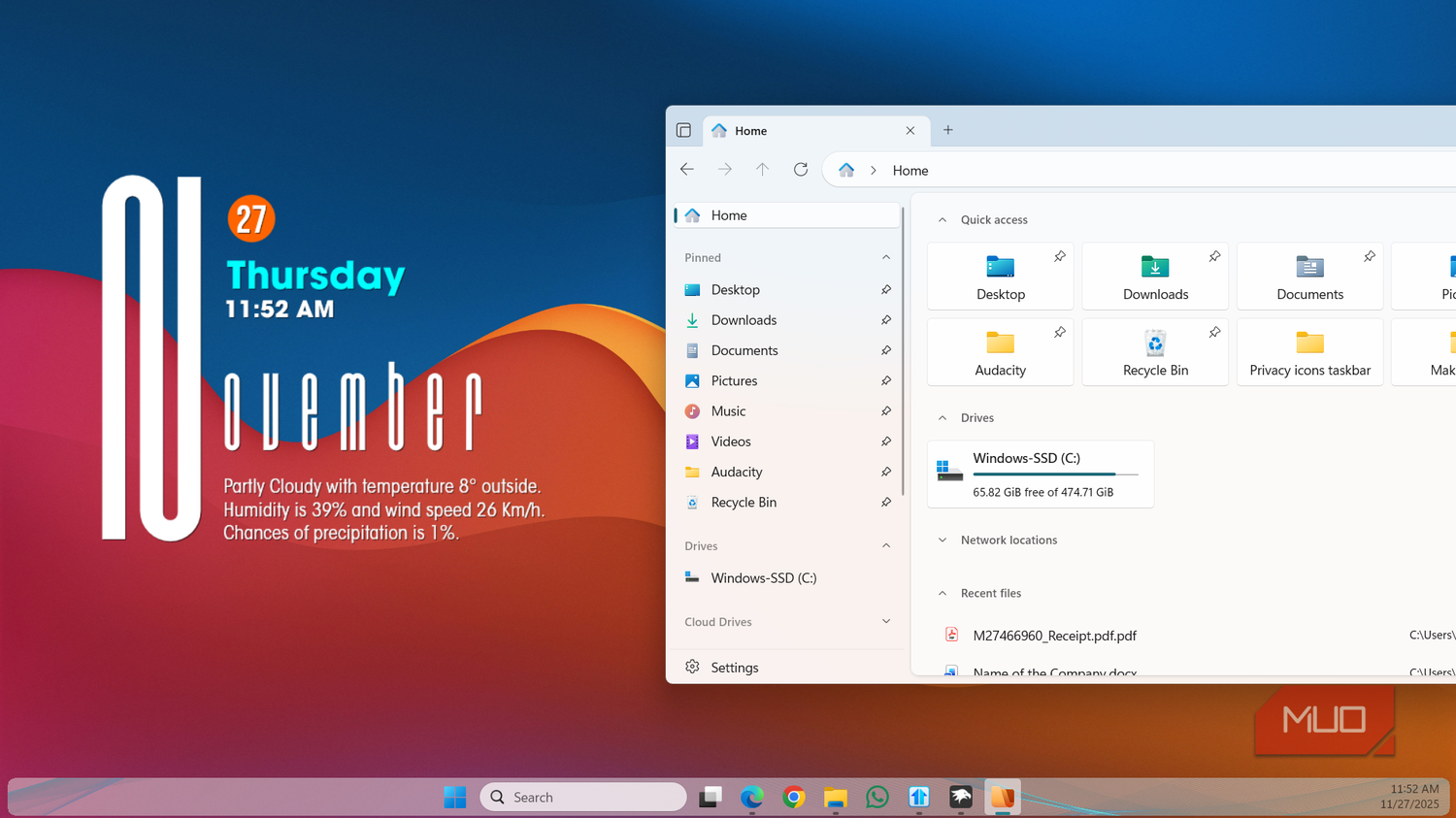
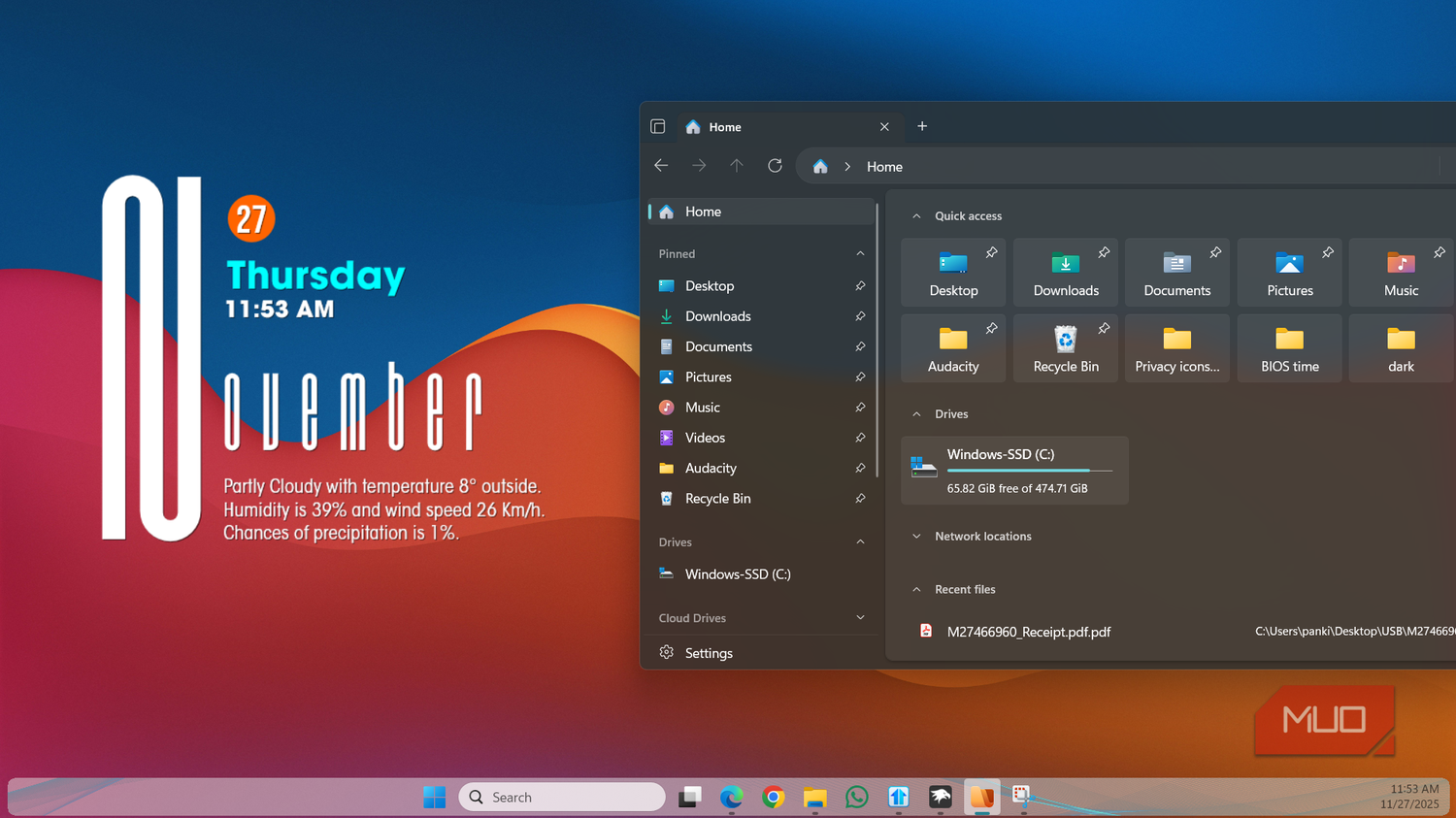
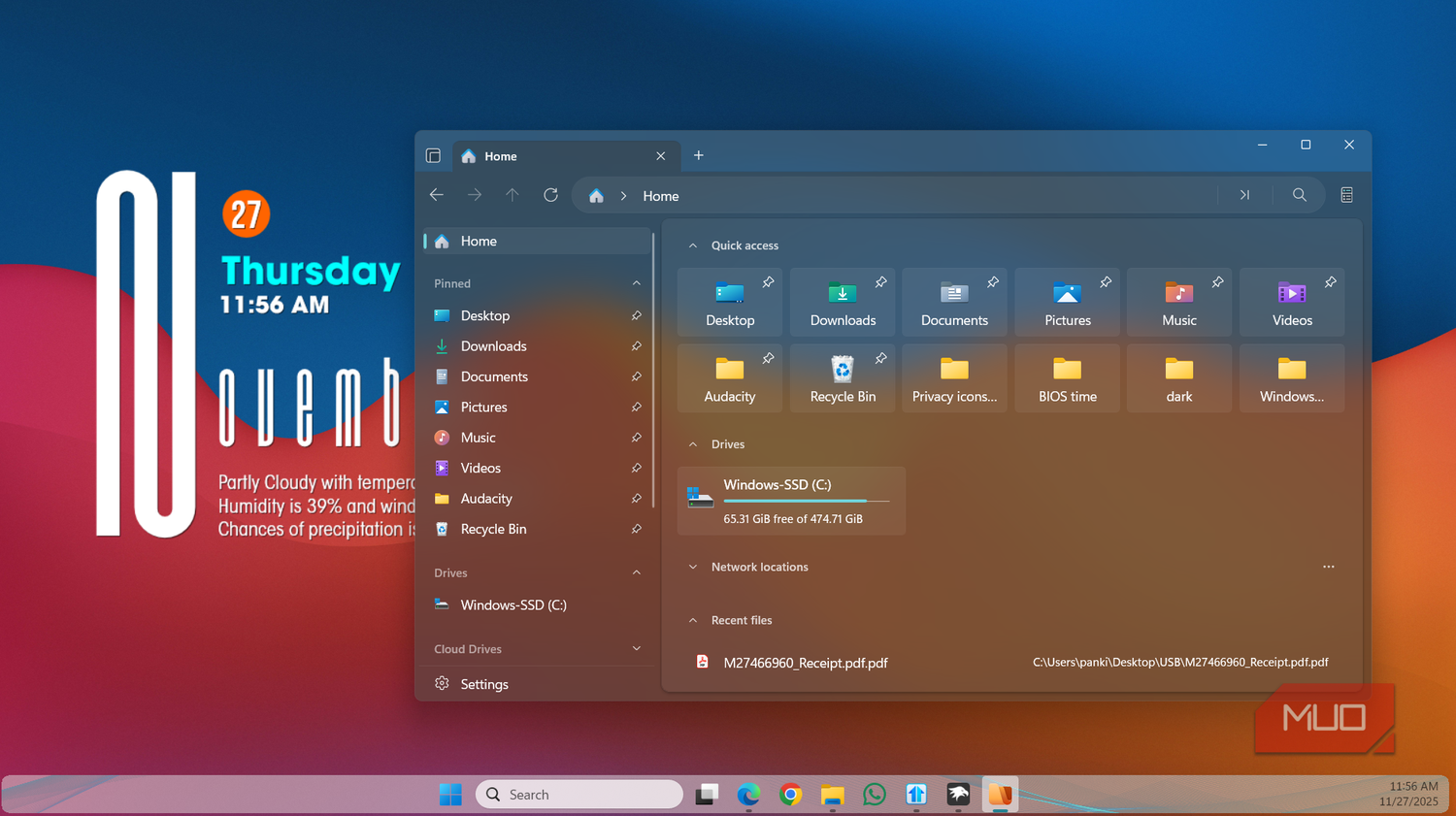
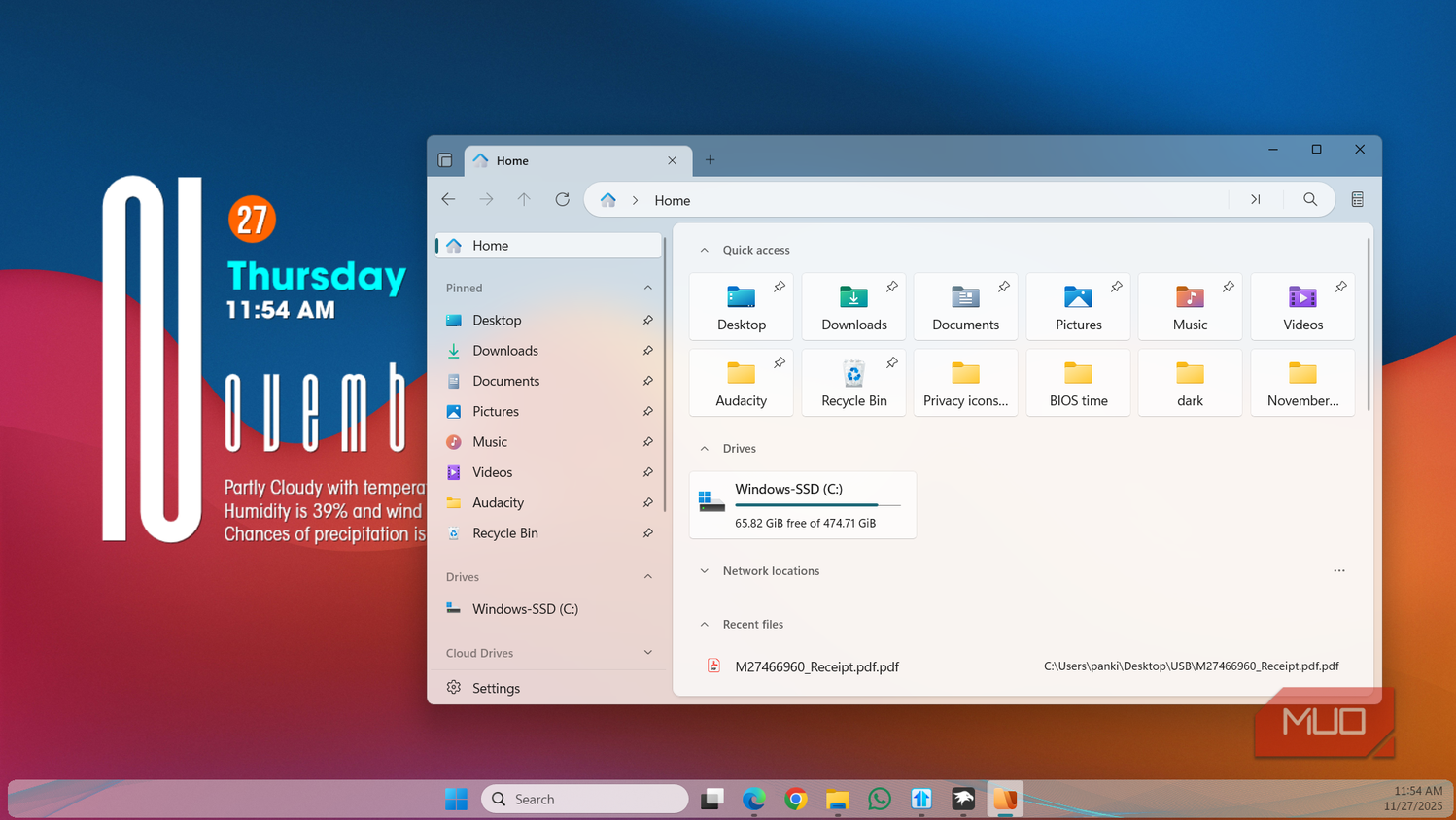
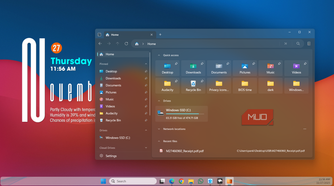
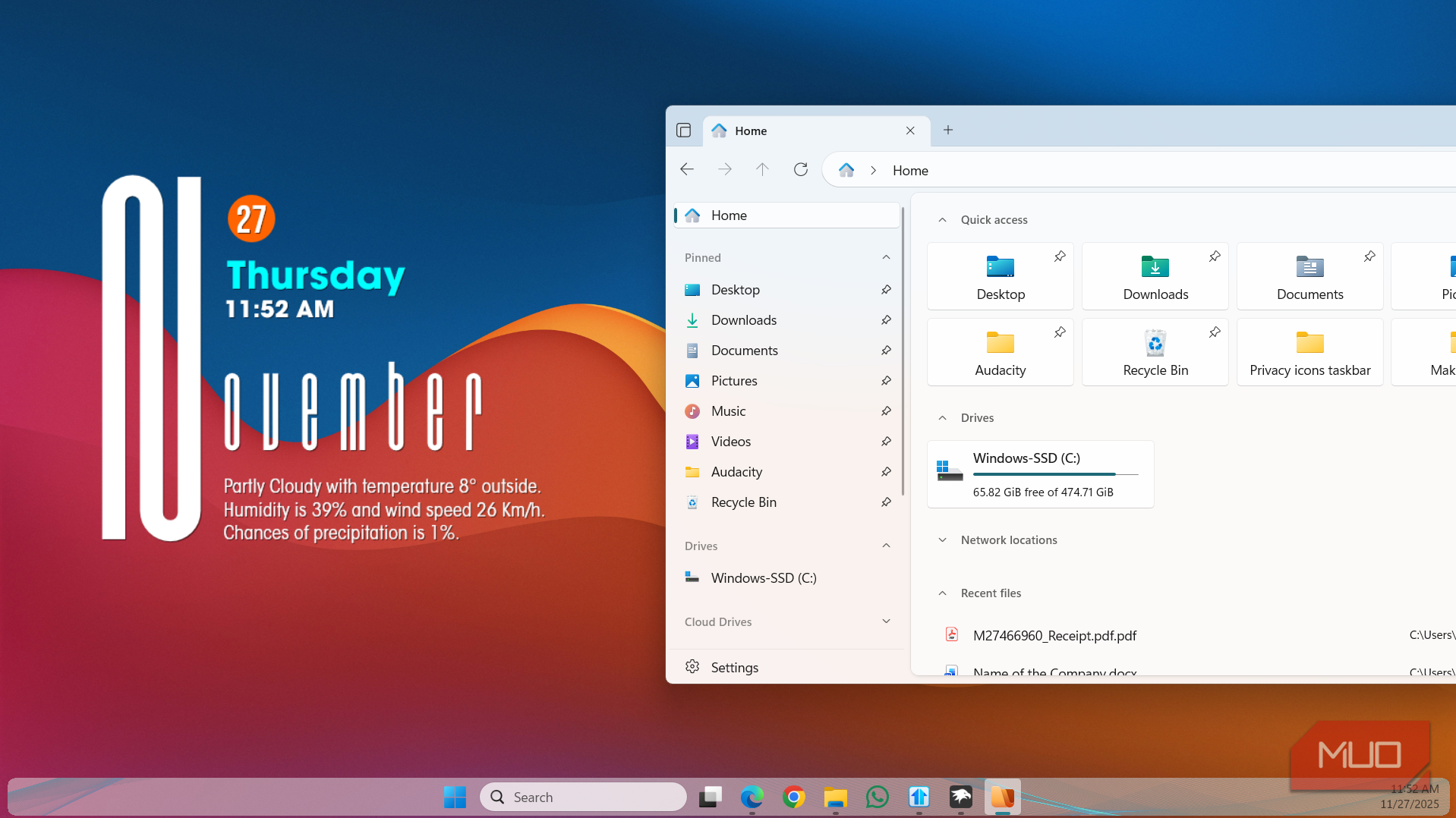
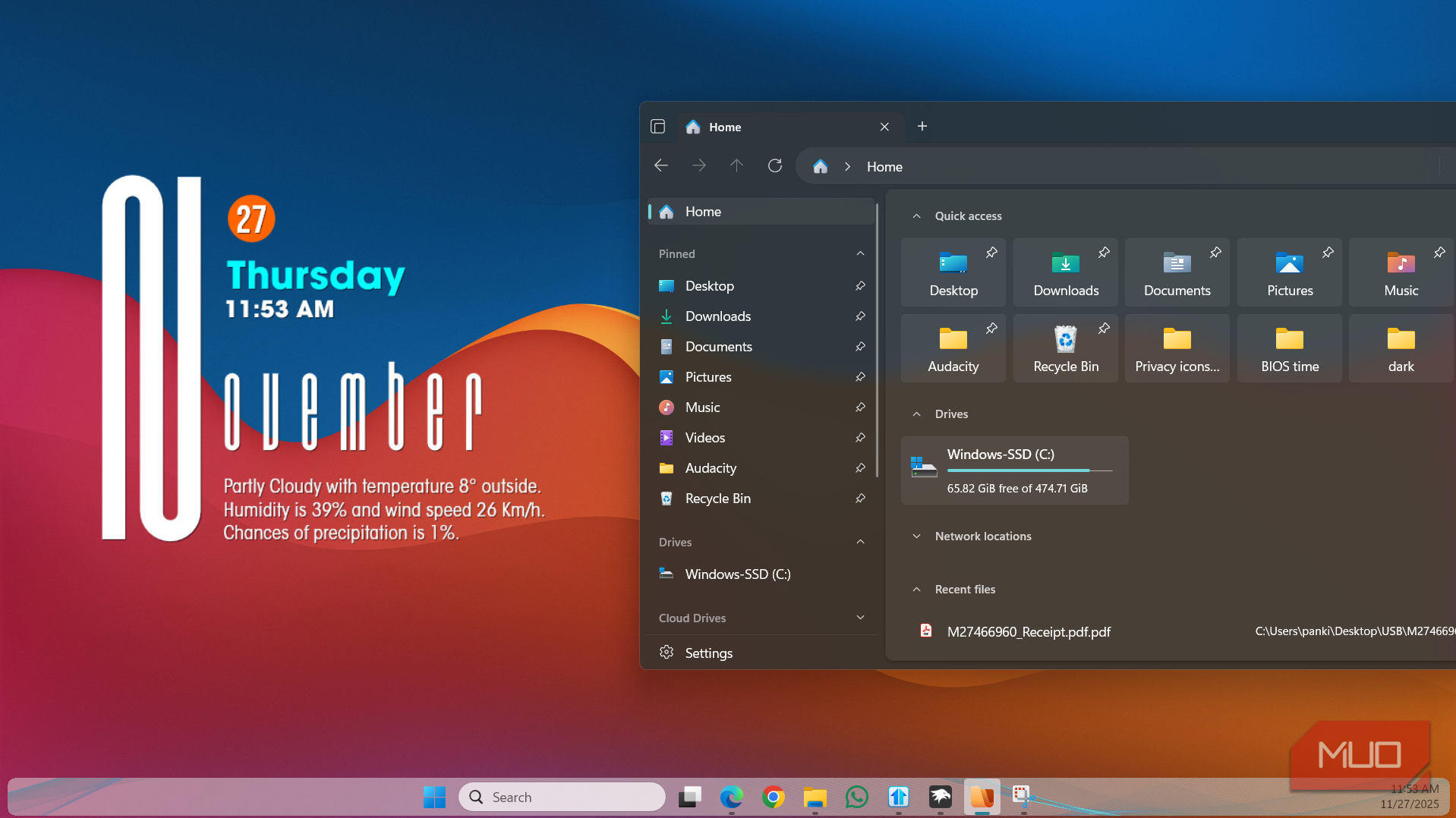
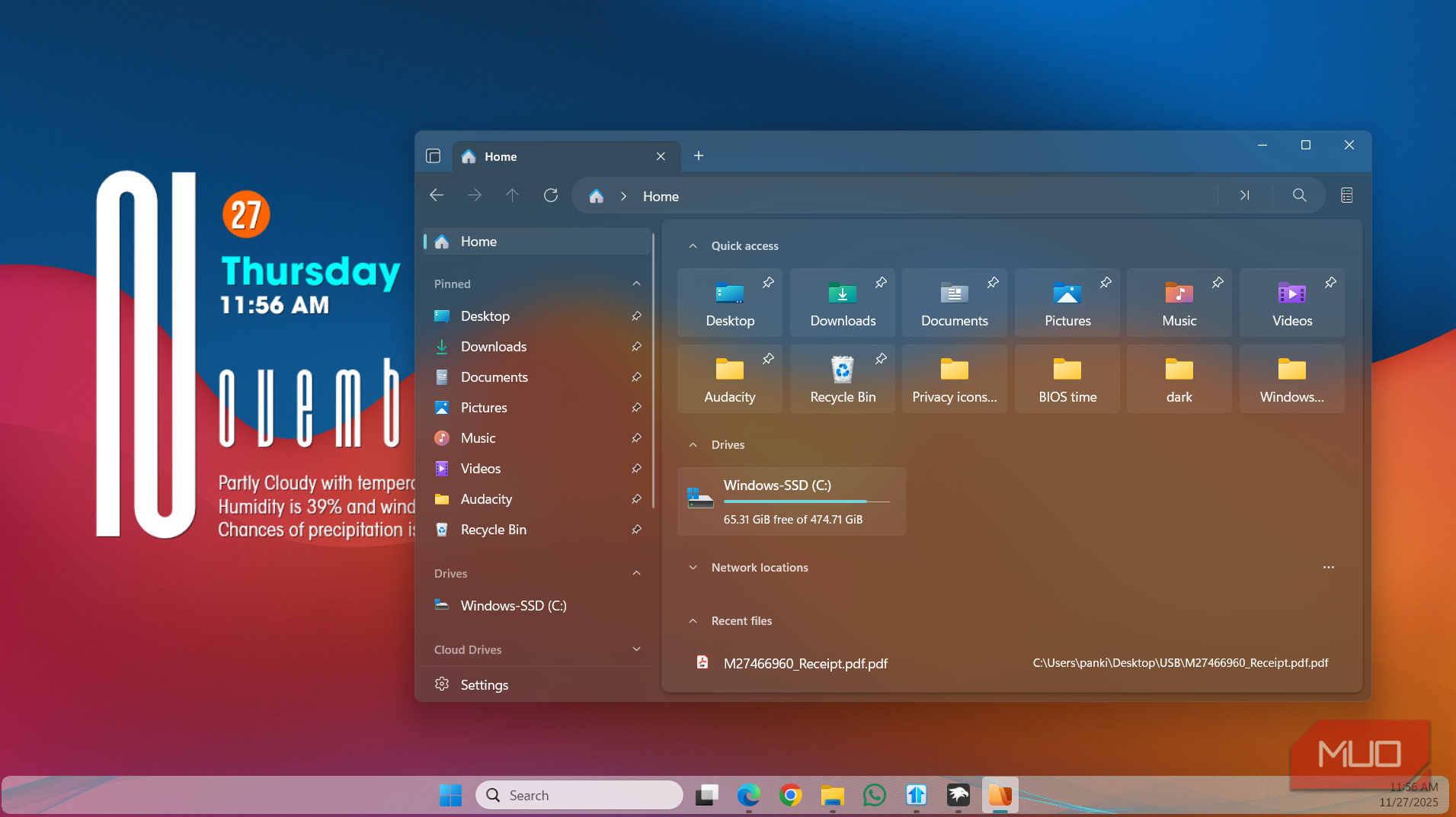
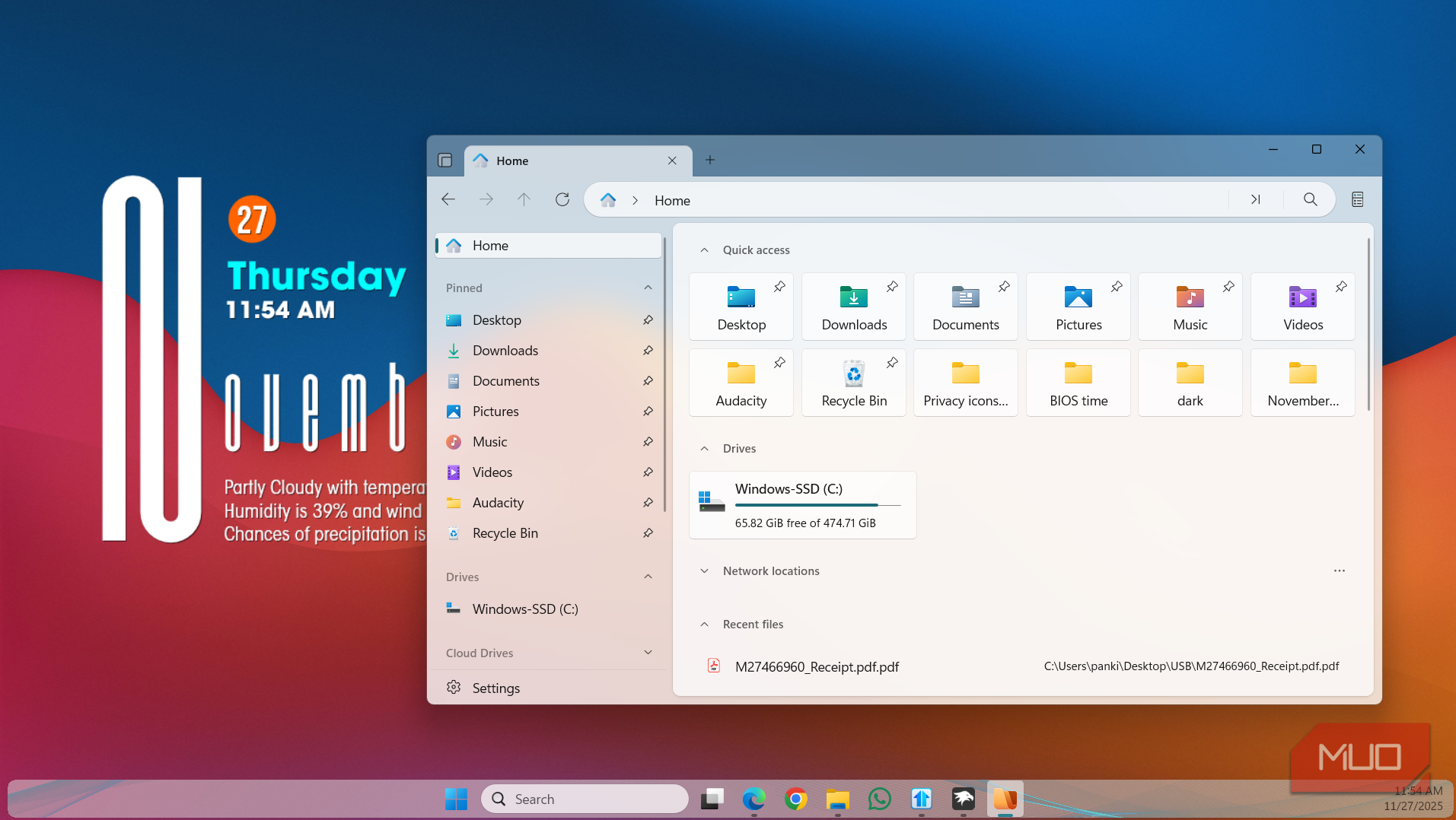
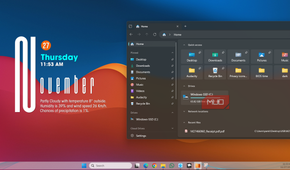
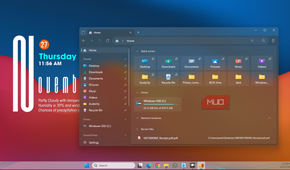
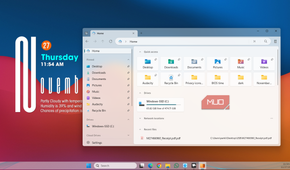
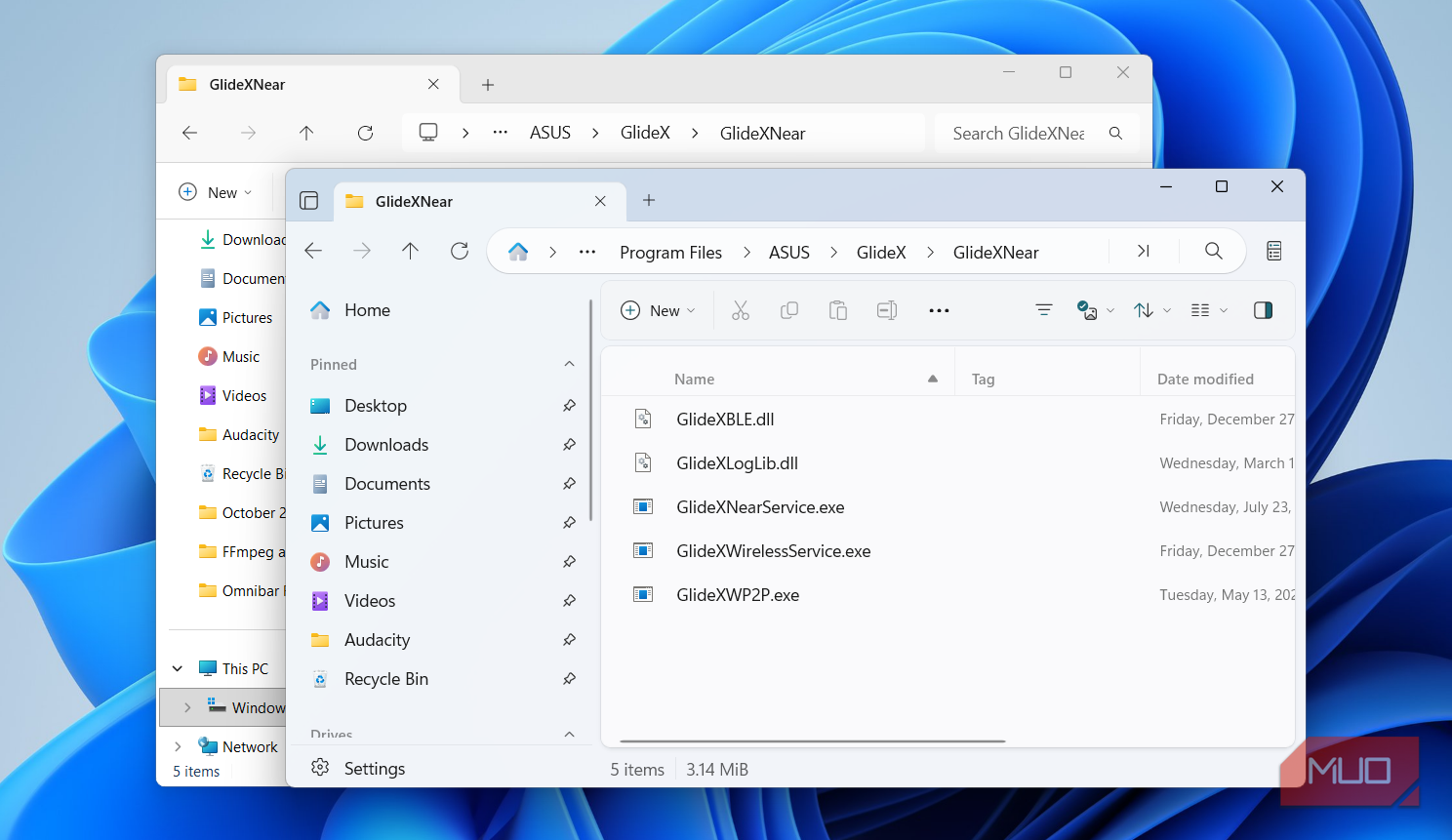
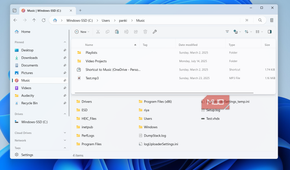
Files app is a rare exception. It’s a free, open-source File Explorer alternative that’s better looking than anything else I’ve tried. It follows almost the same design philosophy as the default File Explorer, but looks clean with smooth navigation, proper iconography, and a UI that feels like it belongs to Windows 11.
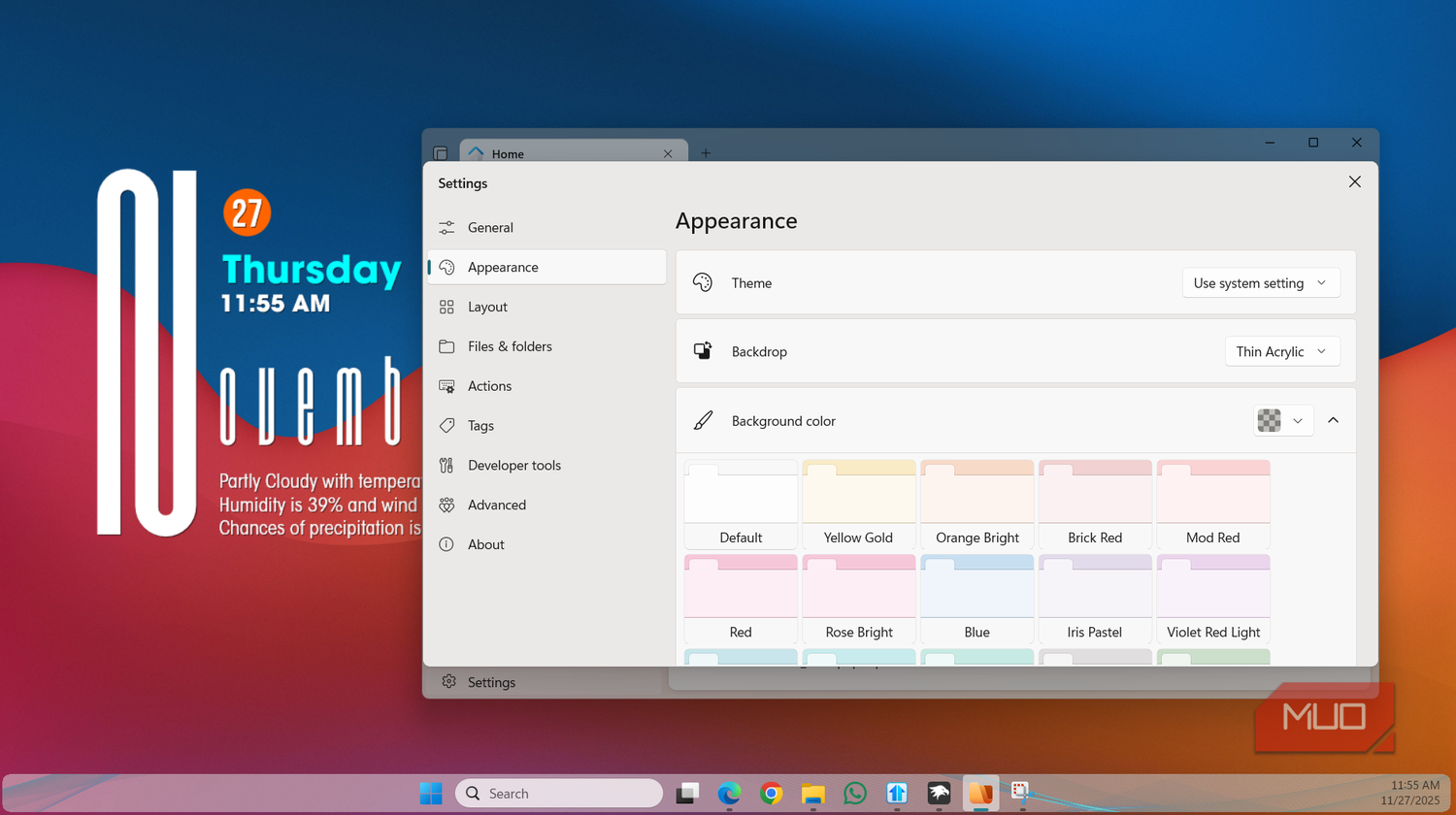
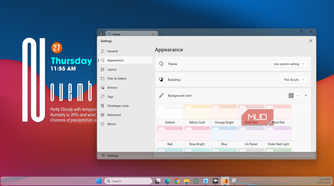
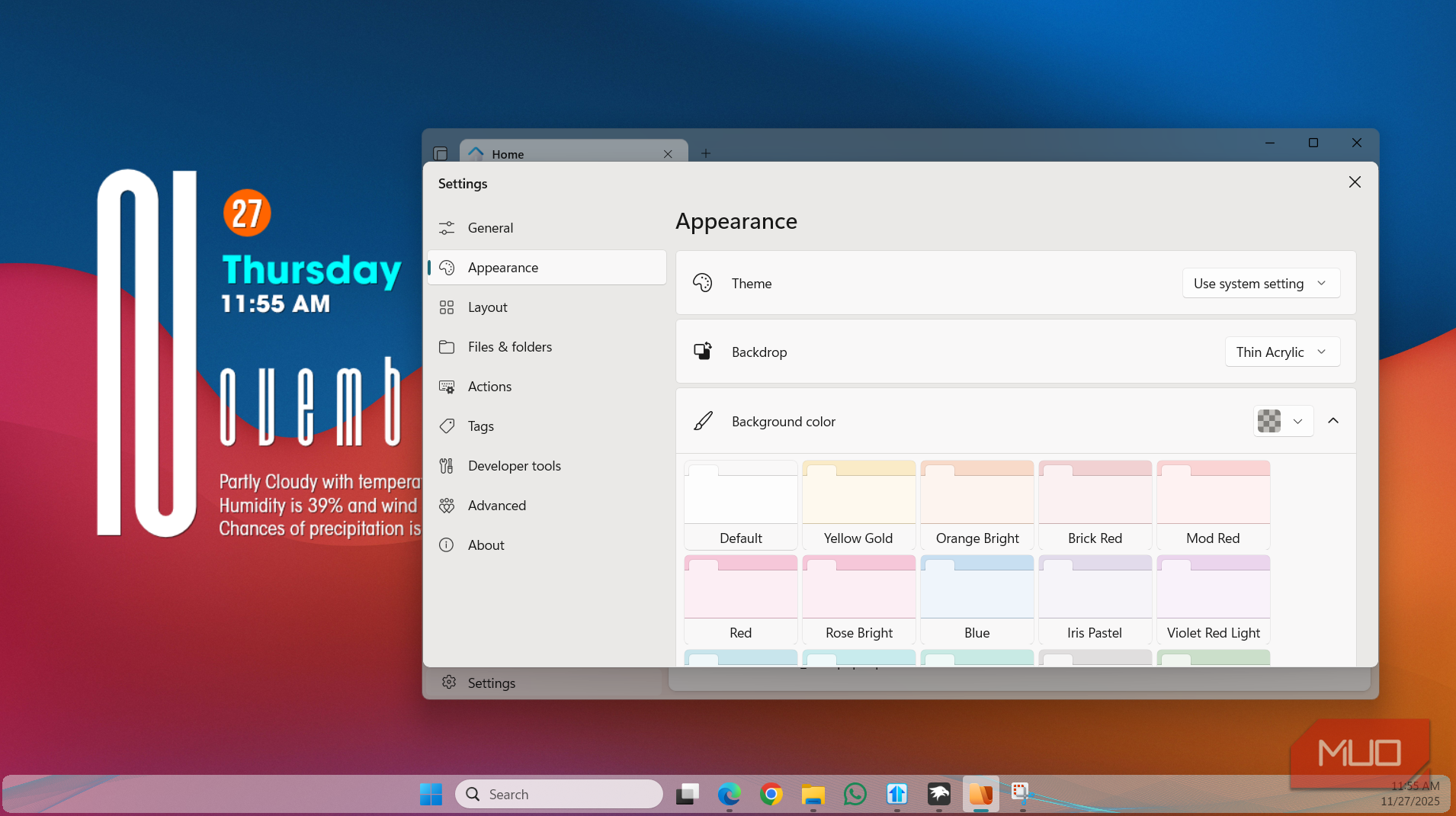
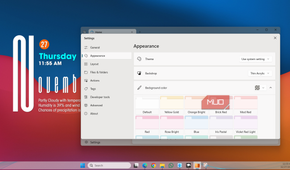
Files is also fully customizable. You can switch between light and dark mode, pick an accent color, set a background image, and even change fonts. Heck, you can even customize what options appear on the toolbar at the top, and it even comes with its own right-click menu. Here too, you don’t have to settle for what you get. You can customize the context menu by hiding options you don’t use. Finally, if you’re ready to go all in, you can even set it as the default file manager app for Windows with a simple toggle.
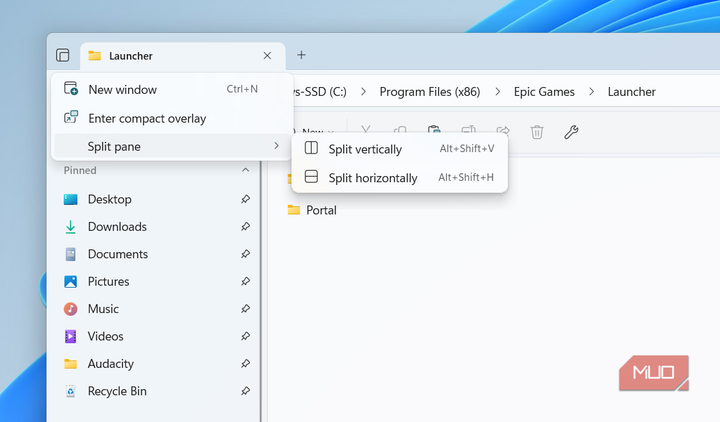
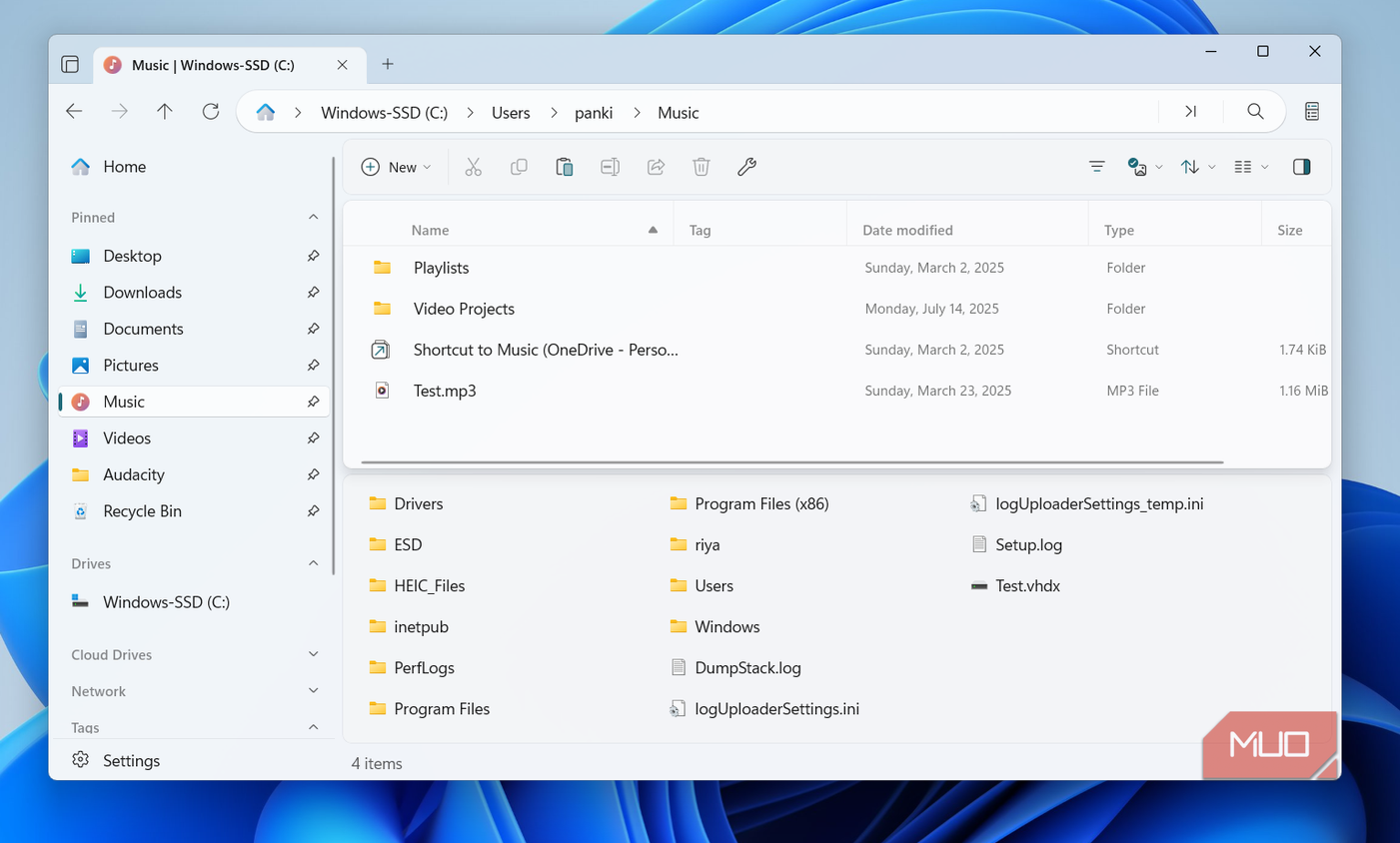
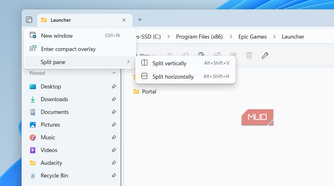
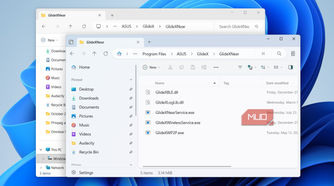
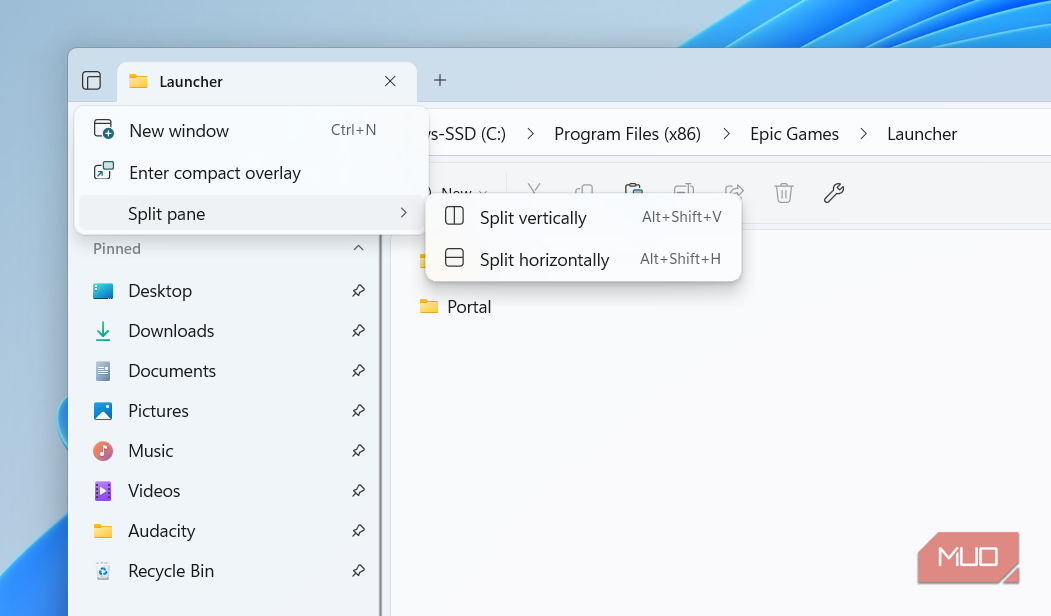
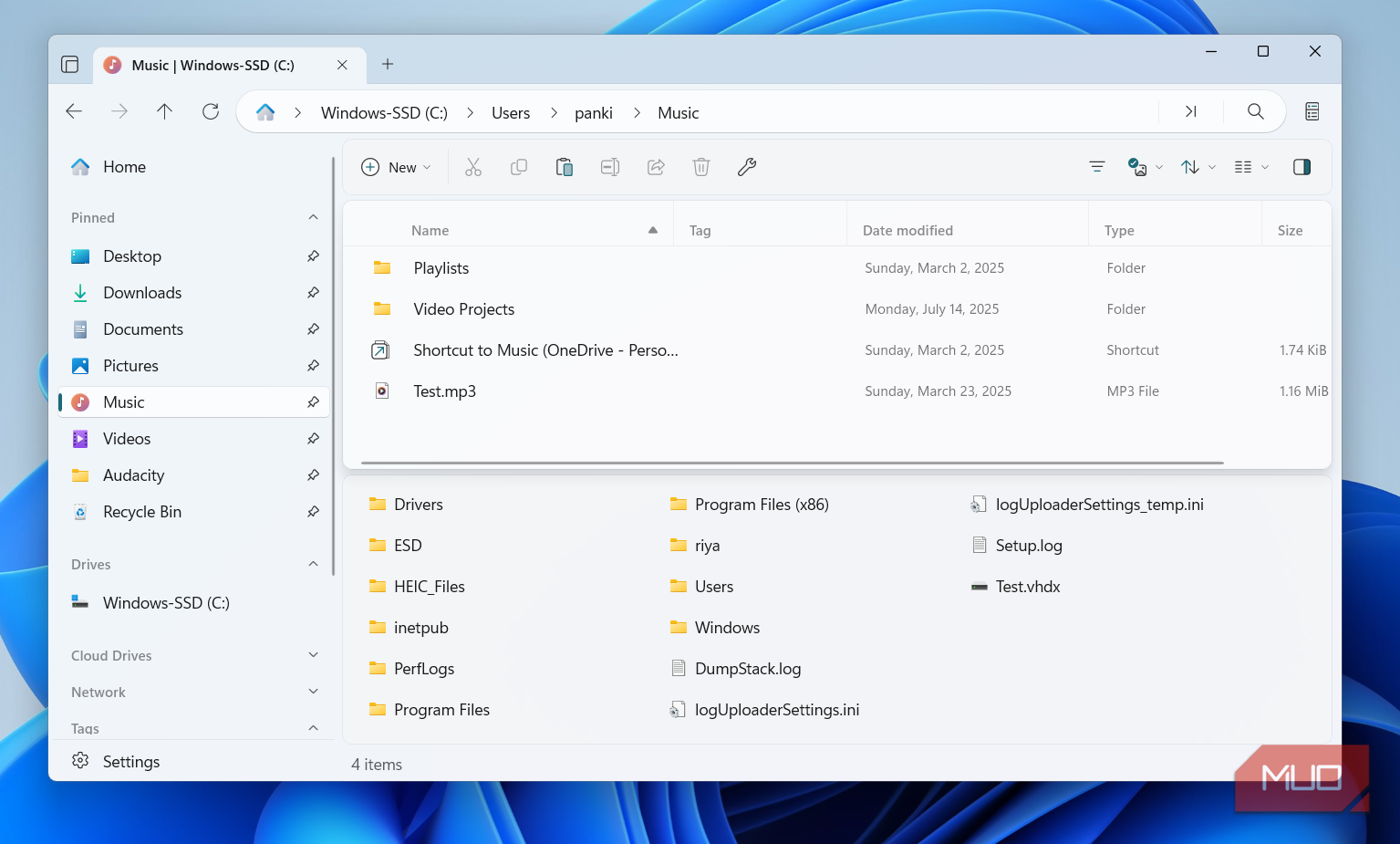
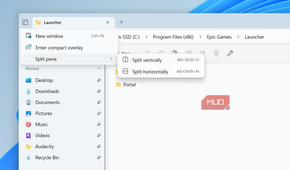
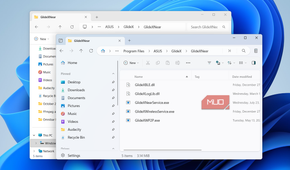
The Files app isn't all about looks, though it’d still be a solid recommendation if that were all it had going for it. It has almost every useful feature that makes you want to ditch File Explorer. The most popular one is the dual-pane view, which lets you browse two locations in a side-by-side view, either vertically and horizontally. It’s way more convenient than using tabs since you can see both the directories at once.
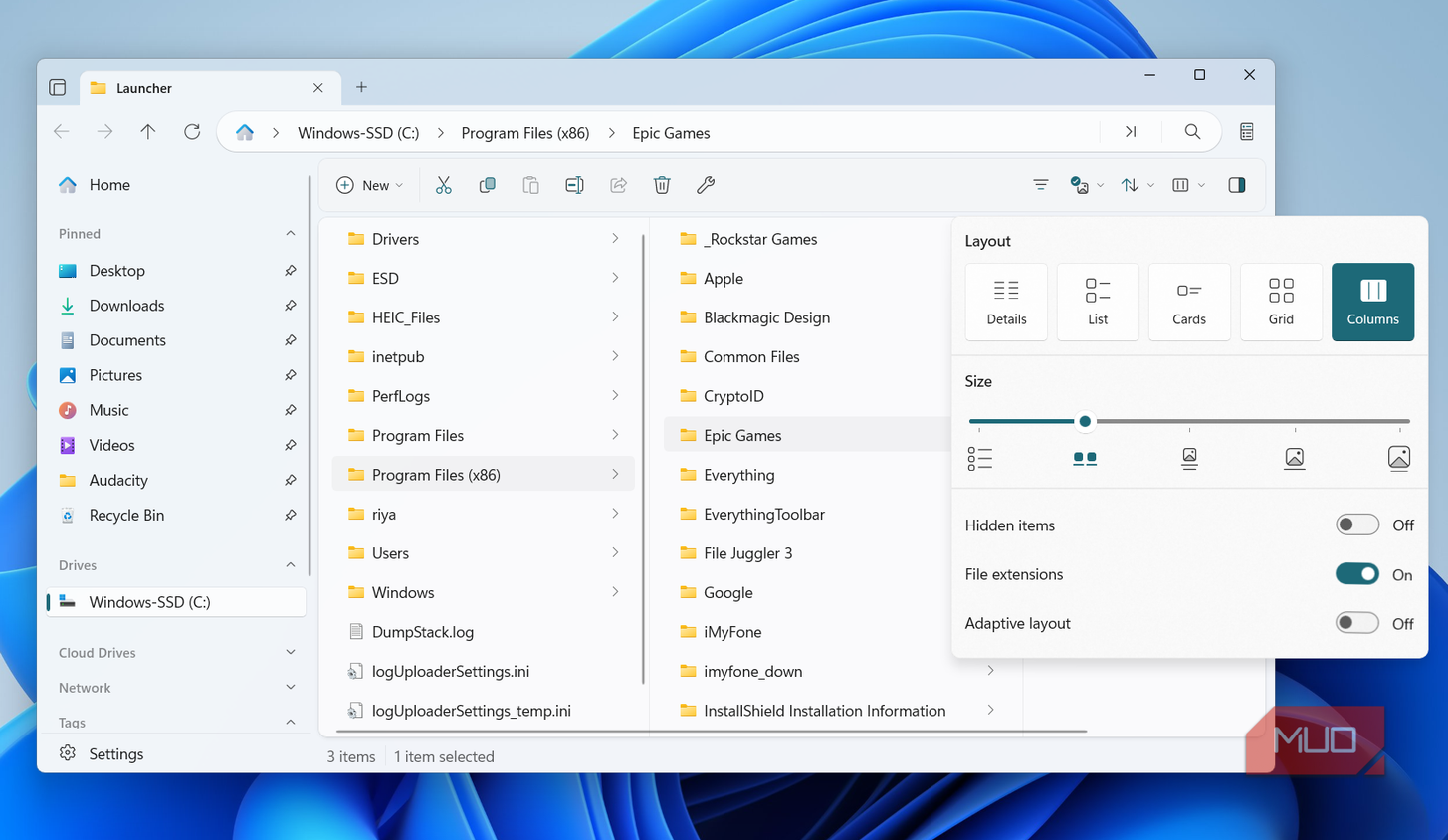
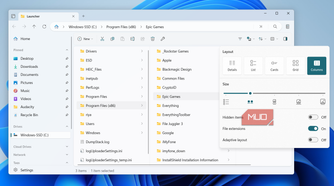
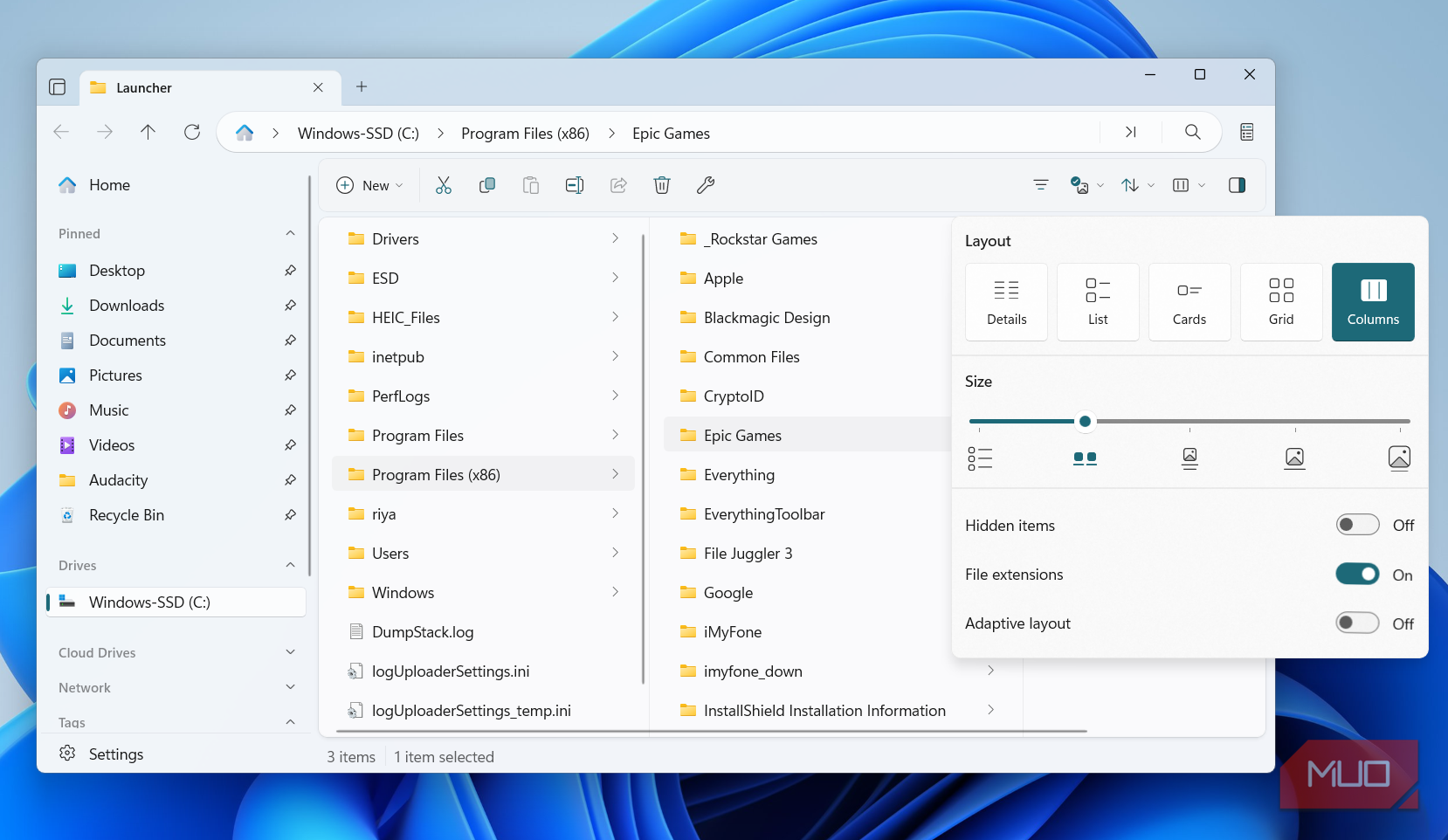
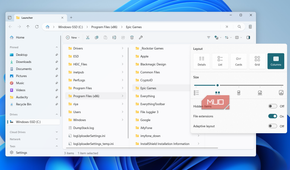
Files also has a macOS-like column view, so as you drill deeper into a folder, each level opens in a multi-column layout. It makes navigating deep folder structures much less stressful.
For organizing files, there are tags. You can color-code files across different folders to organize them without actually moving them. You can create tags like Personal, Work, Others, and so on, and then pull all the files by clicking the relevant tag from the left pane.
Another useful addition is the Status Center. It’s a neat little panel that lets you check ongoing file operations at a glance. So if you’re copying, moving, or deleting files, you don’t have to keep switching to check the progress.
It’s the little things that make me like it even more
The big features sell, but the small ones make you stick
Once you actually start using the Files app, you’ll realize that there are a lot of things it does better than the default File Explorer. It’s all in the details.
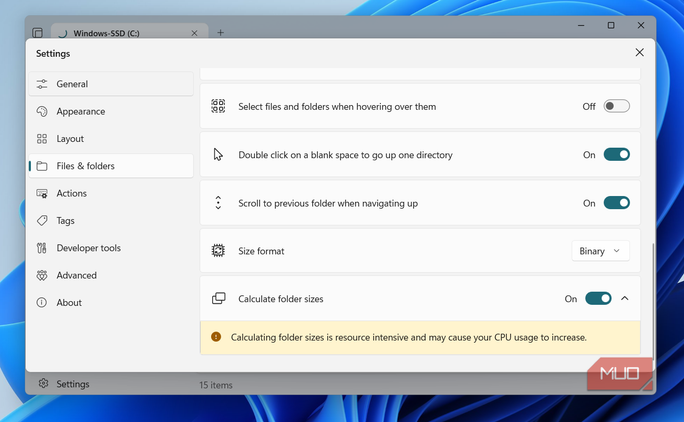
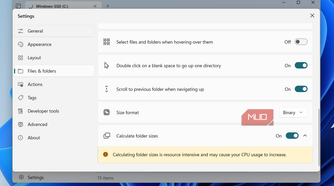
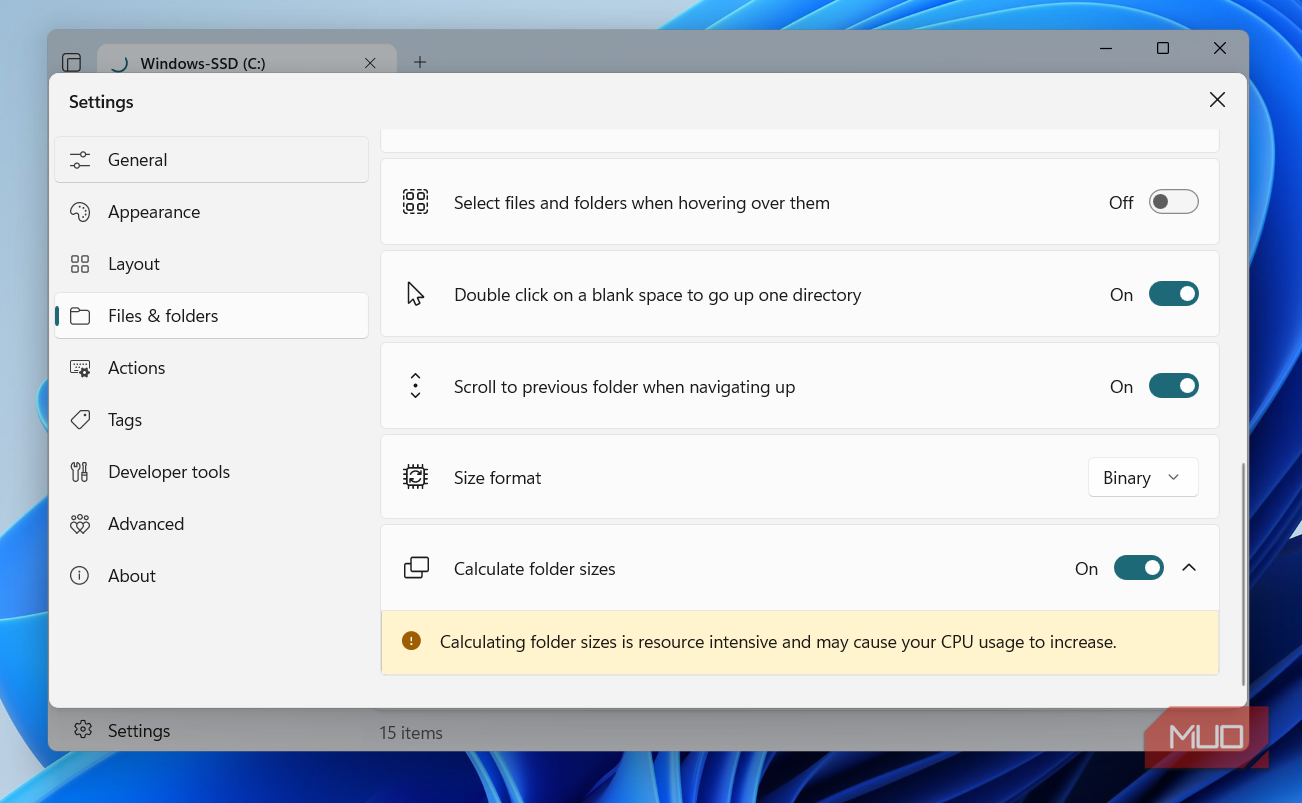
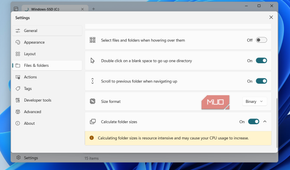
For instance, File Explorer only shows file sizes because calculating folder sizes can spike CPU usage, which isn’t ideal for low-end machines. Still, I’d like to have the option, and Files gives me that. It can display folder sizes, so you don’t have to keep opening the properties window again and again. You do need to enable the feature since it’s off by default.
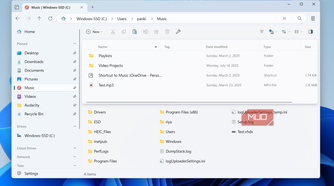
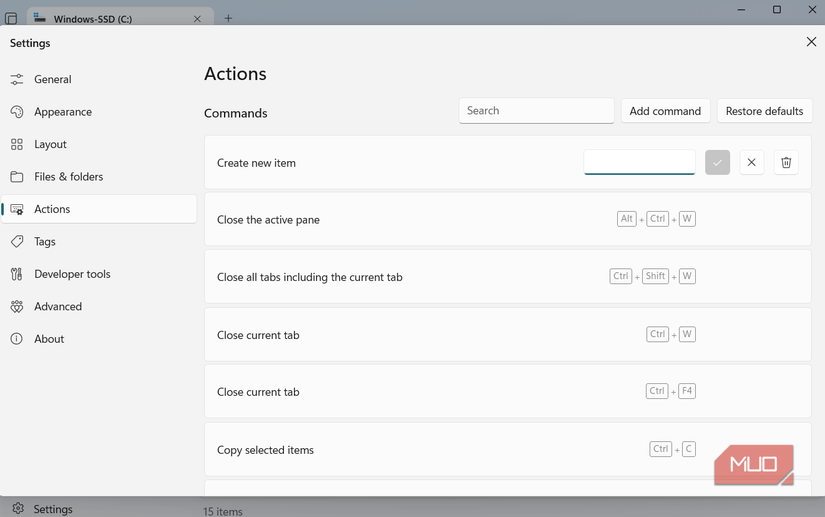
Its compact overlay mode shrinks the Files window into a small, always-on-top window that stays accessible no matter where you go. I find it useful for dropping files. There's even support for keyboard shortcuts. It’s a long list, but the short version is, there are enough that let you navigate the app without touching your mouse ever. And the cherry on top is that all of them are customizable. So if the default ones don’t feel right, you can always change them.
It’s technically a paid app, but you can get it for free
Files is listed as a paid app on the Microsoft Store. It’s available for a one-time fee of 9ドル.99 there, but you can also grab it for completely free from its website. There are no differences between the two. The Store version just makes automatic updates easy and lets you support the developer.