Sai Ashish is a highly skilled software engineer with industry experience in coding, designing, deploying, and debugging development projects.
He is a former Google Developer Students Club lead and also held the position of Technical Head during his studies at the esteemed University of Mumbai, India.
He is certified in C++, Java, and Python. Since 2018, he has shared his technical knowledge via his passion for writing, speaking at sessions, and online tutorials.
With the abundance of recipes scattered all across the internet with hundreds of links and advertisements, finding the perfect recipe can be challenging. Building a recipe finder app provides you with a tailored and user-friendly experience, and consistent design, eliminating all irrelevant results and distractions.
By building this application, you'll sharpen your skills in HTTP requests, API key management, image manipulation, and building graphical user interfaces including dynamic GUI updating.
Install the Tkinter, Requests, Pillow, and Webbrowser Module
To build a recipe finder application, you require Tkinter, Requests, PIL, and the Webbrowser module. Tkinter allows you to create desktop applications. It offers a variety of widgets that make it easier to develop GUIs. To install Tkinter, open the terminal and run:
pip install tkinter
The Requests module makes it simple to make HTTP requests and return a response object that contains data such as encoding, and status. You can use it to fetch caller ID information, create a website status checker, currency converter, or a news application. To install the Requests module, open the terminal and run:
pip install requests
The Pillow library—a fork of the Python Imaging Library (PIL)—provides image processing capabilities that help in editing, creating, converting file formats, and saving images. To install the Pillow module, open the terminal and run:
pip install Pillow
The Webbrowser module helps you open any link in your default browser. It is a part of the Python standard library. Therefore, you don't need to install it externally.
Generate Edamam API Key for Recipe Search
To generate the Edamam Recipe Search API key, follow the following steps:
Visit Edamam and click on the Signup API button. Fill in the details, and choose your plan as Recipe Search API - Developer.
Copy the Application ID and the Application Keys and store it to use in your application.
Building the Functionality to Get the Top 5 Recipes
You can find the entire source code for building a recipe finder application using Python in this GitHub repository.
Import the required modules. Define a method get_top_5_recipes() that retrieves the top five recipes' titles, images, and links of the dish the user searches for. Use get() to extract the name of the dish the user searched for.
If the user entered a recipe name, define the base URL for Edamam API's recipe search endpoint. Pass the app_id and app_key you copied earlier to authenticate and authorize API requests.
import tkinter as tk
import requests
from PIL import Image, ImageTk
import webbrowser
def get_top_5_recipes():
 recipe_name = entry_recipe_name.get()
 if recipe_name:
 api_url = "https://api.edamam.com/search"
 app_id = # Put your app id for edamam api
 app_key = # Put your app key for edamam api
Create a dictionary, params that contains the different parameters you have to pass as part of the API request. Set the key-value pairs for q, app_id, and app_key to the values you got earlier. Set the from and to parameters to reflect the number of results you want to see.
Send a GET request to the Edamam API combining the API URL and the params dictionary. Store the response and extract it in JSON format. Call clear_recipe_list() to clear out the recipes present on the screen from earlier requests.
Check if the key, hits is present in the extracted JSON data and if it contains the search result. If yes, iterate over the search results and extract the recipe information one by one. Send a GET request to the image URL with the stream parameter set to True to allow streaming of image data.
Use the Pillow module's Image class to open the image you received. Resize it to have a height and width of 200 pixels using the Lanczos resampling method for high-quality resizing. Convert this to Tkinter-compatible PhotoImage to display it on the graphical user interface.
 if "hits" in data and data["hits"]:
 for i, hit in enumerate(data["hits"]):
 recipe = hit["recipe"]
 recipe_list.append(recipe)
 recipe_name = recipe["label"]
 recipe_link = recipe["url"]
 image_url = recipe["image"]
 image_response = requests.get(image_url, stream=True)
 image = Image.open(image_response.raw)
 image = image.resize((200, 200), Image.LANCZOS)
 photo_image = ImageTk.PhotoImage(image)
Building the Structure of the Application
Define three labels to display the recipe title, the image, and the link to the recipe. Set the parent window you want to place it in, the text you want to display, and the font style it should have. To display the image, set the image attribute to photo_image. Set the cursor option in the link label to hand2 to make it clickable.
Bind the link and the left mouse click event to call the open_link() function. Organize all the widgets using the pack method, center them horizontally, and add the padding as necessary. Append the title, images, and links to three different lists.
Define a method, clear_recipe_list() to clear out the entire screen content generated by the previous request. Clear the contents of the recipe list and iterate over each label in the recipe_label list.
Calling the pack_forget() method to remove the label from the display but keep the widget object intact.
Clear the recipe_labels list for new data. Repeat this process for the images and the links as well. Define a method, open_link() to open the recipe link in your default web browser.
def clear_recipe_list():
 recipe_list.clear()
 for label in recipe_labels:
 label.pack_forget()
 recipe_labels.clear()
 for image_label in recipe_images:
 image_label.pack_forget()
 recipe_images.clear()
 for link_label in recipe_links:
 link_label.pack_forget()
 recipe_links.clear()
def open_link(link):
 webbrowser.open(link)
Initialize the Tkinter root window. Set the title, dimensions, and background color of the application. Define a frame widget and set its parent element along with its background color. Create a label, an entry, and a search button. Organize all the widgets usingthe pack method and add padding as necessary.
Create a canvas with a white background to display the widgets holding recipe information. Organize it to the left side of the window, taking all the space in the frame in both directions and expanding it on resizing.
Create a vertical scrollbar for the canvas and place it on its right side. Link the scrollbar.set method to the canvas.yview method so that scrolling the scrollbar will scroll the canvas content.
Create a frame inside the canvas to act as a container for the recipe items, anchoring in the top left of the window. Bind the <Configure> event such that it ensures that the box can scroll correctly when its contents change or resize.
Define the list for recipes, labels, images, and links. The mainloop() function tells Python to run the Tkinter event loop and listen for events until you close the window.
Put it all together and discover cuisines at a click of a button.
The Output of the Recipe Finder Application
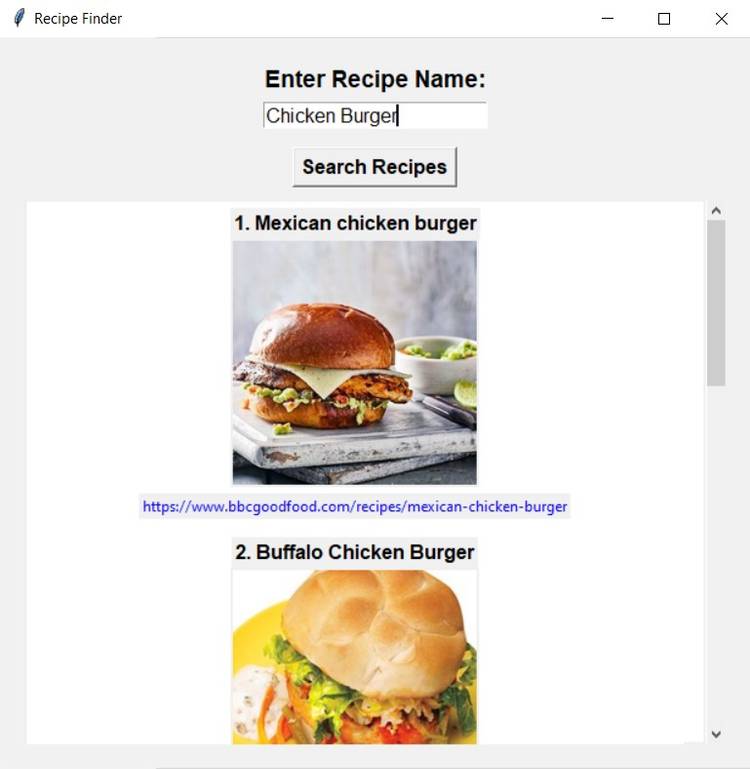
On running the program and entering the dish as Chicken Burger, you get the top five results. It contains the title, the image, and the recipe link of the dish you entered. On clicking on the link, the default web browser opens the recipe link. On scrolling down, the content size remains the same and displays the various results centered horizontally.
To enhance your recipe finder application, you can implement filtering and sorting according to different preferences. You can filter a dish according to dietary preference, cooking time, and cuisine, and sort them in any order.
Create a feature to bookmark your favorite recipes to view later and an option to share them on social media. You can create a category to discover the most searched dishes, most bookmarked, and so on.
Combing your programming skills and the powerful features of APIs, you can further convert this basic application into a full-fledged one.