Sphinx is one of the most popular tools for generating documentation. Across the Python community, developers use this free and open-source software. It can extract text directly from your code or markdown files and then use it to generate documentation in various formats such as plain text, HTML, PDF, and EPUB.
Setting Up Sphinx
Before you set up Sphinx, take a look at what it does and some of its main features.
What Is Sphinx and What Does It Do?
As mentioned, Sphinx is a documentation generator. By default, it uses the reStructuredText (RST) markup language but through third-party extensions, it can also use Markdown, the popular plain text markup language. It then converts these RST or markdown files to HTML, PDF, manual pages, or other formats you prefer.
Some of the features Sphinx includes are:
- Ability to generate documentation from code.
- Ability to cross-reference different document pages using automatic links for functions, classes, citations, and glossary terms.
- Syntax highlighting for code blocks.
- Support for themes that can change the look and feel of the docs.
- Easy definition of the document tree through a table of contents.
- Ability to integrate with third-party extensions to add more functionality to the docs such as testing code snippets.
Installing Sphinx
Before installing Sphinx, make sure you have Python 3 installed in your development environment. You can then use the pip package manager to install Sphinx by running the following command in your terminal:
pip install sphinx
This will download and install Sphinx and its dependencies.
After installation, run the following on the command prompt.
sphinx-build --version
If everything worked fine, you should see the version number for the Sphinx package you just installed.
Creating a New Sphinx Project
Once you have installed Sphinx, navigate to your working directory and run the sphinx-quickstart command to create a new Sphinx project.
sphinx-quickstart
This command will prompt you to answer a series of questions on how to configure your Sphinx project. You can specify the project name and use the default options for the other questions. In the future, you may want to customize the responses based on your project.
If you list the contents of your directory, you will see that this command creates some files for you. The conf.py contains the configuration values and the index.rst serves as the welcome page of your documentation. The build directory will host the generated documentation, and Sphinx uses a Makefile (make.bat on Windows) to build the documentation.
Writing Documentation Using Sphinx
The index.rst file in the root of your directory is the home page of your application. So, open it with a text editor like VS Code—or any other good, free code editor—to edit it.
You can change the index.rst as you see fit but one thing that it should at least have is the root toctree (table of contents tree) directive. This is essential as it connects multiple files to a single hierarchy of documents.
To add documentation to the index.rst file, you can use the RST markup.
As an example, consider an index.rst file for the math_utils module. This file might include a brief overview of the module's purpose and a table of contents that links to other pages of the documentation.
Welcome to Math Utils
======================
.. toctree::
 :maxdepth: 2
Getting Started
---------------
To use this module, you'll need the following:
* Python installed.
* A text editor
Math Utils
----------
The `math-utils` module provides basic math functions like addition and
subtraction.
You can add more .rst files as needed. For example, you can create a contribution guide in a file named contributing.rst containing the following contribution guidelines.
Contributing Guide
==================
We welcome contributions to our project! Here are some guidelines for
contributing:
- Fork the project on GitHub.
- Make your changes on a new branch.
- Write tests to ensure that your changes work correctly.
- Submit a pull request with your changes.
- Make any requested changes.
Thank you for contributing!
You can then link this file from index.rst by adding a new section to the toctree directive:
.. toctree::
 :maxdepth: 2
 :caption: Table of Contents

 contributing
This creates a new item named contributing in the table of contents which takes the user to the contribution page when clicked.
Once you’ve written the documentation, the next step is to build it. Here, building the documentation means generating HTML, manual, or PDF pages from the RST files.
Building the Documentation
To build the documentation using Sphinx, you will need to run the make html command at the root of your folder where the makefile is located.
make html
You should see the HTML files in the build folder. If there were errors during the build, Sphinx will let you know in the terminal.
To view the documentation, open the index.html file in your browser:

You should be able to navigate to the contributing guide from the table of contents.
Customizing the Documentation
Right now, the documentation has some basic styling. If you want to customize it, by maybe adding your brand colors, or even adding a dark mode, you can install and use other built-in themes or create your own custom theme.
To demonstrate, try changing the theme to the one called nature:
- Open the Sphinx configuration file conf.py in your Sphinx project directory.
- Look for the line that defines the html_theme option and change it to nature
- Save the config file and rebuild the documentation to see your changes.
This is what the homepage of the documentation should look like.
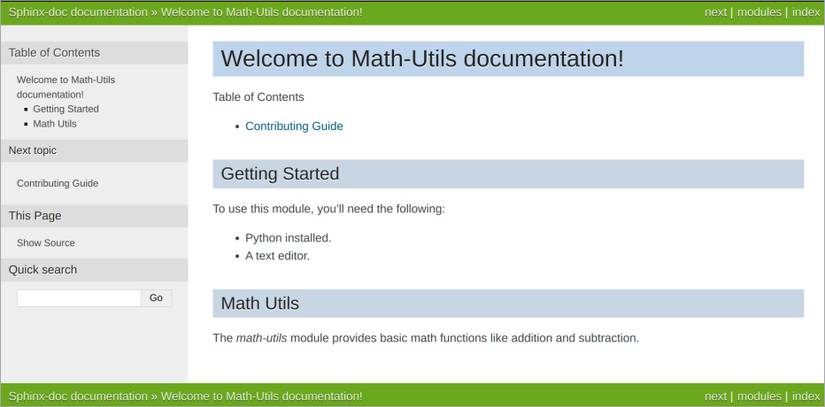
If you don’t want to use the built-in themes, you can always use a third-party Sphinx theme instead.
Documenting Your Code Using Docstrings
Sphinx generates your Python documentation from text you write in RST files. While this is enough in some cases, you may also want to use docstrings in your code to it at the module level.
Docstrings live directly inside your project’s source files. They let you describe what the code does, provide examples, and even create tests for those examples. Once you’ve written docstrings, you can generate documentation from them using Sphinx.