FLAMES is a fun game for children standing for Friends, Lovers, Affectionate, Marriage, and Enemies. The game takes the names of two people and, with a series of steps, determines their relationship. To play FLAMES, note down the names of the two people, eliminate the matching letters, and get the count of the characters left.
Iterate over the letters of the word, FLAMES using the count and remove that letter. For example, if the count is four, remove the letter M. The count begins from E again. Repeat this process until only one letter remains, which denotes the relationship status.
The Tkinter Module
To build the FLAMES game, you will use the Tkinter module. Tkinter is a cross-platform, simple, and user-friendly module that you can use to create graphical user interfaces rapidly. Some of the applications you can build as a beginner using Tkinter include a Music Player, Calendar, Weight Conversion Tool, and a Word Jumble Game.
To install tkinter in your system, run the following command in the terminal:
pip install tkinterHow to Build FLAMES Game Using Python
You can find the source code of the FLAMES game using Python in this GitHub repository.
Import the Tkinter module. Define a function, remove_match_char() that accepts two lists as input. Use a nested for loop to iterate over both lists. Check if there’s a matching character; if there is, remove it from both lists and create a third list that concatenates both lists with an asterisk in between. The asterisk acts as a delimiter.
Return the third list along with the match found as True. In case no letters match, return the list as created above.
from tkinter import *
def remove_match_char(list1, list2):
 for i in range(len(list1)):
 for j in range(len(list2)):
 if list1[i] == list2[j]:
 c = list1[i]
 list1.remove(c)
 list2.remove(c)
 list3 = list1 + ["*"] + list2
 return [list3, True]
 list3 = list1 + ["*"] + list2
 return [list3, False]
Define a function, tell_status(). Retrieve the name of the person the user entered using the get() method on the Entry widget. Convert all the letters to lowercase and eliminate any spaces in between. Convert the name into a list of characters. Repeat this with the name of the second person and set the proceed variable to True.
def tell_status():
 p1 = Person1_field.get()
 p1 = p1.lower()
 p1.replace(" ", "")
 p1_list = list(p1)
 p2 = Person2_field.get()
 p2 = p2.lower()
 p2.replace(" ", "")
 p2_list = list(p2)
 proceed = True
Until the value of proceed is true, call the remove_match_char() function and pass the two lists you just created. Store the concatenated list and the flag status received from the function. Find the index of the asterisk you inserted and slice the strings into two lists before and after it.
Count the number of characters in the two lists and define a list that stores the various status a relationship can have as per the FLAMES game.
 while proceed:
 ret_list = remove_match_char(p1_list, p2_list)
 con_list = ret_list[0]
 proceed = ret_list[1]
 star_index = con_list.index("*")
 p1_list = con_list[: star_index]
 p2_list = con_list[star_index + 1:]
 count = len(p1_list) + len(p2_list)
 result = ["Friends", "Love", "Affection", "Marriage", "Enemy", "Siblings"]
Until the letters in the result list are not zero, store the index value from where you have to perform the slicing. If the index is greater than or equals zero, slice the lists into two parts and store the concatenated string with the right part added first in order. This ensures you can count in an anticlockwise direction.
Insert the result into the status field at the first character position to display the relationship status.
 while len(result) > 1:
 split_index = (count % len(result) - 1)
 if split_index >= 0:
 right = result[split_index + 1:]
 left = result[: split_index]
 result = right + left
 else:
 result = result[: len(result) - 1]
 Status_field.insert(0, result[0])
Define a function, clear_all(). Use the delete() function from the first index to the last on the three entry fields to clear out the contents displayed on the screen. Use the focus_set() method on the first entry field to activate and indicate the user to enter values in it.
def clear_all():
 Person1_field.delete(0, END)
 Person2_field.delete(0, END)
 Status_field.delete(0, END)
 Person1_field.focus_set()
Initialize the Tkinter instance and display the root window by passing it to the class. Set the background color of your choice, the size, and the title of your application.
root = Tk()
root.configure(background='#A020F0')
root.geometry("700x200")
root.title("FLAMES Game")
Define three labels to denote the two persons and their relationship status. Set the parent window you want to place them in, the text it should display, the font color, the background color, and the font styles. Add some padding in the horizontal direction.
label1 = Label(root, text="Name 1: ", fg='#ffffff',bg='#A020F0', font=("arial",20,"bold"), padx='20')
label2 = Label(root, text="Name 2: ", fg='#ffffff',bg='#A020F0', font=("arial",20,"bold"), padx='20')
label3 = Label(root, text="Relationship Status: ", fg='#ffffff', bg='#A020F0',font=("arial",20,"bold"), padx='20')
Use the grid manager to arrange the three widgets in the first column. Place the first label in the second row, the second label in the third row, and the third label in the fourth row.
label1.grid(row=1, column=0)
label2.grid(row=2, column=0)
label3.grid(row=4, column=0)
Define three entry widgets to get the values of the two persons and display their status. Set the parent window you want to place the widgets in and the font styles it should have.
Person1_field = Entry(root, font=("arial", 15, "bold"))
Person2_field = Entry(root, font=("arial", 15, "bold"))
Status_field = Entry(root, font=("arial",15,"bold"))
Similarly, use the grid manager, to organize the widgets in the second column. Use the ipadx property to set the number of pixels to pad inside the borders of the widget.
Person1_field.grid(row=1, column=1, ipadx="50")
Person2_field.grid(row=2, column=1, ipadx="50")
Status_field.grid(row=4, column=1, ipadx="50")
Define two buttons, Submit and Clear. Set the parent window you want to place them in, the text it should display, the background color, the font color, the functions they should execute when clicked, and the font styles.
Use the grid manager to place the buttons in the fourth and sixth row of the second column respectively.
button1 = Button(root, text="Submit", bg="#00ff00", fg="black", command=tell_status,font=("arial",13,"bold") )
button2 = Button(root, text="Clear", bg="#00ff00", fg="black", command=clear_all, font=("arial",13,"bold"))
button1.grid(row=3, column=1)
button2.grid(row=5, column=1)
The mainloop() function tells Python to run the Tkinter event loop and listen for events until you close the window.
root.mainloop()Put all the code together, and get ready to play the FLAMES game at your fingertips.
Sample Output of the FLAMES Game
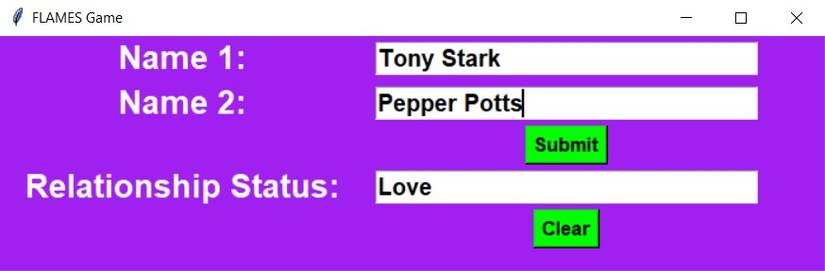
On running the program above, the program displays the FLAMES game application with three labels, three entry fields, and two buttons arranged in a grid. On entering the names "Tony Stark" and "Pepper Potts", the program displays their relationship status as "Love".
Games You Can Build Using Python
Pygame, Arcade, Panda3D, PyOpenGL, and Pyglet are some useful modules you can build Python games with. Using Pygame you can build 2D games like Super Mario Bros, Flappy Bird, and Snake. Using Arcade you can build a Pac-Man, Asteroids, or Breakout clone.
Panda3D can help you build 3D games like Toontown Online, Pirates of the Caribbean Online, and Disney's Virtual Magic Kingdom.