A book-borrowing system is a super convenient way for librarians to manage inventory and borrowing activities. This simple app is ideal for small to large libraries, community centers, book clubs, and even for your personal book collection.
Writing the sample app, you’ll learn about how to build a cross-platform GUI app, how to use classes and objects to model entities, and how to modularize your programs.
Installing Tkinter and Building the User Login/Register Screen
To build the book borrowing system, you will make use of Tkinter. Tkinter is the standard GUI library for Python desktop applications. To install it, type in the terminal:
pip install tkinterYou can find the entire source code of building a book-borrowing system for libraries in this GitHub repository.
Import the required modules and define a class, BookBorrowingSystem. Define a constructor method for the class and initialize the root window, setting the title, the dimensions, and the background color of the application. Define two lists, books and lend_list, that you will use to store the titles of the books and which ones people have borrowed.
Define a dictionary, record, that you can use to update the status of the books. Use the setup_gui() method to create the graphical user interface and initialize an empty list, librarians, that you will use to store the credentials.
import tkinter as tk
from tkinter import messagebox
class BookBorrowingSystem:
 def __init__(self):
 self.master = tk.Tk()
 self.master.title("Book Borrowing System")
 self.master.geometry("750x600")
 self.master.config(bg='#708090')
 self.books = []
 self.lend_list = []
 self.record = {}
 self.setup_gui()
 self.librarians = []
Define a method, setup_gui(). For the register/login screen, you will create three labels named login_label, username_label, and password_label. For each label, define the parent element you want to place it in, the text it should display, the font style it should have along with the font color.
Along with the labels, you need to create two entry widgets named username_entry and password_entry to get and store the credentials of the librarian. You can build a password checker to test your password security with Python. Use the pack manager to organize all these widgets and add the appropriate padding for visual appeal.
 def setup_gui(self):
 self.login_label = tk.Label(self.master, text="Book Borrowing System", font=("Helvetica", 24), bg='#708090', fg='white')
 self.login_label.pack(pady=(30, 10))
 self.login_button = tk.Button(self.master, text="Login", command=self.login, font=("Helvetica", 14))
 self.login_button.pack(pady=10)
 # Similarly, create the username_label, username_entry, password_label,
 # password_entry, and the register button
Define a method, login(). Use the get() method on the entry widget to extract the value of the credentials entered by the librarian. Iterate over the list of librarians and check if the username and password match the values entered. If yes, clear the values entered from the start to the end. Destroy all the widgets you created and call the book_management_screen() method to display the management screen of the book borrowing system.
Otherwise, the login credentials are incorrect, or the librarian has not registered. Display the appropriate message via the Tkinter's message box widget. In case you want to encrypt your password, install the bcrypt module.
 def login(self):
 username = self.username_entry.get()
 password = self.password_entry.get()
 for librarian in self.librarians:
 if username == librarian[0] and password == librarian[1]:
 self.username_entry.delete(0, tk.END)
 self.password_entry.delete(0, tk.END)
 self.login_label.destroy()
 # Destroy all the entries, labels, and buttons
 self.book_management_screen()
 return
 messagebox.showerror("Error", "Invalid username or password. Please register if not done already.")
Define a method, register(). Extract the value of the credentials the librarian enters, add them to the librarian's list, and completely clear out the entries.
 def register(self):
 username = self.username_entry.get()
 password = self.password_entry.get()
 self.librarians.append([username, password])
 self.username_entry.delete(0, tk.END)
 self.password_entry.delete(0, tk.END)
Define a method, book_management_screen(). Create four labels named add_book_label, return_book_label, remove_book_label, and issue_book_label. Create four entries and four buttons corresponding to these labels, and another button to view the list of all books along with their status. Use the pack manager to organize the elements and add some padding.
 def book_management_screen(self):
 self.add_book_label = tk.Label(self.master, text="Add Book", font=("Helvetica", 18), bg='#708090', fg='white')
 self.add_book_label.pack(pady=(20, 5))
 self.add_book_entry = tk.Entry(self.master, font=("Helvetica", 14))
 self.add_book_entry.pack()
 self.add_book_button = tk.Button(self.master, text="Add Book", command=self.add_book, font=("Helvetica", 14))
 self.add_book_button.pack(pady=5)
 # Repeat the same for return_book, remove_book, issue_book
 self.view_books_button = tk.Button(self.master, text="View Books", command=self.view_books, font=("Helvetica", 14))
 self.view_books_button.pack(pady=10)
Building the Functionality of the Book Borrowing System
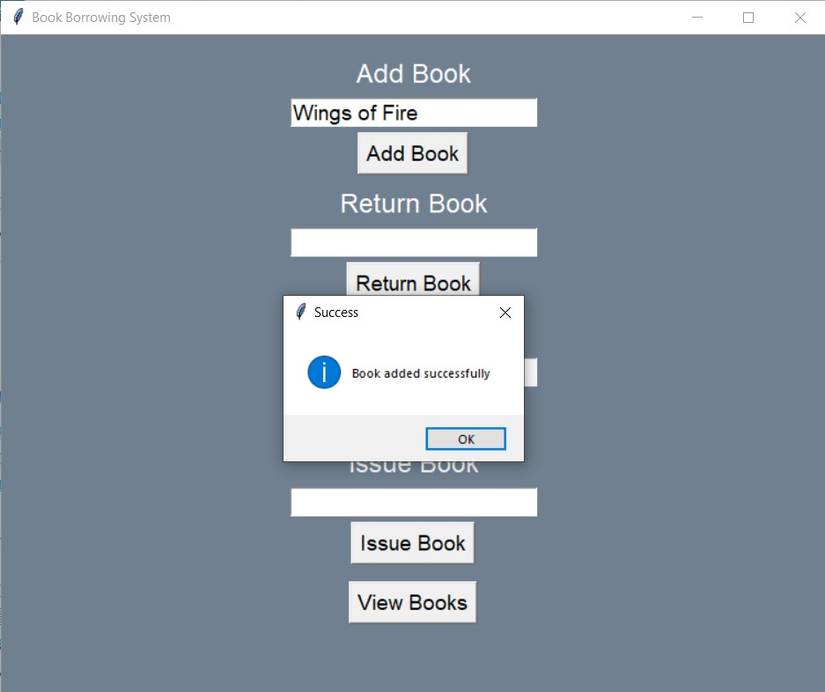
Define a method, add_book(). Extract the content of the entry widget and add it to the books list. In the record dictionary, add the key as the title of the book and the value as added. Display a success message box telling that the program has added the book successfully. Clear the content of the add_book_entry from the start to the end.
 def add_book(self):
 book = self.add_book_entry.get()
 self.books.append(book)
 self.record[book] = "added"
 messagebox.showinfo("Success", "Book added successfully")
 self.add_book_entry.delete(0, tk.END)
Define a method, remove_book(). Extract the title of the book and check if it is present in the books list. If it exists, remove it and its record from the dictionary. Once done, display a success message box informing that the program has removed the book. Otherwise, display an error message box saying the book was not found. Clear the entry of the remove_book_entry completely.
 def remove_book(self):
 book = self.remove_book_entry.get()
 if book in self.books:
 self.books.remove(book)
 if book in self.record:
 del self.record[book]
 messagebox.showinfo("Success", "Book removed successfully")
 else:
 messagebox.showerror("Error", "Book not found")
 self.remove_book_entry.delete(0, tk.END)
Define a method, issue_book(). Extract the title of the book and check if it exists in the books list. If yes, append this to the lend_list list and remove it from the books list. Update the value of the book as issued. Otherwise, display an error message box saying that the book was not found. Clear the contents of the issue_book_entry().
 def issue_book(self):
 book = self.issue_book_entry.get()
 if book in self.books:
 self.lend_list.append(book)
 self.books.remove(book)
 self.record[book] = "issued"
 messagebox.showinfo("Success", "Book issued successfully")
 else:
 messagebox.showerror("Error", "Book not found")
 self.issue_book_entry.delete(0, tk.END)
Define a method, return_book(). Extract the title and check if it exists in the lend_list list. If yes, remove it and append it back to the books list and update the value in the record as returned. Display a success message box stating that the person has returned the book.
If the title exists in the book list and the status of the record reads added, display an error message box saying that the person cannot return the book as no one issued it. Otherwise, display an error message box saying that the book is not found.
 def return_book(self):
 book = self.return_book_entry.get()
 if book in self.lend_list:
 self.lend_list.remove(book)
 self.books.append(book)
 self.record[book] = "returned"
 messagebox.showinfo("Success", "Book returned successfully")
 elif book in self.books and self.record.get(book) == "added":
 messagebox.showerror("Error", "Book can't be returned. It hasn't been issued.")
 else:
 messagebox.showerror("Error", "Book not found.")
 self.return_book_entry.delete(0, tk.END)
Define a method, view_books(). Initialize the message variable as empty. Construct the message to perform string interpolation and display the title of the books along with their status. If the message is empty, there are no books available. Display the corresponding output in a message box.
 def view_books(self):
 message = ""
 for book, status in self.record.items():
 message += f"{book}: {status}\n"
 if not message:
 message = "No book records available."
 messagebox.showinfo("Books", message)
Create an instance of the class and run the Tkinter mainloop() to listen for events until you close the window. Use the __name__ == "__main__" idiom to run the program.
 def run(self):
 self.master.mainloop()
if __name__ == "__main__":
 book_borrowing_system = BookBorrowingSystem()
 book_borrowing_system.run()
Example Output of the Book Borrowing System
On running the program, it greets you with a register/login screen. On entering the credentials and clicking the Register button, the program adds you as a librarian. Entering the same credentials and hitting Login will navigate you to the management screen.

On entering the title of the book and pressing on Add Book, the program displays a message box that it added the book successfully. If you click on the issue, return, or remove button, the program displays the appropriate message box while updating the status.
On clicking the View Books button, the program displays the title of the books along with their status. If you remove a book, the program deletes the title and you cannot view it.

In case you try to return a book without issuing it or removing a book while issued, the program displays an error message box.

Enhancing the Book Borrowing App
This implementation is a foundation for building a secure production-level GUI application. You could enhance its functionality by implementing input validation, using hashlib to store passwords, implementing proper error handling, and adding data persistence with a database.
Apart from this, you should implement user authentication levels with varying levels of access for readers, librarians, and administrators. You can add search functionality to search for books and make it easier to access.