Sahil has been writing niche since 2021 and has considerable experience in technical and non-technical writing styles. He has been writing about Linux distros and programming languages such as Python, VBA, and SQL over the years.
Given his experience within the technical field, he continues to work on his core skill sets, to improve his knowledge and stay abreast of the newest developments in the technology gamut.
Download and install PostgreSQL for your OS, then use psycopg2 to connect to a PostgreSQL database from Python.
Use pgAdmin4 to fetch server credentials for connecting to a Postgres server from Python.
Use SQL commands in Python to create, check, or drop a PostgreSQL database.
If you’re writing a Python program that needs to access data from a Postgres database, you’ll need to know how to connect the two. Once you’ve established a connection, you can use it to run queries and fetch or save data.
Download and Install PostgreSQL
PostgreSQL is an excellent choice for your programming projects. You can download and install the required version of PostgreSQL according to your OS. Postgres is available for download on standard operating systems like Windows, macOS, and Ubuntu Linux.
The installation process will differ from OS to OS, so you should follow the installation steps to ensure a smooth setup experience.
Install the Required Library
You can use the psycopg2 library to connect to a PostgreSQL database from Python. Run this command in the Python interpreter to check if the library is installed:
import psycopg2
If you get an error message (for example, "No module named 'psycopg2'"), install the library with this command:
pip install psycopg2
PIP is a Python package manager that you can install on Windows, Mac, or Linux. It eases the complexity of installing Python packages.
Fetch Credentials Using pgAdmin4
You can use the pgAdmin4 app to manage your Postgres databases in a GUI environment. You may have installed it at the same time as you installed Postgres, but you can download pgAdmin4 and install it separately if necessary.
Here's how you can use pgAdmin4 to obtain your server credentials:
From the application menu, open pgAdmin4.
Click on the Servers menu on the left side of your application screen.
Enter the Postgres password you entered during setup.
With your credentials in hand, you can use the psycopg2 library to establish a connection to your Postgres server. To do so, you need to use the connect function as follows:
Next, you must use the cursor function to execute Postgres commands in a Python environment:
cur = conn.cursor()
Finally, you can set the auto-commit flag to ensure Python executes and commits each code statement. This way, you don't need to pass separate commit statements after every line of code.
conn.set_session(autocommit = True)
You can run these statements in one go to connect to a local instance of your Postgres server.
How to Create a Postgres Database
A Postgres database plays a pivotal role in storing a collection of related tables. Create a new one with the CREATE DATABASE SQLcommand which you can pass to the cursor object’s execute method:
try:
 cur.execute('''CREATE DATABASE DB_NAME''')
except psycopg2.Error as e:
 print(e)
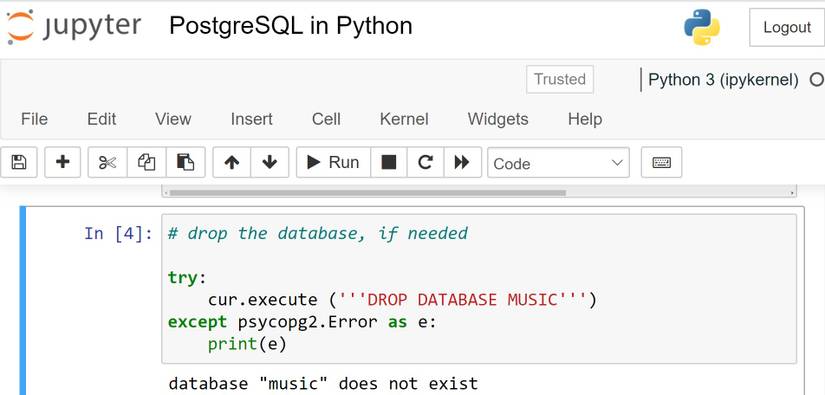
You should always take care to handle any exceptions that may arise. This example simply prints any error that occurs but, in production code, you’ll want to take appropriate action.
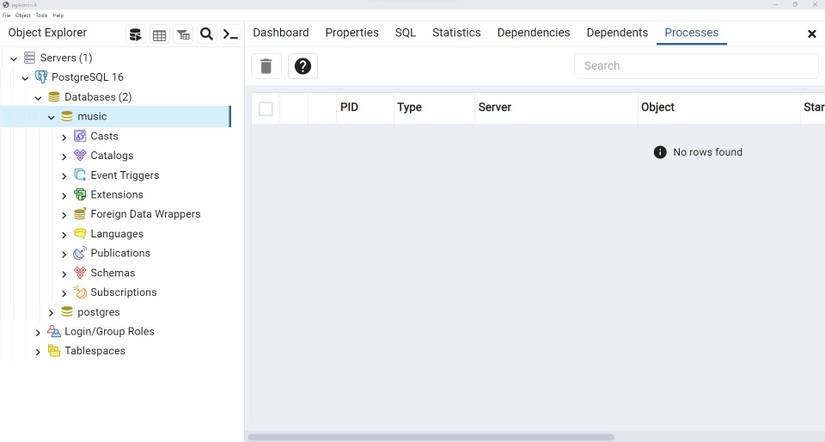
When you run the above query, you can check that it successfully created a database using pgAdmin4. Head over to the interface, refresh the existing list of databases, and look for the new database.
For example, if you create a sample database called music using the above query, it should show up in the list of databases below the Postgres16 > Databases category.