Summary
- Web applications should support a range of input devices, not just a mouse, to cater to a wider audience.
- Pointer events in JavaScript handle both mouse and touch events, eliminating the need to implement them separately.
- Pointer events have similar names and functionality as mouse events, making it easy to update existing code to support touch and pen inputs.
Many web applications assume that a user's pointing device will be a mouse, so they use mouse events to handle interactions. However, with the rise of touchscreen devices, users do not need a mouse to interact with websites. It’s essential to support a range of input devices to cater to the widest possible audience.
JavaScript has a newer standard called pointer events. It handles both mouse and touch events, so you don't have to worry about implementing them separately.
What Are Pointer Events?
Pointer events are a web standard that defines a unified way of handling different input methods in a web browser, including mouse, touch, and pen. These events provide a consistent and platform-independent way of interacting with web content across different devices.
In a nutshell, pointer events help you handle this group of user interactions, regardless of the source.
Types of Pointer Events
Pointer events are named similarly to the mouse events you might already be familiar with. For every mouseEvent in JavaScript, there's a corresponding pointerEvent. This means you can revisit your old code and switch “mouse” for “pointer” to start supporting touch and pen inputs.
The following table shows the different pointer events in comparison to mouse events:
|
Pointer Events |
Mouse Events |
|---|---|
|
pointerdown |
mousedown |
|
pointerup |
mouseup |
|
pointermove |
mousemove |
|
pointerleave |
mouseleave |
|
pointerover |
mouseover |
|
pointerenter |
mouesenter |
|
pointerout |
mouseout |
|
pointercancel |
none |
|
gotpointercapture |
none |
|
lostpointercapture |
none |
You can see that there are three extra pointer events without corresponding mouse events. You'll learn about these events later.
Using Pointer Events in JavaScript
You can use pointer events the same way you use mouse events. Like most event handling, the process usually follows this pattern:
- Use a DOM selector to fetch an element.
- Using the addEventListener method, specify the event you’re interested in and a callback function.
- Use properties and methods of the callback’s argument, an Event object.
Here's an example using the pointermove event:
// Get the target element
const target = document.getElementById('target');
// Add an event listener to your target element
target.addEventListener('pointermove', handlePointerMove);
// Function to handle pointer move event
function handlePointerMove(ev) {
 // Handle the event however you want to
 target.textContent = `Moved at x: ${ev.clientX}, y: ${ev.clientY}`;
}
This code block defines a target element and a JavaScript function to handle the pointermove event then it uses a JavaScript event listener to attach the pointer event and the function to the target element.
Using this code, an element with a “target” ID will display the pointer coordinates when you move your cursor, finger, or pen over it:
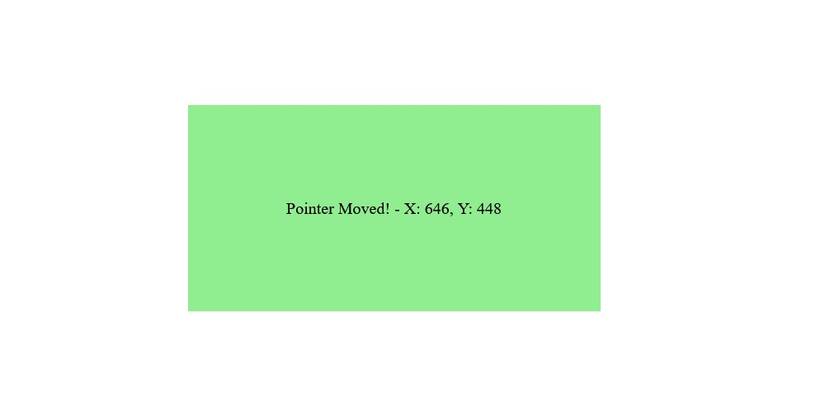
You can use the other pointer events in the same manner.
The pointercancel Event
The pointercancel event gets triggered when another pointer event is interrupted before it completes its operation as initially intended. Normally, the browser cancels whatever pointer event might have been in action before. There are many reasons why a pointercancel event might trigger, for example:
- When a user receives a phone call or some other interrupting notification while dragging an element across the screen.
- When the device orientation changes.
- When the browser window loses focus.
- When the user switches to another tab or application.
With the pointercancel event, you can handle these situations however you want. Here's an example:
const target = document.getElementById('target');
target.addEventListener('pointercancel', (event) => {
 // Handle the situation where the pointer cancels. For example, you
 // can release the pointer capture
 target.releasePointerCapture(event.pointerId);
});
Pointer Capturing
Pointer capturing is a feature that lets a specific HTML element capture and respond to all pointer events for a particular pointer, even if those events occur outside the element's boundary.
You can set a pointer capture for an element with the setpointercapture() method and release a pointer capture with the releasepointercapture() method.
The gotpointercapture and lostpointercapture pointer events are useful for pointer capturing.
The gotpointercapture Event
The gotpointercapture event gets triggered whenever an element gains pointer capture. You can use this event to initialize a state for your HTML element to handle pointer events. For example, in a drawing application, you can use gotpointercapture event to set the initial position of the cursor.
The lostpointercapture Event
The lostpointercapture event gets triggered when an element loses pointer capture. You can use it to clean up or remove any state created when the element gained pointer capture. In a drawing application, you might want to use lostpointercapture to hide the cursor.
Properties of Pointer Events
Pointer events have properties that will help you make your website more interactive and responsive. The properties of mouse events are the same properties you will find in pointer events, plus some additional properties. This article explains some of the additional properties.
The pointerId Property
The pointerId is a pointer event property that helps you identify each unique pointer input, such as stylus, finger, or mouse. Each pointer input gets a unique ID (autogenerated by the browser) that'll allow you to track and perform operations on them.
A great use for the pointerId property is a gaming application where users simultaneously use multiple fingers or styluses. The pointerId property allows you to keep track of each pointer surface by assigning a unique ID to each of them. The primary ID gets assigned to the first pointer input.
This property is particularly useful for touch devices. Devices that rely on mouse pointers can have only one pointer input at a time without some external device connected to them.
Here's a simple example that prints the ID of each pointer input to the console:
const target = document.getElementById('target');
target.addEventListener('pointerdown', (event) => {
 console.log(`Pointer ID: ${event.pointerId}`);
 // Handle the pointer down event for the specific pointerId
});
The pointerType Property
The pointerType property helps you distinguish between the different types of pointer inputs and lets you perform operations based on them. You can differentiate between a mouse, a pen, and a finger touch. This property can only take one of three string inputs: “mouse”, “pen”, or “touch”. Here's a simple example of how to use the pointerType property:
function handlePointerEvent(event){
 // Using the pointerType property
 switch (event.pointerType) {
 case 'mouse':
 // Handle the situation where the pointing device is a mouse
 console.log(`Mouse Pointer ID: ${event.pointerId}`);
 break;
 case 'pen':
 // Handle the situation where the pointing device is a stylus
 console.log(`Stylus Pointer ID: ${event.pointerId}`);
 break;
 case 'touch':
 // Handle the situation where the pointing device is a finger touch
 console.log(`Touch Pointer ID: ${event.pointerId}`);
 break;
 default:
 // Handle other pointer types or cases
 console.log(`pointerType ${event.pointerType} is not supported`);
 break;
 }
}
// Attach pointer events to elements
element.addEventListener('pointerdown', handlePointerEvent);
The width and height Properties
These properties represent the width and height of the pointer's contact area in millimeters. Some browsers don't support them, and their value will always be 1 in such browsers.
A good use case for these properties will be in applications that require precise input, or need to differentiate between the sizes of different inputs. For example, in a drawing application, a larger height and width might mean the user is drawing with a broader stroke and vice versa.
Most times, you will likely use the width and height properties for touch events.
Use Pointer Events for More Inclusivity
Pointer events allow you to cater to a wide range of devices and input types without going through a lot of stress. You should always use them in your applications to conform to modern standards and help build a better web.