There are many repetitive tasks that you may need to complete from time to time. One example is if you need to regularly make changes to files on your local computer. These actions can include copying, moving, deleting, or archiving files.
Instead of completing these repetitive tasks manually, you can automate them using a program. You can do this with a single script file, using one of the many programming languages available, such as Java.
Create a file anywhere on your computer called SimpleScript.java.
Open the file in a text editor or IDE.
At the top of the file, import the IOException Class. This will allow you to handle file or IO-related exceptions when attempting to do certain functions, like copying a file.
import java.io.IOException;
Below, add the main Java class and the main method. The main method will run when you start the application. For now, just print a message to ensure the program runs correctly. After this, you can replace the contents of the main function with any of the following examples to test them.
class SimpleScript {
 public static void main(String args[]) throws IOException {
 System.out.println("Simple Console App");
 }
}
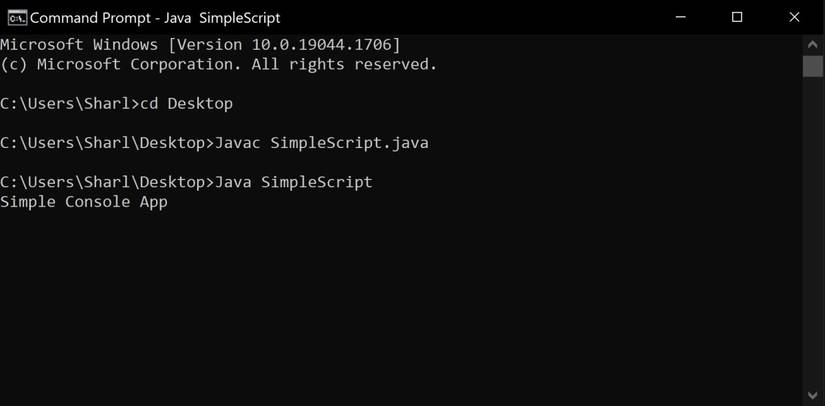
To run the script, start by using a command line to navigate to the location of your java file. For example, if you have stored your file on the Desktop, the command would be:
cd Desktop
Save the file, and use the javac command to compile it. Every time you make changes to the file, you’ll need to re-compile it with javac.
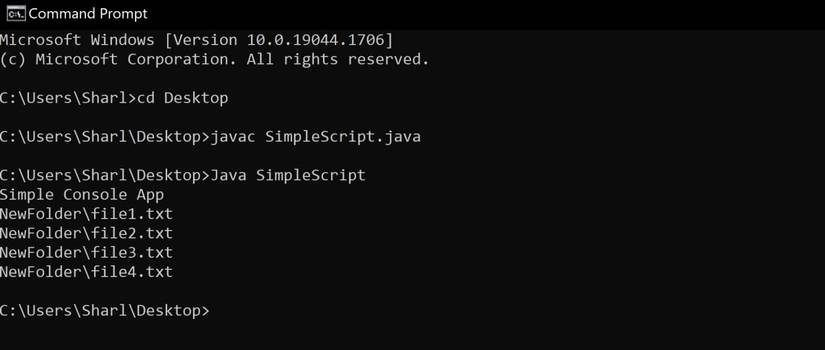
You can use the File class to programmatically access files in a directory.
Create a new folder, called NewDirectory, in the same directory as your java file. Create some files inside it—they can be empty text files if you want.
At the top of your Java application, import the File class. This will allow you to access certain methods and other functionality related to OS files and directories.
import java.io.File;
Create a new File object using the relative path to your new folder.
File directory = new File("NewDirectory");
Use the listFiles() function to access a list of all the files inside that directory.
There are multiple ways you can copy files. A common way to copy files (especially before Java 7 and the java.nio.file package), is to use the FileInputStream or FileOutputStream classes.
The FileInputStream class allows you to open an input stream to read bytes from a file.
The FileOutputStream class allows you to open an output stream to write bytes to a file.
When copying files, the idea is to open an input and output stream. Using those streams, you will read the bytes of the file at the source location, and then write those bytes to the new location.
This example will use a newer implementation to copy files, by using the copy() function from the Files class of the java.nio.file package. To use the java.nio.file package, you must have Java 7 or higher installed.
At the top of the file, import the File and Path classes from the java.nio.file package.
Re-compile and run the program using the javac and java commands.
Open the NewDirectory folder to view that the "DirectoryToMove" folder is now inside.
How to Delete a File
You can use the delete() method from the File class to delete a particular file.
Create a file called FileToDelete.txt. Save the file in the same folder as your Java application.
Create a new File object for the file you want to delete. Then, use its delete() method to delete the file. The delete method returns a true or false value, depending on whether the deletion was successful.
File fileToDelete = new File("FileToDelete.txt");

if (fileToDelete.delete()) {
 System.out.println("File succesfully deleted.");
} else {
 System.out.println("Unable to delete the file.");
}
How to Zip Files
There are many ways you can create a zip archive containing several compressed files. This example will use the ZipOutputStream and ZipEntry classes.
Import the necessary ZipOutputStream, ZipEntry, and FileOutputStream classes at the top of the file.
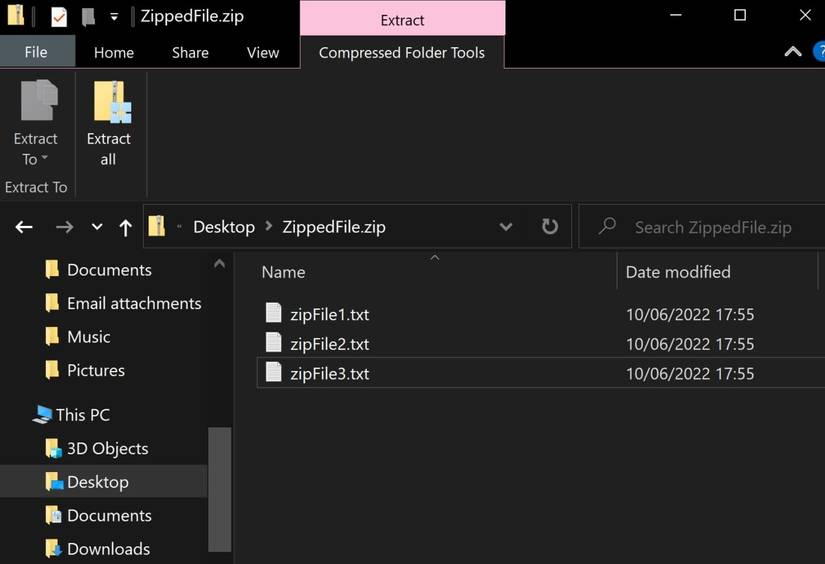
Create the zip file and a list of zipEntry objects representing the text files you would like to zip. This example will generate new text files, but you can modify the script later to include text files that already exist.
File zipFile = new File("ZippedFile.zip");
ZipEntry[] zipEntries = new ZipEntry[] {new ZipEntry("zipFile1.txt"),
 new ZipEntry("zipFile2.txt"), new ZipEntry("zipFile3.txt")};
Create the zip output stream to write data to the zip file.
ZipOutputStream out = new ZipOutputStream(new FileOutputStream(zipFile));
Add each file to the zip folder, and close the stream.
for (ZipEntry zipEntry : zipEntries) {
 out.putNextEntry(zipEntry);

 StringBuilder sb = new StringBuilder();
 sb.append("Content Inside Text File");

 byte[] data = sb.toString().getBytes();
 out.write(data, 0, data.length);
 out.closeEntry();
}

out.close();
Re-compile and run the program using the javac and java commands. You will see the new zip folder appear in your file directory.
You can use a script to complete repetitive file manager tasks programmatically. These tasks include accessing, copying, moving, deleting, and zipping files.
Another way you can automate repetitive tasks is by using system commands in a script file. On Linux and macOS, such files are known as shell scripts, while Windows refers to them as batch scripts.