If you don't finish watching a movie on Disney+, it's added to your Continue Watching list. The same applies to TV shows—you'll either see an incomplete episode or the next one. Continue Watching appears as a dedicated row on your Disney+ homepage, across all of your devices, which makes it convenient to pick up where you left off.
But what if you want to tidy Continue Watching and remove something from it? Your half-watched movies stick around for months and the list soon gets messy and annoying to navigate. Unlike Netflix, which lets you delete from Continue Watching with a dedicated button, Disney+ doesn't make it so simple. Here's what you have to do instead.
1. Skip to the End to Remove Something From Continue Watching

The first option to remove something from your Continue Watching list is to skip to the end of the movie or show; it tricks the system into thinking you've completed watching it, and thus it gets removed from the row.
For a movie, select it from the list, track ahead to just before the credits roll, and let it play. When Disney+ shrinks the movie to recommend what you should watch next, you should be in the clear. However, Disney+ is a bit finicky with this. To be safe, wait until the movie completely finishes and the progress bar has nothing remaining. Now, the movie should be marked as complete and won't appear in your Continue Watching row.

It's a bit trickier for a TV show because even if you skip to the end of an episode, the next episode or season appears in your Continue Watching row. As such, you need to go to the final episode of the final season. Depending on your device, you may need to search for the show to see all the seasons, rather than selecting from the Continue Watching row. Once you're on the final episode, skip to the end of that.
In both methods, always ensure you skip to just before the credits. If you skip immediately to the final few seconds, Disney+ often doesn't register this as a completed viewing and sometimes resets your viewing progress entirely, therefore keeping it in your Continue Watching list.
2. Create a New Profile to Reset Your Continue Watching
The other option is to create a new profile. You can have seven profiles per Disney+ subscription. Each profile's viewing is isolated, meaning if you create a new profile then your Continue Watching row will be empty. This isn't ideal because there might be content in your Continue Watching row that you want to keep (and you'll also lose your Disney+ watchlist), so consider this the nuclear option.
We've separately covered how to create a profile on Disney+, but to summarize:
- Select your profile icon.
- Select Add profile.
- Choose an avatar to represent the profile.
- Enter a profile name.
- Select Save.
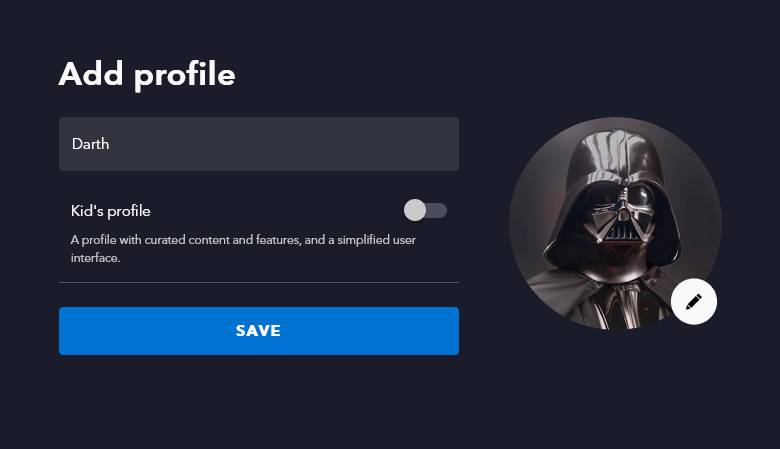
If you're already using all seven profile slots, you can't complete this unless you free up a space (profile icon > Edit profiles > pencil icon > Delete Profile > Delete). Be aware that you can't delete the account holder's primary profile.
Don't Let Autoplay Cause Continue Watching Woes
Whether you grew tired of a TV show or just wanted to rewatch a particular movie scene, it's frustrating for content to linger in your Disney+ Continue Watching list. Now you know how to remove it, albeit with some less-than-ideal methods. Hopefully Disney makes it easier in the future.
Until then, make sure you've disabled autoplay in your Disney+ profile. If you've finished watching a movie and then another one begins playing automatically, you don't want that to appear in Continue Watching.