Git is a popular open-source version control system that you use in your day-to-day workflow as a developer. Like all other software, you need to ensure you're always using the latest version.
Find out how to check the Git version running on your machine and how to update Git if you're not running the latest update.
How to Check Your Git Version
After installing Git on your Mac, Windows, or Linux machine, you rarely consider upgrading it. This is because it never notifies you when new updates are available. However, as you probably already know, updating your software and apps is essential, and you should do it as soon as new updates are available. It helps fix bugs, improve performance, and add new features.
To check your Git version on Linux, Mac, and Windows, follow these steps:
- Open your terminal (Linux, macOS), command prompt (Windows), or another command-line interface of your choice.
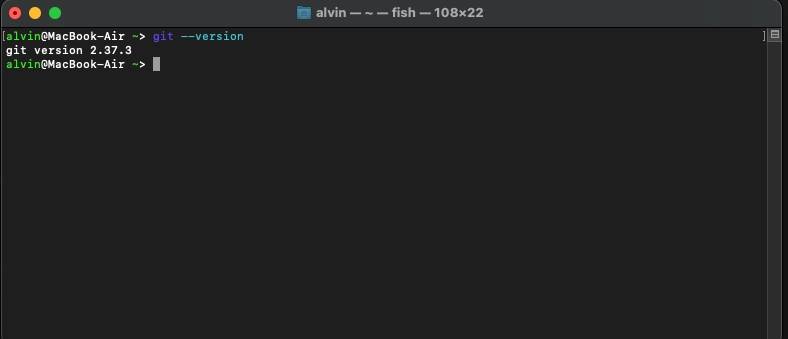
- Type git --version and hit Enter to run the command.
When you run this command it will display your current Git version.
How to Update Git
Once you know your current Git version, the next step is to ensure it is the latest one. You don't have to look up what's the newest version, though. If you already have the latest version installed, the update process will tell you.
Let's show you how to update your Git on all three platforms, starting with Linux.
Update Git on Linux
Linux offers the easiest way to update Git because you don't have to update it separately from other software. Every time you update Linux, the process will automatically update Git and other installed packages.
If you want, you can still update Git individually, but the command you’ll need to use will depend on your package manager.
Update Git on macOS
If you installed Git on your Mac using Homebrew, the brew command is all you need:
brew upgrade gitThe command will give a warning if you already have the latest version of git.

Although macOS ships with a version of Git installed, the company is typically a little slow in shipping updates. That's why you should use Homebrew if you want the very latest version. It's free and open-source and makes the whole process easier. Plus, it ships updates more often.
Alternatively, grab the latest installer from Git's official website and install it. It will automatically update your Git version.
Update Git on Windows
Updating Git on Windows depends on the version you're running. If you're using Git version 2.14.1 or older, you must uninstall Git first. After that, download and install Git on your Windows machine again.
If you're running anything from 2.14.2 to 2.16.1, run git update on your command prompt. For version 2.16.1 and latest, use git update-git-for-windows instead.
Easily Update Git on Your Computer
Whether you're using Git on Linux, macOS, or Windows, there’s no excuse not to run the latest version. Make sure you know how to update your software and you’ll always enjoy the latest features. That goes double for software you install on a server, that others may use too.