Python is one of the most popular and versatile programming languages in the world—powering tens of thousands of apps for Linux, Windows, and macOS.
While Ubuntu releases prior to 23.04 were able to install Python packages with a single command, more recent versions require that you install Python packages in a virtual environment. Here's one easy way to create and use a Python virtual environment on Ubuntu.
Why Use Python Virtual Environments on Ubuntu?
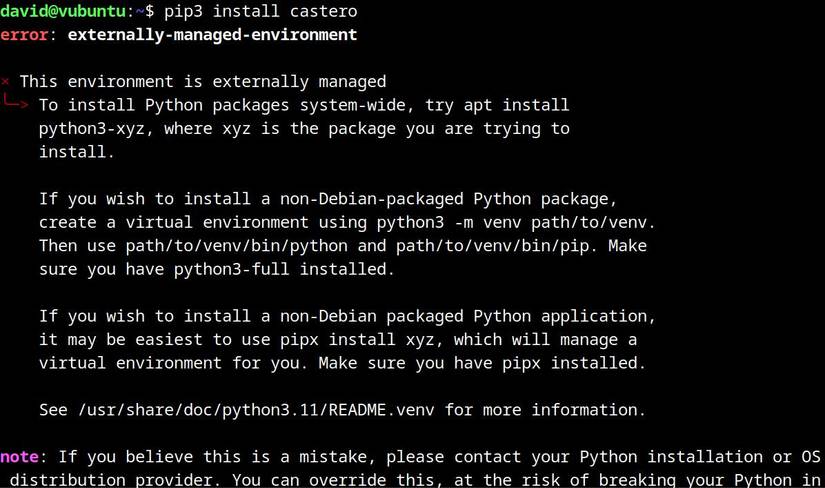
Traditionally, to install a Python project on Linux, you would first make sure you have Pip and Python installed, then use the following command:
pip install some_appPip (Pip Installs Packages) will choose the most recent version of the package from the Python Package Index, automatically install any dependencies, and configure the package to work with your Python environment.
Problems can arise due to conflicting dependencies, and Python can also fall out with Ubuntu's Advanced Package Tool (APT).
You can get around these issues by using isolated virtual environments for Python projects, containing Pip and Python. You can then use these to install Python packages.
Starting with Ubuntu 23.04, the pip install and pip3 install commands won't work at all, and you'll see an "externally-managed-environment" error.
The accompanying message will go on to recommend installing the package with APT, but in most cases, this simply won't be an option.
How to Create a Python Virtual Environment on Ubuntu
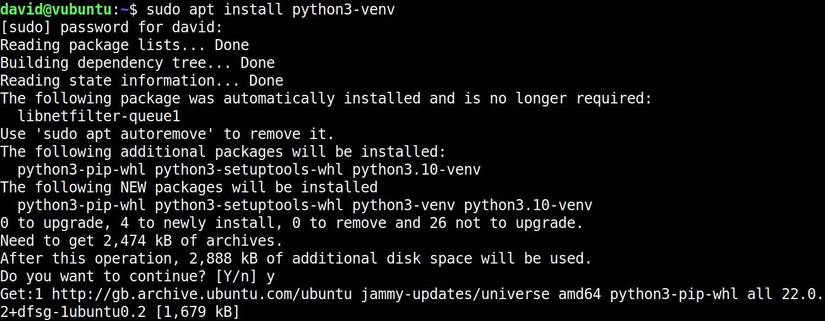
To create Python virtual environments on Ubuntu, you need the python3-env package. Install it by entering the following command in your terminal:
sudo apt install python3-venvYou can now use python3-venv to create virtual environments:
python3 -m venv ~/cool_python_appsThis command will create a directory called "cool_python_apps" in your home directory, containing everything you need to install any Python package. Pip, Pip3, and Pip3.11, along with equivalently versioned Python binaries are located in the bin subdirectory.
To install any Python app, you will need to use a specific binary from within the virtual environment.
For instance, you can install the excellent Castero terminal podcast app with:
~/cool_python_apps/bin/pip3 install casteroThe binary will also be placed in the bin subdirectory of the virtual environment.
Use Pip the Old Way on Ubuntu
If you're running Ubuntu 23.04 or later and want the same user experience as before the policy change, create a new virtual environment for all your Python and Pip packages:
python3 -m venv ~/cool_python_appsCreate an alias for the pip3 command with:
echo 'alias pip3="~/cool_python_apps/bin/pip3"' >> .bashrcsource .bashrcNow add the new bin directory to your path:
export PATH=~/cool_python_apps/bin:$PATHYou will once again be able to install packages using:
pip3 install package_nameRepeat as required for pip, pip3.11, and Python.
There Are Other Ways to Install Apps on Linux
Many projects come packaged in a variety of formats. If you don't like the idea of Python packages installed in virtual environments, see if they're available in one of the other great Linux software repositories or app stores.