Android Auto is a complete package for the most part. It revolutionized the in-car experience by projecting our phone screen via a simple, easy-to-navigate interface. Android Auto offers many utility apps that enhance the car's safety and convenience by focusing on navigation, calls, and media playback. But it has one limitation: no browser support.
That is where AA Browser, an open source browser built specifically for Android Auto, comes into play. It lets you browse the web, stream videos, or access online content directly from the car's console.

AAAD (Android Auto app Downloader)
- OS
- Android
- Developer
- shmykelasa
AAAD (Android Auto Apps Downloader) is a third-party utility for Android phones that allows you to install unofficial Android Auto apps like CarStream and Fermata Auto. It enables non-rooted users to add functions like video playback and screen mirroring to their car display easily.
- Pricing model
- Freemium
How to install AA Browser
It is easy to get the AA Browser up and running on Android Auto. You will first need to enable Developer mode on Android Auto.
How to enable Developer mode on Android Auto
Enabling Android Auto's Developer settings is a few-step process, and once you unlock it, there's a whole fleet of developer settings that can enhance your experience.
- Open the Settings app.
- Navigate to the Connected devices settings.
- Tap Connection preferences.
- Here, select Android Auto settings.
- Scroll down to the very bottom until you see the Version tab.
- Tap on Version once until you see the Version and permission info open up.
- Once that's open, tap on the version number seven times.
- Tap OK on the pop-up to enable development settings.
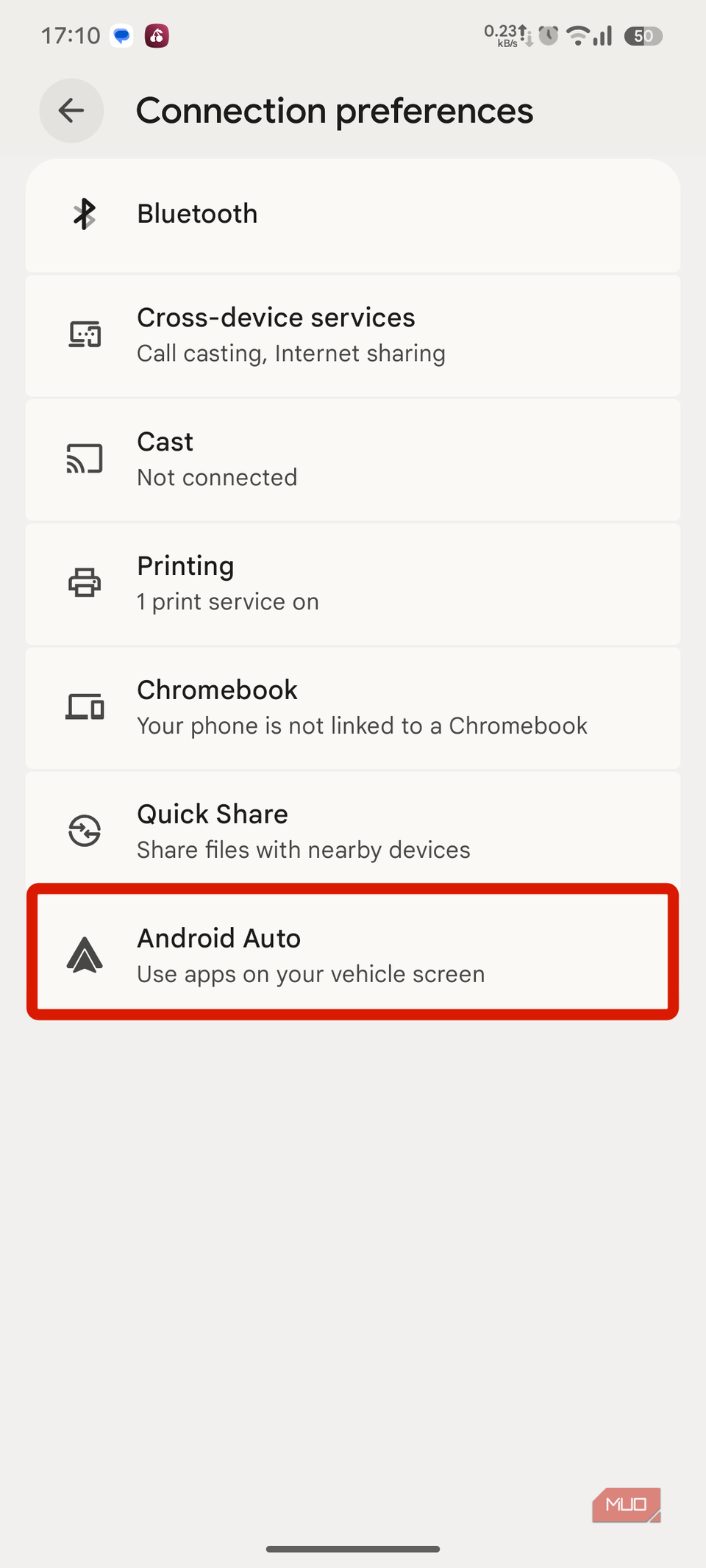
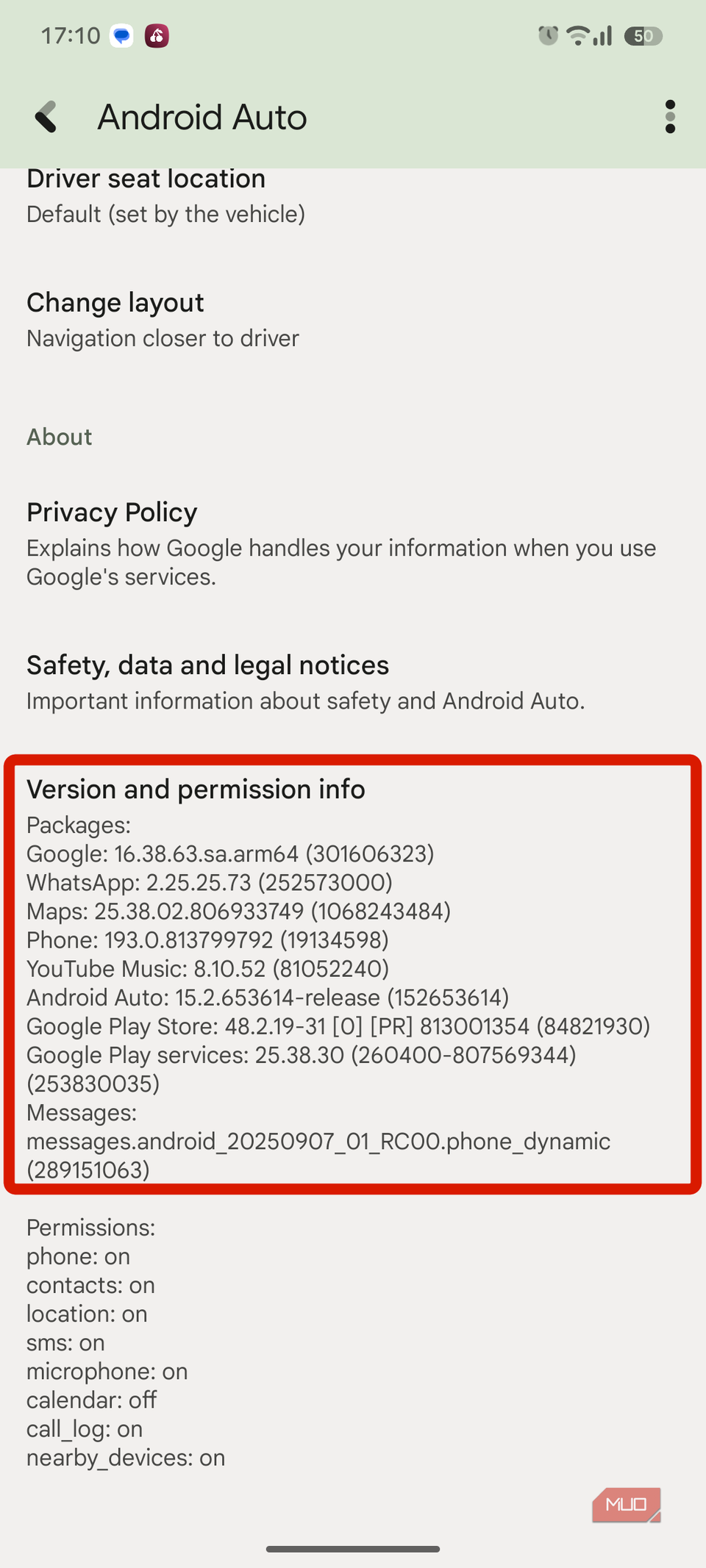


Once you see the pop-up that says Developer mode is enabled, you can proceed with installing the AA Browser app on your phone.
How to install AA Browser on Android
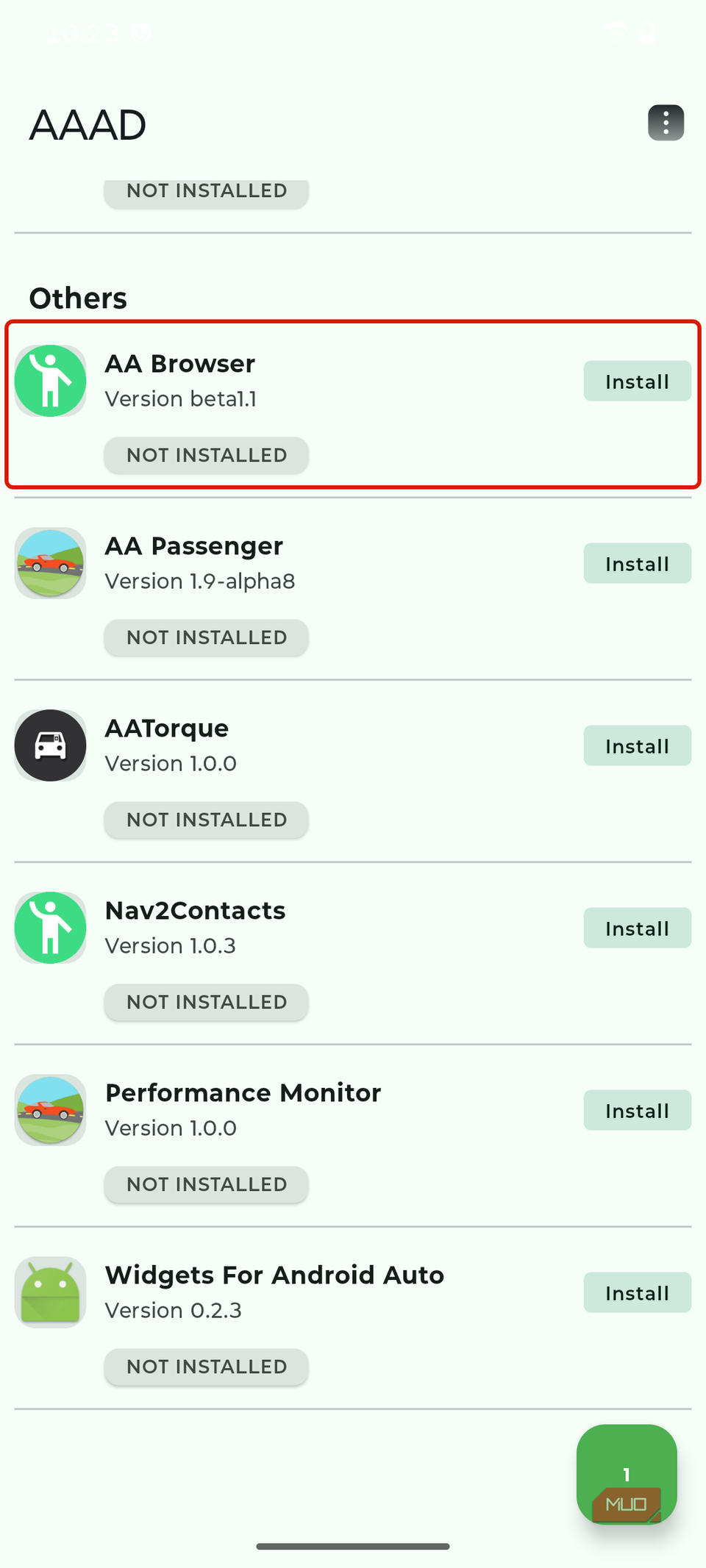
Here's an easy way to install AA Browser on your smartphone. First, download the AAAD app from GitHub. Once that is done, follow these steps:
- Open the AAAD app and get past the welcome set-up.
- Navigate to the AA Browser under the Others tab.
- Once the app is downloaded, tap install.
- Go to the Android Auto settings.
After installing AA Browser:
- Open the Developer settings from the three-dot menu in the top right corner.
- Enable Unknown sources settings in Developer options.
- Go back to the Android Auto settings dashboard.
- Tap on Customize Launcher under Display settings.
- Enable the AA Browser app in launcher customization.


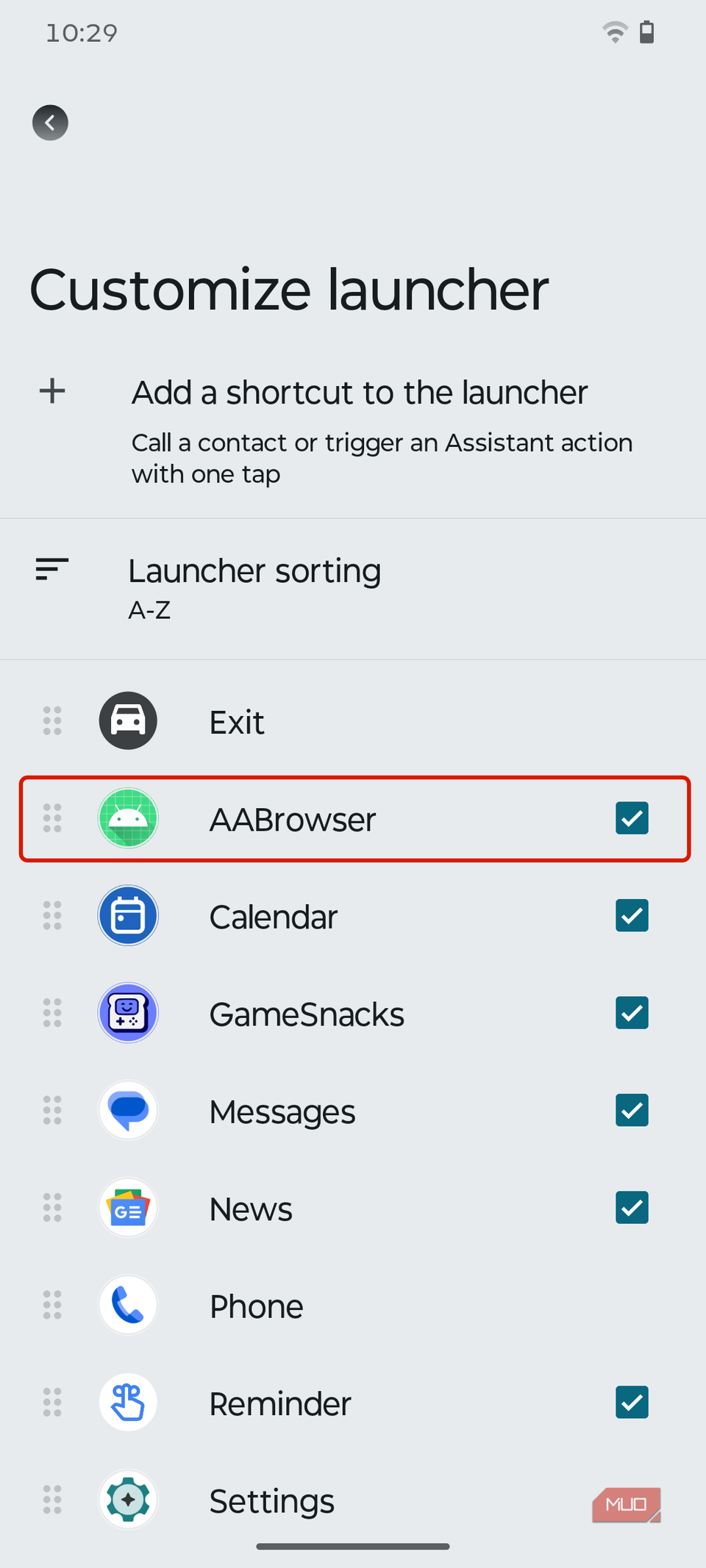
And done! When you reconnect the phone to Android Auto, you will be able to find the AA Browser app in the Android Auto launcher list on your car's console.
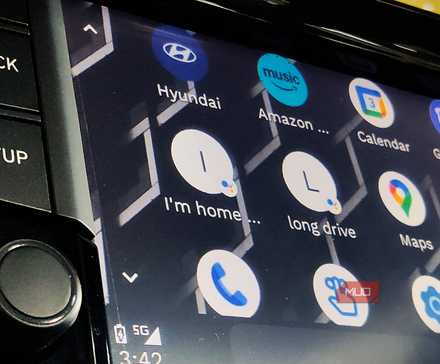
You’re not using Android Auto properly until you try these Google Assistant routines
You should seriously give this one Android Auto feature a chance.
What makes AA Browser the best Android Auto browser?
It's feature-packed and makes the trip fun
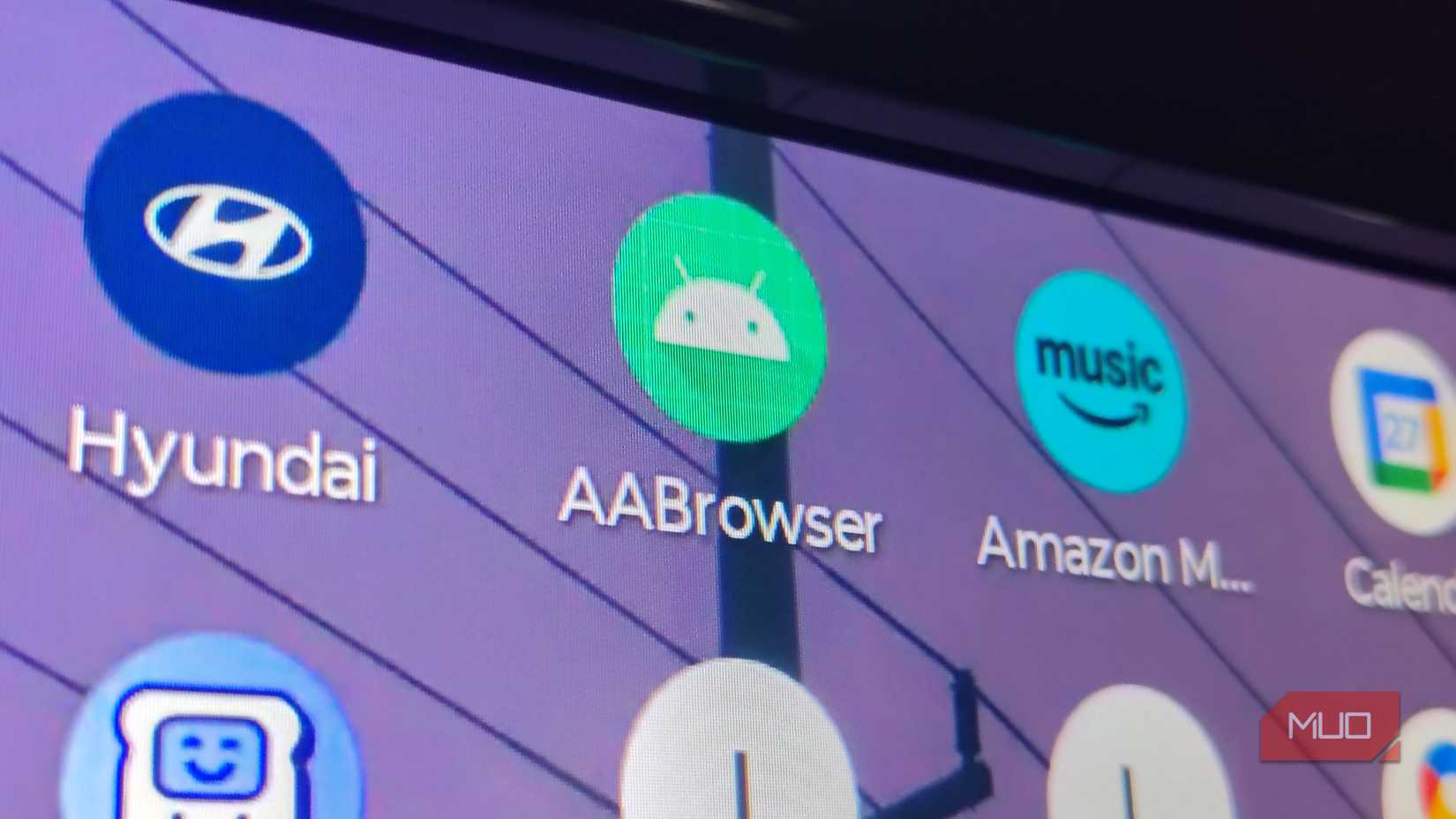
AA Browser is more than a browser. It doubles as an online media player built specifically for Android Auto, letting you browse the web, stream YouTube, and play other online media—all in one place on the car’s console.
It’s designed for car displays and touch interfaces, which gives it an edge over traditional mobile browsers. YouTube playback is smooth, and IPTV sites can provide free-to-air channels for passengers. Multi-tab browsing is supported as well, making it useful during those inevitable parking-lot waits.
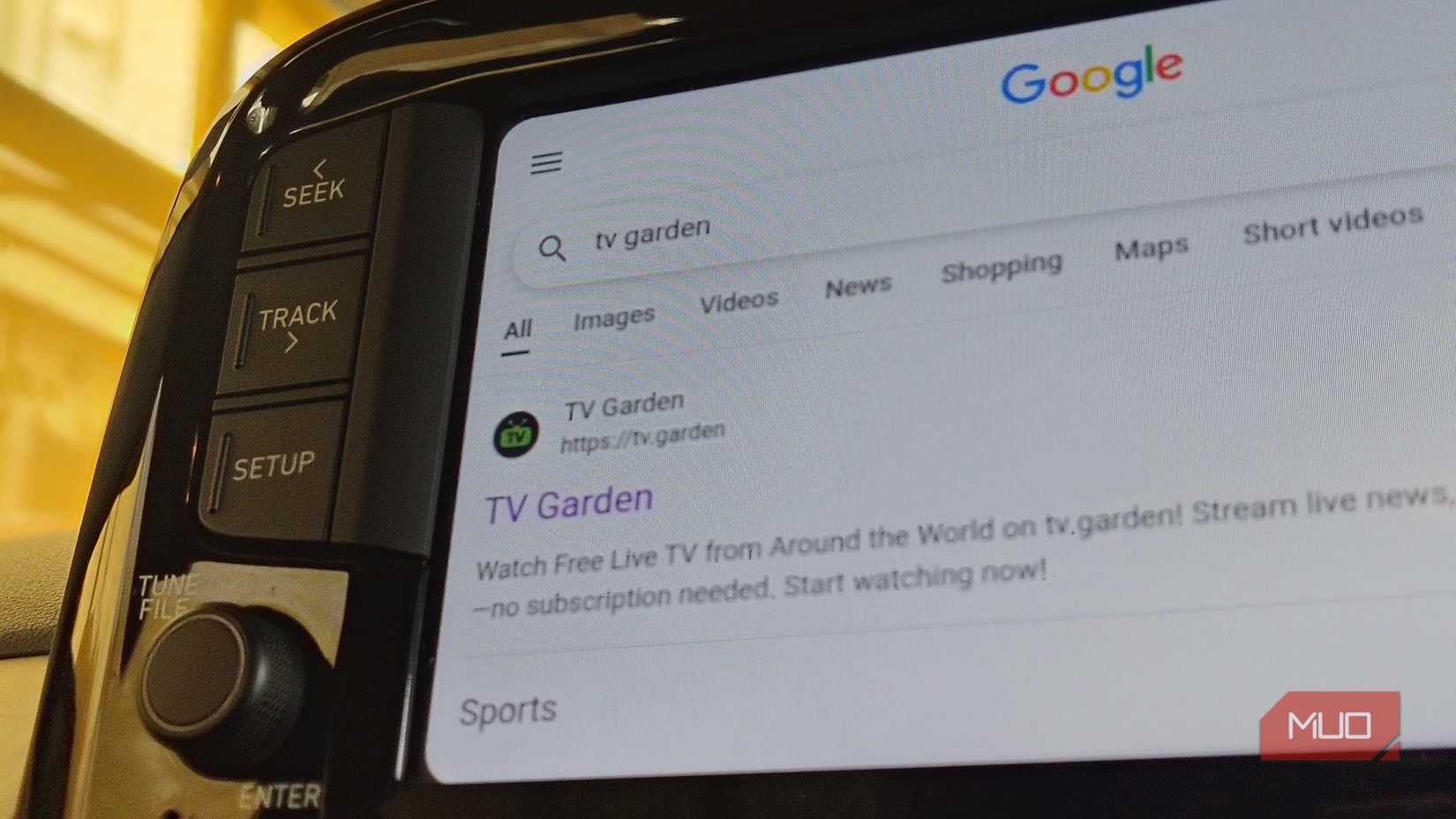
It works over both wired and wireless Android Auto connections, and — crucially — it disables all browsing and video playback while the vehicle is moving.
But why do you need the browser on Android Auto?
Change the way you stream media in a car
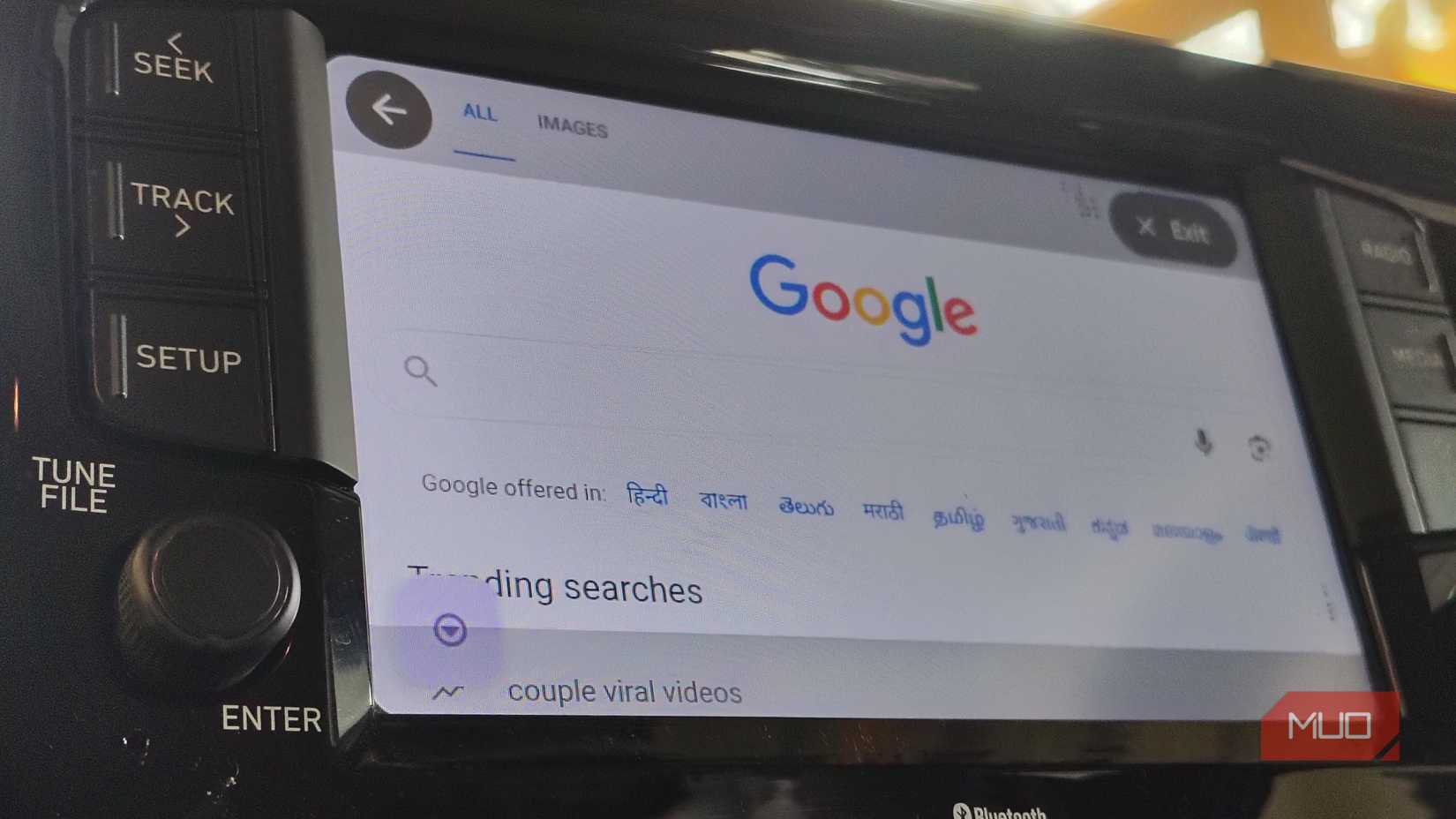
Now that AA Browser is installed, the real question is why you’d even want a browser in Android Auto. The simple reason is that it makes the dead moments — waiting in a parking lot, sitting at a charging station — far less boring. A browser becomes a front-end for utility sites, video players, and streaming services that don’t have native Android Auto support, giving you more to do when the car isn’t moving.
Critics will say Android Auto exists to reduce distractions, and they’re right. That’s exactly why Google blocks browsers while driving. But when you’re parked, many people still prefer the car’s larger, centrally placed display instead of hunching over a phone. The point isn’t to browse while driving — it’s to make use of the screen during the inevitable idle time when a bigger shared display simply works better.
AA Browser is great, but there's a catch
It's good, but not complete
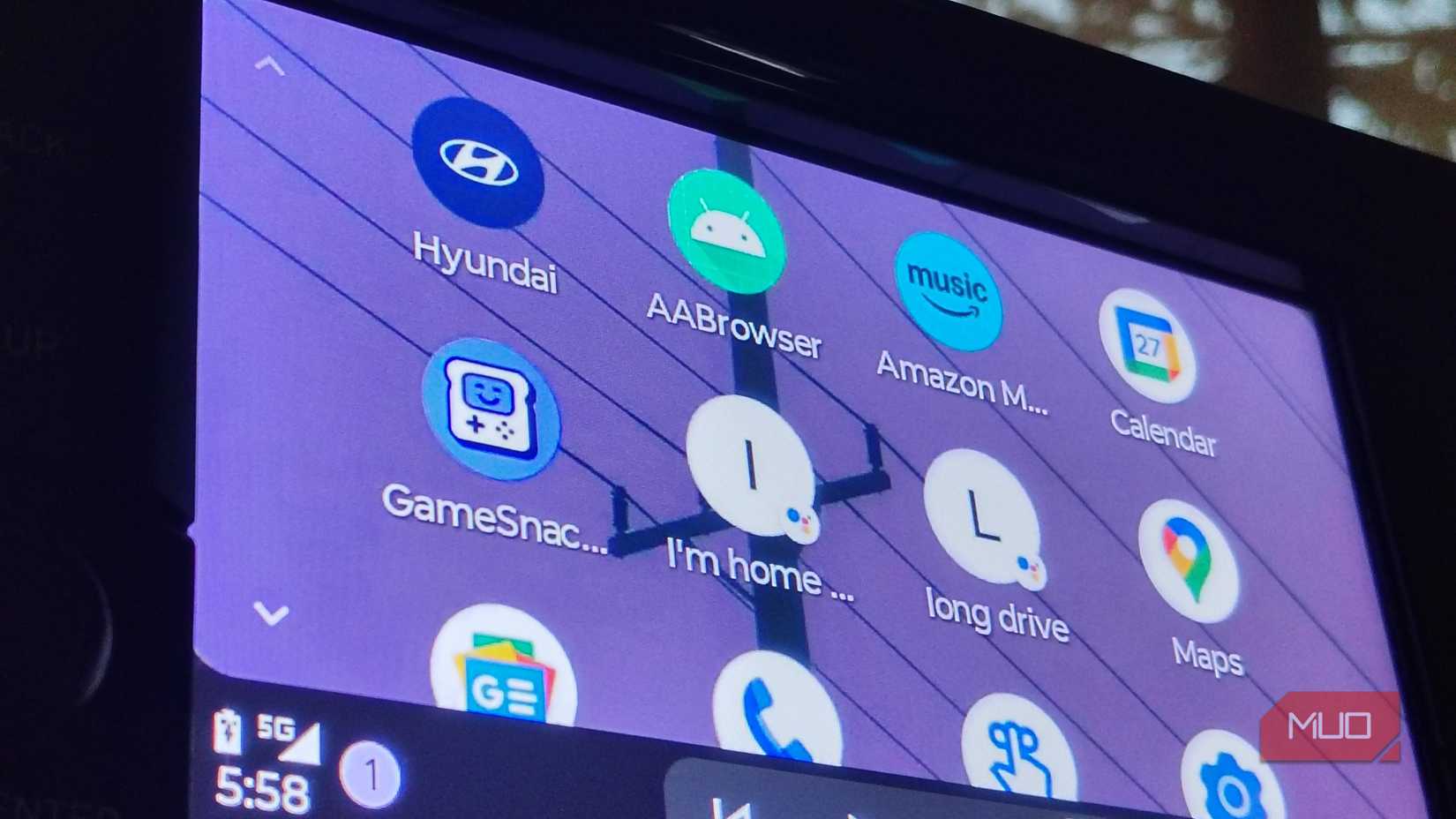
The biggest limitation is AAAD itself: you can only download one app every 30 days, which means once you grab AA Browser, you won’t be able to update it until that window resets. You also have to keep AAAD installed for AA Browser to function.
AA Browser works well as an all-in-one tool for browsing and streaming, but its legal use depends on where you live. Some regions prohibit video playback in vehicles entirely, and local traffic laws may apply even when you’re parked.
If you’re someone who gets distracted easily, AA Browser simply isn’t for you. Safety takes priority, and drivers should avoid any kind of visual distraction on the road.
Make trips more entertaining with AA Browser
To sum up, AA Browser is a solid in-car multimedia companion for anyone who wants more from Android Auto than navigation and music. It adds browsing and video streaming in a way that’s designed for safe, convenient use when the car is parked.
It effectively turns the console into a flexible information hub, making those idle moments far more enjoyable and productive. And because AA Browser shuts down completely when the vehicle moves, you still stay focused on the road, making it a practical and passenger-friendly companion for long trips.