Sometimes, you might want to access your Linux files from your Android/iOS devices without using a USB or any wired medium. Network sharing is a really easy way of sharing files, folders, or entire drives across devices on the same network. But once you set up network sharing, you also need to know how to access those files.
Let's learn how to access your Linux files on Android and iOS with a network share.
What Is Network File Sharing?
When you want to share a file or folder with someone, sometimes it is faster to share it over your local network, rather than uploading to the cloud or looking for a USB flash drive. This process is called network file sharing.
Setting up a File Transfer Protocol (FTP) server is also a valid option for file sharing remotely or on the local network, but it's much more of a hassle to set up than a network share.
Linux implements network sharing with Samba. It is a file-sharing service that implements open-source versions of the SMB suite of protocols, which was originally developed by Microsoft and IBM.
The Server Message Block (SMB) protocol is a network file-sharing protocol that allows computers to share files, printers, and other resources over a network. SMB facilitates authentication, access to shared resources, and file operations between clients and servers.
Set Up Network File Sharing on Linux
To start network sharing on Linux, you'll need to install and set up the Samba service. You can use the default package manager of your Linux distribution to install Samba.
On Ubuntu/Debian derivatives, use:
sudo apt install sambaOn Arch-based systems, run:
sudo pacman -S sambaOn Fedora, CentOS, and Red Hat Enterprise Linux, run:
sudo dnf install sambaSimply installing it is not enough, you'll need to configure Samba properly to set up and access shareable drives and folders on your Linux system.
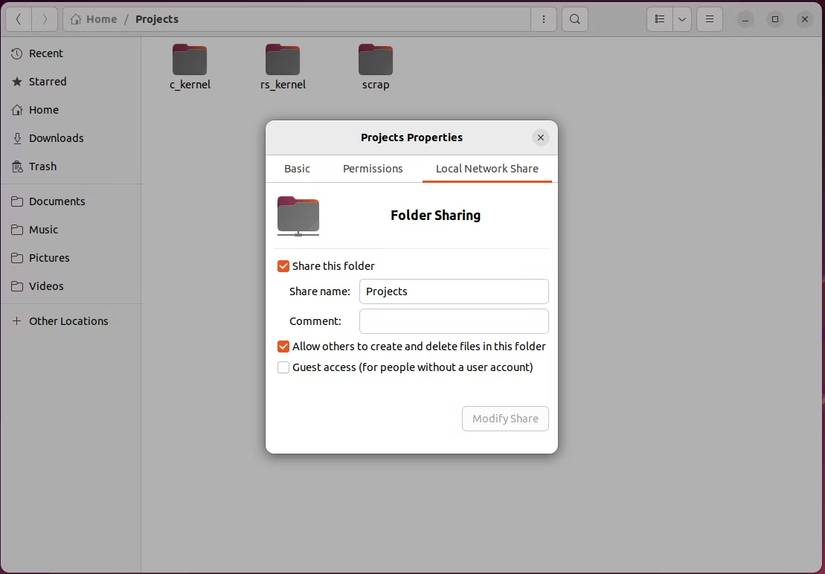
It's recommended you go through this walkthrough of how to install and configure Samba on Linux.
SMB is a protocol that's prone to vulnerabilities and Samba servers are a lucrative target for threat actors. Once you've set your Samba server up, it's worth knowing the best ways to secure your Samba server from cyber-attacks.
How to Access Network-Shared Linux Files From Android
Now that you have set up Samba and created a shared network drive, you need to connect your Android phone to the same network as your Linux system or vice versa. Once they're both on the same network, follow these steps to share files across Android and Linux:
- Fire up the Files application on your Android device. Then, scroll down to Network Storage and tap on it.
- Inside Network Storage, tap on Add network storage. It might ask you to select an option from a list of protocols. Tap on Network Drive or any option with SMB in the name.
- Your device will start to scan for locally shared drives. Wait for it to locate your shared drive. If your device is unable to locate it, follow the next steps.
- First, you need to find the IP address of your Linux system. After noting the IP address, go back to your Android device and tap on Add Manually.
- In the new window, type in the IPv4 address you copied earlier into the Address field. Then, type 445 into the Port field. Finally, fill in the Username and Password fields with your account credentials and hit on Add or Connect.


How to Access Network-Shared Linux Files From iOS
The steps to access Linux files from iOS are identical to the steps required to access Linux from Android devices.
First, grab the IPv4 address of your Linux system. To do so, fire up a new terminal and type in ifconfig. It should return output related to the network settings of your Linux system. From the output note down the IPv4 address in the inet field. It will most probably be something like "192.168.1.10".
In case you face an "ifconfig command not found" error, you can also use the ip a command as an alternative. Once you have the IPv4 address of your Linux system hosting the drive, follow these next steps to connect to it from your iOS device:
- Fire up the Files application on your iOS device.
- Click on the three horizontal dots (ellipsis) in the top-right corner. From there, select Connect to Server.
- A new window should open up asking you to input the IP address of the shared drive. Type in the IP address that you previously noted down and tap Next.
- Then, you will be prompted to enter the user account credentials to access the shared drive. Type them in and tap Next.


Now you should be able to view the files on the shared drive. You can now download, upload, or modify the local files on your Linux system with ease.
Access Your Linux Files From Android/iOS With Samba
Now that you know how to access your Linux files using Samba, uploading, downloading, and modifying files should be super easy to do. Now you won't have to rely on downloading and testing third-party applications for minor tasks like copying PDF files from your Linux to your Android/iOS devices.
Samba servers are common targets of adversaries, so tread with caution should you choose to permanently keep the server up and running. It's highly recommended you follow the security best practices and make the required configuration to avoid unsolicited access or system compromise.
Moreover, if you wish to share files between computers on the same network, that is possible as well. But for heavy file sharing between two computers, it's better if you try out other, more secure, and efficient alternatives to network sharing.