Our phones help us keep in touch with people, manage our schedules, make payments, listen to music, work, store photos and videos, and more.
For these reasons, losing or misplacing your phone can be a nightmare, especially if it hasn't been backed up or placed in secure folders. Losing our devices would mean losing access to our personal data and files.
With Google's built-in Find Hub, finding your lost Android phone doesn't take much time if your phone meets certain conditions.
You can even use it to lock or erase your data to keep prying eyes away.
This information also works for Android tablets and Wear OS smartwatches.
How to find your phone's IMEI number
Locating your mobile phone's unique identification number is easy-peasy
Android's anti-theft protection
Google rolled out three anti-theft features in October 2024: Theft Detection Lock, Offline Device Lock, and Remote Lock.
Theft Detective Lock uses Google's AI and machine learning models to detect theft-related motions, such as when your phone is forcefully snatched. When locked, the phone cannot be unlocked even if the thief knows your PIN.
Offline Device Lock automatically locks the phone's screen if the phone remains offline for a while, as some thieves try to bypass remote blocking while offline or in airplane mode.
Note that this only works twice a day. Remote Lock lets you lock your phone with just a phone number (it also requires bypassing a security challenge), which is useful when you cannot log in to Find Hub with your password.
These features may not be on by default. You can check by searching for "theft protection" in your Settings or Personal & device safety while on the Google services page.
What you need to do before you lose your phone or tablet
Find Hub (formerly, Find My Device) used to require an active internet connection through mobile data or a Wi-Fi network to work as expected.
However, an update to the Find network makes it possible to locate your Android phone even when it's offline. Google Pixel 8, Pixel 9, and Pixel 10 users get another perk with the update.
Pixel 8, Pixel 8a, and Pixel 8 Pro users can find their devices even when the phone is off or the battery is dead.
This feature works with the Pixel 9 series, including the Pixel 9, Pixel 9 Pro, Pixel 9 Pro XL, and Pixel 9 Pro Fold, as well as the Pixel 10 series.
The concept works like Apple's Find My network, where your lost Android phone harnesses nearby Bluetooth signals from other Android devices.
The latest device whereabouts are transferred to Google's Find Hub network, which you can check through another Android phone or the web version.
If you want to lock or erase your lost Android phone, it must meet the following conditions:
- The Android phone needs sufficient power.
- It needs an active internet connection.
- It should be signed in to your Google account.
- Find Hub must be turned on.
- It should be visible on Google Play.
In most cases, these conditions are met without requiring any action from you, but they may be clues to look at if you can't find your device.
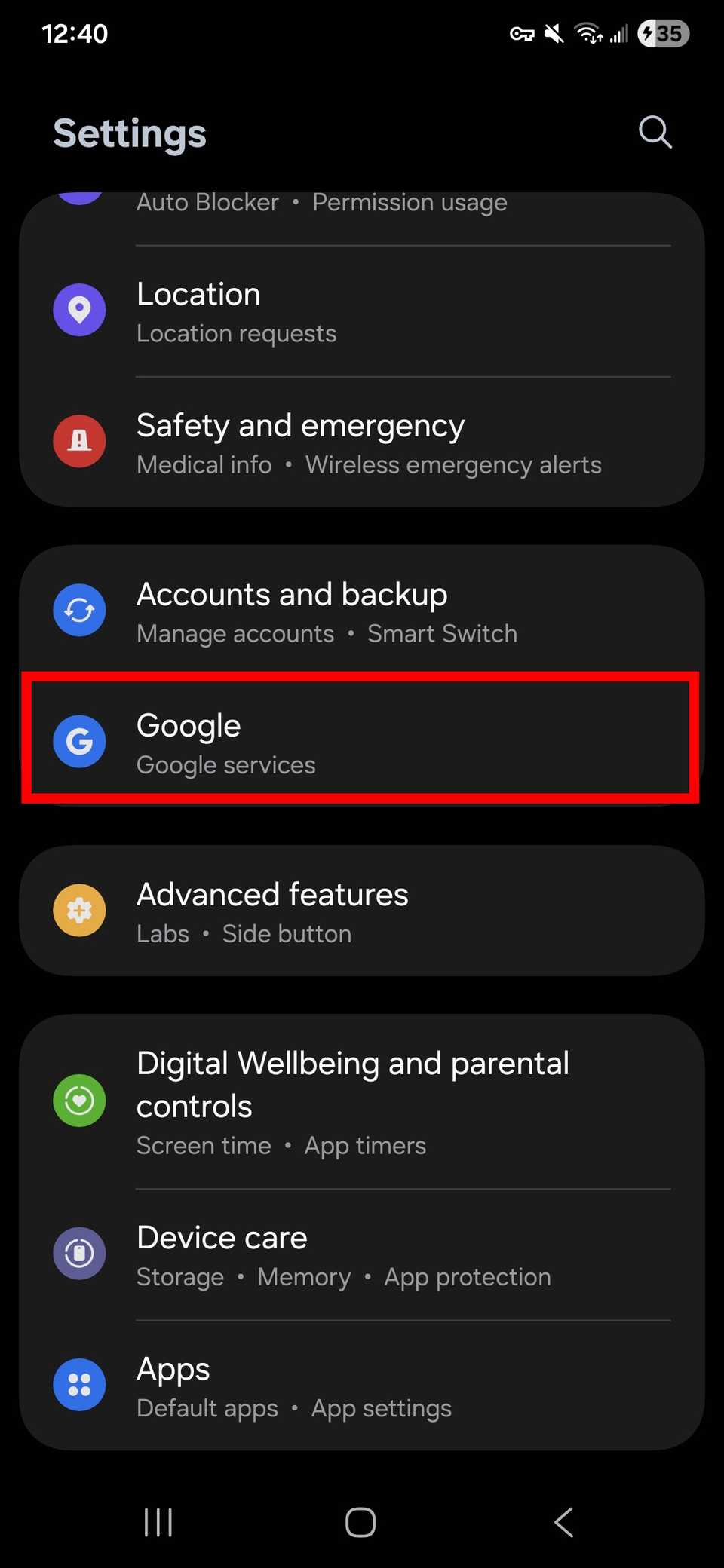
You can also check if Find Hub is activated on your phone by going to your settings and checking under Security > Find Hub or Google > Find Hub.
If it's turned on and you still can't see your phone on the Find Hub website, check Google's troubleshooting page to troubleshoot the issue.

How to find your phone, tablet, or smartwatch
When you're sure your Android device meets all the requirements above, you can look for it in a few steps.
It's simple, so you shouldn't have any trouble getting your phone back, as long as it isn't in the middle of the ocean. You don't need to install an app.
All you need is a device with a web browser and an active internet connection.
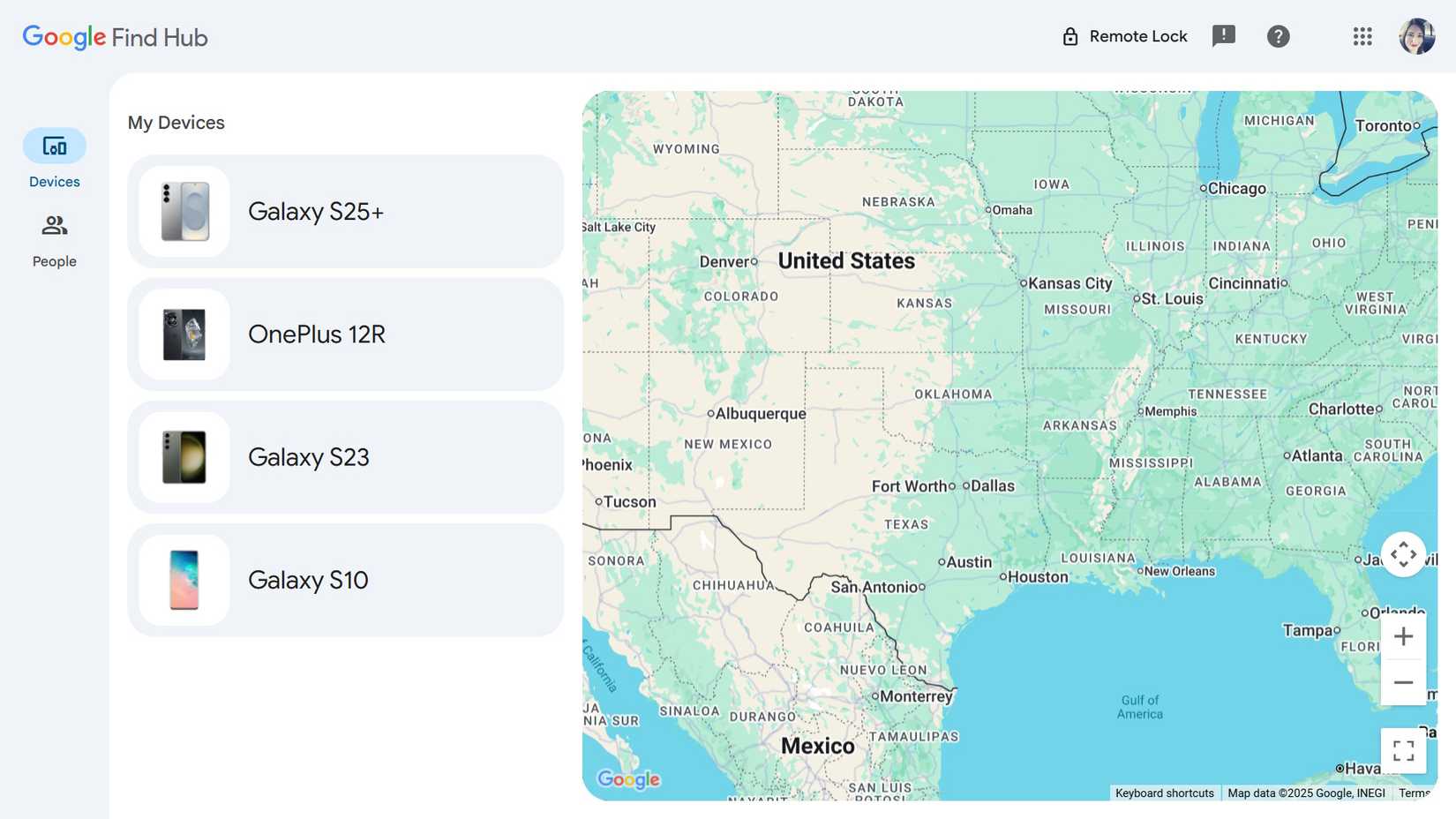
- Visit the Google Find Hub website.
- Sign in to your primary Google account.
- Click the lost phone in the upper-left corner.
- A Google Map appears, showing where your Android smartphone is located.
- If it's turned off, you'll see your phone's location from when it was last on the network.
- Click Play sound to ring the phone for five minutes, even if it's on silent/vibrate.
- Click Secure device to sign out of Google and lock your device.
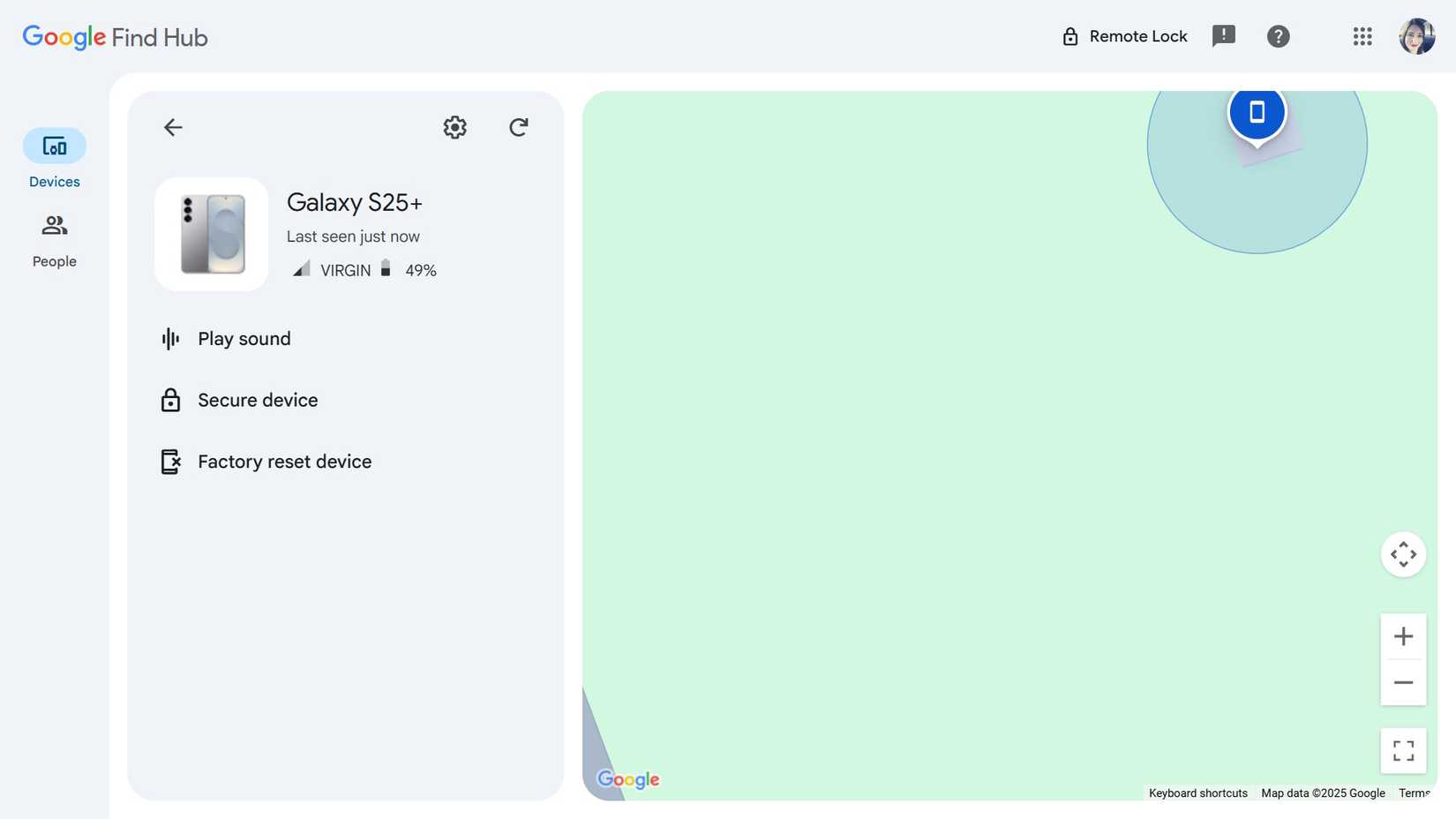
In addition to playing a sound to secure the device, the Find Hub website allows you to display a message on the lock screen, providing the person who found your phone with pertinent information for returning it.
However, you can't do anything if the device is turned off or not connected to the internet. Still, your actions are performed swiftly when it's turned on or connected.
If you have other Android devices, download the Find Hub app to check their location and make them ring.
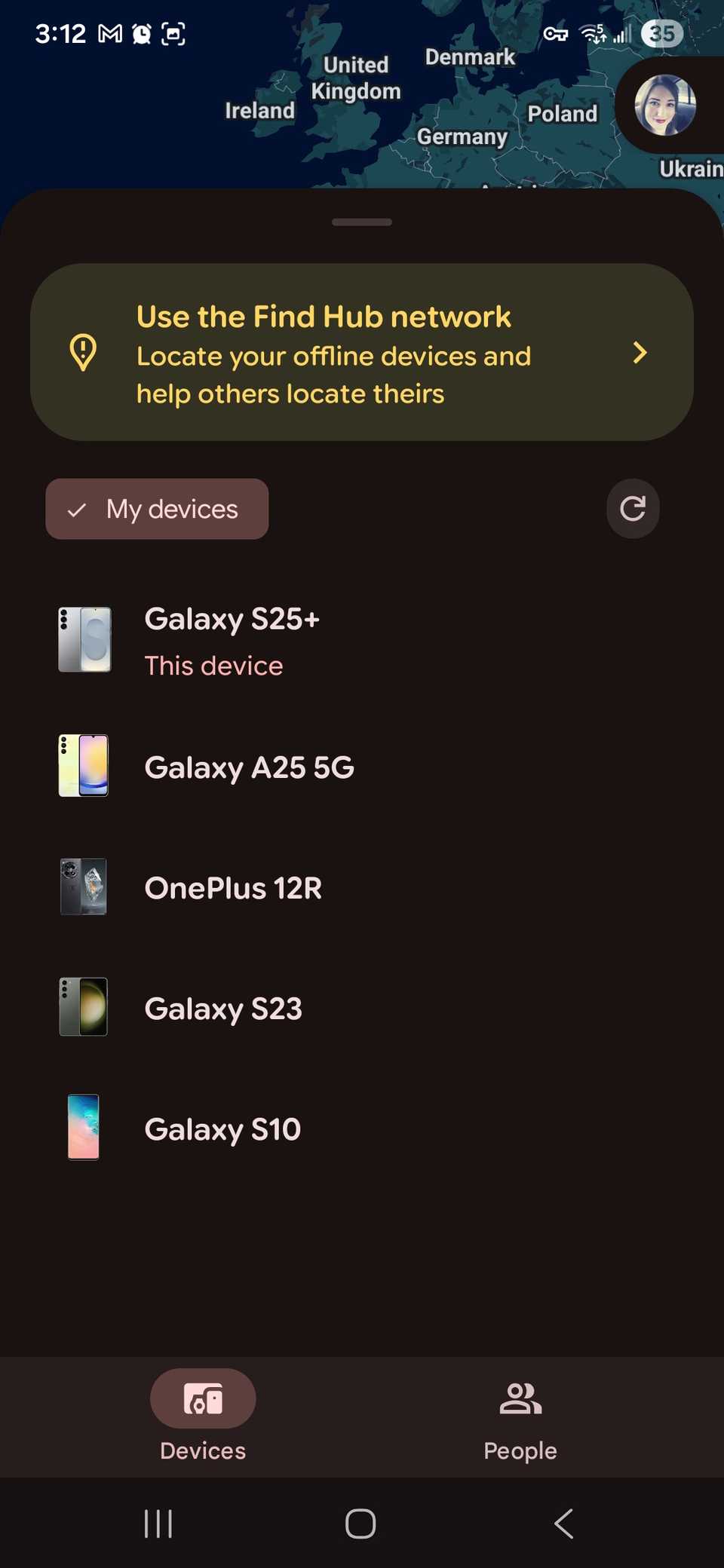
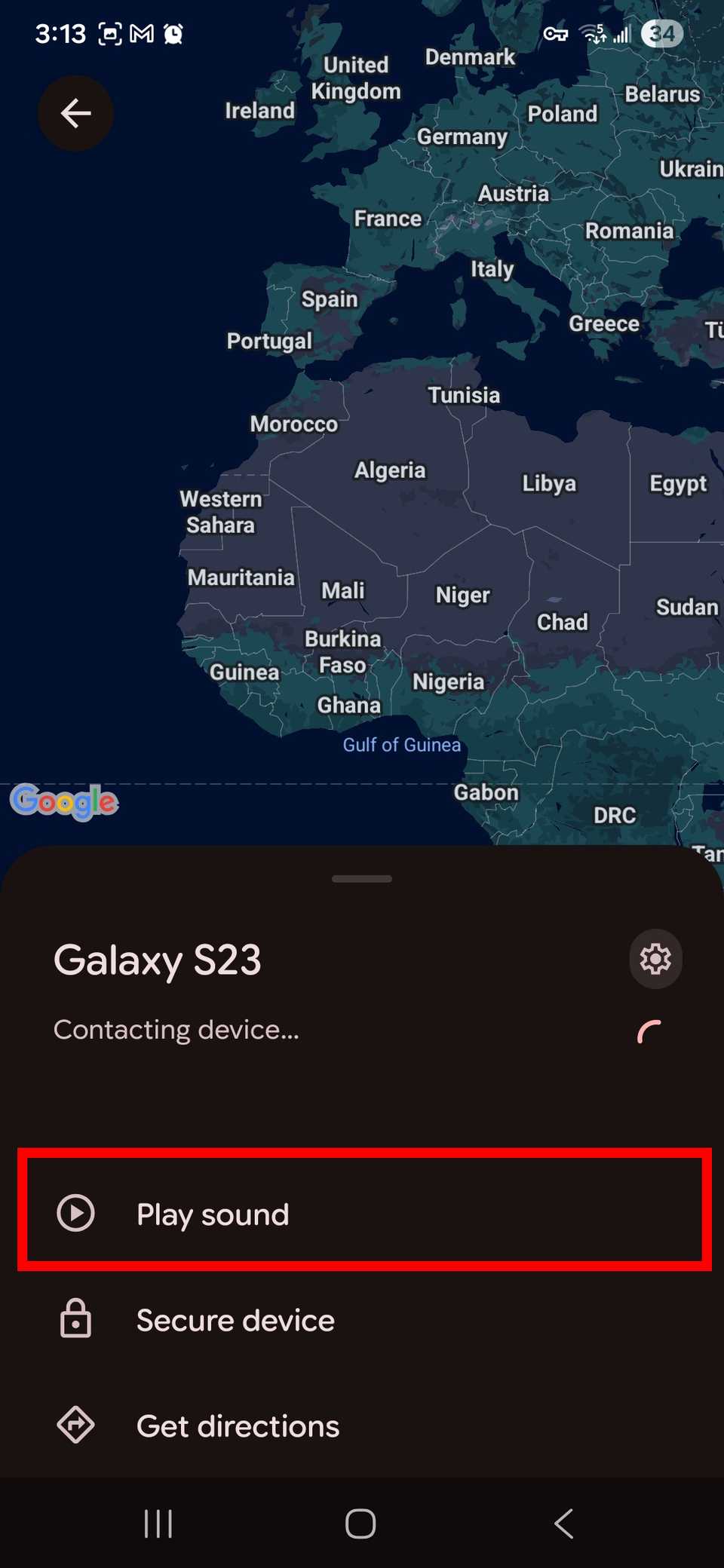
If you don't see the Find Hub app from Google on your device, download it from the Play Store.
You don't need a Google Pixel phone for this to work. Samsung devices can be found in a similar way.
Protect your device's data
Even if you located your lost Android phone, that doesn't mean you can retrieve it. Maybe you left it somewhere, but it could have walked off with someone who chose not to return it.
Still, you don't want your valuable information to fall into the wrong hands, so you'll want to take action to nuke an unrecoverable device.
Android provides several convenient options that help you keep your device safe without physically retrieving it.
After locating the device with the Find Hub tool, Android allows you to lock it if you don't have a locking mechanism. Additionally, it allows you to erase the device to keep your personal data safe.
- Find your Android phone using Find Hub on the web (check the steps above).
- Click Secure device to lock the device with a PIN, password, or pattern. It also logs you out of your Google account. Click Continue to mark it as lost.
- Select Factory reset device and follow the on-screen instructions to delete all data.

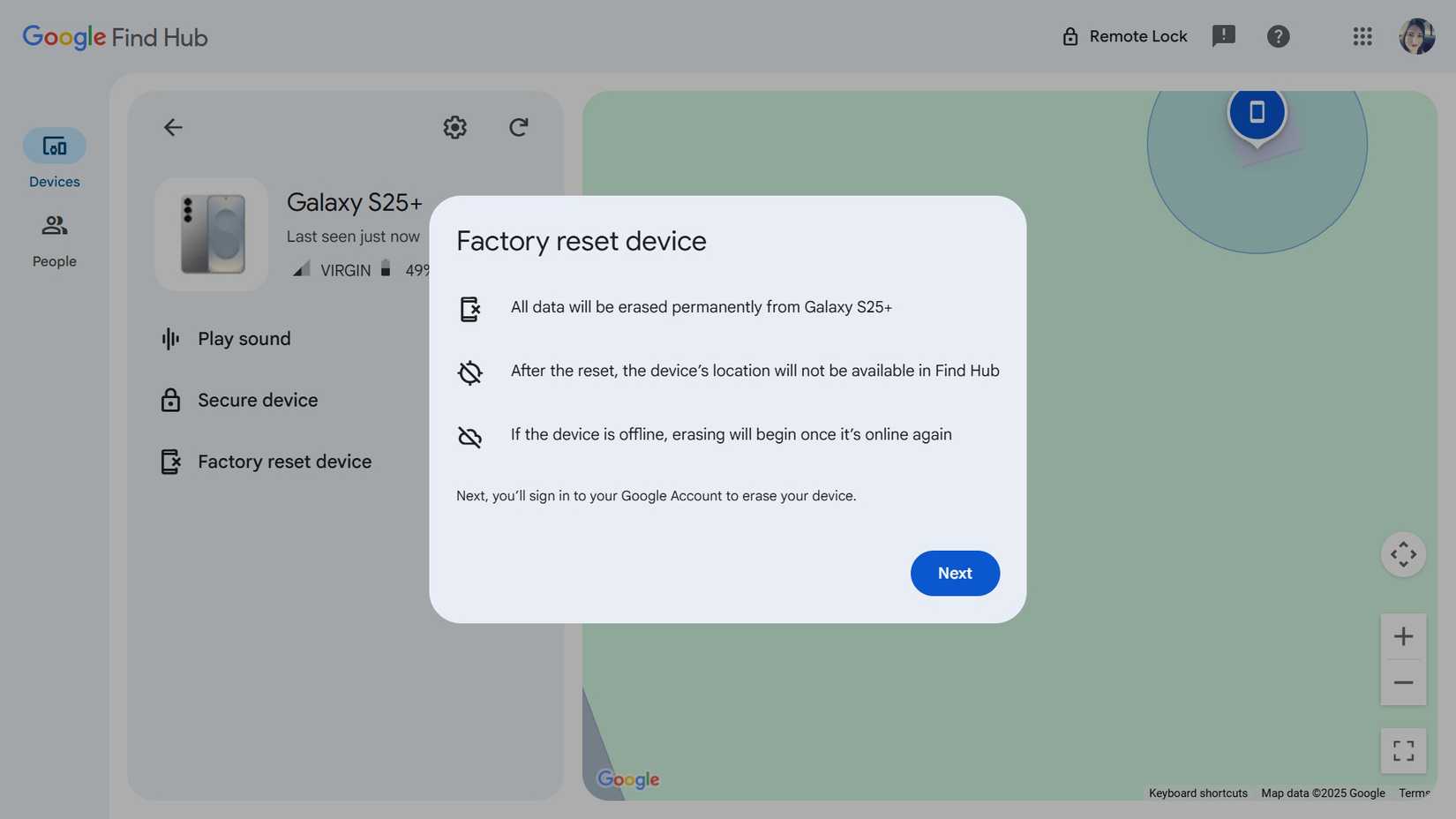
It's always important to use a proper backup solution, ensuring your data is always safe, even if you lose your phone or don't have access to it.
Use your smart speaker to find your phone or tablet
Smart speakers are for more than asking questions and playing music. Your handy Google Home and the Google Gemini or Google Assistant housed within can help you track down your lost smartphone.
That is, as long as it's within earshot of you and your search party.
All you do is say, "Hey Google, where's my phone?" The smart speaker rings your device, even if it's set to vibrate or Do Not Disturb.
This won't help you find your phone on a map. However, the loud ringing should end your search quickly and easily if it's stuck between the couch cushions.
When your device is really gone
If you've looked high and low and your phone is still lost, it may be time to call it a day.
If you need a new phone and your budget is a bit tight, given the loss of your device, check out carrier deals and our favorite budget phones.
A phone insurance plan is also a good idea, and most carriers offer inexpensive monthly options that can be added to your bill.
You'll also want to keep your phone number and IMEI number on hand, as you can provide those details to your carrier if you can't find your phone.
Your provider should be able to block the number and deactivate the SIM so that no potential thief can steal your identity.
You should also check your carrier coverage, car or renter's insurance, and credit card terms for your stolen Android phone.